Risorse e Produttività
8 min di lettura
Updated on:
Sep 15, 2025
Come creare e utilizzare un modello di email in Gmail
Vuoi sapere come impostare e utilizzare i modelli di email di Gmail? Ecco la tua guida.
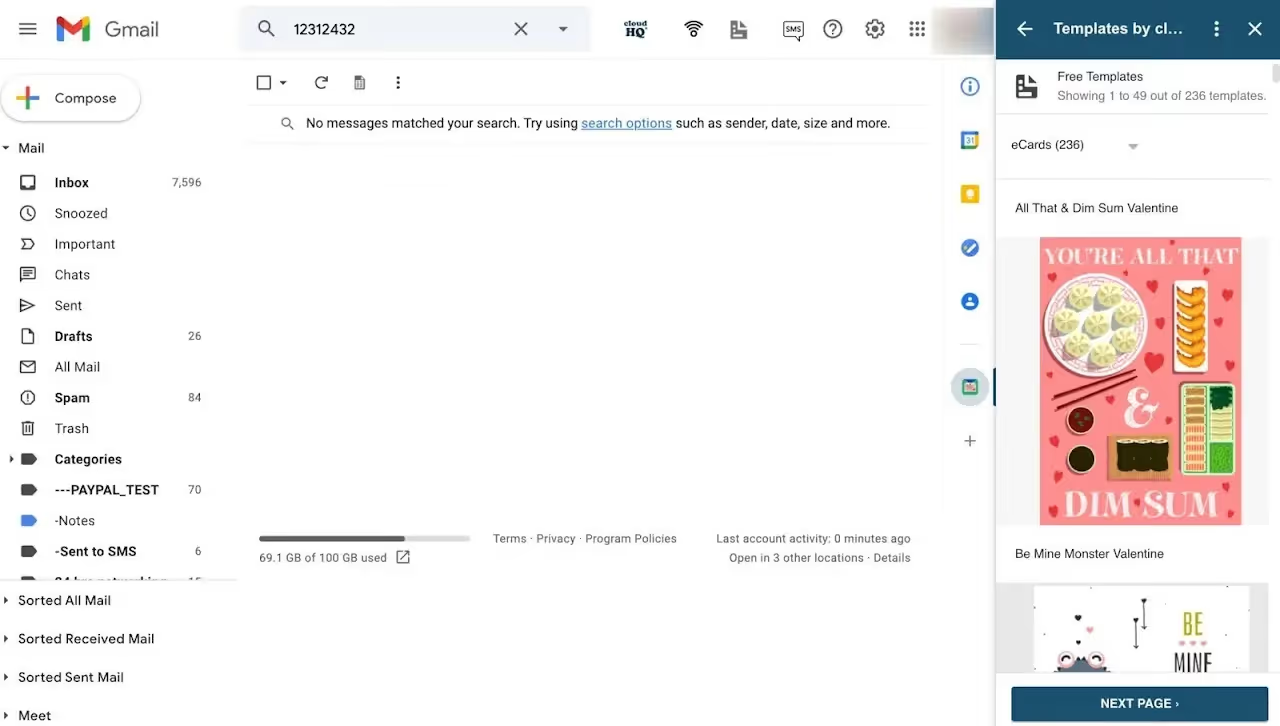
Quante volte questa settimana hai scritto da zero la stessa email?
È qui che i modelli di Gmail ti vengono in aiuto.
In questa guida imparerai a creare, modificare e utilizzare i modelli di Gmail.
Come creare un modello di email in Gmail
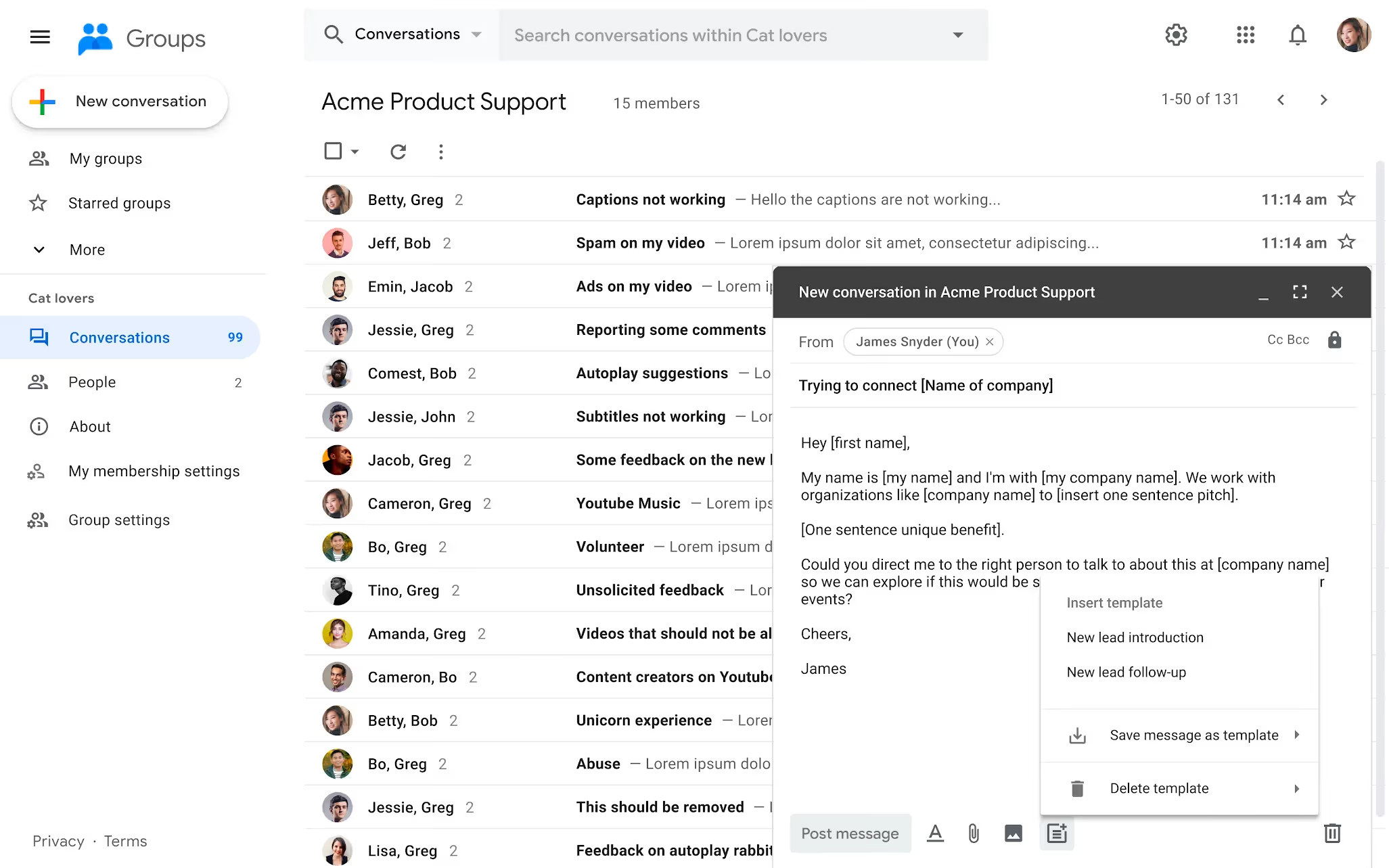
Passaggio 1 — Abilita i modelli (operazione una tantum)
Apri Gmail nel tuo browser. Vai su Impostazioni → Visualizza tutte le impostazioni → Avanzate. Attiva Modelli, quindi Salva modifiche. Se in seguito non vedi i modelli durante la composizione di un'email, torna qui e verifica che siano abilitati.
Passaggio 2 — Scrivi il messaggio che riutilizzerai
Clicca su Scrivi. Scrivi il corpo del testo esattamente come vuoi riutilizzarlo. Mantieni segnaposto come {Nome}, {Data}, e {Ruolo} così da poter personalizzare tutto in pochi secondi. Quando sei soddisfatto, clicca sul menu Altre opzioni (⋯) in fondo alla finestra di composizione.
Passaggio 3: Salva come modello
Scegli Modelli → Salva bozza come modello → Salva come nuovo modello. Assegna un nome chiaro, come “Conferma colloquio — in sede”. Il tuo modello è ora salvato e pronto per essere inserito in qualsiasi momento.
Passaggio 4: Crea varianti per i tuoi flussi di lavoro
Probabilmente ti servirà più di una versione. Crea modelli separati per il primo contatto, la pianificazione, le conferme e i rifiuti. Salva ogni bozza tramite Modelli → Salva bozza come modello così da poter scegliere rapidamente quello giusto.
Opzionale: usa i “Layout” di Gmail per email brandizzate (Workspace)
Se utilizzi Google Workspace, puoi partire da Layout per aggiungere loghi, immagini e sezioni. Scegli un layout, personalizzalo e usalo per inviare email a gruppi più numerosi. È un'ottima soluzione da abbinare ai modelli quando cerchi un aspetto più curato.
Come modificare un modello di email in Gmail
Non esiste un vero e proprio “editor di modelli” in Gmail. Devi sovrascrivere un modello esistente con una nuova bozza, oppure puoi salva come nuovo. Puoi anche eliminare i modelli di cui non hai più bisogno.
Passaggio 1: carica il modello in una bozza
Fai clic su Scrivi. Apri il menu Altre opzioni (⋮) nella parte inferiore della finestra. Vai su Modelli → Inserisci modello e scegli quello che desideri modificare.
Passaggio 2: apporta le modifiche
Aggiorna il testo, i link e i segnaposto direttamente nella bozza. Mantieni il tono e la formattazione coerenti con gli altri modelli. Accorcia i paragrafi lunghi per una lettura più rapida.
Passaggio 3: sovrascrivi il modello esistente
Apri di nuovo Altre opzioni (⋮) . Scegli Modelli → Salva bozza come modello → Sovrascrivi modello, quindi seleziona il nome del modello da sostituire. Conferma quando richiesto.
Passaggio 4 — Oppure salva come nuova versione
Vuoi conservare quella vecchia? Scegli Salva bozza come modello → Salva come nuovo modello invece. Assegnale un nome distinto e facile da trovare. Ora avrai entrambe le versioni a disposizione.
Passaggio 5 — Elimina i modelli che hai sostituito
Apri Altre opzioni (⋮) → Modelli → Elimina modello. Clicca sul nome del modello e conferma Elimina. Mantieni il tuo elenco in ordine per scegliere rapidamente quello giusto.
Come utilizzare un modello di email in Gmail
Inserisci un modello in pochi secondi
Clicca su Scrivi. Apri Altre opzioni (⋮) nella parte inferiore della finestra. Vai su Modelli → Inserisci modello e seleziona quello che ti serve. Il contenuto verrà inserito direttamente nella tua bozza.
Personalizza i dettagli. Aggiungi nomi, date e link. Mantieni uno stile coerente, quindi invia.
Riutilizza i modelli con i "Layout" di Gmail (per email brandizzate)
Vuoi un aspetto curato e in linea con il tuo brand? Nella finestra di composizione, clicca su Layout. Scegli un layout, personalizza logo, colori e sezioni, quindi inserisci il testo del tuo modello o adatta i blocchi del layout. È perfetto per aggiornamenti del team o newsletter per i candidati.
Puoi duplicare o eliminare i layout salvati man mano che le tue esigenze cambiano. Mantiene la tua grafica ordinata e riutilizzabile.
Automatizza le risposte con i filtri
Apri il menu a tendina della barra di ricerca di Gmail e definisci i tuoi criteri. Clicca su Crea filtro, seleziona Invia modello, quindi scegli il modello per rispondere automaticamente quando un messaggio corrisponde ai criteri. È l'ideale per conferme di ricezione, conferme di appuntamenti o comunicazioni di assenza dall'ufficio.
Inizia in modo mirato. Usa indirizzi mittente specifici o parole chiave nell'oggetto per evitare invii errati. Puoi perfezionare i filtri in qualsiasi momento.
Conosci i limiti del mobile
I modelli funzionano nell'esperienza web di Gmail. Google specifica che è possibile "attivare e utilizzare" i modelli solo da computer. Se sei su mobile, apri Gmail nel browser per accedere all'interfaccia web o affidati a componenti aggiuntivi creati per il mobile come soluzione alternativa.
Se l'invio da mobile è fondamentale, valuta i componenti aggiuntivi del Marketplace che rendono disponibili i modelli all'interno dell'app Gmail. Trattandosi di soluzioni di terze parti, fai prima una prova con email non sensibili.
Flusso di lavoro quotidiano rapido
Fissa la tua routine. Tieni un breve elenco di modelli pronti all'uso: conferma colloquio, riprogrammazione, riepilogo riunione. Inserisci, personalizza e invia in meno di un minuto.
Usa la denominazione per fare più in fretta. Aggiungi un prefisso in base allo scopo (es. INT-Conferma, MEET-Riepilogo) così da individuare subito quello giusto nel menu Modelli .
Combinali con i layout durante le trasmissioni. Inserisci prima il modello, poi applica o modifica un layout per inquadrare il messaggio per gruppi più ampi. Il risultato sarà pulito e coerente.
Risoluzione dei problemi con i modelli email di Gmail
Hai creato dei modelli, ma qualcosa non va. Inizia da qui: risolverai rapidamente i problemi più comuni e potrai tornare subito a inviare le tue email.
Il menu "Modelli" non è visibile
Assicurati che i modelli siano attivi. In Gmail, vai su Impostazioni → Visualizza tutte le impostazioni → Avanzate → Modelli → Attiva, quindi clicca su Salva modifiche. Ricarica Gmail e prova a scrivere un nuovo messaggio.
Ancora non lo vedi nella finestra di composizione? Apri un nuovo messaggio, clicca su Altre opzioni (⋮) in basso e controlla se ora appare Modelli . In caso contrario, ricontrolla Avanzate e conferma che sia abilitata.
I modelli non vengono visualizzati sul telefono
I modelli di Gmail sono progettati per l' interfaccia web . Puoi attivarli e utilizzarli da un computer; non sono disponibili all'interno delle app mobile di Gmail. Se devi necessariamente usare un telefono, apri Gmail in un browser mobile per accedere all'interfaccia web.
Hai modificato una bozza ma il modello non è cambiato
È un comportamento previsto. I modelli non si aggiornano automaticamente quando modifichi una bozza inserita. Per aggiornare il modello stesso, inseriscilo, modifica il contenuto, quindi vai su Altre opzioni (⋮) → Modelli → Salva bozza come modello → Sovrascrivi modello (o Salva come nuovo modello se desideri una copia con versione).
Viene inserito sempre il modello sbagliato
Fai pulizia nell'elenco e nei nomi. Elimina le versioni non più utilizzate tramite Altre opzioni (⋮) → Modelli → Elimina modello, quindi verifica il nome che selezioni effettivamente sotto Inserisci modello. Usa una convenzione di denominazione chiara come INT-Conferma v2 o Riepilogo riunione Q4 per evitare clic accidentali.
Il modello è stato inserito, ma la formattazione sembra strana
I modelli di Gmail supportano la formattazione standard (grassetto, corsivo, link). L'HTML complesso può comportarsi in modo incoerente se incollato da altri strumenti. Mantieni una formattazione semplice oppure, se utilizzi Google Workspace e hai bisogno di blocchi di layout brandizzati, usa Layout nella finestra di composizione per aggiungere logo o sezioni, quindi incolla il testo del tuo modello.
Ti serve una newsletter o un annuncio visivo? Apri Layout dalla finestra di composizione, scegli un design e personalizzalo prima dell'invio. Si abbina perfettamente ai tuoi modelli salvati per comunicazioni a un pubblico più ampio.
Il filtro "Invia modello" non si è attivato
Apri Impostazioni → Filtri e indirizzi bloccati e modifica il filtro. Verifica che i criteri corrispondano effettivamente ai messaggi in arrivo (Mittente, Oggetto, Contiene le parole). Quindi conferma che Invia modello sia selezionato e che sia stato scelto il nome corretto del modello. Fai una prova cliccando su Cerca nei criteri del filtro prima di salvare.
Se continua a non attivarsi, restringi i criteri (ad esempio, usa l'oggetto esatto o una parola chiave univoca). I filtri vengono eseguiti lato server e non si applicano ai messaggi passati: solo le nuove email corrispondenti riceveranno la risposta automatica.
I modelli funzionano su un account ma non su un altro
Controlla quale account Gmail stai utilizzando nel menu dell'avatar in alto a destra. I modelli sono legati al singolo account. Se ti trovi in uno spazio di lavoro con controlli di amministrazione, alcune funzionalità come i componenti aggiuntivi o determinate opzioni potrebbero essere limitate; passa all'account corretto e riabilita i modelli se necessario.
Non riesci a trovare dove sono salvati i modelli
Non si trovano in una cartella separata. I modelli si trovano nella finestra di composizione sotto Altre opzioni (⋮) → Modelli. Da lì puoi Inserire, Salvare la bozza come modello, o Eliminare il modello.
Gli allegati non vengono salvati nei modelli
È normale. I modelli memorizzano il corpo del messaggio, non gli allegati. Inserisci prima il tuo modello, poi aggiungi i file o i link di Drive prima di inviare. Lascia una riga nel modello che ti ricordi: “Allega: CV.pdf / Agenda.pdf.”
Modelli di email professionali dalle riunioni: Noota

Tu registri, Noota scrive. Trascrive le tue chiamate e crea riepiloghi chiari con decisioni e attività da svolgere.
Modelli che userai davvero
Usa i follow-up delle riunioni per confermare decisioni e passaggi successivi. Prendi esempi collaudati e adatta il tono al tuo.
Invia riepiloghi efficaci subito dopo la chiamata. Organizzali con obiettivi, punti chiave, responsabili e scadenze.
Gestisci la pianificazione dei colloqui e i feedback senza dover riscrivere tutto. Scegli il tono più adatto alla fase del processo e al livello di seniority.
Passo dopo passo: dalla chiamata alla posta in arrivo
- Registra o partecipa alla tua riunione con Noota.
- Ottieni il riepilogo, i punti chiave e le azioni da intraprendere.
- Invia a Gmail con un clic
Vuoi generare email automaticamente? Prova Noota gratis ora.
Chi è l'autore
.avif)
Adesh explores how teams can better capture knowledge and collaborate more effectively with AI.
FAQ
Accedi a Gmail, vai in Impostazioni → Visualizza tutte le impostazioni → Avanzate e attiva Templates.
- Clicca su Impostazioni in alto a destra
- Seleziona Visualizza tutte le impostazioni
- Vai alla scheda Avanzate e abilita
Scrivi l'email, clicca il menu (⋯) in basso e scegli Templates → Salva bozza come template.
- Usa placeholder come {Nome} per personalizzare
- Dai nomi chiari ai template per trovarli subito
- Crea varianti per diversi flussi di lavoro
Noota automatizza il 80% delle attività amministrative e risparmia 6,4 ore settimanali rispetto a Gmail templates manuali.
- Supporta 80+ lingue con personalizzazione intelligente
- Integrazione nativa con CRM e workflow automatici
- Valutazione 4,9/5 su G2 da 5000+ team globali
Noota è la soluzione ideale: automatizza template, personalizza in secondi e riduce l'admin dell'80%.
- Perfetto per team che inviano 100+ email settimanali
- Risparmia 6,4 ore/settimana di lavoro manuale
- Prova Noota gratis — nessuna carta di credito richiesta