Risorse e Produttività
8 min di lettura
Updated on:
Sep 15, 2025
Come creare e usare i modelli di email di Outlook
Vuoi sapere come configurare e usare i modelli di email di Outlook? Ecco la tua guida.
Probabilmente passi più tempo a scrivere le stesse email di quanto vorresti ammettere.
I modelli di email di Outlook ti aiutano a risolvere questo problema.
In questo articolo imparerai esattamente come creare, modificare e utilizzare i modelli di Outlook.
Come creare un modello di email in Outlook
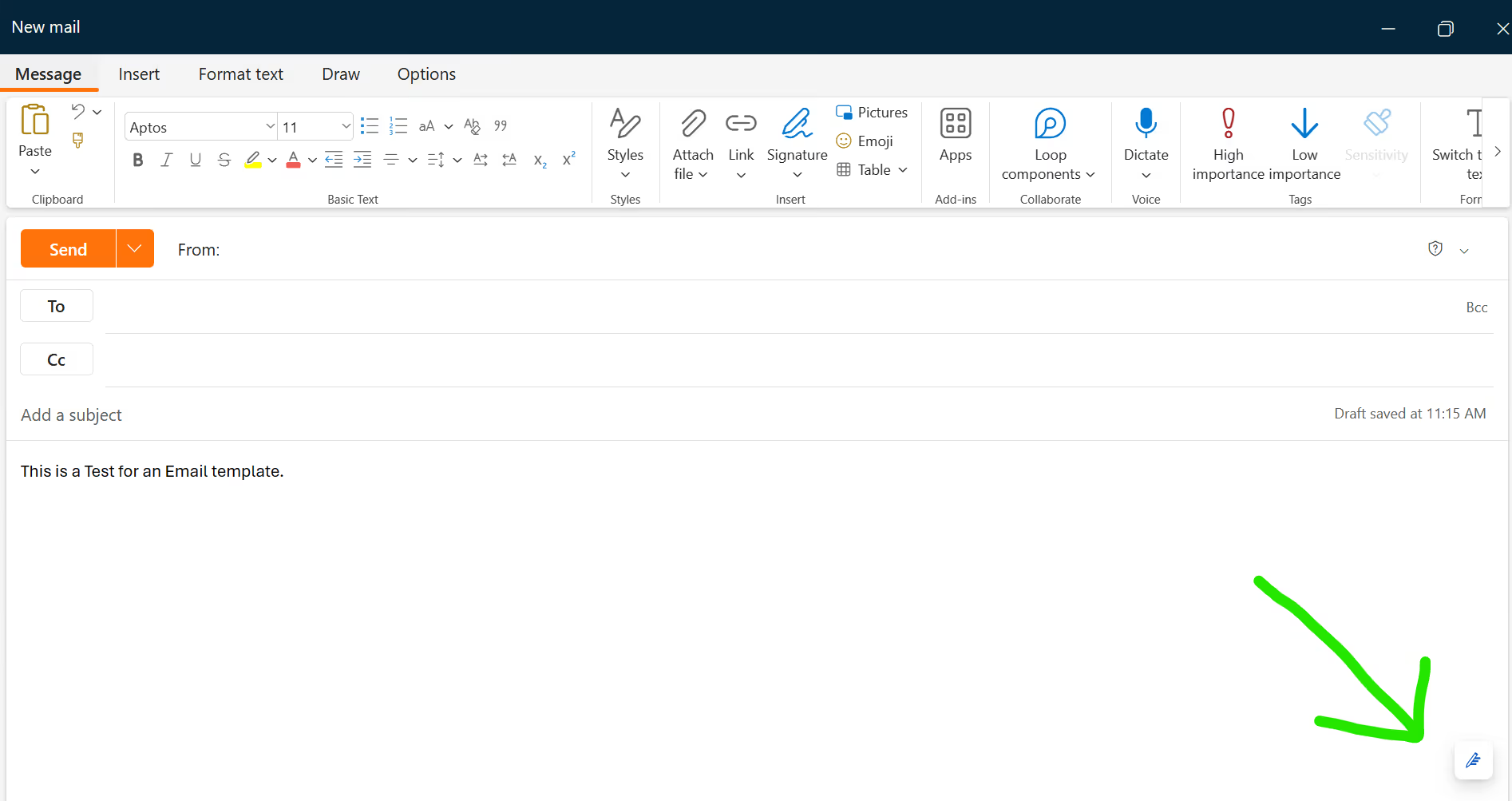
Hai due strade principali: il modello desktop classico (file OFT) e il riquadro "Modelli personali" nel nuovo Outlook e in Outlook sul web.
Outlook desktop classico (file OFT)
Apri una nuova email. Scrivi il messaggio che vuoi riutilizzare. Poi vai su File > Salva con nome e scegli Modello di Outlook (*.oft).
Scegli un nome file chiaro. Clicca su Salva. Per impostazione predefinita, Outlook archivia i modelli nella cartella Modelli dell'utente. Puoi anche salvarli dove preferisci.
Perché scegliere OFT? Puoi mantenere la formattazione avanzata. Puoi anche conservare le immagini e riutilizzare la bozza esattamente come è stata progettata. La inserirai in seguito da Scegli modulo, ma per ora hai finito di crearlo.
Nuovo Outlook per Windows
Nel nuovo Outlook non si salvano file OFT. Si utilizza la funzione integrata Modelli pannello. Avvia un nuovo messaggio, seleziona il … menu e apri Modelli.
Fai clic su Salva come modello (o + Modello nel riquadro). Dai un nome al tuo modello. Incolla o digita il contenuto e salva. La prossima volta lo inserirai dallo stesso pannello.
Se non vedi Modelli, aggiungi prima il componente aggiuntivo I miei modelli . La tua organizzazione può attivare o disattivare i componenti aggiuntivi, quindi verifica con il reparto IT se non è presente.
Outlook sul web (OWA)
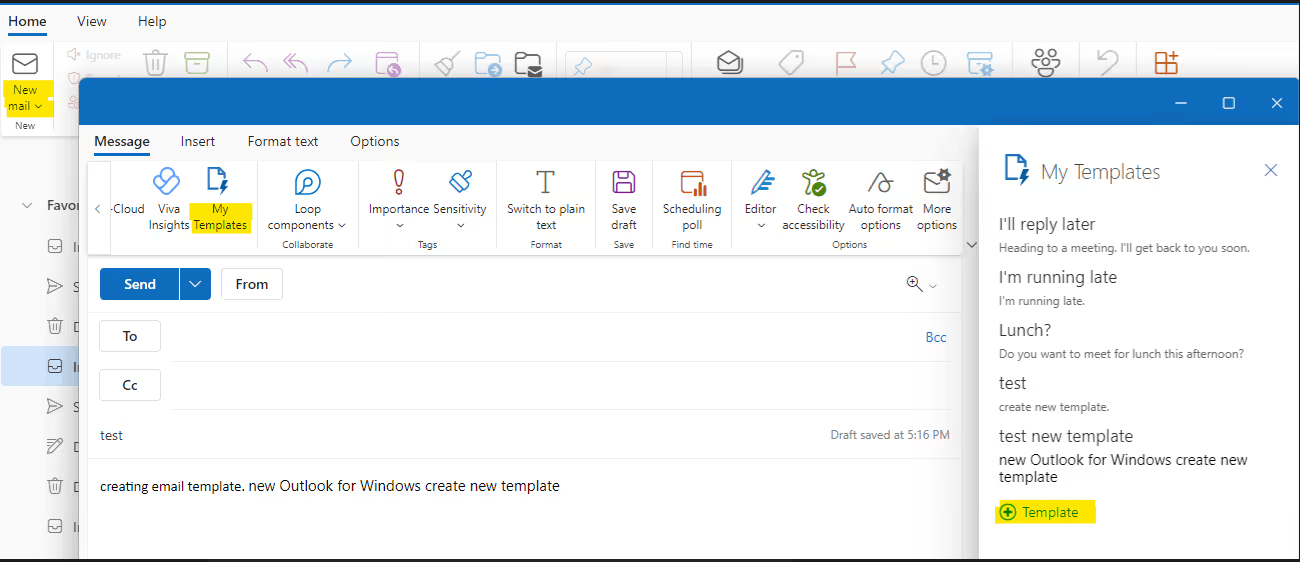
Crea una nuova email. Apri il … menu nella finestra di composizione e scegli I miei modelli. Se non è presente, usa Aggiungi app e aggiungi I miei modelli.
Nel riquadro a destra, fai clic su + Modello. Assegna un nome breve e facile da cercare. Aggiungi il tuo messaggio e Salva. Sei pronto per un inserimento rapido in seguito.
Come modificare un modello di email in Outlook
Per prima cosa, identifica il tipo di modello. Puoi utilizzare i file classici .oft o il riquadro I miei modelli nel nuovo Outlook e in Outlook sul web. Il percorso di modifica è diverso per ciascuno.
Modificare un modello classico .OFT (Outlook desktop)
Apri Outlook. Vai su Home > Nuovi elementi > Altri elementi > Scegli modulo. In Vai su, seleziona Modelli utente nel file system, scegli il tuo modello e aprilo.
Il modello si aprirà come un nuovo messaggio. Apporta qui le modifiche al testo o alla formattazione. Ricorda che le modifiche a questa bozza non aggiornano ancora il modello.
Per salvare l'aggiornamento, scegli File > Salva con nome. Seleziona Modello di Outlook (*.oft), scegli lo stesso nome file e Salva per sostituire la vecchia versione. In questo modo sovrascriverai il modello precedente con le tue modifiche.
Suggerimento: vuoi modificare il file direttamente nella sua cartella? Usa File > Salva con nome una volta per visualizzare il percorso Modelli personalizzati di Office , quindi cercalo in seguito in Esplora file e apri il file .oft per le modifiche.
Modificare un modello nel nuovo Outlook o in Outlook sul web
Componi un nuovo messaggio. Apri … > I miei modelli per visualizzare l'elenco dei modelli. Se non lo vedi, aggiungi il Modelli personali componente aggiuntivo da Ottieni/Aggiungi app.
Trova il modello che desideri. Fai clic sull'icona Modifica , cambia il contenuto e Salva. L'aggiornamento viene salvato nella tua casella di posta e appare ovunque utilizzi i Modelli personali.
Una breve nota sulle funzionalità. Nel nuovo Outlook, i modelli sono solo testo. Puoi utilizzare più paragrafi, ma non elementi grafici o formattazione avanzata. Mantieni le modifiche concise e semplici.
Come utilizzare un modello di email in Outlook
Hai due modi per inserire un modello. La versione desktop classica utilizza file .oft . Il nuovo Outlook e Outlook sul web utilizzano Modelli personali.
Utilizzare un modello nella versione desktop classica di Outlook (.oft)
Apri Outlook. Vai su Home > Nuovi elementi > Altri elementi > Scegli modulo. In Cerca in, seleziona Modelli utente nel file system, scegli il tuo modello e aprilo.
Personalizza il messaggio. Aggiungi il destinatario, l'oggetto ed effettua le ultime modifiche. Clicca su Invia quando sei pronto. Nota: le modifiche apportate qui non aggiornano il modello originale.
Preferisci una procedura più rapida? Salva i tuoi modelli nella cartella Modelli, quindi fai doppio clic sul file .oft in Esplora file per avviare subito un nuovo messaggio. Si aprirà immediatamente se Outlook è la tua app di posta predefinita.
Usi il nuovo Outlook ma hai ancora file .oft ? Trascina il file .oft da Esplora file nel riquadro di lettura e Outlook lo aprirà come nuova bozza. Comodo per i modelli legacy.
Usare un modello nel nuovo Outlook (Windows) o in Outlook sul web
Avvia una nuova email o rispondi a una esistente. Apri Altre opzioni (⋯) > I miei modelli o Messaggio > Visualizza modelli per mostrare il riquadro dei modelli.
Fai clic sul modello che ti serve. Outlook inserirà il testo nel corpo del messaggio in corrispondenza del cursore. Potrai quindi modificare il testo e premere Invia.
Non vedi I miei modelli? Potrebbe essere stato disabilitato dal tuo amministratore. Aggiungilo o abilitalo da Ottieni/Aggiungi componenti aggiuntivi in Outlook, oppure chiedi al reparto IT di attivare i componenti aggiuntivi.
Suggerimenti per un uso intelligente
Tieni a portata di mano ciò che ti serve. Lascia aperto il riquadro I miei modelli mentre smisti la posta in arrivo, così potrai inserire risposte standard con due clic. Risparmierai tempo mantenendo uno stile coerente.
Ricorda le limitazioni. I miei modelli inserisce solo testo semplice e non compila automaticamente il campo A, Cc, o Oggetto . Aggiungili manualmente o usa .oft quando ti serve una formattazione più ricca ed elementi preimpostati.
Gestisci configurazioni miste. Se il tuo team sta passando al nuovo Outlook, tieni a portata di mano i .oft modelli importanti e trascinali quando necessario. Usa I miei modelli per frammenti rapidi come “Conferma colloquio” o “Prossimi passi”.
Risoluzione dei problemi con i modelli di email di Outlook
I modelli non vengono visualizzati? Parti dalle basi.
Il pulsante “I miei modelli” non è presente
Apri una finestra di composizione. Fai clic su Altre app (⋯), seleziona Aggiungi appe cerca I miei modelli. Installalo, quindi riapri la finestra di composizione.
Non compare ancora sul desktop? Aggiungi il comando Visualizza modelli alla barra multifunzione. Vai su File > Opzioni > Personalizza barra multifunzione, seleziona Tutti i comandi, aggiungi Visualizza modellie conferma.
Se non succede nulla quando fai clic su I miei modelli, è possibile che la tua organizzazione abbia disabilitato il componente aggiuntivo. Chiedi al reparto IT di riabilitare I miei modelli nell'interfaccia di amministrazione di Exchange alla voce Organizzazione > Componenti aggiuntivi. Disattivalo e riattivalo, quindi riavvia Outlook.
“Questo modello è troppo grande per essere salvato”
Hai raggiunto un limite di dimensioni. Il I miei modelli il componente aggiuntivo ha un limite di archiviazione totale di 32 KB per tutti i modelli. Riduci il contenuto, rimuovi le firme lunghe o dividi un modello di grandi dimensioni in diversi modelli più piccoli.
Ti servono immagini, formattazioni complesse o allegati? Usa un classico .oft invece di I miei modelli. Crealo o aggiornalo da un nuovo messaggio tramite File > Salva con nome > Modello di Outlook.
Hai modificato un messaggio, ma il modello non è cambiato
È normale. Le modifiche a un'email inviata (o non inviata) non sovrascrivono il modello. Per aggiornarlo, salva nuovamente il messaggio come modello (.oft) o usa Modifica all'interno di I miei modelli.
Impossibile aprire o trovare il file .OFT
Usa il selettore di Outlook. Vai su Home > Nuovi elementi > Altri elementi > Scegli modulo, quindi imposta Cerca in su Modelli utente nel file system per individuare e aprire il tuo modello. Se lo hai salvato altrove, naviga fino a quella cartella.
Preferisci il doppio clic? Salva i file .oft in una cartella nota e aprili da Esplora file. Outlook avvierà una nuova bozza basata su quel modello.
I modelli sono spariti dopo il passaggio al nuovo Outlook
Il nuovo Outlook si affida all'app I miei modelli , non agli elenchi .oft locali. Aggiungi nuovamente I miei modelli tramite Altre app > Aggiungi app, quindi ricrea o incolla i tuoi frammenti di testo principali. Mantieni i modelli complessi e con branding come .oft nel classico Outlook quando necessario.
I miei modelli si apre ma non carica nulla
Spesso si tratta di un problema di integrità del componente aggiuntivo. Chiedi al reparto IT di attivare/disattivare I miei modelli nell'interfaccia di amministrazione di Exchange o verifica eventuali restrizioni relative all'account o ai componenti aggiuntivi. Successivamente, riavvia Outlook o aggiorna il browser se utilizzi Outlook sul web.
La formattazione, i loghi o gli allegati non vengono mantenuti
Si tratta di una limitazione di I miei modelli. Inserisce solo testo e non supporta immagini o allegati. Salva una versione ricca e conforme al brand come .oft e riutilizzala da Scegli modulo.
Modelli di email professionali basati sull'IA: Noota

Noota registra e trascrive le tue riunioni, creando poi riepiloghi istantanei con le decisioni chiave e le attività da svolgere. Ti basta prendere il risultato e inserirlo direttamente in un'email. Semplice.
Puoi anche definire un riepilogo personalizzato modello. Struttura i tuoi verbali sempre allo stesso modo, così le tue email rimarranno coerenti tra i vari team.
Categorie di modelli che userai davvero
- Follow-up delle riunioni. Invia passaggi successivi chiari dopo le chiamate con i clienti o le sincronizzazioni interne. Troverai 10 esempi comprovati adatti al tuo tono di voce.
- Riepiloghi delle riunioni. Trasforma gli appunti in riepiloghi chiari che il tuo team leggerà volentieri. I modelli mostrano la struttura e la formulazione ideale.
- Richieste e pianificazione. Chiedi la disponibilità senza sembrare insistente e fissa i colloqui evitando il ping-pong di email.
- Feedback sui colloqui. Condividi aggiornamenti costruttivi con i candidati usando un linguaggio coerente e adatto al ruolo.
Dal riepilogo all'invio, passo dopo passo
- Gestisci la tua riunione mentre Noota registra la conversazione.
- Apri il riepilogo generato automaticamente e copia i blocchi rilevanti (decisioni, azioni, scadenze).
- Scegli un modello di email Noota adatto (follow-up, riepilogo, colloquio, feedback). Incolla, personalizza nomi e date, e il gioco è fatto.
Vuoi generare automaticamente email dalle tue riunioni? Prova Noota gratis ORA.
Chi è l'autore

Jean-marc is an AI expert helping recruiters & professionnals leverage these tools in the everyday.
FAQ
Scrivi il messaggio, vai su File > Salva con nome e scegli Outlook Template (*.oft). Assegna un nome chiaro e salva nella cartella Templates.
- Apri nuovo messaggio email
- Scrivi il contenuto da riutilizzare
- Salva come file .oft
I file OFT sono template classici desktop con formattazione ricca e immagini. My Templates è il pannello integrato in New Outlook e Outlook web per gestione più semplice.
- OFT: file salvati localmente, formattazione avanzata
- My Templates: sincronizzati in cloud, accesso ovunque
- OFT: ideale per design complessi e branding
Noota risparmia 6,4 ore settimanali riducendo l'80% del lavoro amministrativo con automazione intelligente. Oltre 5000 team scelgono Noota per efficienza certificata 4,9/5 su G2.
- Automazione email intelligente e veloce
- Riduce drasticamente tempo amministrativo
- Supporto 80+ lingue per team globali
Noota è la soluzione ideale per team che vogliono automatizzare email ripetitive e risparmiare tempo. Con 6,4 ore settimanali risparmiate e -80% admin, supera i semplici template di Outlook.
- Automazione intelligente vs template manuali
- Risparmia 6,4 ore settimanali di lavoro
- Prova Noota gratis — nessuna carta di credito richiesta