Integrazioni
8 min di lettura
Updated on:
Nov 12, 2025
Note Hubspot: una guida
Vuoi sapere come prendere appunti su Hubspot? Ecco la tua guida
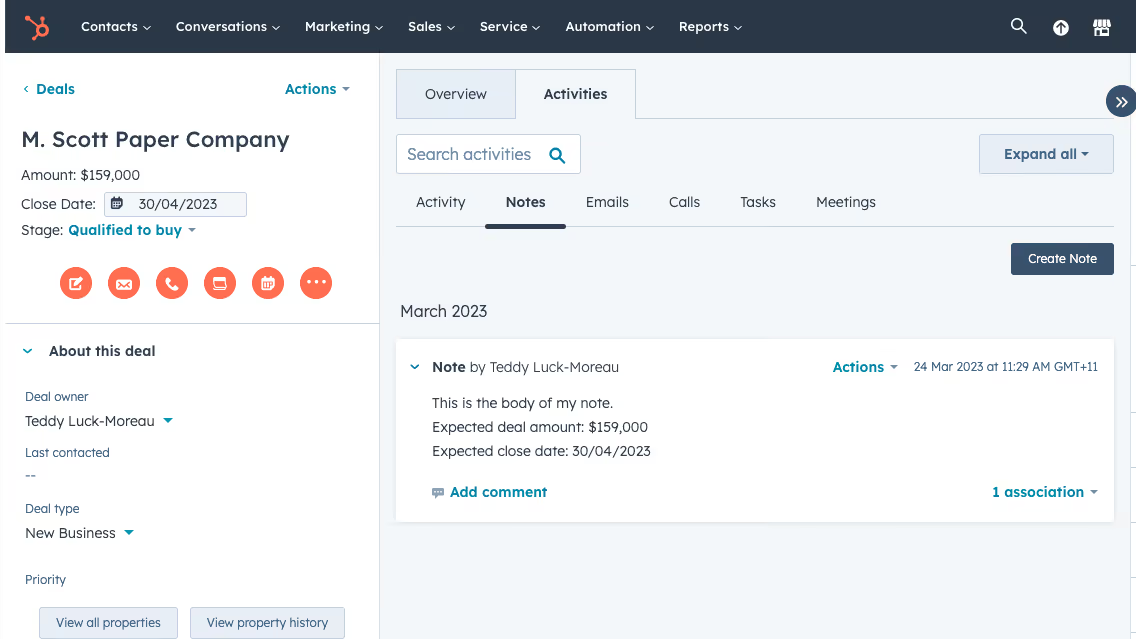
HubSpot Notes ti permette di registrare ogni dettaglio fondamentale dei tuoi meeting, chiamate e aggiornamenti sui clienti direttamente all'interno del tuo CRM.
Tuttavia, come ogni strumento, HubSpot Notes offre risultati concreti solo se sai come utilizzarlo al meglio.
Questa guida ti illustra tutto ciò che devi sapere su HubSpot Notes.
Cosa sono le Note di HubSpot
Le "Note" di HubSpot sono una funzionalità del CRM che ti consente di acquisire informazioni collegate a un contatto, un'azienda, una trattativa o un ticket. Una nota viene salvata nella cronologia di un record, così tu e il tuo team potrete rivedere cosa è stato detto, cosa è successo e quali sono i passaggi successivi.
Questa attività diventa parte integrante del record: quando un altro membro del team aprirà quel contatto, capirà immediatamente cosa è accaduto. È rappresentata dall'icona di un blocco note arancione all'interno del record di un contatto o di un'azienda.
Una precisazione importante: in HubSpot, le note sono tecnicamente considerate "interazioni" (attività) e non proprietà statiche. Ciò significa che dovrai interagirvi in modo leggermente diverso rispetto a un campo personalizzato. Ad esempio, le note non appaiono automaticamente come colonne nella vista elenco dei contatti.
Come utilizzare le Note di HubSpot
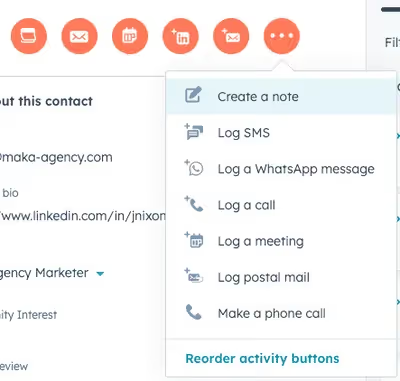
Quando sei pronto a integrare le note nel tuo flusso di lavoro, ecco come puoi utilizzarle in HubSpot.
a) Creare una nota su un record
Per prima cosa, seleziona il record che desideri aggiornare: può essere un contatto, un'azienda, una trattativa o un ticket. Nella cronologia del record troverai un'icona per aggiungere interazioni; l'icona del blocco note arancione ti permette di aggiungere manualmente una nota.
Cliccaci sopra, inserisci il contenuto della nota (riepilogo del meeting, decisioni chiave, passaggi successivi) e salvala.
Assicurati di associare la nota al record corretto, in modo che chiunque lo apra in seguito possa trovare il contesto in un unico posto.
b) Cosa includere per massimizzare il valore
Una nota è efficace quando non è solo un blocco di testo. Quando scrivi la tua, cerca di includere:
- data e ora del meeting o della chiamata
- partecipanti e relativi ruoli
- principali punti critici o obiettivi menzionati
- azioni successive (chi fa cosa e entro quando)
Questo tipo di contenuti ben strutturati aiuta il tuo team a evitare di chiedere "Cosa ci siamo detti l'ultima volta?" e a passare direttamente a "Qual è il prossimo passo?".
Anche nella community ufficiale di HubSpot consigliano di intitolare la nota con il nome della riunione, la data e l'ora, in modo che venga archiviata in ordine cronologico.
c) Collega le note agli oggetti corretti
Le note sono molto più utili se collegate correttamente. Ad esempio:
- Se hai parlato con un potenziale cliente presso un'azienda, associa la nota sia al contatto e all'azienda (se pertinente).
- Se la discussione riguarda specificamente una trattativa, collega la nota anche al relativo record.
Poiché le note rientrano nelle "attività" e non nelle proprietà standard, il modo in cui appaiono negli elenchi e nelle esportazioni è leggermente diverso: per questo motivo, le associazioni corrette sono fondamentali.
d) Utilizza una formattazione e una struttura ottimali
Per rendere le tue note costantemente utili:
- Usa intestazioni o elenchi puntati per strutturare le informazioni (potrebbe essere necessario copiare/incollare la formattazione, dato che l'editor WYSIWYG è limitato).
- Adotta una convenzione di denominazione o di tag standard per tutto il team (ad esempio, "Riunione – [Cliente] – [Data]") per rendere le note più facili da consultare.
- Se hai spesso più riunioni con lo stesso cliente, valuta la possibilità di mantenere una nota "principale" sempre attiva e di aggiornarla a ogni interazione (invece di creare decine di piccole note sparse): in questo modo manterrai il contesto centralizzato.
Risoluzione dei problemi con le note di HubSpot
Anche quando tu e il tuo team siete determinati a utilizzare le note nel CRM di HubSpot, possono verificarsi degli intoppi.
A) Problemi comuni che potresti riscontrare
- Note non visibili ad alcuni utenti. Un utente apre un record e non vede la nota che si aspettava. Ad esempio:
"Un collega non riesce a vedere le mie note su una trattativa", come segnalato nella community di HubSpot.
Spesso il problema è riconducibile alle autorizzazioni o alle associazioni degli oggetti.
- Le note mancano o sono sparite. A volte una nota scompare o sembra non essere mai stata creata. Ad esempio, un utente ha segnalato che le note e le attività nelle trattative non venivano salvate o andavano perse. Community HubSpot
- Difficoltà nel creare report o esportare le note. Poiché le note sono oggetti di interazione (non semplici campi), non si comportano sempre come le proprietà personalizzate, rendendo più complessa la creazione di elenchi, esportazioni o dashboard.
- Associazioni o collegamenti tra oggetti incoerenti. Se una nota è collegata solo a un contatto ma dovrebbe essere legata anche a un'azienda o a una trattativa, il contesto potrebbe risultare incompleto.
- La mancanza di una struttura standard genera confusione. Se il tuo team scrive note con formati estremamente diversi, la consultazione e la ricerca diventano inefficienti.
B) Cosa puoi fare per risolvere questi problemi
- Controlla le autorizzazioni utente.
- Assicurati che l'utente abbia accesso allo specifico oggetto (contatto, azienda, trattativa) e l'autorizzazione "Visualizza interazioni" per tale oggetto.
- Se la nota è collegata a una trattativa ma l'utente ha accesso solo ai contatti, la nota non verrà visualizzata.
- Verifica le associazioni corrette.
- Quando aggiungi una nota, assicurati che sia collegata a tutti i record pertinenti: contatto, azienda e trattativa, a seconda delle necessità.
- Usa "Aggiungi associazione" dopo aver creato la nota se hai dimenticato di farlo.
- Usa i filtri della timeline in modo intelligente.
- A volte la vista timeline nasconde le note perché il filtro è impostato solo su "Chiamate" o "Email". Regola il filtro per mostrare le "Note".
- Svuota la cache o ricarica il record per assicurarti che l'interfaccia venga aggiornata.
- Soluzione alternativa per esportazione/report.
- Poiché le Note non vengono visualizzate come campi standard, dovrai utilizzare gli strumenti di reportistica sulle interazioni.
- Crea un report basato sulle Interazioni in cui “Tipo = Nota”, quindi utilizza i filtri per associarlo a contatti o trattative specifici.
- Imponi una struttura e una convenzione di denominazione.
- Standardizza i titoli delle note: ad esempio “Riunione – [Cliente] – [Data]”.
- Inserisci azioni successive e follow-up chiari in una posizione fissa nel corpo della nota, in modo che il tuo team sappia dove cercarli.
- Valuta l'utilizzo di snippet o modelli se il tuo team scrive spesso Note.
Note AI per HubSpot: Noota

Integrando Noota con HubSpot, puoi automatizzare le attività, arricchire il contesto e assicurarti che nessun insight importante vada perso.
- Trascrizione e riepilogo automatici delle riunioni — Noota registra chiamate o riunioni virtuali (Zoom, Google Meet, Teams, ecc.), le trascrive in tempo reale in decine di lingue ed estrae punti chiave, attività da svolgere e passaggi successivi.
- Integrazione CRM integrata — Il riepilogo può essere inviato direttamente in HubSpot, creando o associando automaticamente contatti e trattative secondo necessità. Ciò significa che il tuo CRM viene aggiornato senza inserimenti manuali.
- Output strutturato e azionabile — Invece di un blocco di testo a forma libera, Noota produce un riepilogo chiaro: cosa è stato discusso, quali decisioni sono state prese e cosa succederà dopo. Questo rende la tua Nota HubSpot molto più utile.
VUOI AUTOMATIZZARE LA PRESA DI NOTE SU HUBSPOT? PROVA NOOTA GRATIS ORA.
Chi è l'autore

FAQ
Accedi al record del contatto, clicca sull'icona arancione del blocco note nella timeline e digita il contenuto della nota con dettagli della riunione, decisioni chiave e azioni successive.
- Seleziona il record da aggiornare
- Clicca l'icona notepad arancione
- Salva con informazioni strutturate
Una nota efficace deve contenere data e ora della riunione, partecipanti con ruoli, pain point e obiettivi discussi, azioni successive con responsabili e scadenze per evitare domande ripetitive.
- Data, ora e partecipanti della riunione
- Problemi e obiettivi identificati
- Azioni successive con responsabili
Noota registra e trascrive automaticamente le riunioni in 80+ lingue, risparmia 6,4 ore settimanali di admin manuale e integra i riassunti direttamente in HubSpot con il 4,9/5 su G2 da 5000+ team.
- Trascrizione automatica in 80+ lingue
- Risparmia 6,4 ore settimanali di lavoro
- Integrazione nativa con HubSpot CRM
Noota è la soluzione ideale: registra, trascrive e sincronizza automaticamente le riunioni in HubSpot, eliminando l'80% del lavoro amministrativo. Prova Noota gratis — nessuna carta di credito richiesta.
- Automazione completa delle trascrizioni
- Sincronizzazione diretta con HubSpot
- Riduce l'admin dell'80% per team