Integraciones
8 min de lectura
Updated on:
Oct 6, 2025
Cómo hacer llamadas desde la computadora: una guía
¿Quieres saber cómo llamar desde tu computadora? Aquí tienes tu guía.
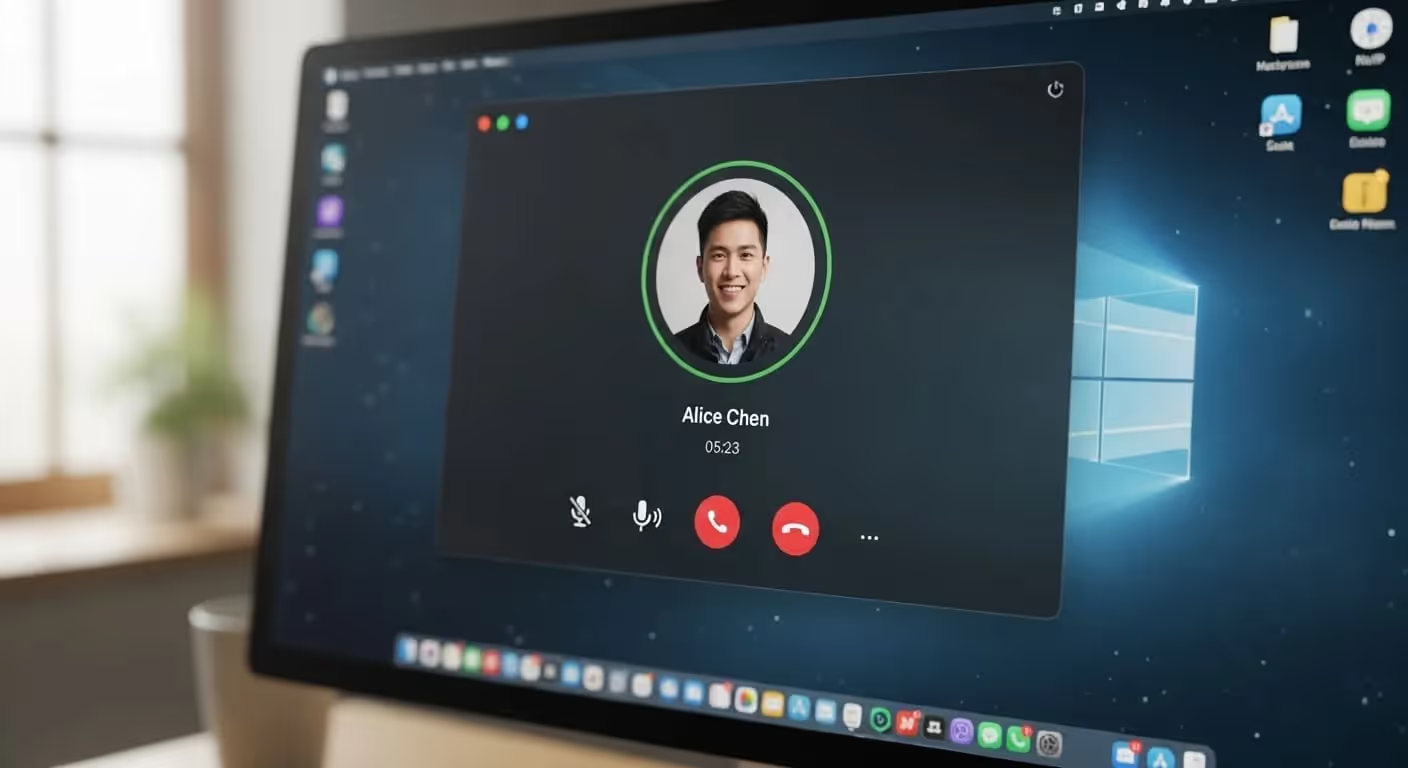
Realizar llamadas desde tu ordenador te permite centralizar todo tu trabajo: CRM, notas, grabaciones y transcripciones.
Pero antes de pulsar «Llamar», necesitas la configuración adecuada.
En esta guía, aprenderás qué software y qué configuración necesitas para hacer llamadas desde tu ordenador.
¿Qué necesitas para hacer una llamada desde tu ordenador?
Para hacer una llamada desde tu ordenador, necesitas un softphone (un teléfono basado en software) o un cliente VoIP. Un softphone funciona como una interfaz telefónica virtual: muestra un teclado de marcación, contactos, controles de llamada, etc. Algunos clientes solo admiten voz, mientras que otros también permiten vídeo, mensajería y funciones de telecomunicaciones más avanzadas.
Tu software debe ser compatible con protocolos VoIP estándar como SIP (Protocolo de Inicio de Sesión). El SIP se utiliza ampliamente para establecer, gestionar y finalizar llamadas de voz y vídeo a través de redes IP. El softphone y el proveedor deben «hablar el mismo idioma». Si tu cliente y el proveedor no coinciden en el protocolo, la llamada no se realizará.
Necesitarás una cuenta activa con un proveedor de servicios VoIP o con el sistema VoIP de tu organización (PBX / telefonía en la nube). La aplicación de softphone debe configurarse con tus credenciales (nombre de usuario, contraseña, dirección del servidor). Sin esto, el software no sabrá dónde «registrarte» en la red VoIP.
En muchos entornos empresariales, es posible que también necesites módulos de software adicionales: scripts de enrutamiento de llamadas, módulos o complementos de operadora automática e integración con servicios de CRM o directorios.
Cómo llamar desde tu ordenador: paso a paso
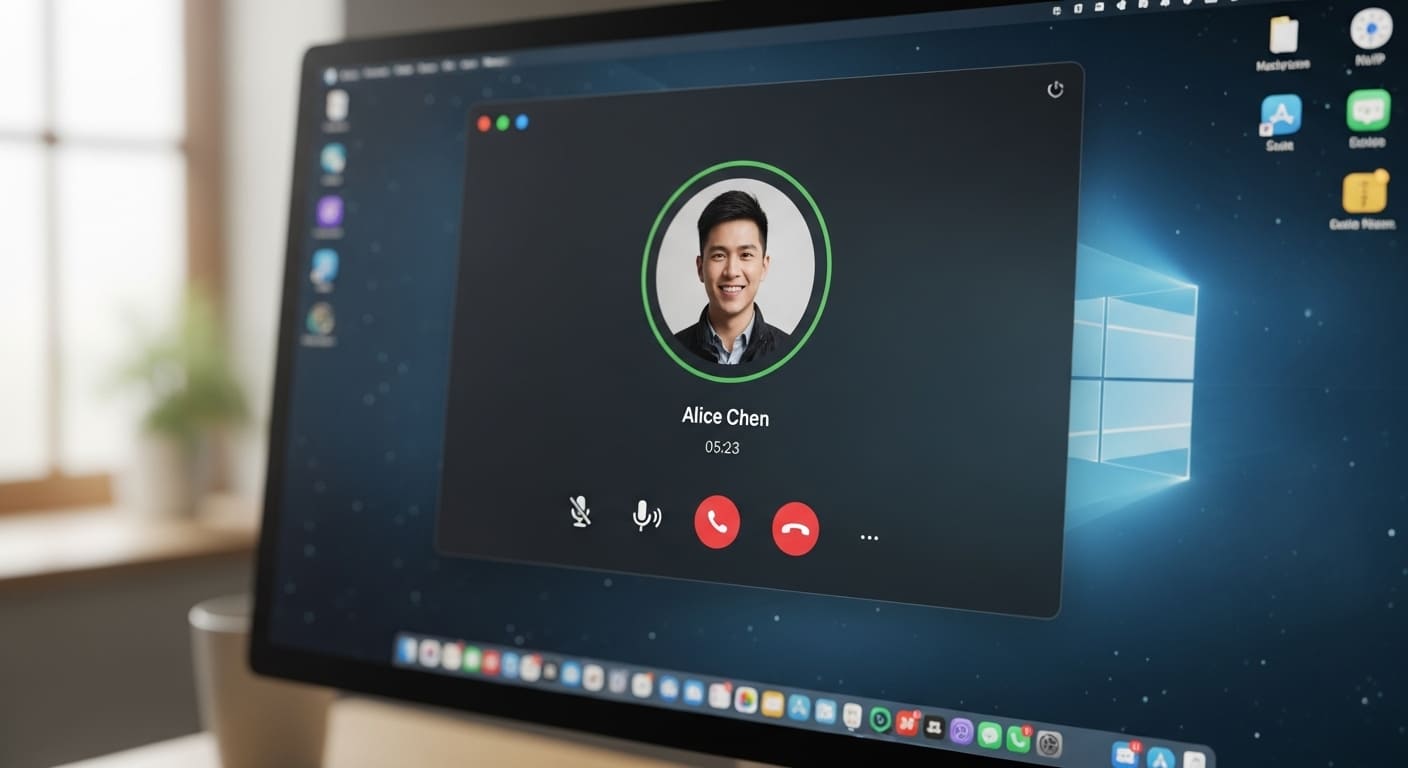
Paso 1: Elige tu herramienta de llamadas
Elige una aplicación VoIP o un softphone que tu equipo ya utilice, o selecciona uno según los criterios de tu stack tecnológico. Prioriza la fiabilidad, la facilidad de configuración y las integraciones con CRM o calendario. Si eres nuevo en esto, empieza con un proveedor que ofrezca una prueba gratuita.
Paso 2: Instala o abre la aplicación web
Descarga el cliente de escritorio o abre la versión web en un navegador moderno. Las aplicaciones de escritorio suelen ofrecer un mejor control de los dispositivos y mayor estabilidad. Las aplicaciones web destacan por su rapidez y por no requerir instalación.
Paso 3: Crea tu cuenta y verifica
Regístrate o inicia sesión con tu correo electrónico de trabajo. Si necesitas realizar llamadas salientes a números de teléfono, verifica tu número y activa créditos o un plan. Es posible que el administrador de tu espacio de trabajo lo configure previamente por ti.
Paso 4: Añade contactos o prepara el número
Importa contactos desde Google/Outlook o tu CRM. Al marcar directamente, utiliza el formato E.164 (+CódigoDePaís Número) para evitar problemas de enrutamiento. Guarda los contactos frecuentes y etiquétalos por cuenta o etapa.
Paso 5 — Realiza tu llamada
Abre el marcador o la tarjeta de contacto y pulsa Llamar. Elige solo voz para un consumo mínimo de ancho de banda, o vídeo si lo necesitas. Si vas a llamar a un puente de conferencia, ten a mano el teclado numérico para introducir los PIN (DTMF).
Soluciones rápidas a problemas comunes
No te escuchan.
Confirma que el micrófono seleccionado sea el correcto en la aplicación y en el sistema operativo, y comprueba si el medidor de entrada detecta sonido. Cierra otras aplicaciones que puedan estar «bloqueando» el micrófono (herramientas de vídeo, pestañas del navegador).
Tú les escuchas, pero ellos no te escuchan a ti (audio unidireccional).
Desactiva la VPN e inténtalo de nuevo; algunas VPN bloquean los flujos RTP. Si usas Wi-Fi, acércate al router o conéctate mediante Ethernet.
Eco o retroalimentación.
Baja el volumen de los altavoces y utiliza preferiblemente auriculares. Asegúrate de que solo haya un dispositivo con el micrófono abierto cerca de ti.
Audio entrecortado o robótico.
Cierra las descargas y las aplicaciones de streaming. Si está disponible, cambia el modo de red de la aplicación a «Bajo ancho de banda» o «Automático» para que pueda adaptarse.
No puedo marcar números externos.
Comprueba que tu plan incluya llamadas PSTN y que tu número esté habilitado. Vuelve a introducir el número de destino incluyendo el código de país.
Las mejores herramientas de VoIP / softphone para ordenador

A continuación, presento algunas herramientas destacadas que puedes utilizar para realizar llamadas desde tu ordenador. Para cada una, detallo qué es, características principales, ventajas y desventajas, y precios — y muestra dónde Noota encaja en este panorama.
3.1 Noota (VoIP + asistente de reuniones con IA)
Qué es
Noota es más que una herramienta VoIP: combina grabación de llamadas, transcripción en directo, resúmenes con IA y gestión del conocimiento en un solo sistema. Cuando realizas una llamada o te reúnes, Noota captura todo el audio, lo transcribe en tiempo real y genera resúmenes, tareas pendientes y transcripciones con capacidad de búsqueda.
Características principales
- Grabación automática de llamadas y transcripción en directo
- Resúmenes, puntos destacados, conclusiones clave y próximos pasos generados por IA
- Integración con herramientas de calendario, CRM y plataformas de videoconferencia
- Capacidad de grabación presencial (mediante aplicación móvil) y modos de captura flexibles
- Historial de reuniones con búsqueda, espacio de trabajo en equipo y opciones de exportación y uso compartido
Ventajas
- No solo obtienes voz, sino resultados estructurados y prácticos.
- La transcripción y las notas nativas evitan que tengas que alternar entre varias herramientas.
- Cuanto más lo usas, más crece tu base de conocimiento de reuniones.
- Diseñado para integrarse, de modo que la telefonía VoIP se conecte con el resto de tus herramientas.
Contras
- Los planes gratuitos y básicos tienen límites de uso o minutos (por ejemplo, 300 min/mes en el plan gratuito).
- Para equipos grandes que dependen mucho del teléfono, los costes pueden aumentar al cambiar de nivel.
Precios
- Gratuito: 300 minutos al mes, informes con IA y funciones básicas (no requiere tarjeta de crédito).
- Pro: 19 $/mes por usuario (más minutos e integraciones).
- Business: 39 $/mes por usuario: uso ilimitado, funciones avanzadas, controles de administrador y plantillas personalizadas.
- Enterprise: Precios personalizados para equipos grandes, seguridad, SSO e integraciones a medida.
PRUEBA NOOTA GRATIS AQUÍ
3.2 Aircall
Qué es
Aircall es un sistema telefónico en la nube diseñado para equipos de ventas y soporte que necesitan una infraestructura compartida de llamadas entrantes y salientes. Está pensado para facilitar la integración y el uso.
Funciones clave
- Clic para llamar desde tu CRM o navegador
- Bandeja de entrada compartida, etiquetas y comentarios en las llamadas
- Monitoreo de llamadas en vivo, susurro, coaching
- Integraciones con CRM y aplicaciones (Salesforce, HubSpot, Slack)
- Números internacionales, colas de llamadas, enrutamiento
Ventajas
- Configuración rápida, mínima carga para TI
- Excelentes funciones de colaboración para equipos
- Ecosistema de integración sólido
- Experiencia fluida en escritorio y móvil
Desventajas
- No incluye transcripción ni resúmenes con IA integrados
- Algunas funciones avanzadas solo están disponibles en planes superiores
- Los paneles de análisis pueden no ser tan profundos como los de herramientas empresariales
Precios
- Essentials: $30/usuario/mes
- Professional: $50/usuario/mes
- Planes personalizados para grandes organizaciones
- Prueba gratuita de 7 días disponible
3.3 CallHippo
Qué es
CallHippo es una solución VoIP flexible dirigida a equipos pequeños y medianos, con funciones para enrutamiento de llamadas, análisis y escalabilidad.
Características principales
- Grabación automática de llamadas
- Monitoreo de llamadas en vivo, enrutamiento y marcado automático
- Panel de análisis
- Números locales y virtuales en varios países
- Integraciones con CRM y otras herramientas
Ventajas
- Fácil de adoptar para equipos en crecimiento
- Precios justos por las funciones principales
- Buen equilibrio de funciones para pequeñas y medianas empresas
Desventajas
- El análisis y las funciones avanzadas pueden requerir planes superiores
- Problemas ocasionales de calidad de llamada en regiones con poco ancho de banda
- Menor profundidad en la personalización del enrutamiento
Precios
- Bronce: 16 $/usuario/mes
- Plata: 24 $/usuario/mes
- Platino: 40 $/usuario/mes
- Planes empresariales personalizados
3.4 8x8 (VoIP + centro de contacto)
Qué es
8x8 es una plataforma de comunicaciones que combina VoIP, mensajería, video y herramientas de centro de contacto. Está diseñada para equipos que necesitan gestionar llamadas internas y externas desde un mismo lugar.
Características principales
- Llamadas ilimitadas a más de 40 países
- Mensajería, video y uso compartido de archivos integrados
- Operadoras automáticas, enrutamiento y gestión de colas
- Grabación de llamadas y análisis
- Seguridad y cumplimiento de nivel empresarial
Ventajas
- Una sola herramienta para voz, video, mensajería y flujos de soporte
- Sólida cobertura global y seguridad
- Escalable, desde reuniones internas hasta atención al cliente
Desventajas
- La interfaz no siempre es tan moderna como la de herramientas más recientes
- Curva de aprendizaje pronunciada para funciones avanzadas
- Las funciones premium tienen un costo adicional
Precios
- Plan Express: 15 $/usuario/mes
- Plan X2: 28 $/usuario/mes
- Los niveles superiores añaden herramientas de centro de contacto, enrutamiento personalizado, etc.
- Precios personalizados para grandes clientes
3.5 Vonage Business Communications
Qué es
Vonage ofrece una plataforma modular de VoIP y comunicaciones donde añades funciones según las necesites: llamadas, SMS, integraciones con CRM y enrutamiento avanzado. Está diseñada para ofrecer flexibilidad.
Características principales
- Llamadas VoIP y SMS ilimitados en regiones principales
- Correo de voz a email, desvío y bloqueo de llamadas
- Operadoras automáticas, enrutamiento y analíticas
- Aplicaciones para escritorio y móvil
- App Center para complementos de terceros
Ventajas
- No pagas por funciones que no utilizas
- Gran paridad entre las versiones móvil y de escritorio
- Ideal para escalar y personalizable para equipos
Desventajas
- Los complementos pueden aumentar el coste rápidamente
- Los planes básicos pueden carecer de profundidad en las analíticas
- Algunas funciones avanzadas son opcionales, no integradas
Precios
- Plan móvil: ~19,99 $/usuario/mes
- Premium: ~29,99 $/usuario/mes
- Advanced (con todas las funciones): ~39,99 $/usuario/mes
- Garantía de devolución de dinero de 30 días
Conoce al autor

Preguntas frecuentes
Un softphone es una aplicación de telefonía basada en software que actúa como teléfono virtual en tu computadora.
- Muestra panel de marcado y controles de llamada
- Soporta protocolos VoIP como SIP
- Integra voz, video y mensajería
Necesitas un softphone, cuenta VoIP activa, credenciales configuradas y conexión a internet estable.
- Softphone o cliente VoIP compatible
- Proveedor VoIP o sistema PBX organizacional
- Micrófono y altavoces funcionales
Noota ahorra 6,4 horas semanales en administración, reduce tareas administrativas 80% y ofrece transcripciones automáticas en 80+ idiomas.
- Calificación 4,9/5 en G2 vs competidores
- Integración CRM nativa y grabaciones automáticas
- Usado por 5000+ equipos globales
Noota es ideal para equipos que requieren transcripciones automáticas, análisis de llamadas y reducción de tareas administrativas.
- Transcripciones en 80+ idiomas automáticas
- Ahorra 6,4 horas semanales por equipo
- Prueba Noota gratis sin tarjeta de crédito