Registrazione e Trascrizione delle Riunioni
8 min di lettura
Aggiornato il:
Aug 4, 2025
Come annotare su Google Meet
Vuoi sapere come funzionano le annotazioni su Google Meet? Ecco la tua guida.
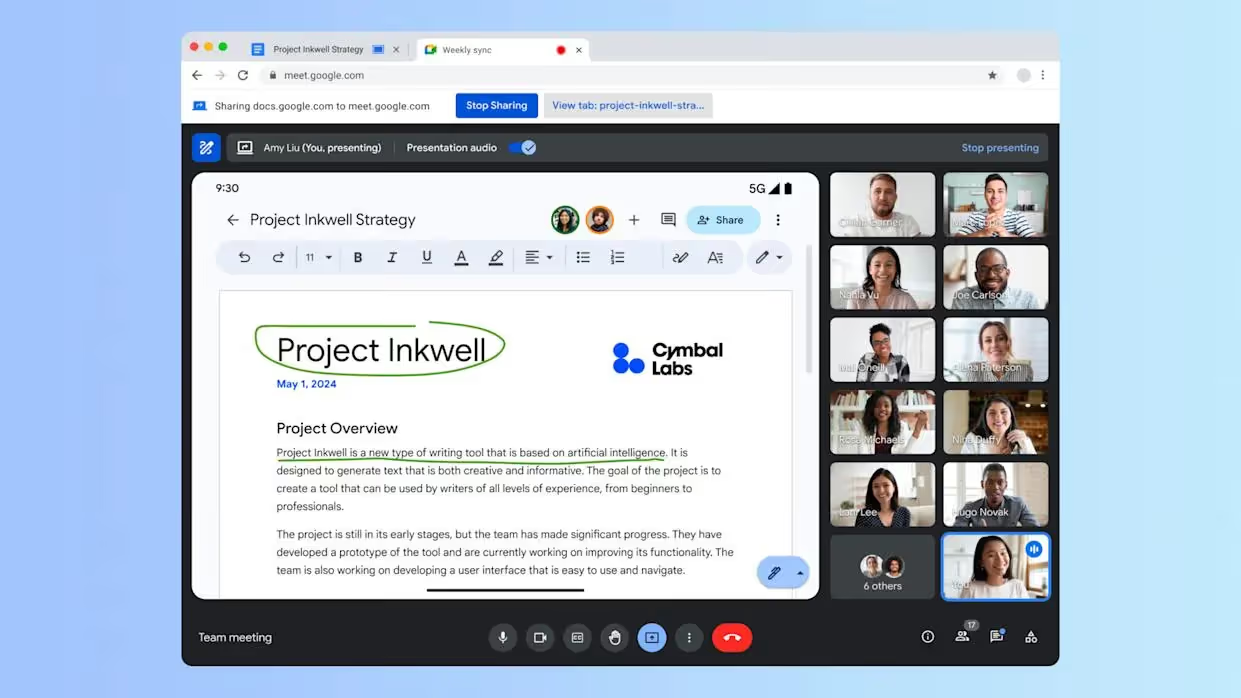
Con la funzione di annotazione di Google Meet, puoi evidenziare i punti chiave, abbozzare idee e guidare visivamente il tuo pubblico.
Tuttavia, c'è un aspetto da considerare: le annotazioni su Meet sono una novità e non tutti sanno come utilizzarle.
In questa guida imparerai passo dopo passo come aggiungere annotazioni su Google Meet
È possibile aggiungere annotazioni durante le chiamate Google Meet?
Sì, ora puoi aggiungere annotazioni direttamente all'interno di Google Meet. Questa funzione ti permette di disegnare, scrivere e contrassegnare lo schermo condiviso in tempo reale.
L'annotazione è disponibile nell' app desktop di Google Meet e nella versione 124 o superiore del browser Chrome.
Se utilizzi Android, puoi aggiungere annotazioni quando condividi l'intero schermo.
Al momento, il supporto per iOS è limitato, ma Google ci sta lavorando.
Se non visualizzi gli strumenti di annotazione, assicurati di utilizzare un browser o un dispositivo supportato.
A cosa serve
Puoi aggiungere annotazioni su:
- Documenti
- Presentazioni
- Siti web
- Qualsiasi contenuto condiviso sullo schermo
È ideale per demo dal vivo, sessioni di formazione o riunioni collaborative in cui gli elementi visivi sono fondamentali.
Come configurare le annotazioni in Meet
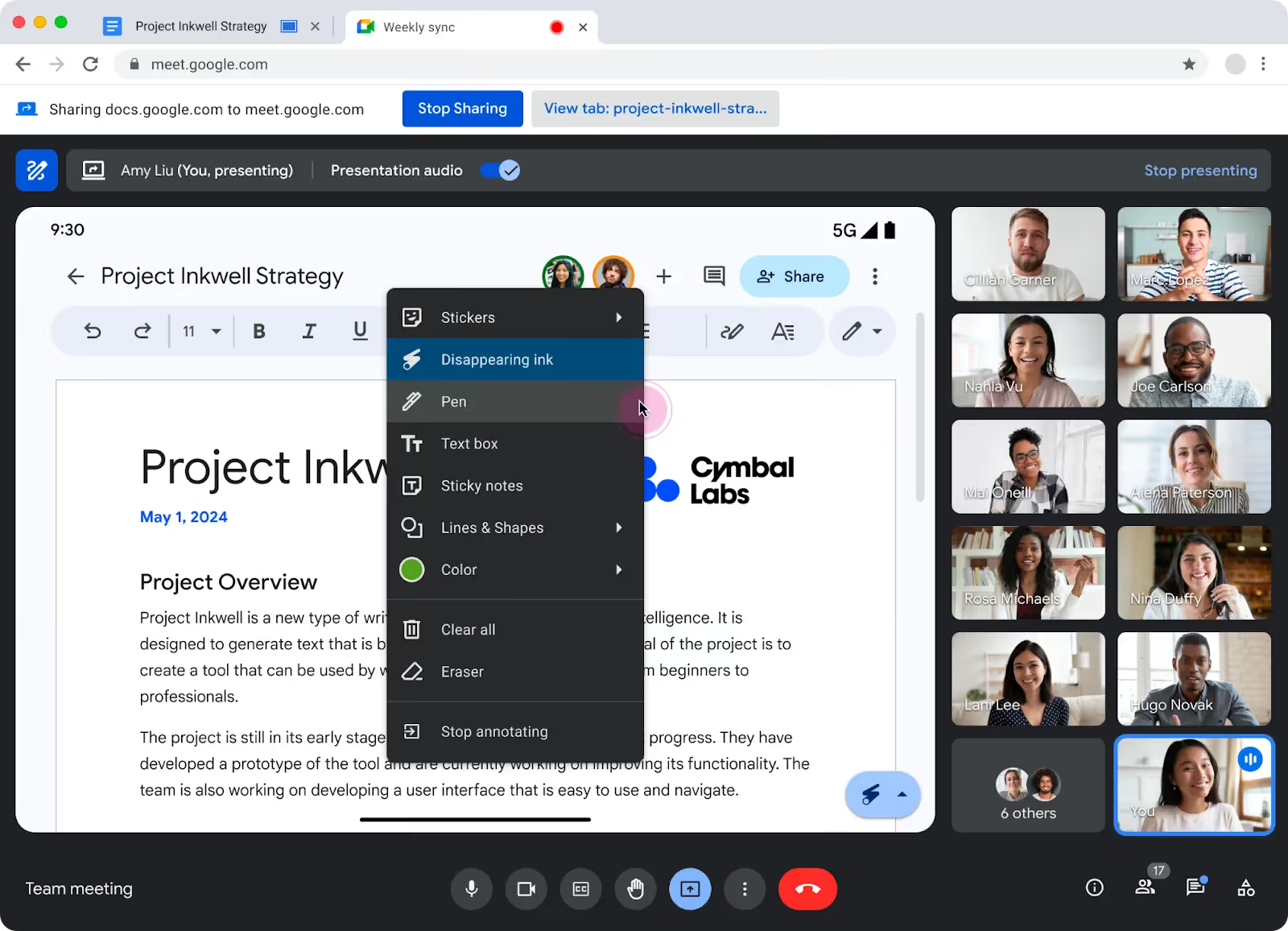
Pronto a usare le annotazioni in Google Meet?
Ecco come iniziare in pochi clic.
Passaggio 1 – Avvia la tua riunione Google Meet
Partecipa alla riunione come di consueto su Google Chrome o tramite l' app desktop di Google Meet.
Le annotazioni funzionano solo in questi ambienti, quindi evita di utilizzare Safari o Firefox.
Assicurati di utilizzare Chrome versione 124 o successiva.
Puoi verificarlo digitando chrome://settings/help nella barra degli indirizzi del browser.
Passaggio 2 – Condividi lo schermo
Fai clic su Presenta ora nella parte inferiore della finestra di Meet.
Puoi scegliere di condividere:
- Tutto lo schermo
- Una finestra
- Una scheda specifica di Chrome
Per utilizzare le annotazioni, una qualsiasi di queste opzioni va bene. Scegli semplicemente ciò che devi mostrare.
Una volta avviata la condivisione, la barra degli strumenti nella parte inferiore dello schermo cambierà.
Passaggio 3 – Fai clic su Annotazioni
Nella nuova barra degli strumenti, individua l' icona della penna etichettata come Annotazioni.
Fai clic su di essa e vedrai apparire gli strumenti di annotazione.
Ora puoi disegnare, digitare o aggiungere note sopra lo schermo.
Passaggio 4 – Usa gli strumenti
Hai diversi strumenti tra cui scegliere:
- Penna – Disegna a mano libera con colori diversi
- Inchiostro evanescente – I segni scompaiono dopo pochi secondi
- Forme – Aggiungi linee, frecce o riquadri per evidenziare le aree
- Testo – Scrivi direttamente sullo schermo
- Nota adesiva – Aggiungi brevi commenti in riquadri colorati
- Gomma – Rimuovi segni specifici
- Cancella tutto – Elimina tutto con un clic
Seleziona lo strumento che ti serve dalla barra degli strumenti.
Personalizza facilmente colori e spessore delle linee.
Passaggio 5 – Aggiungi co-annotatori (facoltativo)
Vuoi che altri annotino insieme a te?
Fai clic su Persone per aprire l'elenco dei partecipanti.
Trova una persona, fai clic sui tre puntini accanto al suo nome e seleziona Aggiungi come co-annotatore.
Ora potrà disegnare insieme a te in tempo reale.
Il controllo resta a te: puoi rimuoverla in qualsiasi momento.
Passaggio 6 – Interrompi annotazione
Hai finito di scrivere sullo schermo?
Fai clic su Annota di nuovo per uscire dalla modalità annotazione.
La condivisione dello schermo continuerà, ma gli strumenti spariranno.
Ricorda: le annotazioni non vengono salvate automaticamente.
Se vuoi conservare il tuo lavoro, scatta uno screenshot prima di interrompere.
Risoluzione dei problemi con le annotazioni di Google Meet
Stai provando ad aggiungere annotazioni ma non funziona?
Ecco come risolvere rapidamente i problemi più comuni.
Problema 1 – Pulsante "Annota" mancante
Stai condividendo lo schermo, ma non vedi l'icona Annota nella barra degli strumenti.
Soluzione:
Controlla il browser. Devi utilizzare:
- Google Chrome (versione 124 o successiva), oppure
- L' app desktop di Google Meet
Altri browser non mostrano gli strumenti di annotazione. Aggiorna Chrome se necessario. Digita chrome://settings/help per verificare la tua versione.
Problema 2 – Dispositivo non compatibile
Le annotazioni non sono disponibili sui browser per dispositivi mobili, Chromebook o dispositivi meno recenti.
Soluzione:
Passa a un computer desktop e apri Meet in Chrome o nell'app desktop.
Se utilizzi Android, puoi aggiungere annotazioni, ma solo dopo aver condiviso lo schermo nell'app Meet. Il supporto per iOS è attualmente limitato.
Problema 3 – Condivisione dello schermo non corretta
Sei nella chiamata, ma gli strumenti non vengono visualizzati.
Soluzione:
Fai clic su Presenta ora, quindi scegli Il tuo intero schermo, una finestra o una scheda.
Una volta avviata la condivisione, la barra degli strumenti si aggiorna e Annota diventa visibile.
Suggerimento: se stai guardando lo schermo di qualcun altro, non puoi aggiungere annotazioni. Solo chi condivide lo schermo può disegnare.
Problema 4 – Opzione di co-annotazione mancante
Vuoi consentire ad altri di disegnare, ma non vedi l'opzione.
Soluzione:
Fai clic su Persone per aprire l'elenco dei partecipanti.
Fai clic sui tre puntini accanto al loro nome, quindi su Aggiungi come co-annotatore.
Ancora nessuna opzione? Prova a disconnetterti dagli account Google aggiuntivi e a ricaricare la riunione. Gli accessi multipli possono bloccare le autorizzazioni.
Inoltre, la co-annotazione è supportata solo su desktop, non su dispositivi mobili.
Problema 5 – Le annotazioni non vengono visualizzate nelle registrazioni
Stai registrando la riunione, ma i tuoi disegni non compaiono nella riproduzione.
Soluzione:
La registrazione integrata di Google Meet acquisisce solo lo schermo condiviso, non le annotazioni.
Se devi salvare i tuoi segni, fai uno screenshot durante la riunione.
Oppure, usa uno strumento come Noota per registrare l'intero schermo, inclusi disegni, voce e riepiloghi.
Problema 6 – Gli strumenti vanno a scatti o si bloccano
Gli strumenti di annotazione si bloccano o subiscono ritardi mentre disegni.
Soluzione:
Disabilita le estensioni di Chrome che interagiscono con Meet o con la condivisione dello schermo.
Prova a usare un profilo Chrome pulito o la modalità in incognito per fare una prova.
Inoltre, riavvia il browser o il computer per risolvere eventuali problemi di memoria.
Noota – Registra tutto
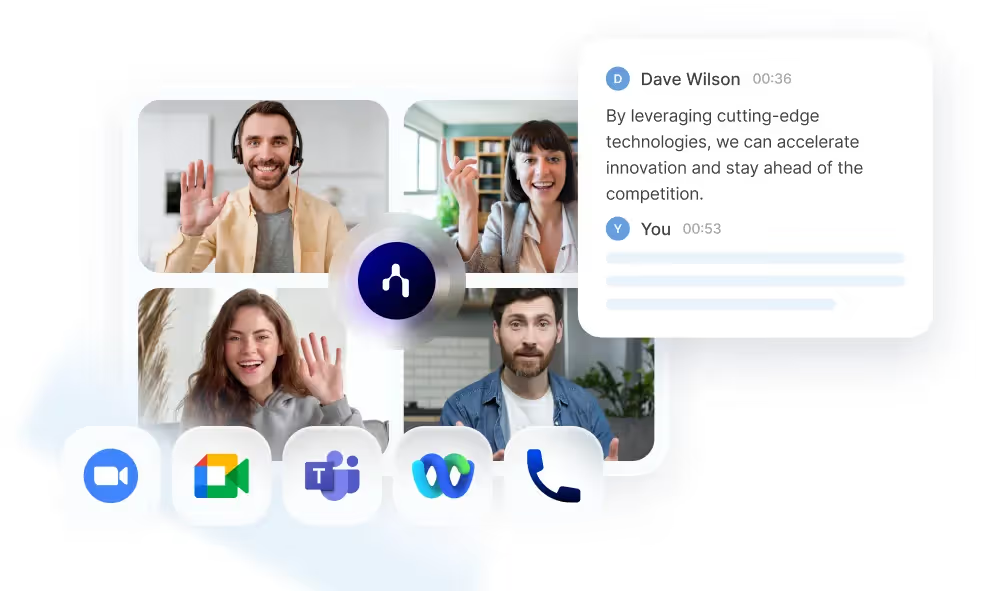
Google Meet ti permette di annotare in tempo reale.
Ma una volta terminata la riunione, i tuoi disegni scompaiono.
È qui che Noota ti aiuta:
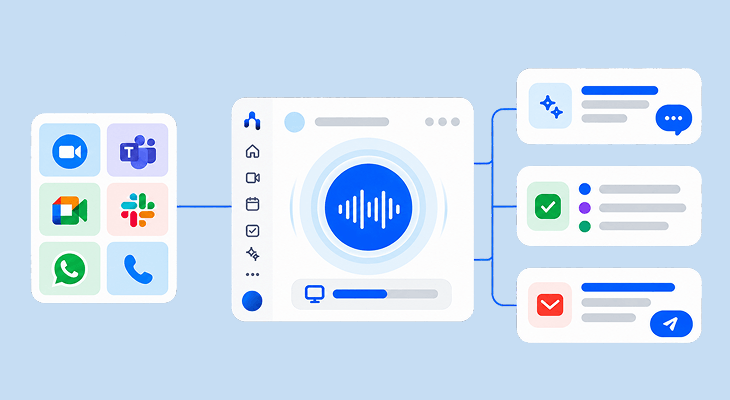
- Registrazione e trascrizione video in tempo reale : Mentre parli, Noota registra e trascrive le tue parole in tempo reale.
Ogni video e frase viene salvato e dotato di timestamp. Così puoi passare facilmente a qualsiasi momento. - Riassunti intelligenti : Dopo la riunione, Noota crea un riassunto per te. Ottieni un riepilogo visivo e scritto, tutto in un unico posto.
- Condividi istantaneamente : Noota si sincronizza con i tuoi strumenti—Slack, Notion, ATS, CRM, e altri ancora. Puoi inviare il riassunto al tuo team con un solo clic.
Tutti rimangono aggiornati, anche se hanno perso la chiamata. - Privacy e controllo : Decidi tu quando registrare e cosa salvare. Puoi mettere in pausa, interrompere o eliminare qualsiasi registrazione. I tuoi dati rimangono privati e sicuri, nel pieno rispetto del GDPR.
Vuoi registrare le tue conversazioni e annotazioni? Prova Noota gratis ora.
Chi è l'autore

Anais scrive di tecniche di colloquio, AI nelle assunzioni, verbali delle riunioni e registrazione delle chiamate, con anni di esperienza come redattrice specializzata in HR.
FAQ
Avvia una riunione in Chrome o nell'app desktop, condividi lo schermo, clicca l'icona Annotate nella barra degli strumenti e seleziona lo strumento desiderato.
- Apri Google Meet in Chrome versione 124+
- Premi Present now per condividere schermo
- Clicca Annotate nella toolbar inferiore
L'annotazione funziona su Chrome desktop, app Google Meet e Android per schermo intero. Il supporto iOS è ancora limitato ma in sviluppo.
- Desktop Chrome versione 124 o superiore
- App Google Meet su computer
- Android con condivisione schermo intero
Google Meet offre annotazioni di base durante le riunioni, ma Noota registra, trascrive e organizza automaticamente i contenuti con -80% admin e 6,4h/settimana risparmiate per team.
- Noota salva e trascrive automaticamente riunioni
- Organizza note con IA in 80+ lingue
- Integra annotazioni in workflow collaborativo
Noota è ideale per training: registra, annota automaticamente e crea transcript ricercabili. Con 5000+ team e 4,9/5 su G2, garantisce documentazione completa senza sforzo manuale.
- Registra e trascrive sessioni training automaticamente
- Crea archivi ricercabili in 80+ lingue
- Prova Noota gratis — nessuna carta di credito richiesta