Integrazioni
8 min di lettura
Updated on:
Nov 4, 2025
Come prendere appunti su Slack: una guida completa
Vuoi sapere come funzionano le note su Slack? Ecco la tua guida.
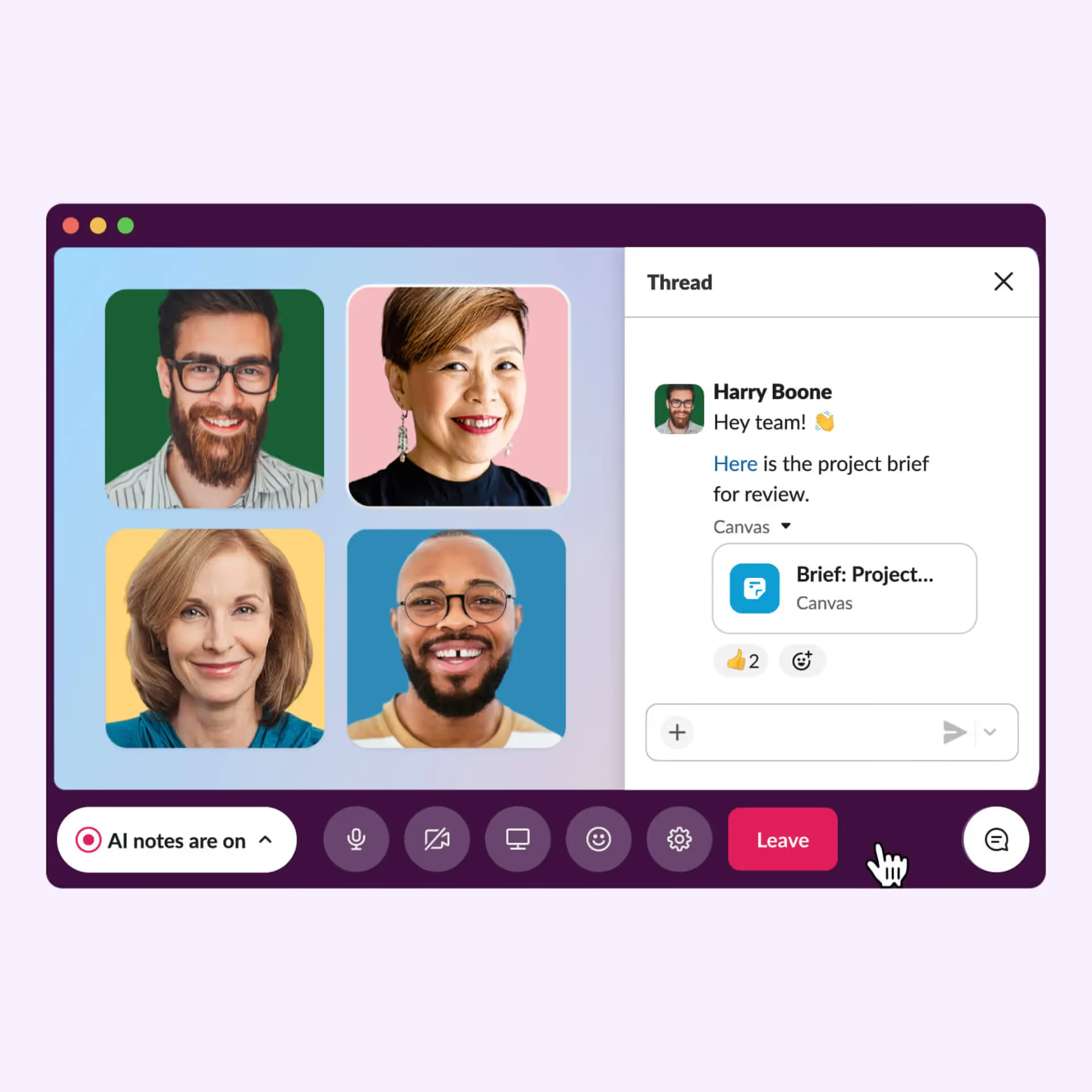
Slack ti permette ora di acquisire i punti chiave direttamente dove avviene la conversazione.
Puoi annotare le idee nei Canvas, lasciare che l'IA di Slack generi automaticamente i riepiloghi degli huddle e persino collegare strumenti esterni per automatizzare tutto.
In questa guida imparerai a prendere appunti in modo organizzato su Slack.
Come prendere appunti su Slack
Usa i Canvas
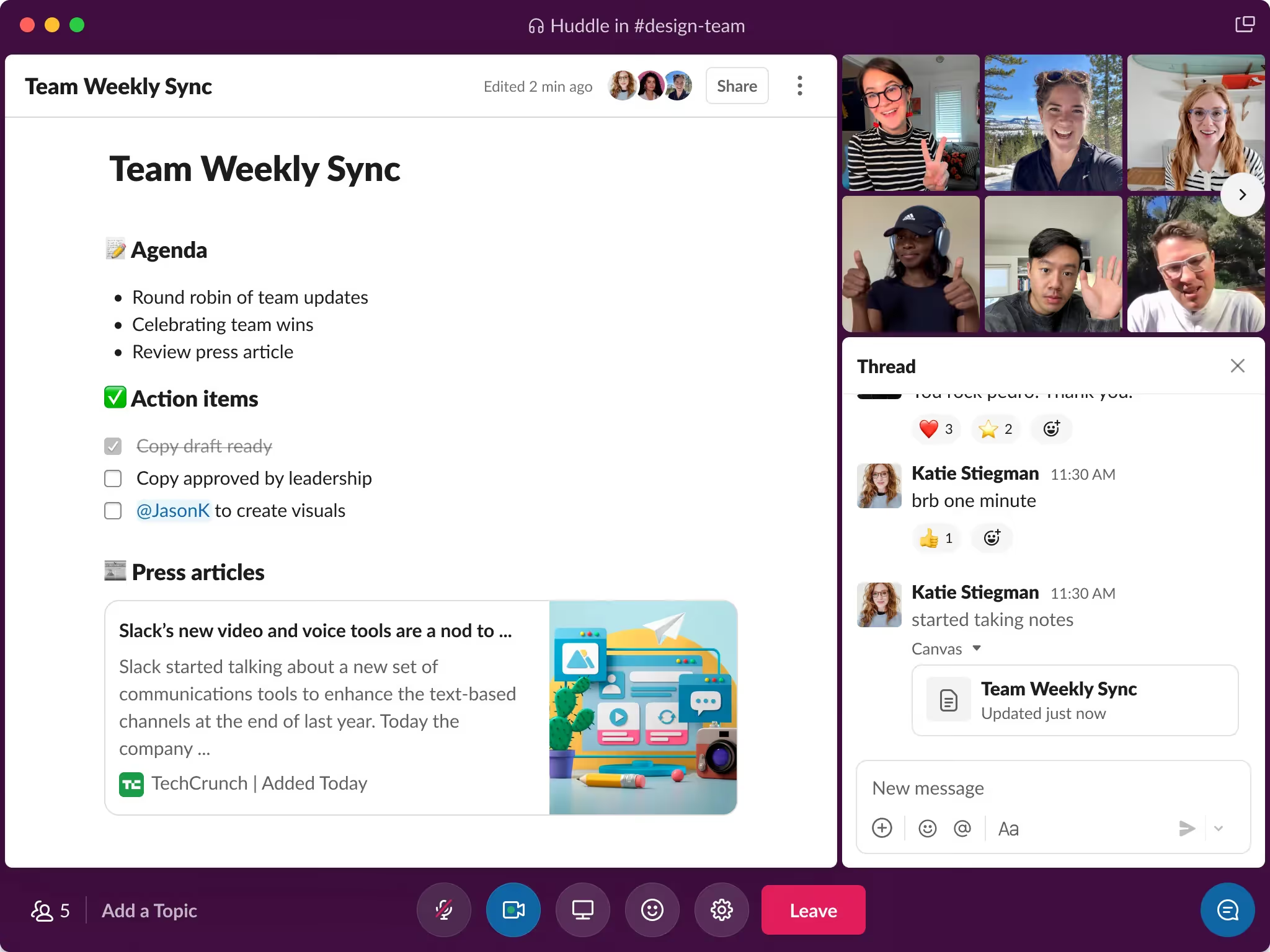
Un canvas in Slack è uno spazio dedicato all'interno di un canale o di un messaggio diretto, dove puoi creare contenuti formattati: ordini del giorno, modelli di liste di attività, riepiloghi di riunioni, hub di risorse.
Ecco come iniziare:
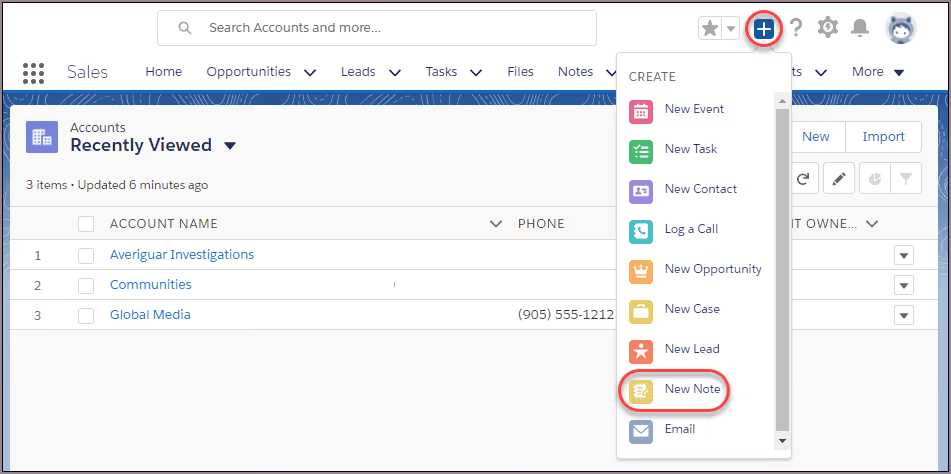
- Da un canale o da un messaggio diretto, clicca sul pulsante più in alto a destra (o usa la scheda File/Canvas nella barra laterale) e seleziona Canvas.
- Aggiungi i tuoi contenuti: titoli, elenchi puntati, liste di controllo, link, immagini. Un canvas consente una formattazione più ricca rispetto a un normale messaggio in chat.
- Per rendere il canvas facilmente accessibile, aggiungilo come scheda nel canale, così il tuo team potrà accedervi rapidamente.
- Usa i modelli interni: ad esempio, crea un canvas ricorrente per le "Note della riunione" con ordine del giorno, partecipanti, decisioni e passaggi successivi. A seconda dei casi d'uso, i team utilizzano i canvas per gli allineamenti settimanali e i briefing di progetto.
Usa le note IA degli Huddle
Se la tua riunione si svolge dal vivo su Slack tramite un huddle, puoi utilizzare le note IA per gli huddle integrate in Slack così non dovrai prendere appunti freneticamente.
Ecco una panoramica per te:
- Avvia una huddle nel canale o nel messaggio diretto in cui si sta riunendo il tuo team.
- Fai clic sull'icona Note AI nella parte inferiore della schermata della huddle per attivare la presa di appunti. Inoltre, puoi impostare determinati canali affinché le note AI si avviino automaticamente per ogni huddle.
- Una volta attivata, Slack AI ascolta la conversazione (e i messaggi condivisi nel thread della huddle) e genera: un elenco dei partecipanti, gli argomenti trattati, le attività da svolgere e un riepilogo, il tutto pubblicato in un canvas al termine della huddle.
Best practice per il tuo flusso di lavoro per le note
- Decidi in anticipo dove archiviare le note: ad esempio, crea una scheda canvas "Note riunione" in ogni canale di progetto o in un canale dedicato alle "Riunioni del team".
- Usa una struttura coerente: all'inizio di ogni canvas (o riepilogo di huddle), elenca titolo della riunione, data/ora, partecipanti e ordine del giorno. Prosegui poi con "Decisioni", "Attività da svolgere (Responsabile / Scadenza)" e "Prossima riunione".
- Tagga i colleghi: nel canvas o nella nota, usa
@nomeutenteper assegnare un'attività di follow-up. La visibilità e la chiarezza migliorano quando colleghi i nomi alle attività. - Inserisci link ad altre risorse Slack: incorpora file, collega conversazioni passate o fai riferimento ad altri canali quando pertinente; i canvas lo consentono.
- Revisione e archiviazione: alla fine di ogni settimana di riunioni, controlla le canvas o i riepiloghi degli huddle, assegna i tag corretti e archivia quelli vecchi. In questo modo manterrai il tuo spazio di lavoro ordinato e facile da consultare.
FAQ e risoluzione dei problemi di Slack Notes
Quando decidi di fare di Slack il tuo punto di riferimento per gli appunti, vuoi che il sistema sia affidabile e prevedibile. Di seguito trovi le domande più comuni che potresti avere sugli appunti di Slack, insieme ai suggerimenti per la risoluzione dei problemi per mantenere il tuo processo di annotazione sempre fluido.
📋 Domande frequenti
D: Quali funzionalità sono disponibili per gli appunti (canvas, note AI degli huddle) e con quale piano?
R: La funzione "Canvas" di Slack ti permette di creare spazi per appunti strutturati (testo, elenchi, immagini) all'interno di canali o messaggi diretti. Le "note AI degli huddle" (riepilogo automatico, attività, trascrizioni) sono invece disponibili nei piani a pagamento con il componente aggiuntivo Slack AI.
D: Posso controllare chi può vedere o modificare questi appunti/canvas?
R: Sì, puoi gestire le autorizzazioni per canvas ed elenchi: decidi tu chi può visualizzare o modificare. Per le note degli huddle AI, le persone presenti nel canale o nel messaggio diretto in cui si è svolto l'huddle possono visualizzare la canvas.
D: Le trascrizioni degli huddle sono messaggi ricercabili?
R: Non del tutto. Sebbene le note AI includano una trascrizione incorporata nella canvas, la documentazione di Slack indica che le trascrizioni non appaiono sempre nei risultati di ricerca.
D: Come faccio ad attivare l'acquisizione automatica delle note AI per ogni huddle in un canale?
R: Dalle impostazioni del canale (fai clic sul nome del canale → Impostazioni), puoi attivare "Avvia automaticamente le note AI per ogni huddle in #nome-canale".
D: Cosa succede se uso il piano Slack gratuito? Posso usare queste funzioni per gli appunti?
R: Le canvas sono disponibili (seppur con alcune limitazioni) in vari piani. Le note degli huddle AI richiedono un abbonamento a pagamento e il componente aggiuntivo Slack AI.
🛠 Risoluzione dei problemi comuni (e cosa puoi fare)
Problema n. 1: non riesco a trovare la scheda o l'opzione Canvas nel mio spazio di lavoro.
- Assicurati che la versione del tuo spazio di lavoro supporti i canvas: controlla se stai utilizzando l'app desktop o il browser. La scheda "File" potrebbe apparire in modo diverso.
- Se utilizzi un piano gratuito, verifica quanti canvas o canvas indipendenti puoi creare: potrebbero esserci dei limiti.
Problema n. 2: Confusione sui permessi: chi può modificare o visualizzare i canvas? - Se qualcuno crea un canvas e altri non riescono a modificarlo o visualizzarlo, controlla le impostazioni di "Condivisione" del canvas. Usa il menu con i tre puntini → Gestisci accesso.
- Se il tuo spazio di lavoro utilizza la "Condivisione limitata" o include ospiti esterni, le regole diventano più rigide: potrebbe essere necessario l'intervento di un proprietario o di un amministratore.
Problema n. 3: Ho attivato le note AI per una riunione, ma il riepilogo non è apparso o era incompleto. - Verifica che qualcuno nella riunione abbia cliccato manualmente su "Avvia note AI" (trovi un banner nella schermata della riunione).
- Tieni presente che le riunioni con ospiti esterni potrebbero non supportare le note AI.
- Verifica inoltre che il tuo spazio di lavoro Slack abbia abilitato le funzionalità AI in Impostazioni → Gestisci permessi → AI.
Problema n. 4: La trascrizione è presente, ma non riesco a cercare parti specifiche al suo interno. - Come indicato, le trascrizioni sono incorporate nei canvas ma potrebbero non essere indicizzate per la ricerca.
- Soluzione alternativa: dopo aver generato il canvas, aggiungi manualmente un'intestazione di riepilogo e dei tag, così da poterlo ritrovare tramite ricerca per parole chiave.
Problema n. 5: Il mio spazio per le note sta diventando disordinato: troppi canvas e nomi incoerenti. - Crea una convenzione di denominazione: Data + Titolo riunione + Canale.
- Archivia o elimina periodicamente i canvas o le note delle riunioni non più attuali.
- Usa le schede canvas nei canali per mantenere tutto in un unico posto e assicurati che gli elementi fissati in alto mettano in evidenza la versione di riferimento attuale.
Note automatiche delle chiamate su Slack: Noota
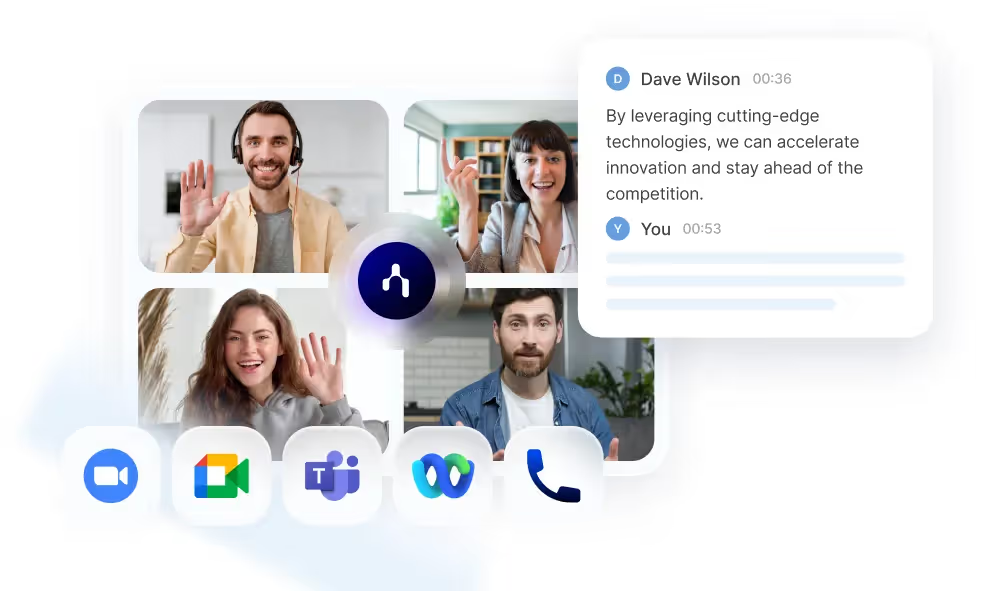
Quando il tuo team si riunisce spesso — tramite huddle, chiamate con i clienti o sessioni di brainstorming — prendere appunti manualmente su Slack diventa un peso. È qui che entra in gioco Noota per aiutarti a automatizzare il processo:
- Automatizza la trascrizione e il riepilogo della conversazione.
- Pubblica il riepilogo e i punti chiave nel canale Slack che preferisci.
- Ti permette di scegliere come strutturare il riepilogo, così ottieni ciò di cui hai bisogno (decisioni, passaggi successivi, responsabili) invece di una mole di testo inutile.
Ecco come funziona
- In Noota, vai su “Integrazioni” e seleziona Slack. Clicca su Attiva.
- Concedi le autorizzazioni richieste: accesso ai canali/conversazioni di Slack e possibilità di pubblicare i riepiloghi delle riunioni in un canale designato.
- Scegli il canale Slack in cui vuoi che appaiano i riepiloghi delle riunioni (ad esempio,
#team-meetings,#sales-calls). Noota ti offre la flessibilità di scegliere in quali canali pubblicare automaticamente i contenuti. - Configura il modello di riepilogo di Noota in modo che corrisponda a il tuo stile di riunione (ordine del giorno, partecipanti, decisioni, passaggi successivi). Impostalo una volta e dimenticatene.
- Dopo ogni riunione monitorata da Noota, troverai il riepilogo pubblicato automaticamente su Slack. Così tu e il tuo team potrete rivederlo, commentarlo o passare all'azione.
Vuoi automatizzare la presa di appunti su Slack? Prova Noota gratis ora.
Chi è l'autore
.webp)
FAQ
Clicca il pulsante più in alto a destra del canale, seleziona Canvas e aggiungi contenuti formattati con intestazioni, elenchi puntati e checkbox per organizzare le tue note.
- Accedi al canale o DM desiderato
- Seleziona Canvas dal menu principale
- Formatta con intestazioni e punti elenco
Slack AI registra automaticamente le riunioni live, genera riassunti con partecipanti, argomenti, decisioni e azioni, salvando tutto in una canvas al termine della riunione.
- Attiva l'icona AI notes durante la riunione
- Slack ascolta e trascrive automaticamente
- Genera riassunto completo in canvas
Noota risparmia 6,4 ore settimanali di admin (-80%), offre riassunti IA in 80+ lingue e integra automaticamente le note in CRM e strumenti di lavoro, superando le sole canvas di Slack.
- Risparmia 6,4 ore settimanali di lavoro amministrativo
- Riassunti automatici in 80+ lingue supportate
- Integrazione diretta con CRM e workflow aziendali
Noota è la soluzione ideale: 5000+ team la usano per automatizzare completamente le note con IA, risparmiando tempo e garantendo qualità 4,9/5 su G2. Prova Noota gratis — nessuna carta di credito richiesta.
- Automatizza note e riassunti con IA avanzata
- Valutazione 4,9/5 su G2 da migliaia di utenti
- Nessuna configurazione complessa richiesta