Integrations
8 min reading
Updated on:
Nov 4, 2025
How to Take Notes on Slack : a Complete Guide
You want to know how Slack Notes work ? Here's your guide.
Slack now lets you capture key takeaways right where the conversation happens.
You can jot ideas in Canvases, let Slack AI generate huddle summaries automatically, and even connect external tools to automate everything for you.
In this guide, you’ll learn how to take organized notes inside Slack.
How to Take Notes on Slack
Use Canvases
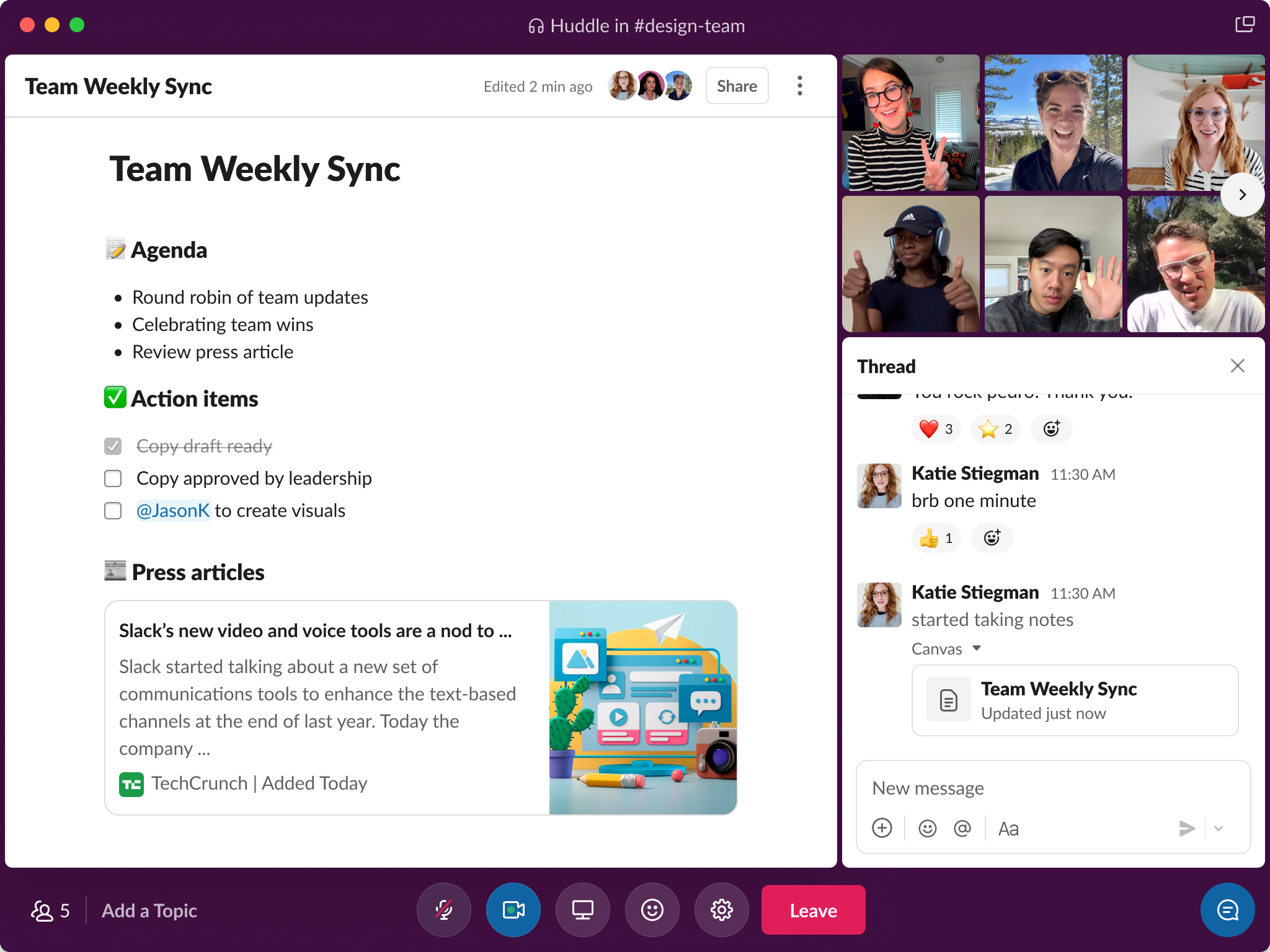
A canvas in Slack is a dedicated space that lives inside a channel or direct message, where you can create formatted content: meeting agendas, action-list templates, meeting summaries, resource hubs.
Here’s how to start:
- From a channel or DM, click the plus button in the top right (or use the side-bar Files/Canvases tab) and select Canvas.
- Add your content: headings, bullet points, check-lists, links, images. A canvas allows richer formatting than a normal chat message.
- To make the canvas easy to access, add it as a tab in the channel so your team can jump to it quickly.
- Use internal templates: for example, create a recurring “Meeting Notes” canvas with agenda, attendees, decisions, next-steps. According to use-cases, teams use canvases for weekly syncs and project briefings.
Use Huddles AI Notes

If your meeting is happening live inside Slack via a huddle, you can use Slack’s built-in AI huddle notes feature so you don’t have to scribble everything.
Here’s a breakdown for you:
- Start a huddle in the channel or DM where your team is meeting.
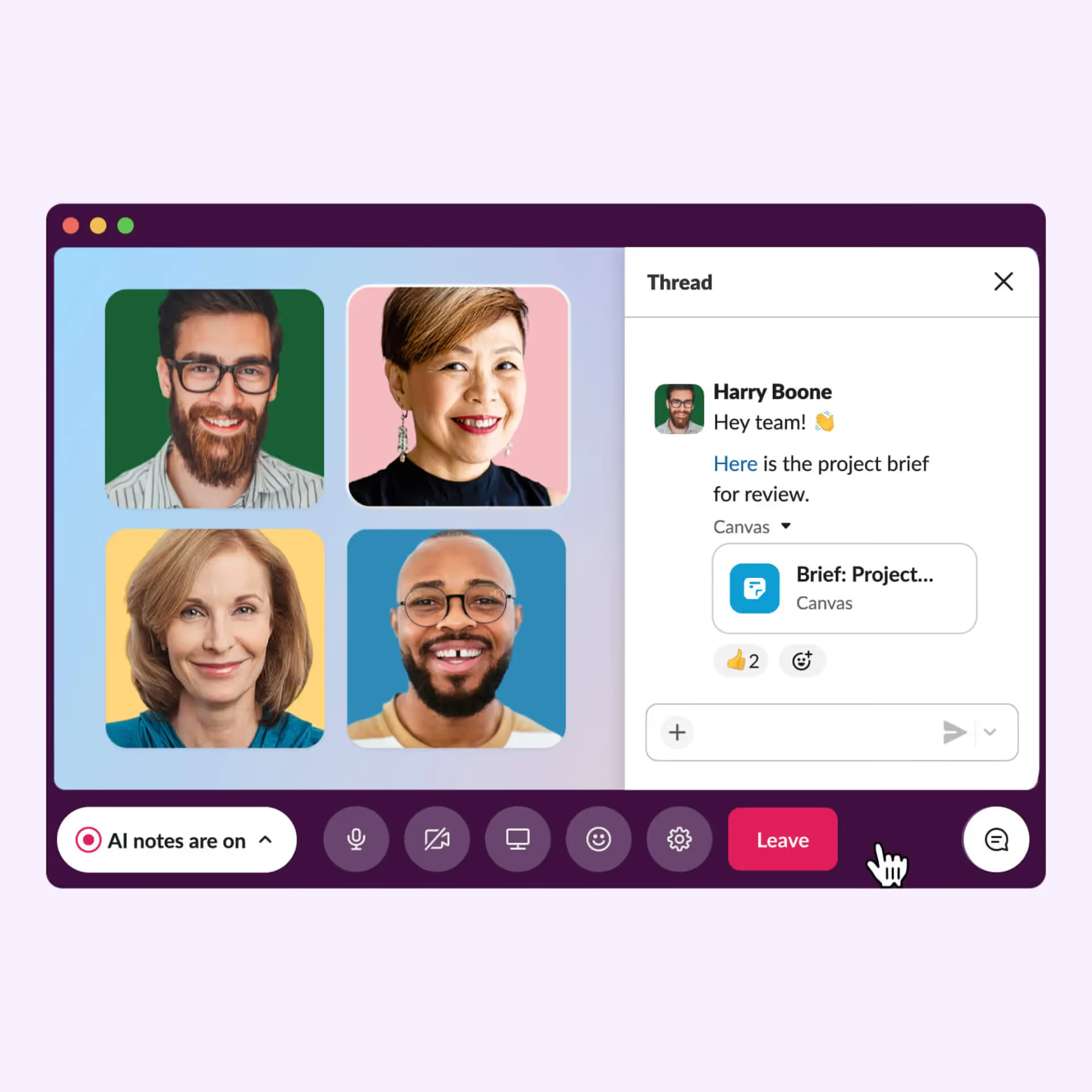
- Click the AI notes icon at the bottom of your huddle screen to turn note-taking on. Also, you can set certain channels to have AI notes start automatically for every huddle.
- When enabled, Slack AI listens to the conversation (and the messages shared within the huddle thread) and generates: list of attendees, topics discussed, action items, and a summary — all posted in a canvas once the huddle ends.
Best Practices for Your Note Workflow
- Decide in advance where your notes should live: For example, create a “Meeting Notes” canvas tab in each project-channel, or one in a dedicated “Team-Meetings” channel.
- Use consistent structure: At the top of every canvas (or huddle summary), list Meeting Title, Date/Time, Attendees, Agenda. Then follow with “Decisions”, “Action Items (Owner / Due)”, “Next Meeting”.
- Tag colleagues: In the canvas or note, use
@usernameto assign someone a follow-up. The visibility and clarity improve when you link names to tasks. - Link back to other Slack resources: embed files, link past conversations, or refer to other channels when relevant—canvases allow this.
- Review and archive: At the end of each meeting week, review the canvases or huddle summaries, tag them correctly and archive old ones. This keeps your workspace clean and searchable.
Slack Notes FAQ & Troubleshoot
When you decide to make Slack your go-to place for notes, you’ll want the system to be reliable and predictable. Below are the most common questions you might have about Slack notes, followed by the troubleshooting tips that keep your note-process working smoothly.
📋 Frequently Asked Questions
Q: What features do I get for notes (canvases, AI huddle notes) and on which plan?
A: Slack’s “Canvas” feature lets you build structured note-spaces (text, lists, images) inside channels or DMs. Meanwhile, “AI huddle notes” (automatic summarisation, action items, transcripts) are available on paid plans with the Slack AI add-on.
Q: Can I control who sees or edits these notes/canvases?
A: Yes — you can manage permissions for canvases and lists: decide who can view or edit. For AI-huddle notes, folks in the same channel or DM where the huddle occurred can view the canvas.
Q: Do huddle transcripts count as searchable messages?
A: Not fully. While AI notes include a transcript embedded in the canvas, Slack’s documentation says transcripts won’t always appear in search results.
Q: How do I turn AI note capture on for every huddle in a channel?
A: From the channel settings (click channel name → Settings), you can enable “Start AI notes automatically for every huddle in #channel-name”.
Q: What if I’m using the free Slack plan — can I use these note features?
A: Canvases are available (though some limitations apply) under various plans. I huddle notes require paid subscription + Slack AI add-on.
🛠 Troubleshooting Common Issues (and what you can do)
Issue #1: I can’t find the Canvas tab or option in my workspace.
- Make sure your workspace version supports canvases — check if you’re using desktop or browser. The “Files” tab may appear differently.
- If you’re on a free plan, verify how many canvases or standalone canvases you can create — there may be limits.
Issue #2: Permissions confusion — who can edit or see canvases? - If someone creates a canvas and others can’t edit or even view, check the “Share” settings of the canvas. Use the three-dots menu → Manage access.
- If your workspace uses “Limited sharing” or has external guests, the rules become stricter — you may need an owner/admin to adjust.
Issue #3: I enabled AI notes for a huddle but the summary didn’t appear or was incomplete. - Confirm that someone in the huddle manually clicked “Start AI notes” (there’s a banner in the huddle screen).
- Note that huddles with external guests may not be eligible for AI notes.
- Also check that your Slack workspace has enabled AI features in Settings → Manage permissions → AI.
Issue #4: The transcript is there but I can’t search for parts of it. - As noted, transcripts are embedded in canvases but may not be indexed for search.
- Workaround: After the canvas is generated, add a summary heading & tags manually so you can find it via keyword searches.
Issue #5: My note-space is becoming messy — too many canvases, inconsistent naming. - Create a naming convention: Date + Meeting Title + Channel.
- Periodically archive or delete outdated canvases or huddle notes.
- Use canvas tabs in channels to keep things in one place, and ensure pinned items highlight the current reference version.
Auto Call Notes on Slack: Noota

When your team meets frequently—via huddles, client calls, or brainstorming sessions—taking notes manually inside Slack becomes a drag. That’s where Noota steps in to help you automate the process :
- Automates transcription and summarisation of the conversation.
- Posts the summary and key action items in the channel of your choice inside Slack.
- Lets you choose how the summary is structured, so you get what you need (decisions, next steps, owners) rather than a dump of text.
Here’s how to it works
- In Noota, navigate to “Integrations” and select Slack. Click Activate.
- Grant the required permissions: access to Slack channels/conversations and ability to post meeting summaries in a designated channel.
- Choose the Slack channel where you want meeting summaries to appear (e.g.,
#team-meetings,#sales-calls). Noota gives you flexibility in picking which channels get auto-posted. - Configure Noota’s summary template so it matches your meeting style (agenda, attendees, decisions, next steps). Set it once and forget it.
- After any meeting that Noota is monitoring, you’ll find the summary automatically posted in Slack. Then you and your team can review, comment or act.
Want to automate your note-taking on Slack ? Try Noota for free now.
Meet the Writer
.webp)
FAQ
Canvases offer richer formatting and dedicated spaces for organized notes, unlike chat messages.
- Support headings, bullet points, checklists, links, and images
- Persist as accessible tabs in channels for easy team reference
- Enable structured templates for recurring meetings and projects
Slack AI listens during huddles and generates summaries without manual transcription effort.
- Captures attendees, topics discussed, and action items automatically
- Posts complete canvas summary once the huddle ends
- Can be enabled by default for specific channels
Noota automates meeting notes across 80+ platforms with superior accuracy and saves 6.4 hours weekly.
- Generates notes in Slack plus email, Teams, Zoom, and more simultaneously
- Trusted by 5000+ teams with 4.9/5 G2 rating and -80% admin reduction
- Integrates seamlessly without replacing your existing Slack workflow
Noota delivers the most efficient solution, saving teams 6.4 hours weekly across all platforms.
- Captures notes in Slack, email, Teams, and 80+ languages automatically
- Reduces administrative overhead by 80% compared to manual processes
- Try Noota free — no credit card needed