Risorse e Produttività
8 min di lettura
Updated on:
Oct 6, 2025
Come ripristinare le chiamate eliminate su iPhone
Vuoi recuperare i registri del tuo iPhone? Ecco la guida che fa per te.
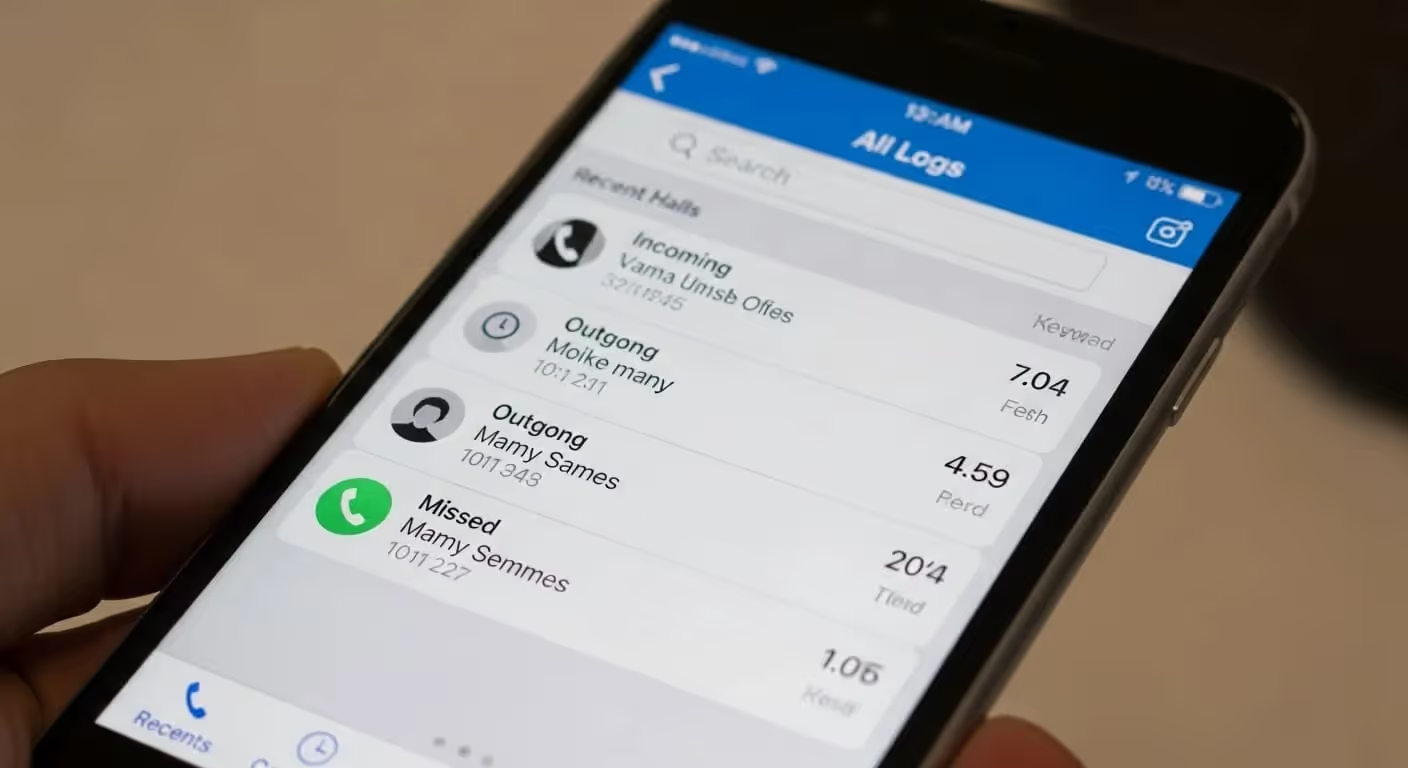
Gli utenti iPhone cancellano accidentalmente le chiamate ogni giorno e Apple non rende il recupero una procedura intuitiva. Il registro chiamate sul tuo dispositivo è limitato, fragile e facile da sovrascrivere.
La buona notizia? Hai ancora diverse opzioni: dai backup su iCloud e computer agli strumenti di recupero e ai tabulati del tuo operatore.
In questa guida, imparerai i metodi passo dopo passo per visualizzare e ripristinare la cronologia delle chiamate in sicurezza.
È davvero possibile recuperare le chiamate iPhone eliminate?
Apple non offre una cartella integrata di "chiamate eliminate di recente" come fa per le foto. La posizione ufficiale è che l'unica strada per ripristinare le chiamate sia tramite un backup completo del dispositivo.
In altre parole: il tuo registro chiamate era incluso in un backup iCloud o iTunes/Finder risalente a un momento precedente all'eliminazione, potresti riuscire a ripristinarlo. Altrimenti, Apple non offre alcun metodo ufficiale per recuperare le chiamate che hai già eliminato manualmente.
Se continui a utilizzare l'iPhone (effettuando chiamate, installando app, scattando foto), i nuovi dati potrebbero sovrascrivere gli "spazi" in cui erano memorizzati i registri delle chiamate eliminate. Una volta sovrascritti, il recupero diventa altamente improbabile. Inoltre, molti sistemi di backup hanno politiche di conservazione: se non hai eseguito un backup di recente, il registro chiamate eliminato potrebbe non essere presente in alcun backup salvato.
Se non hai mai attivato i backup, o se le chiamate eliminate sono molto vecchie e nessun backup le ha acquisite, potresti non avere fortuna. Tuttavia, dai un'occhiata alla nostra valutazione passo dopo passo qui sotto.
Come visualizzare e ripristinare le chiamate iPhone: guida passo dopo passo
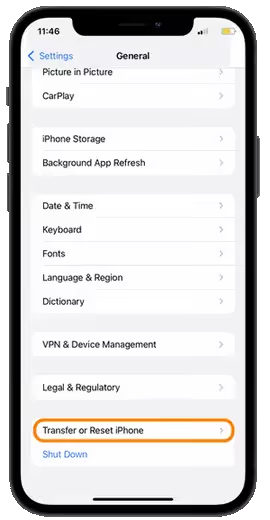
Queste sono le azioni concrete che puoi intraprendere se hai eliminato accidentalmente una o più chiamate.
2.1 Controlla prima la scheda "Recenti"
- Apri l' app Telefono e tocca Recenti.
- Scorri verso il basso e tocca Mostra tutto per visualizzare le chiamate meno recenti.
- A volte, la chiamata che cerchi è ancora presente: non è ancora scomparsa definitivamente.
Questa è la verifica più rapida; se non la trovi, passa alle opzioni di backup o ripristino.
2.2 Ripristino da backup iCloud
Se il registro chiamate è stato salvato su iCloud prima della cancellazione, puoi recuperarlo, al costo di sovrascrivere parte dei dati attuali.
Passaggi:
- Vai su Impostazioni → Generali → Trasferisci o inizializza iPhone → Inizializza contenuto e impostazioni.
- Dopo il riavvio dell'iPhone, segui le istruzioni di configurazione.
- Nella schermata App e dati , seleziona Ripristina da backup iCloud.
- Accedi con il tuo ID Apple e scegli un backup precedente alla cancellazione.
- Attendi il completamento del ripristino, quindi controlla il registro chiamate.
⚠️ Attenzione: il ripristino da iCloud sostituirà i tuoi dati attuali (app, messaggi, foto) con quelli salvati al momento del backup. Tutti i nuovi elementi creati dopo tale backup potrebbero andare persi.
2.3 Ripristino da backup su computer (iTunes / Finder)
Se esegui regolarmente il backup del tuo iPhone tramite Mac o PC, le chiamate eliminate potrebbero trovarsi in uno di quei backup.
Passaggi:
- Collega il tuo iPhone al computer utilizzato per i backup.
- Apri iTunes (su versioni precedenti di macOS o Windows) oppure Finder (su macOS Catalina e versioni successive).
- Seleziona il tuo dispositivo, vai su Ripristina backup.
- Scegli un backup precedente all'eliminazione, quindi fai clic su Ripristina.
- Al termine del ripristino, controlla le tue Recenti nell'app Telefono per le chiamate ripristinate.
Tieni presente che questo metodo sovrascrive i contenuti attuali del telefono con lo stato salvato nel backup. Qualsiasi dato aggiunto dopo il backup rischia di andare perduto.
2.4 Utilizzare strumenti di recupero di terze parti
Se non disponi di un backup adeguato, un software di recupero può scansionare la memoria del tuo iPhone o i tuoi backup per tentare di recuperare il registro chiamate eliminato.
Tra gli strumenti più diffusi figurano:
- PhoneRescue per iOS — consente di visualizzare in anteprima e ripristinare selettivamente i dati (da iCloud o backup locali) senza dover inizializzare il telefono.
- App di recupero dati per iPhone (ad es. AppGeeker) — eseguono una scansione approfondita della memoria del dispositivo alla ricerca di registri eliminati.
- Disk Drill — spesso citato nei forum come software di recupero di riferimento, utile quando non esiste alcun backup.
Passaggi (procedura tipica):
- Installa il software di recupero sul computer.
- Collega l'iPhone tramite USB.
- Avvia la scansione per i dati eliminati (o specificamente per la cronologia chiamate).
- Esamina i risultati, visualizza le anteprime delle voci e seleziona le chiamate che desideri ripristinare.
- Scegli se ripristinare i dati sul dispositivo o esportarli sul computer.
⚠️ Nota: il successo del recupero non è garantito. Se nuovi dati hanno sovrascritto lo spazio di archiviazione occupato in precedenza dai registri chiamate eliminati, il recupero potrebbe non riuscire. Fai attenzione a non installare troppe nuove app o scattare molte foto, poiché ciò potrebbe accelerare la sovrascrittura dei dati.
2.5 Recupera dai registri del tuo operatore (se applicabile)
Anche se il tuo iPhone non mostra nulla, il tuo operatore telefonico potrebbe comunque avere un registro delle tue chiamate. Molti operatori forniscono registri dettagliati delle chiamate (CDR) accessibili tramite il loro sito web o la loro app.
Passaggi:
- Accedi all'account online o all'app del tuo operatore mobile.
- Vai a sezioni come Utilizzo, Cronologia chiamate, o Registri dettagliati.
- Visualizza (o richiedi) i registri per l'intervallo di data/ora di cui hai bisogno.
- Se il portale online non mostra i dettagli, contatta l'assistenza clienti e richiedi uno storico.
⚠️ Tuttavia, non tutti gli operatori condividono questi dati: alcuni limitano il periodo di conservazione e altri restringono ciò che viene rilasciato agli utenti.
Risoluzione dei problemi comuni di recupero
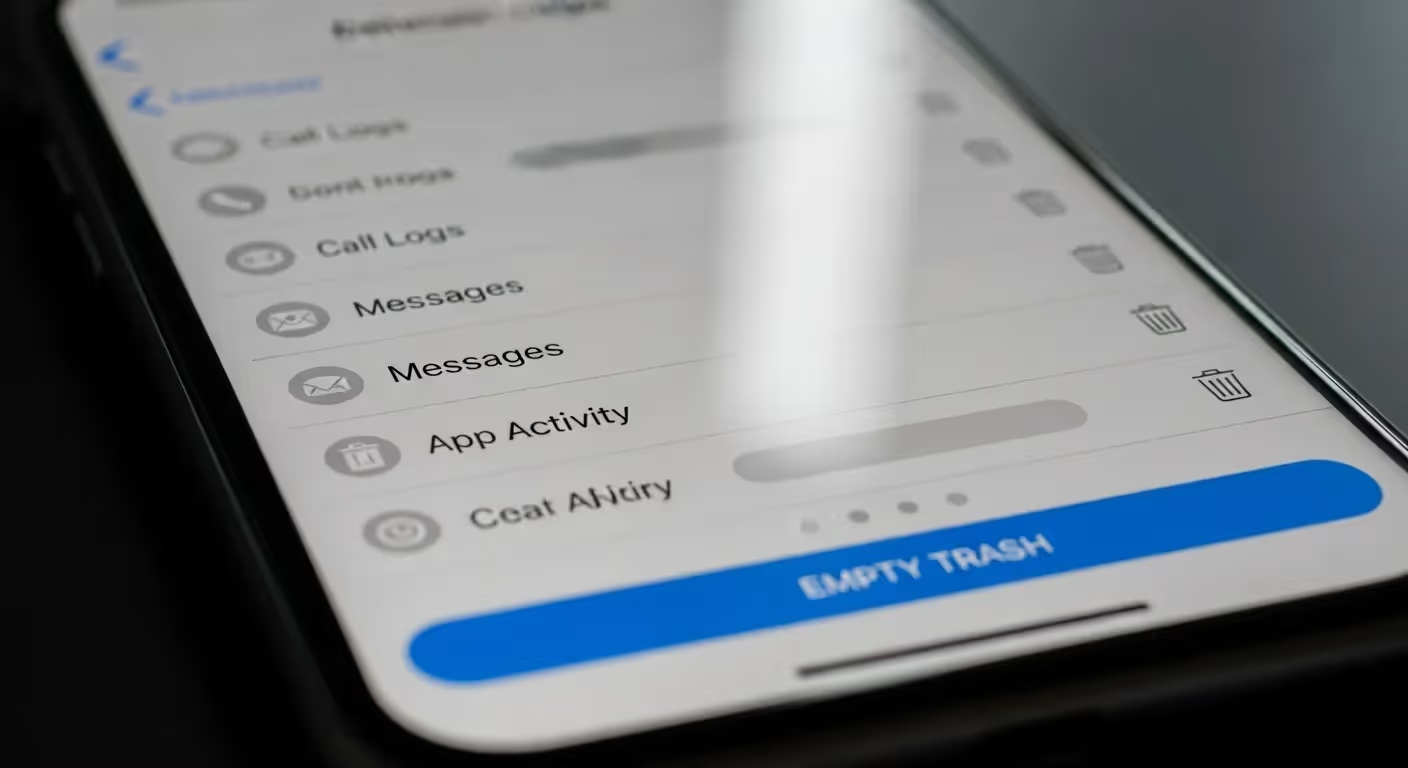
3.1 Problemi di incompatibilità iOS / software
- Una versione di iOS non aggiornata potrebbe impedire il corretto ripristino o il riconoscimento dei file di backup.
- Assicurati che il tuo iPhone e il software dello strumento di recupero siano aggiornati prima di tentare qualsiasi operazione.
- A volte, anche un semplice riavvio o un riavvio forzato risolvono errori nascosti e sbloccano l'accesso. Apple stessa consiglia di riavviare e aggiornare il dispositivo quando si risolvono problemi relativi alla cronologia chiamate.
3.2 Il backup non include la cronologia chiamate
- Alcuni backup non includono i registri delle chiamate a meno che il backup non sia crittografato. Molti utenti trascurano questo dettaglio e scoprono che la cronologia chiamate è assente anche dopo il ripristino.
- Verifica che i backup siano stati crittografati. In caso contrario, potrebbero non contenere i dati delle tue chiamate.
- Se scopri che il tuo backup non era crittografato, il ripristino non recupererà i registri delle chiamate: dovrai utilizzare un software di recupero o richiedere i tabulati al tuo operatore.
3.3 Dati sovrascritti o danneggiati
- Quando vengono scritti nuovi dati (app, foto, messaggi), questi potrebbero sovrascrivere i settori dell'iPhone in cui erano archiviati i registri delle chiamate eliminati. Una volta sovrascritti, il recupero diventa molto più difficile, se non impossibile.
- Se la scansione di recupero non restituisce alcun risultato, spesso la causa è questa.
- Smetti di usare il telefono (evita di creare nuovi dati) ed esegui subito gli strumenti di scansione: più lo utilizzi, minori saranno le probabilità di successo.
3.4 Lo strumento di recupero non funziona o non riesce a connettersi
- Alcuni strumenti potrebbero non supportare la tua specifica versione di iOS o il tuo modello di dispositivo.
- Assicurati che l'app di recupero scelta supporti il tuo iPhone e il tuo sistema operativo.
- Prova strumenti alternativi (ad esempio PhoneRescue, AnyRecover, Disk Drill): uno potrebbe riuscire dove un altro fallisce.
- Utilizza prima la modalità "anteprima" o una scansione di prova: se non riesci a visualizzare alcun registro chiamate nell'anteprima, è improbabile che un ripristino completo funzioni.
3.5 Problemi di crittografia/password
- Se un backup è crittografato, è necessaria la password corretta per sbloccarlo. Senza di essa, non è possibile accedere ai registri delle chiamate contenuti al suo interno.
- Molti utenti dimenticano o perdono tale password, il che blocca completamente il processo.
- Conserva sempre una copia della password di backup in un luogo sicuro o utilizza un gestore di password.
3.6 Limitazioni dei registri dell'operatore
- Alcuni operatori conservano la cronologia delle chiamate solo per un periodo limitato (3-6 mesi, a volte anche meno).
- Anche se il tuo operatore fornisce i dettagli delle chiamate, potrebbero mancare alcune informazioni (durata delle chiamate, chiamate perse, timestamp esatti).
- Se il tuo operatore fornisce i registri, spesso mostrano numeri in entrata/uscita e timestamp, ma raramente il contesto completo della chiamata.
- Non in tutte le regioni è consentito agli operatori di condividere liberamente registri dettagliati.
3.7 Rischio di perdita dati durante il ripristino dell'intero backup
- Ripristinare da iCloud o iTunes significa cancellare i dati attuali del dispositivo e tornare a un'istantanea precedente. Ciò elimina messaggi, contatti e file multimediali creati dopo quel backup.
- Molti utenti rimangono sorpresi dal fatto che i contenuti più recenti scompaiano dopo il ripristino.
- Esporta o esegui sempre un backup dei dati attuali prima del ripristino, se la chiamata che cerchi è essenziale ma non vale la pena perdere altri lavori recenti.
3.8 Nessuna traccia trovata
- Se il software di recupero non trova nulla e nessun backup contiene le chiamate, potresti non avere altre opzioni.
- Molti utenti sui forum confermano questa dolorosa realtà:
“Non è possibile, a meno che non siano presenti in un backup precedente.”
Non è assolutamente possibile recuperare questi dati dal dispositivo stesso.
- A questo punto, è il momento di trarre insegnamento: strategie di backup, strumenti di registrazione delle chiamate e una migliore conservazione dei dati.
Conserva un registro completo delle tue chiamate iPhone — usando Noota
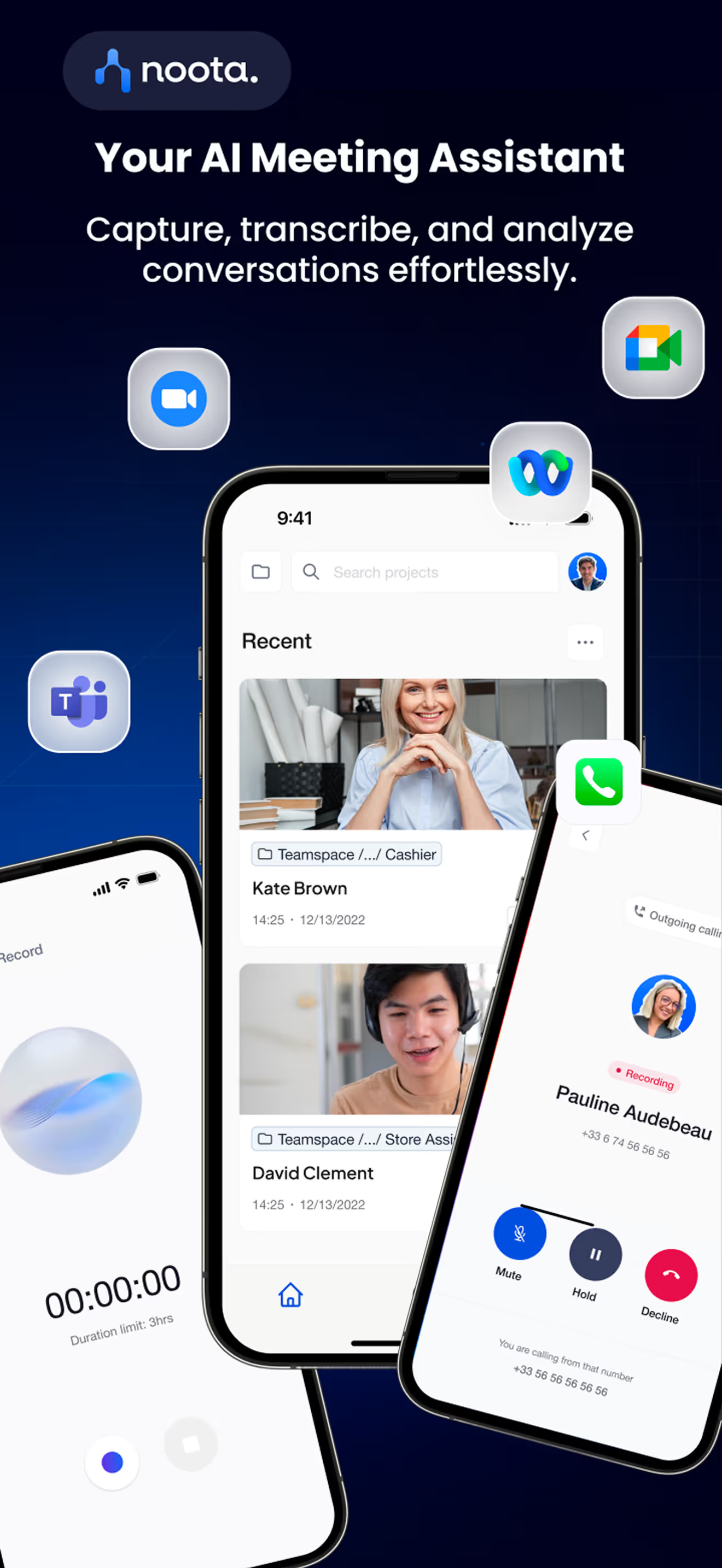
Con Noota, le tue chiamate non svaniscono nel nulla: vengono acquisite, elaborate e archiviate in un sistema strutturato. Ecco come:
- Chiamate VoIP e app: effettua chiamate tramite Noota (da iPhone o browser) e l'app registra e trascrive automaticamente ogni chiamata.
- Acquisizione con un clic: nessun passaggio manuale; una volta connesso, Noota inizia subito a registrare.
- Elaborazione AI istantanea: al termine della chiamata, riceverai una trascrizione completa, un riepilogo preciso dei punti chiave, le attività da svolgere e i momenti salienti.
- Archivio ricercabile: ogni chiamata viene indicizzata, così puoi effettuare ricerche per contatto, parola chiave o data, anche a distanza di mesi.
- Integrazione con CRM e workflow: riepiloghi e trascrizioni possono essere inviati automaticamente al tuo CRM, ATS o ai tuoi strumenti di produttività.
- Supporto per app mobile: Noota offre app per iPhone che ti consentono di registrare sia le chiamate che le riunioni di persona, mantenendo tutti i dati sincronizzati.
PROVA NOOTA GRATIS ORA
Chi è l'autore

FAQ
Puoi recuperare le chiamate cancellate ripristinando un backup iCloud o iTunes creato prima dell'eliminazione. Se non hai backup, controlla prima la scheda Recenti.
- Accedi a Impostazioni → Generale → Trasferisci o ripristina iPhone
- Scegli Ripristina da backup iCloud con Apple ID
- Seleziona backup antecedente alla cancellazione
Il ripristino da backup sostituisce app, messaggi e foto con i dati salvati in quel momento. Perderai qualsiasi elemento creato dopo il backup.
- Tutti i dati attuali vengono sovrascritti completamente
- Solo le informazioni dal backup vengono ripristinate
- Nessun dato intermedio viene preservato
Apple non fornisce un cestino per le chiamate come per le foto. L'unica soluzione ufficiale è ripristinare da backup completo precedente alla cancellazione.
- I log delle chiamate si sovrascrivono rapidamente con nuovi dati
- Lo spazio è limitato e fragile sul dispositivo
- Apple privilegia il backup come metodo di protezione
Noota registra automaticamente tutte le chiamate con trascrizione in 80+ lingue, risparmiando 6,4 ore/settimana di admin. Valutato 4,9/5 su G2 da 5000+ team.
- Trascrizione automatica in tempo reale di ogni chiamata
- Riduce l'amministrazione dell'80% rispetto ai metodi manuali
- Prova Noota gratis — nessuna carta di credito richiesta