Integrazioni
8 min di lettura
Updated on:
Nov 13, 2025
Note Salesforce: una guida
Vuoi sapere come prendere appunti su Salesforce? Ecco la tua guida.
Le Note di Salesforce ti consentono di acquisire ogni dettaglio fondamentale, decisione e passaggio successivo direttamente dove il tuo team lavora già: all'interno di Salesforce.
Ma c'è un problema: molti team sottoutilizzano ancora questa funzionalità o faticano a rendere le proprie note operative.
Questa guida ti spiega cosa sono le Note di Salesforce e come utilizzarle in modo efficace.
Cosa sono le Note di Salesforce
Nel tuo CRM, le Note di Salesforce sono lo strumento integrato che ti permette di acquisire dettagli in formato testo o rich-text e di allegarli direttamente a record come contatti, account, opportunità o oggetti personalizzati.
Nella versione Lightning Experience si chiamano "Note avanzate", il che significa che puoi utilizzare la formattazione (grassetto, elenchi numerati, immagini), collegare una singola nota a più recorde disporre della cronologia delle versioni e di funzionalità di condivisione.
Perché è importante? Perché il tuo team non ha bisogno solo di dati grezzi, ma di contesto, decisioni, passaggi successivi e una narrazione dinamica su ogni relazione. Le note ti consentono di archiviare tale narrazione nello stesso sistema che utilizzi per la pipeline di vendita, i casi di assistenza o gli account di servizio. Se utilizzate correttamente, ti aiutano a evitare di chiederti "cosa abbiamo deciso in quella riunione?" o "abbiamo registrato il passaggio successivo?".
Vale anche la pena notare come Salesforce abbia evoluto questo strumento. Il vecchio modello "Note e allegati" era semplice e piuttosto limitato, pensato principalmente per archiviare file statici, allegati o testo in modo alquanto isolato. Le nuove "Note avanzate" in Lightning offrono funzionalità più ricche, progettate per i moderni team di vendita e assistenza che necessitano di collaborazione, formattazione avanzata e una solida funzionalità di collegamento a più record.
Come utilizzare le Note di Salesforce
Ecco come iniziare
a) Abilita e configura le Note
Prima di tutto: assicurati che le Note (in particolare le Note avanzate) siano attivate nella tua organizzazione. In Impostazioni, vai su Impostazioni note → Abilita note e salva.
Quindi, aggiungi l'elenco correlato "Note" ai layout di pagina pertinenti (Account, Contatto, Opportunità e qualsiasi oggetto personalizzato utilizzato).
Una volta fatto, il tuo team sarà in grado di creare note in rich-text, collegarle a più record e collaborare più facilmente.
b) Crea una nota e collegala correttamente
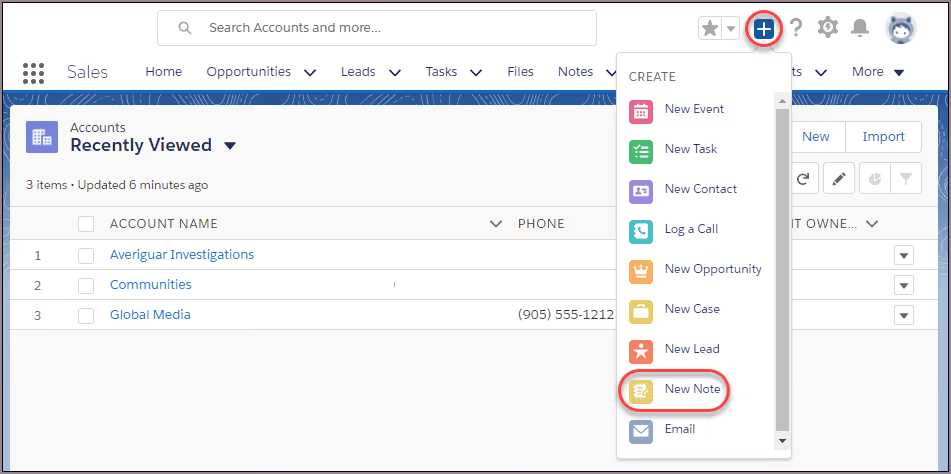
Quando ti trovi su un record (ad esempio un Contatto o un'Opportunità) e hai appena terminato una riunione, fai clic sul Nuova nota pulsante, sia dall'elenco correlato Note che tramite il menu Azioni globali.
Nell'editor delle note:
- Assegna alla nota un titolo chiaro (ad esempio, “Discovery Call – [Nome cliente] – [Data]”).
- Scrivi il corpo del testo: partecipanti, approfondimenti chiave, azioni successive, decisioni prese.
- Usa la formattazione: elenchi puntati, elenchi numerati e grassetto per evidenziare gli elementi essenziali.
- Usa la funzione “Aggiungi a record” o “Collega a” per associare la nota a tutti gli oggetti pertinenti: il contatto, l'azienda, l'opportunità o anche un oggetto personalizzato, se necessario. Questo garantisce che il contesto corretto appaia nella cronologia di ogni record.
c) Adotta una struttura ottimale per un maggiore impatto
La tua nota diventa molto più utile se adotti una struttura coerente. Ad esempio:
- Titolo: “Riunione – [Cliente] – [Data]”
- Partecipanti: Elenca chi era presente
- Punti chiave: Elenco puntato delle criticità o degli obiettivi
- Decisioni prese: Cosa è stato concordato
- Prossimi passi: Chi farà cosa e entro quando
Utilizzare questo tipo di struttura garantisce che chiunque nel tuo team possa aprire un record in seguito e comprendere immediatamente l'essenza di quanto accaduto e i passaggi successivi.
Inoltre, poiché le Note avanzate supportano la formattazione avanzata, puoi enfatizzare gli elementi critici (grassetto, sottolineato) e incorporare un'immagine (ad esempio, lo schizzo di una lavagna fatto durante la riunione), se pertinente.
d) Utilizza le Note in modo efficiente nel tuo flusso di lavoro
- Incoraggia la stesura della nota entro 24 ore dalla riunione. Memoria fresca = nota più accurata.
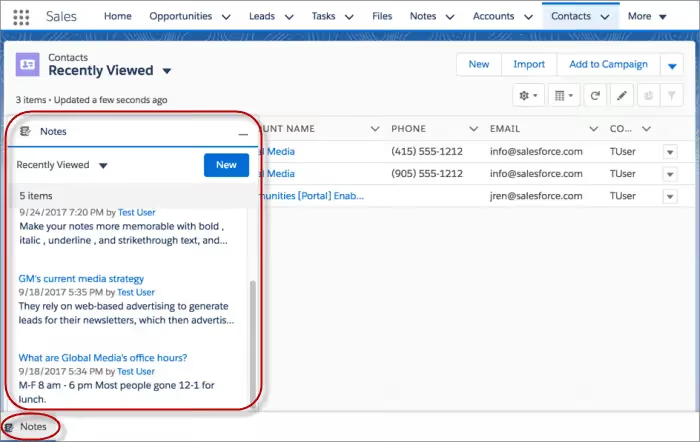
- Utilizza la home page delle Note (in Lightning) per sfogliare tutte le note: potrai visualizzare elenchi, ordinare o filtrare i contenuti e, se necessario, ripristinare versioni precedenti di una nota.
- Per i team operativi sul campo: poiché le Note sono disponibili nell'app mobile Salesforce, i tuoi rappresentanti possono scattare una foto, scrivere una nota in loco e collegarla immediatamente al CRM.
- Incoraggia l'associazione di una singola nota a più record quando applicabile (ad esempio, se la riunione ha coinvolto un contatto, la sua azienda e una trattativa): questo garantisce che il contesto sia presente in tutti i record pertinenti.
e) Reporting e monitoraggio delle abitudini di presa appunti
Sebbene le Note siano archiviate in modo diverso (come ContentNote/ContentDocument a livello di sistema), puoi comunque creare viste elenco sull'oggetto Note o generare report che mostrino le "Note create negli ultimi 7 giorni" o le "Note senza un'azione successiva definita".
Utilizza questi strumenti per monitorare l'adozione: le note vengono scritte? I passaggi successivi vengono registrati? Quali membri del team sono in ritardo? Questo ti aiuterà a far rispettare le best practice e a migliorare l'allineamento del team.
Risoluzione dei problemi con le Note di Salesforce
Anche quando tu e il tuo team siete impegnati a utilizzare le Note in Salesforce, possono verificarsi degli intoppi.
A) Problemi comuni che potresti riscontrare
- Note non visibili ad alcuni utenti
Un utente apre un record ma non vede la nota che si aspetta. Spesso il problema è legato alle autorizzazioni o alle associazioni. - Note non salvate correttamente o che scompaiono
Ad esempio: se il tuo layout non include l'elenco correlato Note o se le "Note avanzate" non sono state abilitate, potresti riscontrare che le note non vengono registrate come previsto. - Note associate ai record errati
Un errore comune è aggiungere una nota solo al contatto, quando la riunione riguardava anche un'opportunità. Senza l'associazione a tutti i record pertinenti, il contesto va perduto. - Difficoltà nel generare report sulle note o nell'estrarre informazioni
Poiché le note risiedono in un elenco correlato e sono spesso archiviate tramite oggetti come ContentNote/ContentDocument, non si comportano sempre come semplici campi, rendendo complesse le viste elenco o le esportazioni. - Struttura incoerente delle note all'interno del team
Se ogni membro del team scrive le note in modo diverso (titoli, formati o assenza di passaggi successivi), la funzionalità di ricerca e consultazione ne risente.
B) Come risolvere questi problemi
- Controlla le autorizzazioni utente
Assicurati che ogni utente abbia l'accesso corretto: autorizzazione a livello di oggetto per il record (Azienda, Contatto, Opportunità), oltre all'autorizzazione per visualizzare e aggiungere note. - Verifica che la funzionalità Note sia abilitata e il layout configurato
Vai su Imposta → Impostazioni note → Abilita note. Quindi conferma che l'elenco correlato Note sia presente nei layout di pagina per ogni oggetto. - Assicurati che le associazioni siano corrette durante la creazione delle note
Quando aggiungi una nota: collegala a tutti i record pertinenti (contatto + azienda + opportunità) utilizzando la funzione "Relativo a" o "Aggiungi ai record". In questo modo il contesto sarà presente in tutti gli oggetti. - Utilizza filtri e strumenti di reportistica per le note
Ad esempio: crea un report sull'oggetto Note (o ContentNote) per le "Note create negli ultimi 7 giorni" per monitorarne l'utilizzo. Individuare gli elementi mancanti inizia spesso con: "Quali record non hanno alcuna nota allegata?" - Standardizza la stesura delle note
Fornisci al tuo team un mini-modello: Titolo = "Riunione – [Cliente] – [Data]", includi partecipanti, decisioni chiave e azioni successive. Una formattazione coerente consente a tutti una consultazione rapida.
C) Come prevenire questi problemi in futuro
- Forma il tuo team: Assicurati che tutti comprendano la differenza tra note e allegati, sappiano come collegare correttamente i record e comprendano il valore di una presa di appunti coerente.
- Esegui audit regolari: Estrai un elenco di Note ogni mese e verifica la presenza di: campi per i passaggi successivi mancanti, Note orfane (Note non collegate a un'opportunità o a un account) o utenti con un utilizzo ridotto.
- Utilizza i promemoria del flusso di lavoro: Crea un flusso o un processo semplice in modo che, dopo la registrazione di una riunione (o dopo un'attività di chiamata), al rappresentante venga ricordato di aggiungere una Nota entro 24 ore.
- Monitora le metriche di adozione: Tieni traccia della "% di opportunità con una Nota allegata" o del "tempo medio dalla fine della riunione alla creazione della Nota" per mantenere il processo efficiente.
- Rivedi la configurazione dopo gli aggiornamenti: Con ogni rilascio importante di Salesforce (3 volte l'anno), assicurati che le impostazioni delle Note e i layout di pagina funzionino ancora come previsto: alcuni aggiornamenti potrebbero influire sul comportamento dell'interfaccia utente.
Note Salesforce basate sull'IA: Noota

L'integrazione di Noota con Salesforce ti aiuta a registrare le riunioni, generare riepiloghi e inserirli direttamente nei record corretti:
- Creazione automatica di contatti e opportunità in base ai partecipanti alla riunione e ai parametri selezionati.
- Integrazione perfetta: una volta abilitato Salesforce in Noota (tramite Impostazioni → Integrazioni), il riepilogo della riunione diventa una Nota allegata al record corretto.
- Struttura del riepilogo basata sull'IA: Noota rileva i partecipanti, le decisioni chiave, i passaggi successivi e i punti critici, per poi organizzarli in un riepilogo strutturato che diventa la tua Nota in Salesforce.
- Automazione del flusso di lavoro tra sistemi: tramite strumenti come Zapier, puoi creare flussi di lavoro a più fasi (ad esempio: fine riunione → Noota genera il riepilogo → creazione della Nota in Salesforce → avviso su Slack o creazione di un'attività).
Vuoi automatizzare la presa di appunti su Salesforce? Prova Noota gratuitamente ora.
Chi è l'autore
.avif)
Adesh explores how teams can better capture knowledge and collaborate more effectively with AI.
FAQ
Salesforce Notes sono strumenti integrati nel CRM che catturano dettagli testuali, decisioni e prossimi passi direttamente sui record. Le Enhanced Notes in Lightning offrono formattazione ricca, collegamento a più record e cronologia versioni per una collaborazione più efficace del team.
- Catturano testo e contenuti ricchi formattati
- Si collegano a contatti, account, opportunità
- Mantengono cronologia e condivisione versioni
- Creano narrativa contestuale delle relazioni
Per configurare Salesforce Notes, abilita Enhanced Notes in Setup, aggiungi la lista correlata Notes ai layout di pagina rilevanti, e crea note strutturate con titoli chiari, attendenti e azioni successive. Collega ogni nota ai record appropriati per garantire il contesto corretto.
- Abilita Notes in Setup → Notes Settings
- Aggiungi lista correlata ai layout pagina
- Crea note con titolo, corpo e formattazione
- Collega note a più record contemporaneamente
Mentre Salesforce Notes offre funzionalità di base integrate, Noota automatizza il 80% delle attività amministrative e risparmia 6,4 ore settimanali al team. Con 4,9/5 su G2 e supporto per 80+ lingue, Noota trasforma le note in azioni concrete senza sforzo manuale.
- Noota automatizza trascrizione e sintesi
- Riduce admin dell'80% vs Salesforce
- Integra direttamente con Salesforce CRM
- Genera follow-up e task automaticamente
Per team che vogliono massimizzare produttività e ridurre lavoro manuale, Noota è la soluzione ideale: cattura automaticamente dettagli, genera azioni e sincronizza con Salesforce. Usato da 5000+ team globali, risparmia tempo prezioso e garantisce nessun follow-up dimenticato. Prova Noota gratis — nessuna carta di credito richiesta.
- Automazione completa trascrizione e sintesi
- Sincronizzazione istantanea con Salesforce
- Genera task e reminder automaticamente
- Supporto multilingue per team globali