Integraties
8 min leestijd
Updated on:
Nov 13, 2025
Salesforce-notities: een handleiding
Wil je weten hoe je notities maakt in Salesforce? Hier is je handleiding.
Met Salesforce Notes leg je elk belangrijk detail, elke beslissing en de volgende stap vast op de plek waar je team al werkt: in Salesforce.
Maar er is een addertje onder het gras: veel teams gebruiken deze functie nog te weinig of hebben moeite om hun notities concreet en actiegericht te maken.
Deze gids laat je zien wat Salesforce Notes zijn en hoe je ze effectief inzet.
Wat zijn Salesforce Notes?
Salesforce Notes is de ingebouwde tool in je CRM waarmee je tekst of opgemaakte tekst vastlegt en direct koppelt aan records zoals contactpersonen, accounts, verkoopkansen of aangepaste objecten.
In de Lightning Experience-versie spreken we van "Enhanced Notes". Dit betekent dat je gebruik kunt maken van opmaak (vetgedrukt, genummerde lijsten, afbeeldingen), één notitie kunt koppelen aan meerdere records, en beschikt over versiebeheer en deelmogelijkheden.
Waarom is dit belangrijk? Omdat je team niet alleen ruwe data nodig heeft, maar ook context, besluiten, vervolgstappen en een levend verhaal over elke relatie. Met notities sla je dat verhaal op in hetzelfde systeem dat je gebruikt voor je verkooppijplijn, supportcases of service-accounts. Als je dit goed aanpakt, hoef je nooit meer te vragen: "Wat hebben we ook alweer afgesproken in die vergadering?" of "Hebben we de volgende stap wel vastgelegd?"
Het is ook goed om te kijken hoe Salesforce deze tool heeft ontwikkeld. Het oudere model "Notes & Attachments" was eenvoudig en nogal beperkt; het was vooral bedoeld voor het opslaan van statische bestanden, bijlagen of tekst op een vrij geïsoleerde manier. De nieuwere "Enhanced Notes" in Lightning bieden rijkere mogelijkheden, ontworpen voor moderne verkoop- en serviceteams die behoefte hebben aan samenwerking, uitgebreide opmaak en de krachtige functionaliteit om notities aan meerdere records te koppelen.
Hoe gebruik je Salesforce Notes?
Zo ga je aan de slag:
a) Notities inschakelen en configureren
Allereerst: zorg ervoor dat Notes (met name Enhanced Notes) zijn ingeschakeld in je organisatie. Ga in Setup naar Notes Settings → Enable Notes en sla de wijzigingen op.
Voeg vervolgens de gerelateerde lijst "Notes" toe aan de relevante paginalay-outs (Account, Contact, Opportunity en eventuele aangepaste objecten die je gebruikt).
Zodra dat is gebeurd, kan je team notities met opmaak maken, deze aan meerdere records koppelen en makkelijker samenwerken.
b) Een notitie maken en correct koppelen
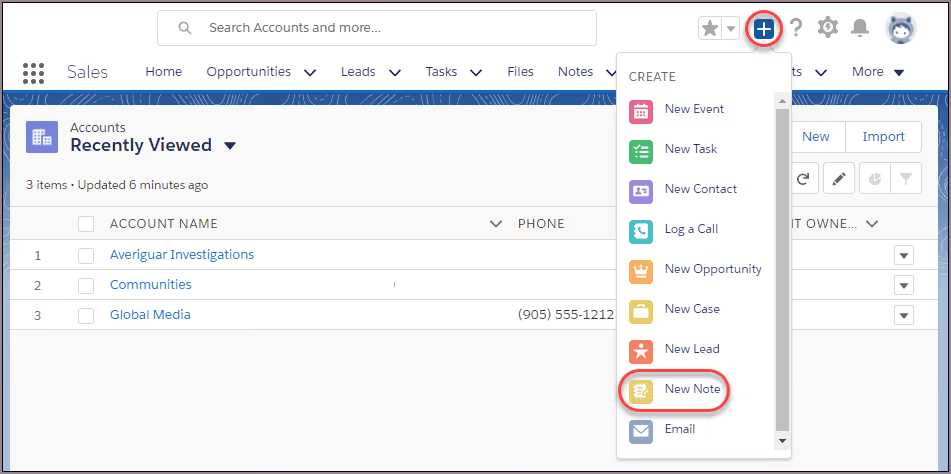
Wanneer je op een record bent (bijvoorbeeld een Contactpersoon of Verkoopkans) en je hebt zojuist een vergadering afgerond, klik dan op de Nieuwe notitie knop, ofwel vanuit de gerelateerde lijst met notities of via het menu Algemene acties.
In de notitie-editor:
- Geef de notitie een duidelijke titel (bijv. “Discovery Call – [Klantnaam] – [Datum]”).
- Schrijf de inhoud: aanwezigen, belangrijkste inzichten, vervolgacties, genomen besluiten.
- Gebruik opmaak: opsommingstekens, genummerde lijsten en vetgedrukte tekst om de essentie te benadrukken.
- Gebruik de functie “Toevoegen aan records” of “Gerelateerd aan” om de notitie te koppelen aan alle relevante objecten — de contactpersoon, het bedrijf, de verkoopkans of indien nodig zelfs een aangepast object. Dit zorgt ervoor dat de juiste context verschijnt in de tijdlijn van elk record.
c) Hanteer een best-practice structuur voor meer impact
Je notitie wordt veel waardevoller als je een consistente structuur aanhoudt. Bijvoorbeeld:
- Titel: “Vergadering – [Klant] – [Datum]”
- Aanwezigen: Vermeld wie er aanwezig waren
- Kernpunten: Opsomming van pijnpunten of doelen
- Genomen besluiten: Wat er is afgesproken
- Vervolgstappen: Wie doet wat en tegen wanneer
Door deze structuur te gebruiken, kan iedereen in je team later een record openen en direct de essentie zien van wat er is gebeurd — en wat de volgende stappen zijn.
Omdat Enhanced Notes uitgebreide opmaak ondersteunen, kun je bovendien belangrijke zaken benadrukken (vetgedrukt, onderstreept) of, indien relevant, een afbeelding toevoegen (bijvoorbeeld een foto van een whiteboard-schets uit de vergadering).
d) Gebruik Notities efficiënt in je workflow
- Moedig aan om de notitie binnen 24 uur na de vergadering te schrijven. Een vers geheugen zorgt voor nauwkeurigere notities.
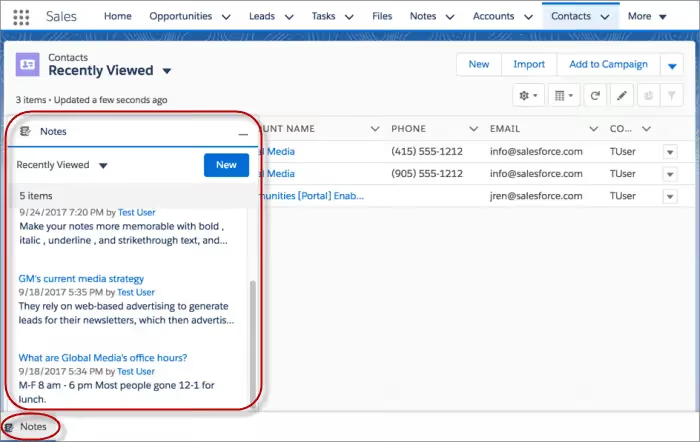
- Gebruik de startpagina voor Notities (in Lightning) om door alle notities te bladeren: je ziet lijstweergaven, kunt sorteren of filteren en indien nodig terugkeren naar eerdere versies van een notitie.
- Voor buitendienstmedewerkers: Omdat Notities beschikbaar zijn in de Salesforce mobiele app, kunnen je vertegenwoordigers ter plaatse een foto maken, een notitie schrijven en deze direct koppelen aan het CRM.
- Moedig aan om één notitie aan meerdere records te koppelen wanneer dat van toepassing is (bijvoorbeeld als de vergadering betrekking had op een contactpersoon, hun bedrijf en een deal) — zo blijft de context in al die records behouden.
e) Rapporteren en bijhouden van je notitiegedrag
Hoewel Notities anders worden opgeslagen (als ContentNote/ContentDocument op de achtergrond), kun je nog steeds lijstweergaven maken op het Notitie-object of rapporten bouwen die "Notities aangemaakt in de laatste 7 dagen" of "Notities zonder gedefinieerde volgende actie" tonen.
Gebruik dit om de adoptie te volgen: Worden er notities geschreven? Worden de volgende stappen vastgelegd? Welke teamleden blijven achter? Dit helpt je om best practices af te dwingen en de afstemming binnen het team te verbeteren.
Problemen met Salesforce Notities oplossen
Zelfs als jij en je team toegewijd zijn aan het gebruik van Notities in Salesforce, kunnen er soms problemen optreden.
A) Veelvoorkomende problemen waar je tegenaan kunt lopen
- Notities niet zichtbaar voor sommige gebruikers
Een gebruiker opent een record maar ziet de verwachte notitie niet. Dit heeft vaak te maken met rechten of koppelingen. - Notities worden niet goed opgeslagen of verdwijnen
Bijvoorbeeld: als je lay-out de gerelateerde lijst met Notities niet bevat, of als "Enhanced Notes" niet is ingeschakeld, kan het zijn dat notities niet worden vastgelegd zoals verwacht. - Notities gekoppeld aan de verkeerde records
Een veelgemaakte fout is om een notitie alleen aan de contactpersoon toe te voegen, terwijl de afspraak ook betrekking had op een verkoopkans. Zonder koppeling aan alle relevante records gaat de context verloren. - Problemen met rapportages over notities of het verkrijgen van inzichten
Omdat notities in een gerelateerde lijst staan en vaak worden opgeslagen via objecten zoals ContentNote/ContentDocument, gedragen ze zich niet altijd als eenvoudige velden, wat lijstweergaven of exports lastig maakt. - Inconsistente structuur van notities binnen je team
Als elk teamlid notities op een andere manier schrijft (andere titels, indelingen, geen vervolgstappen genoteerd), lijden de zoek- en scanfunctionaliteiten daaronder.
B) Hoe je deze problemen oplost
- Controleer gebruikersrechten
Zorg dat elke gebruiker de juiste toegang heeft: rechten op objectniveau voor het record (Account, Contactpersoon, Verkoopkans), plus toestemming om notities te bekijken en toe te voegen. - Controleer of de notitiefunctie is ingeschakeld en de lay-out is geconfigureerd
Ga naar Setup → Notes Settings → Enable Notes. Bevestig vervolgens dat de gerelateerde lijst met notities op je paginalay-outs voor elk object staat. - Zorg voor de juiste koppelingen bij het aanmaken van notities
Wanneer je een notitie toevoegt: koppel deze aan alle relevante records (contactpersoon + account + verkoopkans) met de functie "Relate To" of "Add to Records". Zo blijft de context behouden over alle objecten heen. - Gebruik filters en rapportagetools voor notities
Maak bijvoorbeeld een rapport aan over het object Notes (of ContentNote) voor "Notities aangemaakt in de afgelopen 7 dagen" om het gebruik te volgen. Het opsporen van ontbrekende items begint vaak met de vraag: "Welke records hebben geen gekoppelde notitie?" - Standaardiseer hoe notities worden geschreven
Geef je team een mini-sjabloon: Titel = "Afspraak – [Klant] – [Datum]", vermeld aanwezigen, belangrijkste besluiten en vervolgacties. Dankzij een consistente opmaak kan iedereen snel scannen.
C) Hoe je deze problemen in de toekomst voorkomt
- Train je team: Zorg dat iedereen het verschil begrijpt tussen notities en bijlagen, weet hoe records correct gekoppeld moeten worden en het belang inziet van consistent notuleren.
- Voer regelmatig audits uit: Trek elke maand een lijst met notities en controleer op: ontbrekende velden voor vervolgstappen, weesnotities (notities die niet zijn gekoppeld aan een opportunity of account) of gebruikers met een laag gebruik.
- Gebruik workflowherinneringen: Maak een eenvoudige Flow of proces aan zodat een vertegenwoordiger na het loggen van een vergadering (of na een belactiviteit) eraan wordt herinnerd om binnen 24 uur een notitie toe te voegen.
- Monitor adoptiestatistieken: Houd het "% van opportunities met een gekoppelde notitie" of de "gemiddelde tijd tussen het einde van een vergadering en het aanmaken van een notitie" bij om je proces gezond te houden.
- Controleer de configuratie na updates: Zorg er bij elke grote Salesforce-release (3 keer per jaar) voor dat je instellingen voor notities en paginalay-outs nog steeds naar behoren werken — sommige upgrades kunnen van invloed zijn op het gedrag van de gebruikersinterface.
AI Salesforce-notities: Noota

Door Noota te integreren met Salesforce kun je vergaderingen vastleggen, samenvattingen genereren en deze direct loggen in de juiste records :
- Automatische aanmaak van contactpersonen en opportunities op basis van deelnemers aan de vergadering en geselecteerde parameters.
- Naadloze integratie: zodra je Salesforce inschakelt in Noota (via Instellingen → Integraties), wordt je vergadersamenvatting een notitie die aan het juiste record is gekoppeld.
- AI-gestuurde samenvattingsstructuur: Noota herkent aanwezigen, belangrijke beslissingen, vervolgstappen en pijnpunten — en formatteert deze vervolgens tot een gestructureerde samenvatting die je notitie in Salesforce wordt.
- Workflowautomatisering tussen systemen: via tools zoals Zapier kun je workflows met meerdere stappen maken (bijv. na afloop van een vergadering → Noota genereert samenvatting → Salesforce-notitie wordt aangemaakt → Slack-melding of taak wordt aangemaakt).
Wil je je notities in Salesforce automatiseren? Probeer Noota nu gratis.
Maak kennis met de auteur
.avif)
Adesh explores how teams can better capture knowledge and collaborate more effectively with AI.
Veelgestelde vragen
Klik op 'New Note' bij een record, geef een duidelijke titel, schrijf attendees en actiepunten, gebruik opmaak en link naar meerdere records.
- Duidelijke titel met datum en klant
- Attendees, inzichten en beslissingen noemen
- Koppel aan alle relevante objecten
Enhanced Notes bieden rijke opmaak, relatie naar meerdere records, versiebeheer en samenwerkingsfuncties. Oude Notes waren statisch en beperkt.
- Rijke tekstopmaak met bold en lijsten
- Koppel één note aan meerdere records
- Volledige versiebeheer en delen
Noota bespaart 6,4 uur/week, reduceert admin met 80%, en biedt AI-gestuurde automatisering. Salesforce Notes vereisen handmatige invoer en structurering.
- Automatische transcriptie en samenvatting
- 80% minder administratief werk nodig
- 4,9/5 rating van 5000+ teams wereldwijd
Noota is ideaal voor verkoopteams die gesprekken willen vastleggen, samenvatten en automatisch in Salesforce synchroniseren zonder handmatige notities.
- Automatische opname en transcriptie
- AI-samenvatting van actiepunten
- Probeer Noota gratis — geen creditcard vereist