Grabación y Transcripción de Reuniones
8 min de lectura
Updated on:
Nov 24, 2025
Tomador de notas con IA para Zoom: una guía completa
¿Quieres saber cómo tomar notas en Zoom? Aquí tienes tu guía.
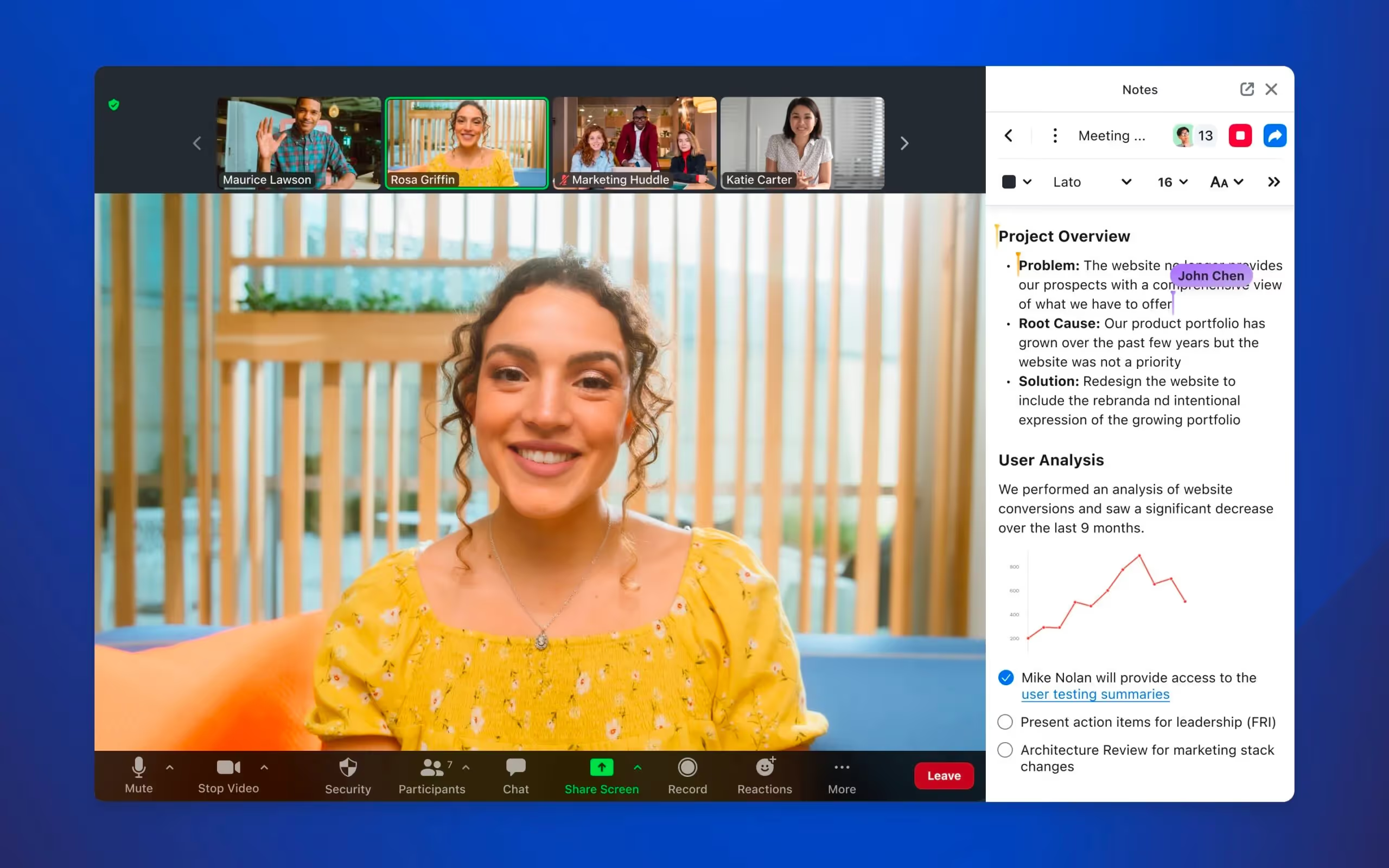
Zoom ha introducido recientemente sus funciones de toma de notas y su AI Companion.
Y aunque pueden ser de gran ayuda, muchos usuarios no saben realmente cómo sacarles el máximo provecho.
Aprenderás cómo funciona realmente el tomador de notas de Zoom, cómo configurarlo correctamente y cómo solucionar los problemas más comunes.
Cómo funciona el tomador de notas de Zoom
En esencia, el tomador de notas con IA de Zoom, al que a menudo se accede a través del módulo AI Companion, realiza tres funciones clave:
- Transcripción en tiempo real: A medida que las personas hablan, la herramienta convierte el audio en texto, evitándote la tarea de intentar escribir o recordar todo.
- Resumen y extracción de tareas pendientes: Después o incluso durante la reunión, la herramienta utiliza procesamiento de lenguaje natural (PLN) para identificar los puntos principales de la discusión, las decisiones tomadas y los pasos a seguir.
- Generación de documentos y preparación para el seguimiento: El resultado (transcripción + resumen + tareas pendientes) se organiza en un documento compartible, accesible desde tu calendario o el centro de control de Zoom.
Cómo captura y procesa la reunión
- Unirse a la reunión: El AI Companion puede unirse a tu llamada (durante la reunión o mediante un bot) una vez que habilites la función. Los participantes suelen recibir una notificación de que la llamada está siendo transcrita.
- Durante la llamada: Mientras hablas y escuchas, el sistema identifica a los oradores, captura la transcripción y comienza a etiquetar partes de la conversación (frases clave, decisiones, tareas pendientes). Esto significa que no tienes que preocuparte por tomar notas manualmente.
- Después de que finaliza la reunión: La herramienta finaliza la transcripción, crea un resumen, identifica los pasos a seguir y envía o pone a disposición el documento. Puedes revisarlo y editarlo antes de compartirlo con las partes interesadas.
Cómo usar y configurar el tomador de notas de Zoom
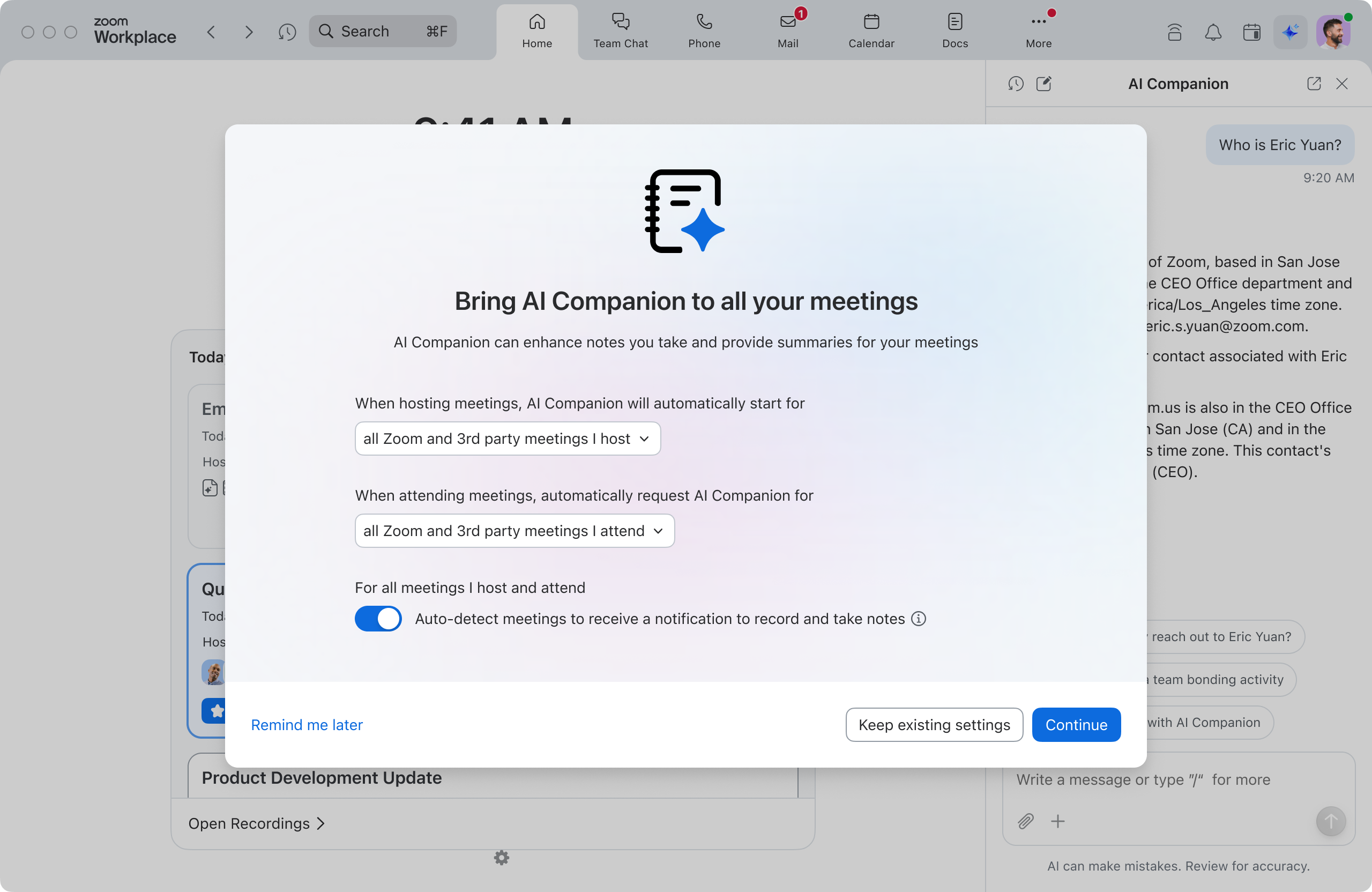
Si sigues los pasos a continuación, estarás listo para capturar mejores ideas en tus reuniones, mantenerte concentrado y convertir las conversaciones en acciones :
✅ Paso 1: Revisa tu cuenta y activa la función
Antes de empezar una reunión, asegúrate de que tu plan de Zoom sea compatible:
- Necesitarás un plan de pago de Zoom (Workplace Pro, Business o superior) para acceder a las funciones de IA, como el Resumen de la reunión con AI Companion.
- Como administrador o anfitrión, es posible que debas activar la función en el portal web de Zoom. Ve a Administración de cuenta > Configuración > pestaña AI Companion, y luego activa Resumen de la reunión con AI Companion.
- Si planeas usar la función de Notas integrada (sin IA), asegúrate de que "Zoom Notes" esté activada. Los requisitos incluyen una cuenta Basic, Pro, Business o Enterprise y una versión compatible del cliente de Zoom.
🎥 Paso 2: Configuración durante la reunión
Cuando comience la reunión, deberás activar la toma de notas. Aquí te explicamos cómo:
- Como anfitrión (o alguien con permiso), haz clic en el icono de AI Companion en la barra de herramientas de la reunión y selecciona Iniciar resumen de la reunión.
- Si usas la función de Notas estándar: controles de la reunión → haz clic en Notas → clic Nuevo. Desde ahí puedes empezar a escribir o usar la transcripción.
- Durante la llamada, asegúrate de informar a los participantes de que la transcripción y la toma de notas están activadas; esto evita sorpresas y es una buena práctica de cortesía.
- Si tienes una agenda, asegúrate de que cada punto esté claramente expuesto o compartido en pantalla para que la IA pueda segmentar y resumir mejor la conversación.
📤 Paso 3: Después de la reunión – Recupera y utiliza las notas
Una vez que termine la reunión, tus notas y resúmenes estarán disponibles. Esto es lo que debes hacer a continuación:
- Para los resúmenes de AI Companion: El resumen se enviará por correo electrónico o se publicará en el chat de equipo de Zoom (según la configuración).
- Para las notas: Ve al cliente de escritorio de Zoom → panel de notas o al portal web de Zoom → Notas para localizar tu documento.
- Revisa y edita: Incluso la mejor herramienta necesita una revisión humana; añade contexto, corrige nombres o términos mal interpretados y asigna tareas si es necesario.
- Comparte e integra: Comparte la nota o el resumen con las partes interesadas, súbelo a tu CRM o herramienta de gestión de proyectos, o enlázalo a tu resumen de contenidos.
- Establece el siguiente paso: Usa la nota para activar tu flujo de trabajo de creación de contenido; por ejemplo, "Hemos anotado que quieres una auditoría de contenido con IA para el próximo miércoles" se convierte en una tarea en tu tablero de proyectos.
Solución de problemas de Zoom Notes
Repasemos los problemas más comunes que puedes encontrar y cómo solucionarlos rápidamente.
1. El tomador de notas con IA / Resumen de la reunión no se inició
Síntoma:
Realizaste la reunión, pero no aparece ningún resumen de IA ni notas después.
Causas más comunes:
- El Resumen de la reunión con AI Companion la función no está habilitada a nivel de cuenta o de usuario.
- No tienes un plan de Zoom elegible (las funciones de AI Companion están vinculadas a planes de pago específicos).
- El anfitrión olvidó iniciar el resumen con IA durante la reunión.
Qué hacer:
- En el portal web de Zoom, ve a Administración de cuenta → Configuración → AI Companion y confirma que Resumen de la reunión esté activado.
- Revisa tu licencia (Workplace Pro/Business o un plan elegible). Si tienes una cuenta básica o gratuita, es posible que la función esté limitada o no disponible.
- Para tu próxima reunión, adquiere el hábito: una vez que todos se unan, haz clic en AI Companion → Iniciar resumen de la reunión. No asumas que se inicia automáticamente.
Consejo de flujo de trabajo para ti:
Añade "Iniciar resumen con IA" a tu lista de verificación interna de reuniones para no perder las notas de ninguna otra llamada.
2. Sin transcripción, no hay resumen
Síntoma:
Esperabas un resumen o notas, pero Zoom indica que no hay datos suficientes o que no se generó ninguna transcripción.
Causas probables:
- La grabación/transcripción en la nube no estaba activada. Si no se generan transcripciones, el resumen por IA no tiene información con la que trabajar.
- La reunión fue demasiado corta o hubo muy poco diálogo; AI Companion puede omitir los resúmenes cuando apenas hay contenido hablado.
- La calidad del audio era deficiente, lo que hace que la transcripción no sea fiable.
Qué hacer:
- En la configuración de la cuenta, asegúrate de que la grabación en la nube y la transcripción (donde esté disponible) estén activadas.
- Evita iniciar el resumen en una reunión donde casi no se habla; Zoom puede decidir simplemente que no hay nada que resumir.
- Pide a los participantes que usen auriculares o micrófonos adecuados; el ruido de fondo ensucia las transcripciones.
Consejo de flujo de trabajo:
Para llamadas importantes con clientes, considera la calidad del audio como parte de tu lista de verificación de profesionalidad. Mejor audio equivale a mejores notas y mejores resúmenes de contenido.
3. El tomador de notas o bot no puede unirse a tu reunión de Zoom
Esto es habitual si también utilizas herramientas de notas de terceros o si tu configuración de seguridad es estricta.
Síntoma:
Aparece un error indicando que un bot o asistente de notas no pudo unirse, o se queda bloqueado en la sala de espera indefinidamente.
Causas probables:
- La sala de espera o la admisión exclusiva del anfitrión impiden la entrada de bots.
- Estás usando tu ID personal de la reunión (PMI) con una configuración antigua o predeterminada que bloquea a los participantes externos.
- El anfitrión no está presente; Zoom puede impedir que el asistente se una si el anfitrión aún no ha iniciado la reunión.
Qué hacer:
- Para llamadas importantes, utiliza una reunión programada en lugar de un enlace PMI aleatorio.
- En la configuración de la reunión, permite que se unan aplicaciones o bots autenticados (o ajusta las reglas de la sala de espera).
- Asegúrate de que tú, como anfitrión, te unas primero; solo entonces inicia el asistente de notas con IA.
Un consejo de flujo de trabajo para ti:
Crea una plantilla específica para «llamadas con clientes» en Zoom con la configuración de seguridad e IA adecuada para no tener que reconfigurarla cada vez.
4. La calidad del resumen de la IA es mala o no resulta práctica
Síntoma:
Obtienes un resumen, pero es vago, omite decisiones o no parece útil para el contenido o el trabajo del proyecto.
Por qué sucede esto:
- La reunión no tuvo una estructura clara, por lo que la IA no pudo detectar los temas o las decisiones con precisión.
- Los participantes se interrumpieron o saltaron de un tema a otro.
- Esperas que la IA produzca mágicamente un informe pulido en lugar de un primer borrador.
Qué hacer:
- Comienza cada reunión exponiendo la agenda en voz alta: «Hoy cubriremos los objetivos, el alcance y los próximos pasos».
- Cuando se tome una decisión, dilo explícitamente: «Confirmemos: publicaremos dos artículos por semana a partir del 1 de marzo».
- Usa el resumen de la IA como base: lo conviertes en un brief de contenido, un alcance de proyecto o un correo electrónico adecuado.
Un consejo de flujo de trabajo para ti:
Piensa en las notas de Zoom como materia prima. Tu valor reside en transformarlas en documentos estructurados y listos para el cliente.
Notas de Zoom estructuradas y prácticas: Noota
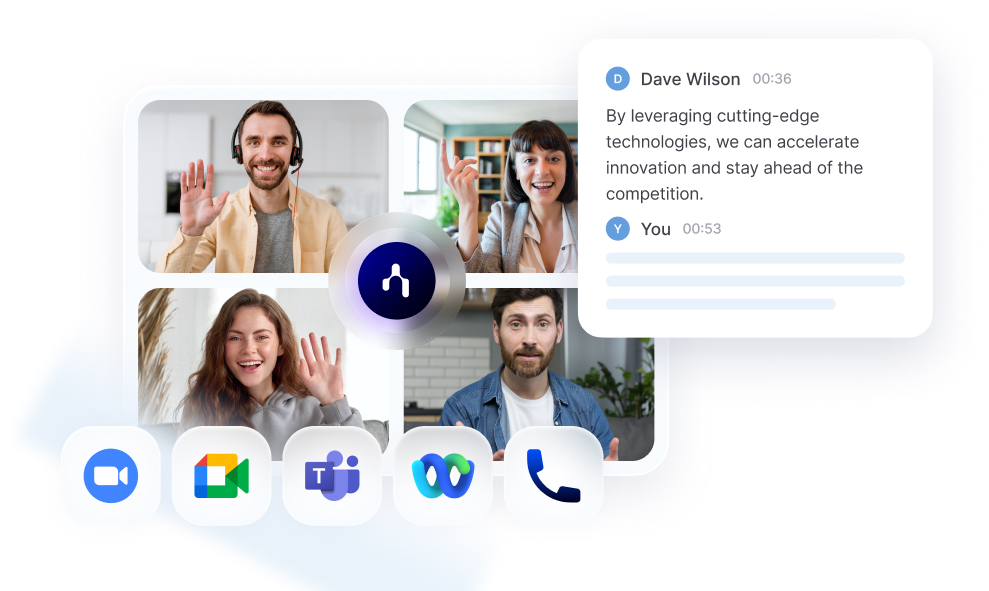
Zoom AI Companion hace un buen trabajo dentro de Zoom, pero tiene limitaciones: los resúmenes son genéricos, los formatos son rígidos y no cuenta con integraciones profundas con tu CRM o herramientas de gestión de proyectos.
Noota cubre ese vacío actuando como una capa sobre Zoom:
- Se conecta a Zoom y automáticamente graba, transcribe y resume tus reuniones.
- Te permite definir plantillas de resumen personalizadas, para que tus notas sigan exactamente la estructura que necesitas (por ejemplo: “Objetivos / Situación actual / Plan de contenidos / Próximos pasos”).
- Ofrece actas detalladas y análisis conversacional que puedes reutilizar en briefs, alcances o correos de seguimiento.
¿Quieres notas de Zoom estructuradas y prácticas? Prueba Noota gratis ahora.
Conoce al autor
.webp)
Preguntas frecuentes
El tomador de notas de Zoom captura transcripciones en tiempo real, extrae puntos clave y genera resúmenes automáticos con elementos de acción.
- Transcripción automática mientras hablan los participantes
- Identificación de decisiones y próximos pasos mediante IA
- Documento compartible con resumen y acciones pendientes
Requieres un plan pagado de Zoom como Workplace Pro, Business o Enterprise para acceder a las funciones de resumen con IA Companion.
- Planes básicos no incluyen IA Companion
- Administrador debe habilitar en Account Management Settings
- Compatible con versiones recientes del cliente Zoom
Noota supera a Zoom con 6.4h/semana ahorradas, -80% tareas administrativas y soporte en 80+ idiomas. Calificación 4.9/5 en G2 con 5000+ equipos.
- Noota ahorra más tiempo que Zoom AI Companion
- Automatización administrativa 80% superior
- Disponible en 80+ idiomas vs limitaciones de Zoom
Noota es ideal para equipos que buscan ahorrar 6.4 horas semanales con automatización avanzada. Pruébala gratis sin tarjeta de crédito.
- Reduce administrativo en 80% más que competidores
- Funciona en 80+ idiomas para equipos globales
- Prueba Noota gratis y optimiza tu productividad