Integraciones
8 min de lectura
Updated on:
Nov 4, 2025
Notas de reunión en OneNote: una guía completa
¿Quieres obtener notas de reunión en OneNote? Aquí te explicamos cómo hacerlo.
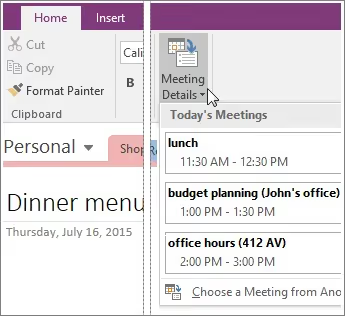
Microsoft OneNote puede extraer los detalles de las reuniones directamente de Outlook y ayudarte a organizar tus notas por proyecto o equipo.
Pero, ¿cómo se hace? ¿Y es posible obtener también la transcripción y el resumen de la reunión?
En esta guía, aprenderás exactamente cómo usar OneNote para capturar, organizar y compartir tus notas de manera eficiente.
Cómo obtener notas de reuniones en Microsoft OneNote
- Abre OneNote y dirígete al bloc de notas → sección donde quieras guardar las notas de la reunión.
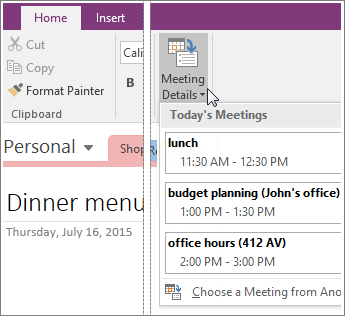
- En OneNote (versión de escritorio para Windows), ve a Inicio → Detalles de la reunión.
- Si la reunión es hoy, selecciónala de la lista. Si tuvo lugar en otro día, elige “Seleccionar una reunión de otro día” y elige la fecha y el asunto.
- Haz clic en Insertar detalles. OneNote incluirá la fecha, la hora, la ubicación, el orden del día (si está disponible), el asunto y los asistentes.
- Ahora tendrás una página nueva (o dentro de la página seleccionada) con todos estos “detalles de la reunión” en un contenedor contraíble. Puedes añadir tus notas justo debajo.
- Empieza a tomar notas: usa viñetas, tareas pendientes, enlaces, imágenes y etiquetas para los asistentes. Tus notas ahora residen en el mismo bloc de notas donde insertaste el contexto de la reunión.
Mejores prácticas para Tú
- Elige el cuaderno o la sección adecuada antes de la reunión; por ejemplo, “Reuniones de equipo → 2025” o “Llamadas con clientes → NombreDeLaEmpresa”. Esto garantiza que tu nota esté donde puedas encontrarla más tarde.
- Usa los detalles insertados como encabezado: Después de importar los detalles de la reunión, edita el título de la página (por ejemplo, “05-11-2025 – Lanzamiento del Proyecto X”) para que sea coherente y fácil de buscar.
- Crea una plantilla de notas en OneNote: por ejemplo, comienza con los detalles de la reunión insertados y luego añade subencabezados como Agenda, Debate, Decisiones, Tareas pendientes (Responsable / Fecha de entrega).
- Etiqueta a personas o tareas: Usa
@o tu propia convención (por ejemplo, “Responsable: @Alice”) para vincular a los participantes con las acciones de seguimiento. - Enlazar con material relacionado: Si su reunión hace referencia a un documento, hoja de cálculo o nota anterior, utilice la función de vinculación de OneNote para incluir el recurso en su página.
- Después de la reunión, comparta o distribuya: Puede exportar o enviar por correo electrónico la página de OneNote directamente a los asistentes, o pegar el enlace en su espacio de colaboración.
Solución de problemas de las notas de reunión de Microsoft OneNote
Estos son algunos de los problemas comunes que podría encontrar con las notas de reunión de OneNote:
🧩 Problemas comunes y soluciones
Problema n.º 1: El botón "Insertar detalles de la reunión" aparece atenuado o no ocurre nada
Si abre OneNote y va a Inicio → Detalles de la reunión (o utiliza el botón "Notas de la reunión" de Outlook) y no funciona, no es el único. La propia página de soporte de Microsoft señala que, tras ciertas actualizaciones, el botón no se inicia correctamente.
Qué debe hacer:
- Asegúrese de que tanto OneNote como Outlook estén actualizados. La solución indicada por Microsoft se aplica a versiones posteriores a la compilación 12130.20400.
- Compruebe que ha iniciado sesión con la misma cuenta de Microsoft 365 tanto en Outlook como en OneNote.
- Si utiliza un Mac o OneNote para Windows 10 (versión de aplicación), es posible que la función "Detalles de la reunión" tenga una compatibilidad limitada o un comportamiento diferente. Los usuarios de Reddit informan de esto con frecuencia.
- Utilice la solución alternativa: abra primero OneNote, luego vaya a Inicio → Detalles de la reunión → seleccione la reunión manualmente. Esto suele evitar el error de que "no ocurre nada".
Problema n.º 2: Las reuniones no están vinculadas a las notas o faltan asistentes/detalles
Importas los detalles de la reunión a OneNote, pero al abrir la página, la lista de asistentes aparece vacía o la fecha y hora de la reunión son incorrectas. Según los tutoriales, esto puede deberse a una mala integración entre Outlook y OneNote.
Qué debes hacer:
- Confirma que la reunión se haya creado en Outlook y que utilice la misma cuenta que OneNote.
- En Outlook, asegúrate de que la reunión no esté en un calendario de recursos compartido al que OneNote no pueda acceder. Los calendarios compartidos pueden interrumpir la vinculación.
- Si seleccionas una reunión de una fecha anterior, asegúrate de elegir “Seleccionar una reunión de otro día” dentro de OneNote. A veces, la lista predeterminada solo muestra las reuniones de hoy.
- Si sigues obteniendo campos vacíos, crea la nota manualmente en OneNote (ponle la fecha y hora como título) y añade a los participantes de forma manual; luego, vincúlala a la reunión mediante “Vincular a elemento de Outlook”.
Problema n.º 3: La página de notas se duplica o se regenera en lugar de vincularse a la existente
Haces clic en “Notas de la reunión” en Outlook más de una vez y cada vez se crea una nueva página de OneNote (en lugar de abrir las notas existentes). Esto es especialmente común con la aplicación moderna de OneNote.
Qué debes hacer:
- En OneNote 2016 (escritorio), la función de vinculación funciona de forma más fiable; si es posible, utiliza esa versión para reuniones importantes.
- Comprueba en qué bloc de notas y sección se están guardando las notas de la reunión; establecer un bloc de notas o sección coherente evita que la información se disperse.
- Considera usar una plantilla personalizada o una estructura de página para las notas de las reuniones, así siempre sabrás dónde buscar.
Problema n.º 4: OneNote se bloquea o se cierra inesperadamente mientras tomas notas
A veces, durante la captura de notas, OneNote se cierra o se congela, especialmente después de las actualizaciones de Office. Una causa: paquetes de idioma obsoletos o versiones incompatibles.
Qué debes hacer:
- Comprueba el número de versión de tus aplicaciones de Office. Si tienes una versión que aparece en el problema de “cierre inesperado”, instala la actualización más reciente.
- Ve a Archivo → Opciones → Idioma en OneNote y asegúrate de que todos los paquetes de idioma estén actualizados y coincidan con tu versión de Office.
- Si el problema persiste, realiza una reparación de Office desde el Panel de control (Windows) o reinstala la aplicación OneNote.
- Evita incluir archivos adjuntos o imágenes pesadas al tomar notas de una sola vez; los elementos incrustados de gran tamaño aumentan el riesgo de bloqueos.
Notas de reunión automáticas en Microsoft OneNote: Noota

¿Quieres que tus resúmenes y transcripciones de reuniones se envíen directamente a OneNote? Noota puede ayudarte con eso:
- Noota graba y transcribe automáticamente reuniones en línea, telefónicas o presenciales, para que no tengas que preocuparte por perderte nada.
- Luego, ofrece resúmenes generados por IA, puntos clave y tareas pendientes, para que salgas de la reunión con total claridad. Puedes personalizar y estructurar fácilmente tus notas de reunión.
- Se conecta a OneNote para que la información de tus reuniones fluya directamente al documento correcto.
Cómo puedes configurarlo
- Inicia sesión en tu cuenta de Noota y ve a Integraciones → busca OneNote → haz clic en Activar. Una redirección automática te pedirá que autorices el acceso a OneNote.
- En la configuración de Noota, elige el bloc de notas y la sección predeterminada dentro de OneNote donde deseas que se guarden tus notas de reunión. Esto garantiza que tus notas se guarden en el lugar correcto.
- Después de tu próxima reunión, Noota graba/transcribe (si está configurado) y genera un resumen. Luego, selecciona “Compartir en OneNote” (o, si la automatización está activada, se enviará automáticamente).
- Entra en OneNote y encontrarás la nota en la sección seleccionada, con el contexto de la reunión, las decisiones clave, los próximos pasos o cualquier estructura que hayas configurado.
- Tú (o tu equipo) ya podéis editar, enlazar a otros contenidos, etiquetar a los asistentes y marcar acciones, todo dentro del formato de página flexible de OneNote.
¿Quieres enviar tus notas de reunión directamente a OneNote? Prueba Noota gratis ahora.
Conoce al autor

Preguntas frecuentes
Abre OneNote, ve a Home → Meeting Details, selecciona tu reunión y haz clic en Insert Details.
- OneNote extrae automáticamente fecha, hora y asistentes.
- Los detalles se insertan como contenedor colapsable en tu página.
- Puedes agregar notas, acciones y enlaces debajo.
Generalmente ocurre por versiones desactualizadas o cuentas Microsoft 365 diferentes en Outlook y OneNote.
- Actualiza ambas aplicaciones a la última versión disponible.
- Verifica que uses la misma cuenta en ambas plataformas.
- En Mac o OneNote Windows 10 tiene soporte limitado.
Noota ahorra 6,4h/semana en administración con -80% tareas manuales y transcripciones automáticas en 80+ idiomas.
- OneNote requiere inserción manual de detalles y transcripción externa.
- Noota captura, resume y organiza automáticamente todas las reuniones.
- 5000+ equipos confían en Noota con calificación 4,9/5 en G2.
Noota es ideal: genera resúmenes automáticos, transcripciones en 80+ idiomas y reduce carga administrativa 80%.
- Integración nativa con Outlook, Teams y Google Meet sin configuración.
- Acciones automáticas y seguimiento de decisiones en tiempo real.
- Prueba Noota gratis sin tarjeta de crédito hoy mismo.