Integrations
8 min reading
Updated on:
Nov 4, 2025
OneNote Meeting Notes : a Complete Guide
You want to get meeting notes in OneNote ? Here's how to do it.
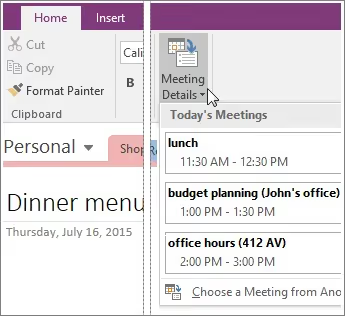
Microsoft OneNote can pull meeting details straight from Outlook, and help you organize notes by project or team.
But how to do it ? And can you also get the meeting transcript and summary ?
In this guide, you’ll learn exactly how to use OneNote to capture, organize, and share your notes efficiently.
How to Get Meeting Notes on Microsoft OneNote
- Open OneNote and navigate to the notebook → section where you want the meeting notes to live.
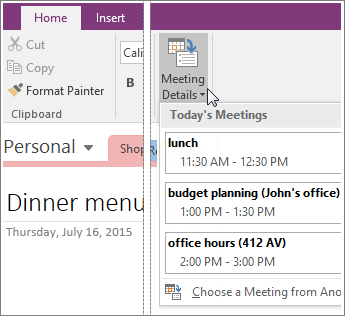
- In OneNote (desktop for Windows), go to Home → Meeting Details.
- If the meeting occurs today, select it from the list. If it occurred on another day, choose “Select a Meeting from Another Day” and pick the date and subject.
- Click Insert Details. OneNote will pull in date, time, location, agenda (if available), subject and attendees.
- Now you’ll have a new page (or within your selected page) with all these “meeting details” as a collapsed container. You’re free to add your notes beneath.
- Begin your note-taking: bullets, action items, links, images, tagged attendees. Your notes now live inside the same notebook where you inserted the meeting context.
Best Practices for You
- Pick the right notebook/section ahead of the meeting — for example “Team Meetings → 2025” or “Client Calls → CompanyName”. This ensures your note lives where you’ll find it later.
- Use the inserted details as a header: After you pull in meeting details, edit the page title (e.g., “2025-11-05 – Project X Kick-off”) so it’s consistent and searchable.
- Build a note template inside OneNote: For instance, start with the inserted meeting details, then insert sub-headers like Agenda, Discussion, Decisions, Action Items (Owner / Due Date).
- Tag people or tasks: Use
@or your own convention (e.g., “Owner: @Alice”) so you connect participants to follow-up actions. - Link back to related material: If your meeting references a document, sheet or previous note, use OneNote’s linking feature to pull the resource into your page.
- After the meeting, share or distribute: You can export or email the OneNote page directly to attendees or paste the link in your collaboration space.
Microsoft OneNote Meeting Notes Troubleshoot
Here are some of the common problems you might face with OneNote meeting notes:
🧩 Common Issues & Solutions
Issue #1: “Insert Meeting Details” button is greyed out or nothing happens
If you open OneNote and go to Home → Meeting Details (or use the Outlook “Meeting Notes” button) and it doesn’t work, you’re not alone. Microsoft’s own support page notes that after certain updates, the button fails to launch properly.
What you should do:
- Ensure OneNote and Outlook are both up to date. The fix noted by Microsoft applies to versions after build 12130.20400.
- Make sure you’re signed into the same Microsoft 365 account in both Outlook and OneNote.
- If you’re on a Mac or using OneNote for Windows 10 (App version), the “Meeting Details” feature may have limited support or alternate behaviour. Reddit users report this repeatedly.
- Use the workaround: open OneNote first, then go to Home → Meeting Details → select the meeting manually. This often avoids the “nothing happens” bug.
Issue #2: Meetings not linked to notes or missing attendees/details
You pull meeting details into OneNote, but when you open the page, the attendees list is blank or the meeting date/time is incorrect. According to tutorials, poor Outlook-OneNote integration can cause this.
What you should do:
- Confirm the meeting was created in Outlook and uses the same account as your OneNote.
- In Outlook, ensure the meeting isn’t on a shared resource calendar that OneNote can’t access. Shared calendars can disrupt linkage.
- If selecting a meeting from a previous date, make sure to choose “Select a Meeting from Another Day” inside OneNote. Sometimes the default list shows only today’s meetings.
- If you still get empty fields, create the note manually in OneNote (title it with date/time) and add participants manually; then link it to the meeting via “Link to Outlook Item”.
Issue #3: Note page duplicates or regenerates instead of linking to existing
You click “Meeting Notes” in Outlook more than once and each time a new OneNote page is created (rather than opening the existing notes). This is especially common with the modern OneNote app.
What you should do:
- In OneNote 2016 (desktop) the link-back feature works more reliably; if possible use that version for critical meetings.
- Check which notebook & section the meeting notes are being saved into; setting consistent notebook/section avoids scattering.
- Consider using a custom template or page structure for meeting notes so you always know where to look.
Issue #4: OneNote crashes or closes unexpectedly while note-taking
Sometimes during note capture, OneNote will close or freeze—particularly after Office updates. One cause: outdated language packs or mismatched builds.
What you should do:
- Check the build number of your Office apps. If you’re on a version listed in the “closing unexpectedly” issue, install the latest update.
- Go to File → Options → Language in OneNote and ensure all language packs are current and match your Office version.
- If the problem persists, do an Office repair via Control Panel (Windows) or reinstall the OneNote app.
- Avoid heavy attachments/images while capturing notes in one go—large embedded items increase crash risk.
Auto Meeting Notes on Microsoft OneNote: Noota

Want also your meeting summaries and transcripts to get sent directly into OneNote ? Noota can help you with that :
- Noota automatically records and transcribes online, phone or in‐person meetings, so you don’t have to worry about missing anything.
- It then delivers AI-generated summaries, key takeaways and action items — so you leave the meeting with clarity. You can easily customize & structure meeting notes.
- It connects to OneNote so your meeting insights flow into the right document.
How you can set it up
- Log into your Noota account and go to Integrations → find OneNote → click Activate. Seamless redirect will ask you to authorise OneNote access.
- In Noota’s settings, pick the default notebook and section inside OneNote where you want your meeting notes stored. This ensures your notes live in the right place.
- After your next meeting, Noota records/transcribes (if configured) and generates a summary. Then choose “Share to OneNote” (or if automation is enabled, it goes automatically).
- Head into OneNote and you’ll find the note under the selected section — with meeting context, key decisions, next-steps, or whatever structure you set up.
- You (or your team) can now edit, link to other content, tag attendees, mark actions — all within OneNote’s flexible page format.
Want to get your meeting notes straight into OneNote ? Try Noota for free now.
Meet the Writer

FAQ
Open OneNote, navigate to your desired notebook section, then go to Home → Meeting Details. Select your meeting from today or choose another date. Click Insert Details to pull in date, time, location, agenda, subject, and attendees automatically into your page.
- Ensure OneNote and Outlook are both updated to the latest version.
- Verify you're signed into the same Microsoft 365 account in both apps.
- The feature works best on OneNote desktop for Windows, not Mac or app versions.
The Meeting Details button fails after certain Microsoft updates. First, update both OneNote and Outlook to build 12130.20400 or later. Confirm you're logged into the same Microsoft 365 account across both applications.
- Check your OneNote version in File → Account → About OneNote.
- Restart both applications after updating to refresh the connection.
- Try using the Outlook Meeting Notes button as an alternative workaround.
OneNote requires manual note-taking and setup, while Noota automatically records, transcribes, and summarizes meetings in 80+ languages. Noota saves teams 6.4 hours weekly with -80% admin work, rated 4.9/5 on G2 by 5000+ teams.
- Noota generates instant transcripts and AI summaries automatically.
- OneNote requires you to manually insert details and type notes throughout.
- Noota integrates seamlessly across platforms without version compatibility issues.
Noota is the ideal choice for teams wanting automated meeting capture, transcription, and summaries without manual effort. It saves 6.4 hours weekly per team and works across 80+ languages with 4.9/5 G2 rating from 5000+ users.
- Automatic recording and transcription eliminate manual note-taking burden.
- AI-powered summaries capture key decisions and action items instantly.
- Try Noota free — no credit card needed to experience automated meeting notes.