Risorse e Produttività
8 min di lettura
Updated on:
Dec 17, 2025
Come gestire i follow-up su Gmail: manualmente e automaticamente
Vuoi sapere come gestire i promemoria di follow-up su Gmail? Ecco la tua guida.
Quando la casella di posta è intasata, affidarsi solo alla memoria non basta.
La buona notizia è che Gmail offre già strumenti per aiutarti a dare seguito alle email al momento giusto.
In questa guida imparerai tutto ciò che c'è da sapere sui follow-up in Gmail.
Come gestire i follow-up su Gmail
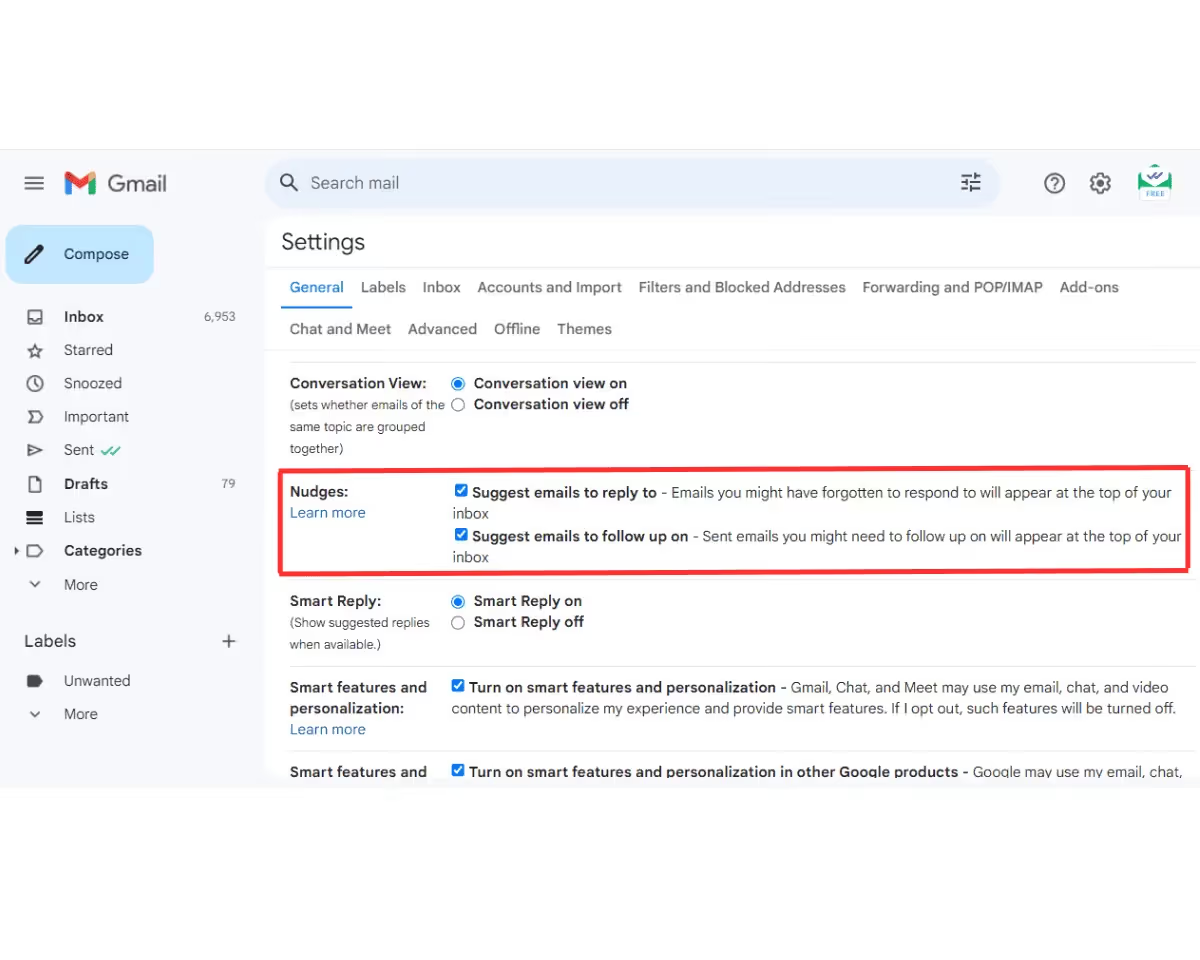
Gmail mette a disposizione diverse funzioni integrate per aiutarti a tenere traccia delle risposte e far avanzare le conversazioni.
📣 Attiva i suggerimenti di follow-up di Gmail (Nudge)
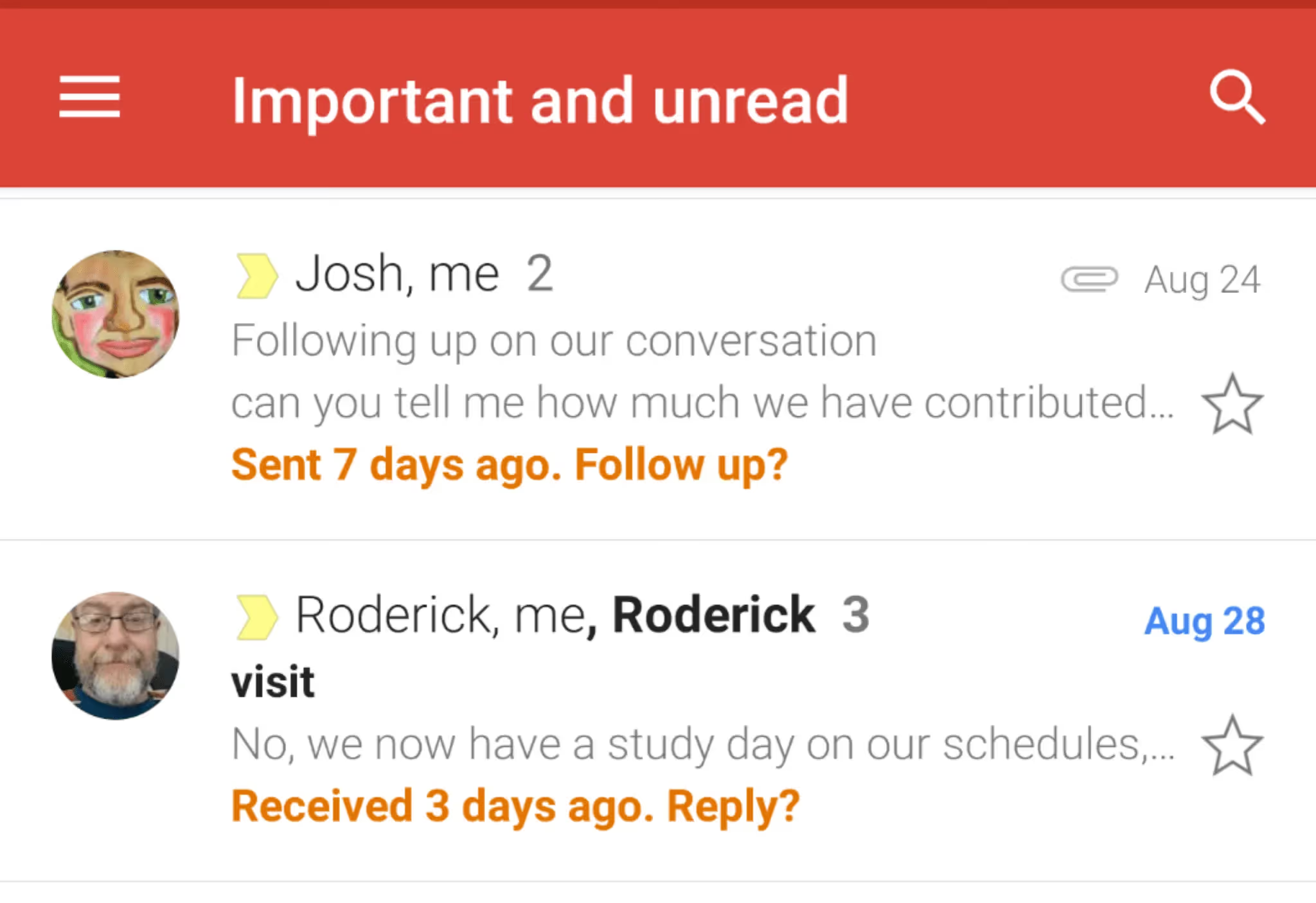
Gmail dispone di una funzione intelligente chiamata Nudge che ti ricorda automaticamente le email a cui non hai risposto o per le quali potrebbe essere necessario un follow-up. Quando Gmail rileva un messaggio che non riceve risposta da un po' di tempo, lo riporta in cima alla tua casella di posta con un suggerimento del tipo “Inviato 3 giorni fa. Vuoi dare seguito?”
Ecco come attivare i Nudge:
- Apri Gmail sul tuo computer.
- Clicca sull' icona a forma di ingranaggio nell'angolo in alto a destra.
- Seleziona Visualizza tutte le impostazioni.
- Nella scheda Generale scheda, scorri verso il basso fino a Nudge.
- Seleziona entrambe le caselle:
- Suggerisci email a cui rispondere
- Suggerisci email da seguire
- Scorri verso il basso e Salva modifiche.
⏰ Usa Posticipa per ricevere un promemoria in seguito
Se desideri un maggiore controllo su quando un'email specifica debba tornare alla tua attenzione, la funzione Posticipa di Gmail rimuove temporaneamente un messaggio dalla posta in arrivo per riproporlo nel momento o nella data che preferisci.
Per posticipare un'email:
- Apri Gmail (da web o app mobile).
- Trova il messaggio che vuoi gestire in seguito.
- Passaci sopra con il mouse (o tocca i tre puntini su mobile).
- Fai clic sull' icona dell'orologio o Posticipa opzione.
- Scegli un orario predefinito (Oggi, Domani, Prossima settimana) o seleziona una data e un orario personalizzati.
L'email scomparirà dalla tua posta in arrivo per riapparire nel momento scelto, esattamente quando ti serve.
✅ Trasforma le email in attività di Google Tasks
Un altro modo per ricordarti di dare seguito a un messaggio è trasformare l'email in un' attività in Google Tasks. Questa soluzione è ideale se preferisci gestire i tuoi promemoria in un elenco di cose da fare dedicato, insieme alle altre tue priorità.
- Apri l'email che vuoi gestire.
- Fai clic sul menu con i tre puntini sopra il messaggio.
- Seleziona Aggiungi a Tasks.
- In Google Tasks, imposta una data/ora di scadenza per il tuo follow-up.
Come automatizzare i follow-up su Gmail: Noota
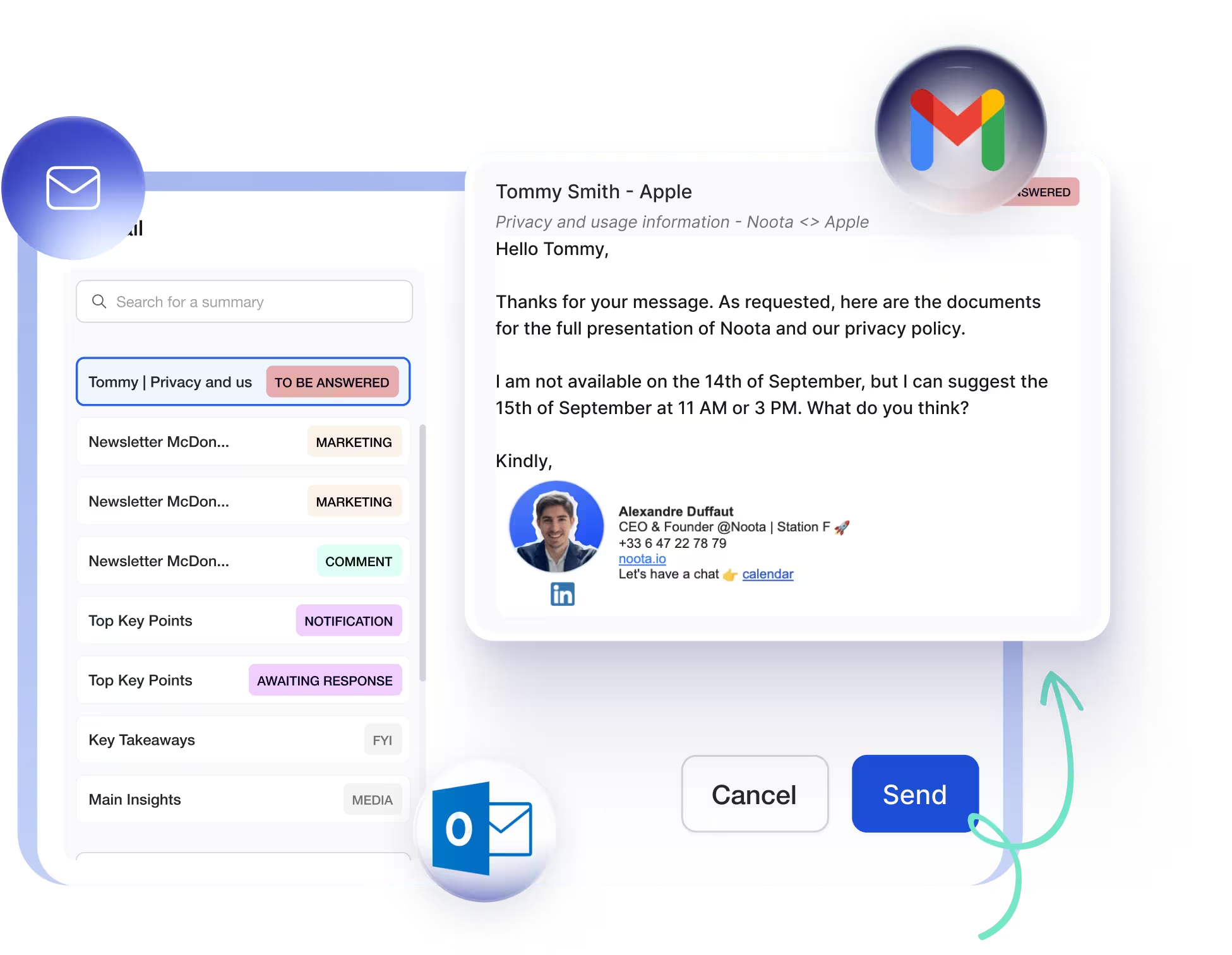
E se potessi automatizzare quei follow-up mantenendo intatti il tuo tono e il contesto? È qui che Noota entra in gioco:
- Creazione di bozze basata sul contesto: Noota traccia le attività e le decisioni emerse da riunioni, chiamate, email e note, utilizzando poi queste informazioni per creare bozze di email di follow-up per Gmail.
- Promemoria tempestivi legati alle attività: Noota ti avvisa quando è il momento di ricontattare qualcuno — ad esempio, dopo una scadenza discussa durante una riunione — affinché i tuoi follow-up avvengano al momento giusto.
- Bozze sotto il tuo controllo: Questi follow-up automatizzati non vengono inviati senza una tua revisione. Noota genera una bozza in Gmail che puoi modificare, personalizzare e inviare quando sei pronto, mantenendo così intatti il tuo tono e le tue intenzioni.
Vuoi generare follow-up contestualizzati automaticamente? Prova Noota gratis ora.
Chi è l'autore
.webp)
FAQ
Accedi a Gmail, clicca l'ingranaggio in alto a destra, seleziona Impostazioni e abilita i Nudges nella sezione Generale.
- Apri Gmail sul computer
- Vai su Impostazioni generali
- Attiva suggerimenti follow-up
Snooze riporta l'email a un orario specifico, mentre Tasks crea un promemoria nella tua lista di cose da fare con scadenza.
- Snooze: email ritorna in inbox
- Tasks: promemoria in lista dedicata
- Snooze: più veloce e immediato
Noota genera automaticamente bozze di follow-up contestuali da riunioni e email, con promemoria intelligenti al momento giusto, mantenendo il tuo tono personale.
- Estrae contesto da riunioni e note
- Crea bozze pronte in Gmail
- Suggerisce timing ottimale follow-up
Noota è la soluzione ideale: genera 6,4 ore di tempo risparmiato settimanale con -80% admin e 4,9/5 su G2. Prova Noota gratis — nessuna carta di credito richiesta.
- Automatizza follow-up intelligenti
- Mantieni controllo e personalizzazione
- Risparmia tempo amministrativo