


Integrazioni
8 min di lettura
Aggiornato il:
Sep 8, 2025
Chiamate telefoniche con Pipedrive: tutto quello che devi sapere
Vuoi sapere come funziona il telefono di Pipedrive? Ecco la tua guida.
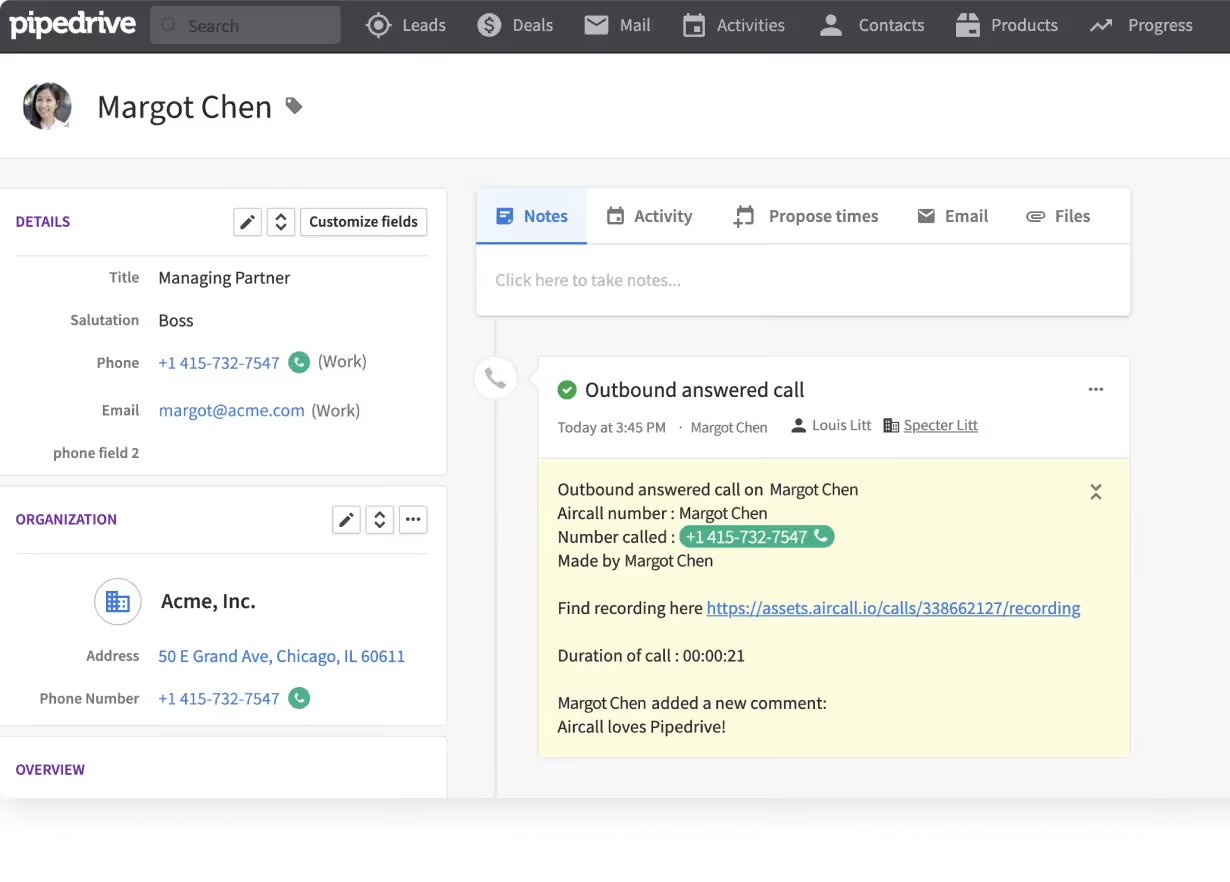
Pipedrive ti aiuta a tenere sotto controllo trattative e relazioni.
Tuttavia, c'è un dettaglio: Pipedrive non include una funzione di chiamata integrata.
In questa guida imparerai passo dopo passo come configurarla correttamente, scegliere un provider e assicurarti che ogni chiamata venga registrata dove deve.
Come configurare le chiamate su Pipedrive
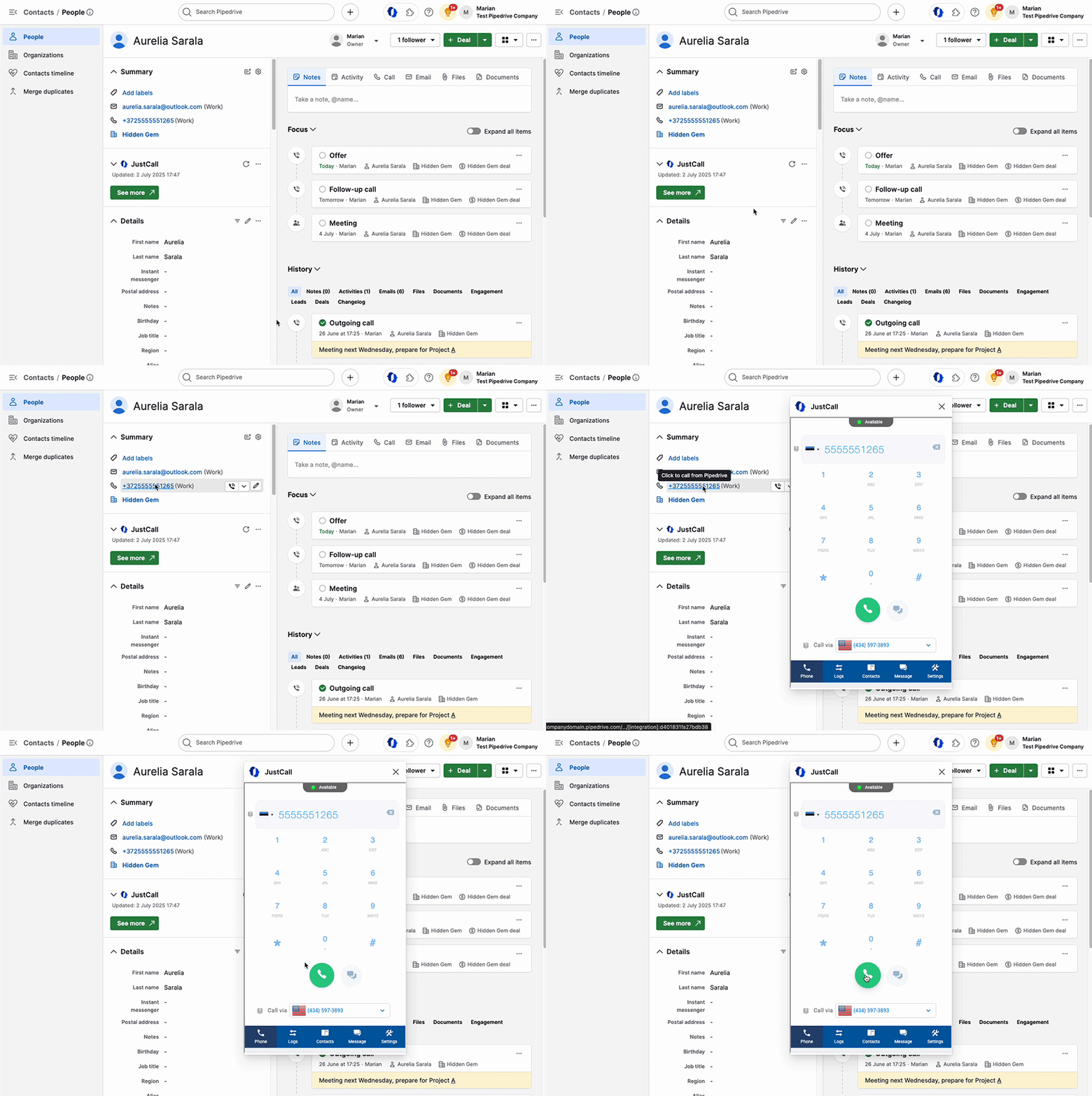
Vuoi effettuare chiamate direttamente da Pipedrive. In questo modo, risparmi tempo evitando di passare da uno strumento all'altro e mantieni tutte le tue interazioni in un unico posto.
Ma ecco il punto: Pipedrive non dispone di un proprio sistema telefonico integrato. Per iniziare a chiamare, devi collegare un provider di terze parti.
Scegli la tua integrazione per le chiamate
Il primo passo è scegliere l'integrazione giusta. Pipedrive dispone di un marketplace con diverse opzioni:
- Noota per VOIP basato su IA e trascrizioni nel CRM.
- Aircall per i team alla ricerca di un sistema telefonico cloud scalabile.
- JustCall se desideri combinare funzionalità di SMS e chiamate.
- CloudTalk per instradamento avanzato e numeri internazionali.
- CallHippo, Toky, oppure Kixie per configurazioni più semplici a costi inferiori.
Ogni strumento ha i propri prezzi e le proprie funzionalità. La scelta dipende dal numero di chiamate effettuate, dalla sede del team e dalla necessità di funzioni aggiuntive come la registrazione delle chiamate o gli SMS.
Installa l'integrazione
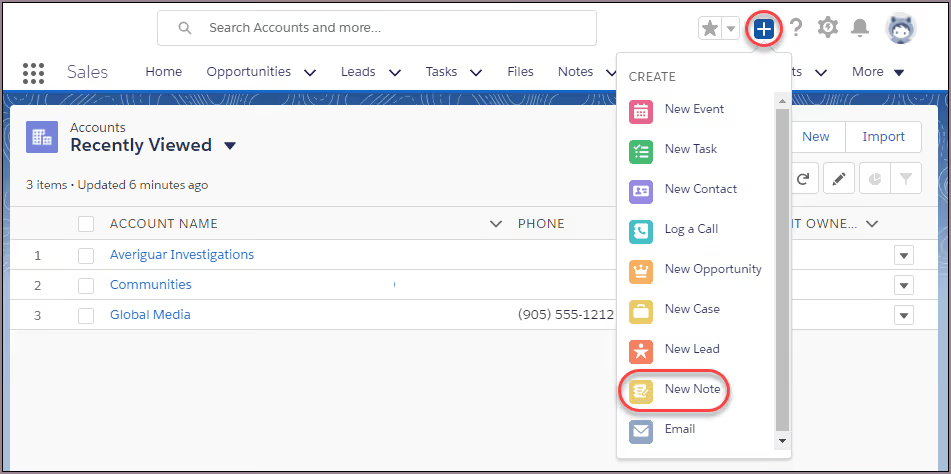
Una volta fatta la scelta, vai sul Marketplace di Pipedrive. Clicca sul tuo provider e installa l'app. La procedura guidata ti accompagnerà nella connessione del tuo account Pipedrive.
Dopo l'installazione, vedrai un nuovo pulsante di chiamata direttamente nell'interfaccia di Pipedrive. Questo pulsante ti permette di cliccare su qualsiasi numero di telefono ed effettuare una chiamata con il tuo sistema integrato.
Configura le impostazioni di chiamata
Successivamente, regola le impostazioni in Pipedrive. Vai su Strumenti e app → Chiamate telefoniche. Qui puoi impostare il tuo metodo di chiamata predefinito.
La maggior parte dei provider utilizza uno dei tre formati "call-to":
tel:[number]per la semplice funzione click-to-call.callto:[number]per i provider VoIP.- Un indirizzo SIP personalizzato, se richiesto dal tuo strumento.
Scegli quello utilizzato dalla tua integrazione, quindi effettua una chiamata di prova. Se l'app del telefono si apre correttamente, sei pronto per iniziare.
Configurazione su dispositivo mobile
L'app mobile di Pipedrive ti consente anche di effettuare e registrare le chiamate. Su iOS e Android, puoi:
- Tocca un numero in un contatto o in una trattativa per avviare il tastierino del telefono.
- Registra automaticamente la chiamata in Pipedrive al termine della conversazione.
- Aggiungi note o etichette per tenere traccia della conversazione.
Se desideri una maggiore automazione, alcune integrazioni ti consentono di registrare e trascrivere le chiamate direttamente da mobile.
Pipedrive Calling: Prezzi e recensione
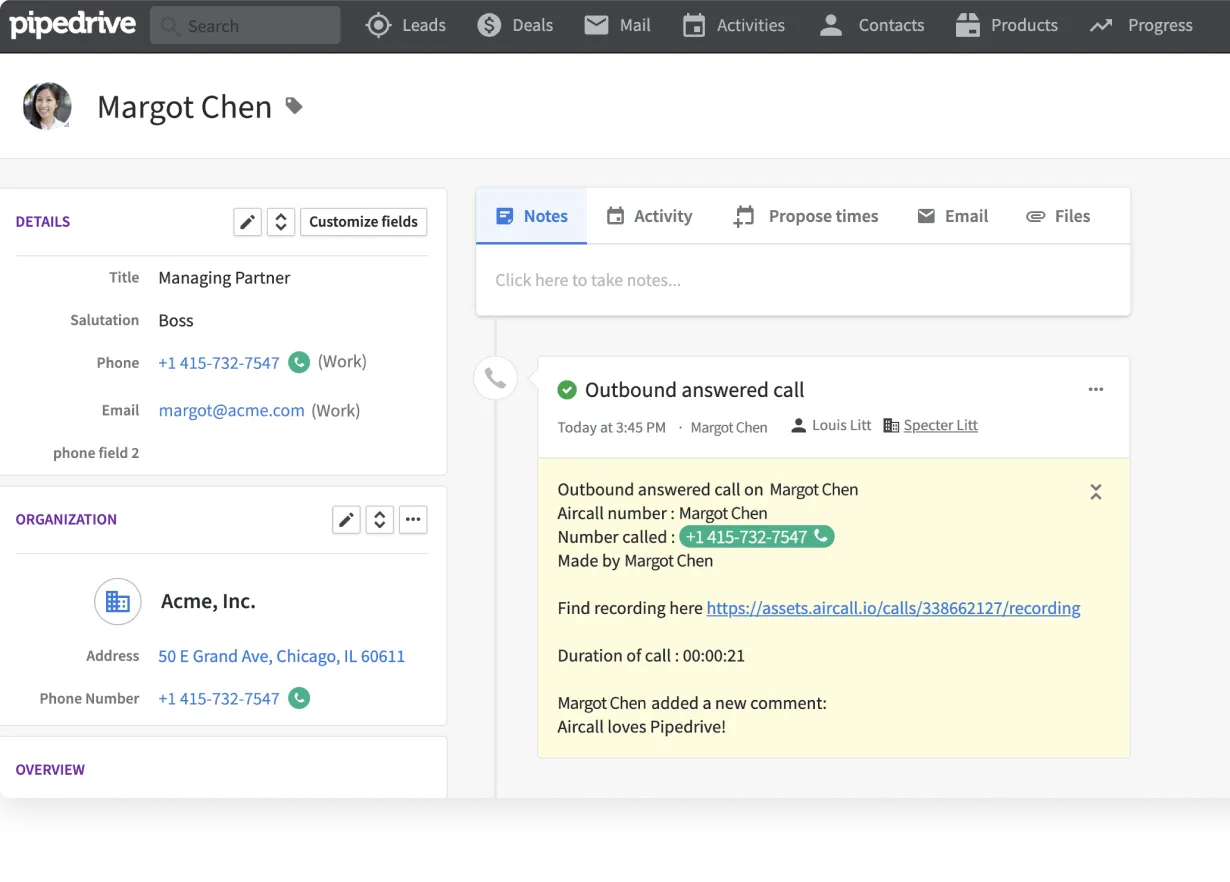
Quando inizi a usare Pipedrive, noti subito una cosa importante: la funzione di chiamata non è integrata. Ti servono due cose: il tuo piano Pipedrive e un provider di telefonia esterno.
Prezzi di Pipedrive
Pipedrive offre quattro piani principali:
- Essential: 24 $/mese per utente, con fatturazione annuale.
- Advanced: 49 $/mese per utente.
- Professional: 69 $/mese per utente.
- Power: 79 $/mese per utente.
- Enterprise: 129 $/mese per utente.
Nemmeno i piani superiori includono una funzione di chiamata nativa. Ciò che ottieni è la possibilità di integrare e registrare le chiamate.
Prezzi dei provider esterni
Ecco cosa aspettarsi dalle opzioni più diffuse:
- Aircall: A partire da 30 $ per utente/mese, con fatturazione annuale. Include chiamate in entrata illimitate, registrazione delle chiamate e integrazioni con Pipedrive. Ottimo per i team in crescita, ma il costo aumenta rapidamente.
- JustCall: A partire da 29 $ per utente/mese. Include SMS, numeri internazionali e registrazione delle chiamate. JustCall è spesso scelto per il suo equilibrio tra funzionalità e convenienza.
- CloudTalk: Da 25 $ per utente/mese, con fatturazione annuale. Eccelle nell'instradamento delle chiamate, nell'analisi e nei numeri di telefono globali. Se gestisci più regioni, CloudTalk è un'ottima scelta.
- CallHippo: A partire da 18 $ per utente/mese. È una delle opzioni più economiche. Include click-to-call, inoltro di chiamata e segreteria telefonica. Ideale se cerchi una soluzione semplice e leggera.
- Kixie: A partire da 35 $ per utente/mese. È progettato per i team di vendita, con power dialer e rilascio automatico di messaggi in segreteria. Se la priorità è il volume di chiamate in uscita, Kixie vale il prezzo più alto.
- Toky: Da 20 $ per utente/mese. Toky offre numeri condivisi, SMS e integrazioni. Una solida scelta di fascia media se non hai bisogno di instradamenti avanzati.
Risoluzione dei problemi telefonici in Pipedrive
Hai configurato le chiamate in Pipedrive. Di solito funziona tutto correttamente, ma quando si verifica un problema, può bloccare il tuo flusso di lavoro e farti perdere tempo prezioso.
Ecco come risolvere i problemi più comuni.
Problema 1: Le chiamate non si avviano da Pipedrive
Clicchi su un numero di telefono, ma non succede nulla. Oppure si apre l'app sbagliata.
Di solito significa che le impostazioni di chiamata non sono configurate. Vai su Strumenti e app → Chiamate telefoniche. Verifica che sia selezionato il formato corretto:
tel:[number]per le app di telefonia standard su dispositivi mobili o desktop.callto:[number]per integrazioni VoIP come Skype o Zoiper.- Un indirizzo SIP personalizzato, se richiesto dal tuo provider.
Assicurati che il tuo browser consenta a Pipedrive di aprire app esterne. In Chrome o Edge, la prima volta visualizzerai un piccolo popup che richiede l'autorizzazione. Se ti è sfuggito, reimposta le autorizzazioni nelle impostazioni del browser.
Problema 2: le chiamate non vengono registrate in Pipedrive
Hai effettuato una chiamata, ma non appare nella cronologia del tuo contatto.
Per prima cosa, controlla il campo del numero di telefono. La registrazione funziona solo se il numero è salvato nel campo predefinito del telefono. Se è archiviato nelle note o in un campo personalizzato, Pipedrive non lo riconoscerà.
In secondo luogo, conferma che la tua integrazione sia connessa. Vai alle impostazioni dell'app nel Marketplace e controlla le tue credenziali di accesso. A volte una sessione scade ed è necessario riconnettersi.
Infine, verifica le tue autorizzazioni. Se il tuo account non consente la registrazione delle chiamate, queste potrebbero non sincronizzarsi. Chiedi al tuo amministratore di controllare le autorizzazioni dell'integrazione.
Problema 3: problemi con l'app mobile
Sui dispositivi mobili si riscontrano due problemi comuni: le chiamate non vengono registrate o le notifiche non vengono visualizzate.
Per la registrazione delle chiamate:
- Aggiorna l'app mobile di Pipedrive all'ultima versione.
- Su Android, imposta Pipedrive come app predefinita per ID chiamante e spamÈ necessario per la registrazione automatica.
- Su iOS, autorizza Pipedrive ad accedere ai tuoi contatti e alle funzioni telefoniche nelle Impostazioni.
Per le notifiche:
- Verifica che le notifiche di Pipedrive siano abilitate sul tuo dispositivo.
- Su Android, assicurati che l'ottimizzazione della batteria non blocchi i processi in background.
- Su iOS, conferma che le modalità Full immersion o Non disturbare non stiano silenziando gli avvisi di Pipedrive.
Problema 4: Errori nelle chiamate da Web a Mobile
Pipedrive ti permette di cliccare su un numero nell'app web e continuare la chiamata sul tuo cellulare. Se non funziona, segui questi passaggi:
- Assicurati che l'app mobile sia installata e che tu abbia effettuato l'accesso.
- Consenti le notifiche push affinché la richiesta di chiamata possa raggiungere il tuo telefono.
- Aggiorna sia l'app web che quella mobile. Le versioni non aggiornate possono interrompere il trasferimento.
Se riscontri ancora problemi, reinstalla l'app. Spesso risolve conflitti di autorizzazione nascosti.
Noota: Note e report di chiamata personalizzati con l'IA

Hai configurato le chiamate con Pipedrive e un provider esterno. Ora è il momento di ottenere di più da ogni conversazione. È qui che entra in gioco Noota.
Noota trasforma qualsiasi numero di telefono in una chiamata con un clic. Rileva automaticamente i numeri sulle pagine web, nelle email o nel tuo CRM, così puoi chiamare istantaneamente senza fare copia e incolla. Mentre parli, Noota registra e trascrive in tempo reale. Ottieni attività da svolgere, decisioni prese e punti chiave, tutto formattato e pronto all'uso.
Come funziona Noota con Pipedrive
Collegare Noota a Pipedrive è semplice. Nella tua dashboard di Noota, vai alla scheda Integrazioni e clicca su "Attiva" in corrispondenza di Pipedrive. Si aprirà la richiesta di autorizzazione di Pipedrive: ti basterà cliccare su Consenti e Installa per completare la configurazione.
Una volta connesso, Noota sincronizza automaticamente i riepiloghi delle chiamate e le trascrizioni come note nel contatto o nell'affare corretto in Pipedrive. Sei tu a decidere quali dati includere. Noota può persino creare nuovi contatti e affari, se necessario.
Puoi gestire l'integrazione manualmente o utilizzare il bot di automazione di Noota ("NooBot") per inviare i riepiloghi automaticamente dopo ogni registrazione.
Chi è l'autore
.avif)
Adesh scrive di note taker AI, registrazione delle riunioni, colloqui strutturati e recruiting, partendo dal suo lavoro nella crescita guidata dall'AI e nelle operations di recruiting.
FAQ
Pipedrive non ha calling nativo. Devi scegliere un provider dal marketplace, installare l'integrazione e configurare le impostazioni in Tools → Apps → Phone Calls.
- Scegli provider dal marketplace Pipedrive
- Installa l'integrazione tramite wizard
- Configura il formato call-to nelle impostazioni
Dipende dalle tue esigenze: Aircall per scalabilità, JustCall per SMS+chiamate, CloudTalk per routing avanzato, oppure soluzioni economiche come CallHippo e Toky.
- Aircall: sistema cloud scalabile e completo
- JustCall: SMS e chiamate integrate insieme
- CloudTalk: routing avanzato e numeri internazionali
Noota offre AI VOIP, trascrizioni automatiche e integrazione CRM nativa, risparmiando 6,4h/settimana di admin (-80%). Con 4,9/5 su G2 e 5000+ team, supera i competitor in automazione e intelligenza artificiale.
- Trascrizioni AI automatiche in 80+ lingue
- Risparmia 6,4 ore settimanali di lavoro admin
- Integrazione nativa con Pipedrive e CRM
Noota è la soluzione ideale: registra, trascrive e sincronizza automaticamente le chiamate in Pipedrive senza intervento manuale. Perfetto per team che vogliono eliminare l'admin. Prova Noota gratis — nessuna carta di credito richiesta.
- Automazione completa recording e trascrizione
- Sincronizzazione istantanea con Pipedrive
- Zero configurazione manuale delle note