Integrationen
8 Min. Lesezeit
Aktualisiert am:
Sep 8, 2025
Telefonieren mit Pipedrive: Alles, was Sie wissen müssen
Sie möchten wissen, wie die Pipedrive-Telefonfunktion funktioniert? Hier ist Ihr Leitfaden.
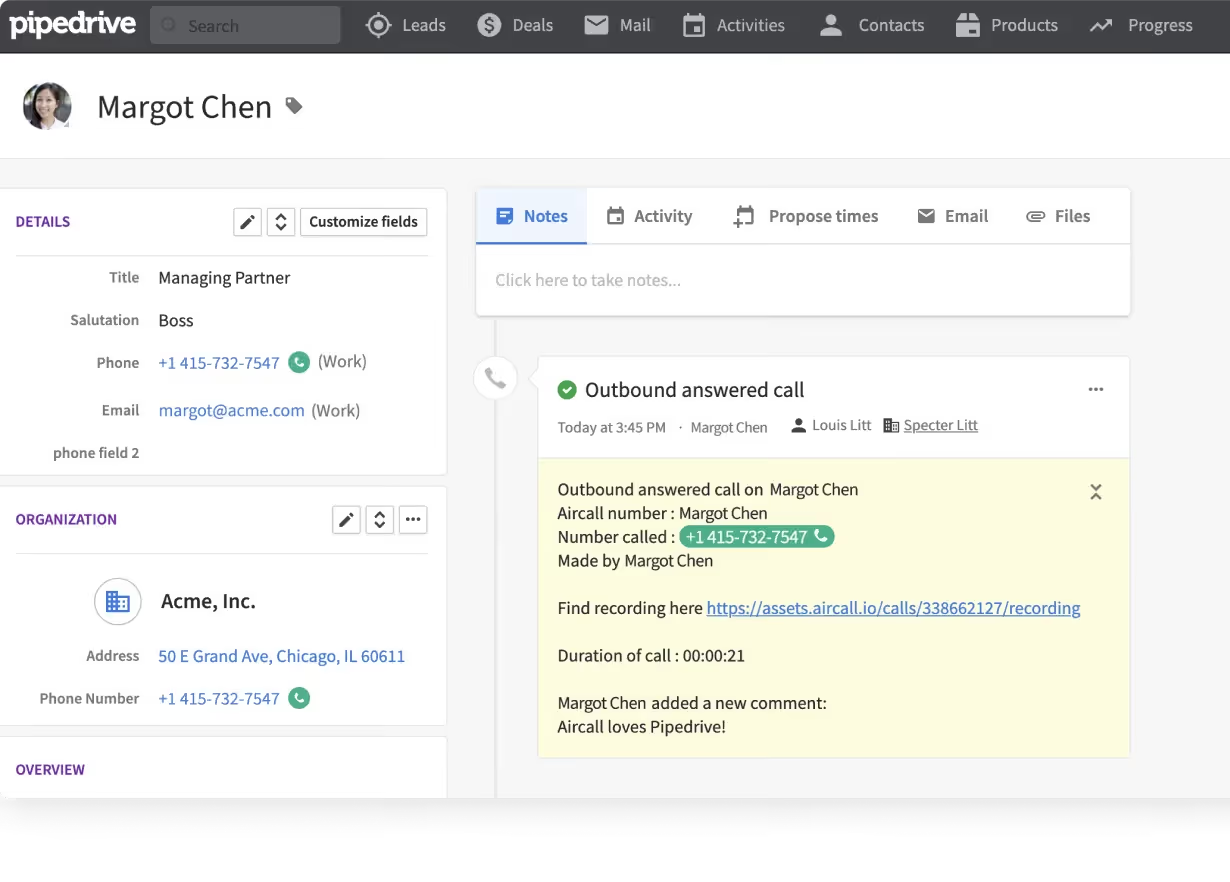
Pipedrive hilft Ihnen dabei, Deals und Kundenbeziehungen im Blick zu behalten.
Doch hier ist der Punkt: Pipedrive verfügt nicht über eine integrierte Telefoniefunktion.
In diesem Leitfaden erfahren Sie Schritt für Schritt, wie Sie die Telefonie richtig einrichten, einen Anbieter auswählen und sicherstellen, dass jeder Anruf dort dokumentiert wird, wo er hingehört.
So richten Sie die Telefonie in Pipedrive ein
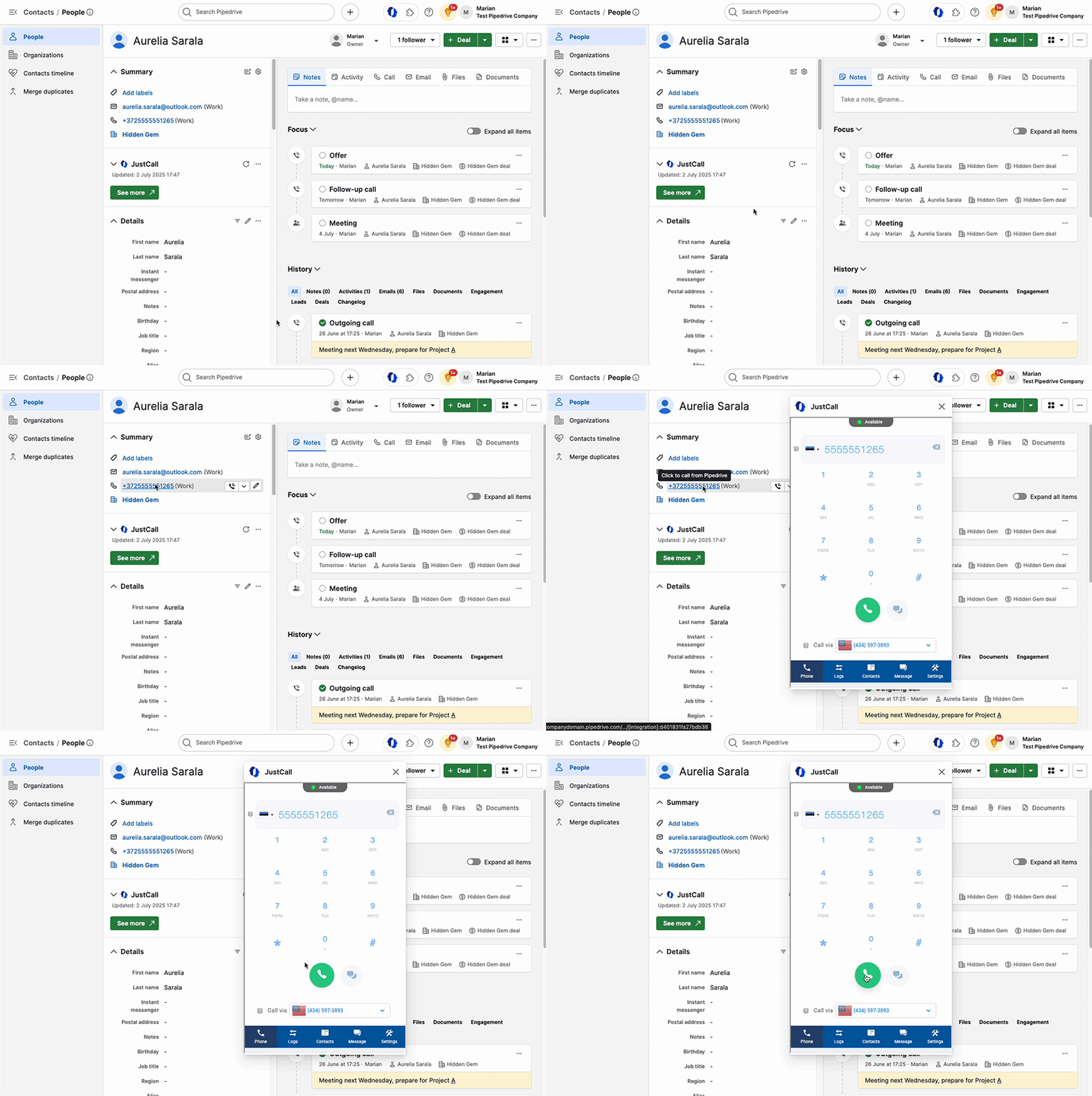
Sie möchten direkt aus Pipedrive heraus telefonieren. So sparen Sie Zeit beim Wechsel zwischen verschiedenen Tools und haben alle Interaktionen an einem zentralen Ort.
Der Haken dabei: Pipedrive besitzt kein eigenes, integriertes Telefonsystem. Um Anrufe zu tätigen, müssen Sie einen Drittanbieter anbinden.
Wählen Sie Ihre Telefonie-Integration
Der erste Schritt besteht darin, die passende Integration auszuwählen. Pipedrive bietet einen Marktplatz mit verschiedenen Optionen:
- Noota für KI-gestützte VoIP-Telefonie und Transkriptionen direkt im CRM.
- Aircall für Teams, die ein skalierbares Cloud-Telefonsystem suchen.
- JustCall wenn Sie SMS- und Telefoniefunktionen kombinieren möchten.
- CloudTalk für erweiterte Anrufweiterleitung und internationale Rufnummern.
- CallHippo, Tokyoder Kixie für einfachere Setups zu geringeren Kosten.
Jedes Tool bietet eigene Preise und Funktionen. Ihre Wahl hängt davon ab, wie viele Anrufe Sie tätigen, wo Ihr Team ansässig ist und ob Sie Zusatzfunktionen wie Anrufaufzeichnung oder SMS benötigen.
Integration installieren
Sobald Sie sich entschieden haben, besuchen Sie den Pipedrive Marketplace. Klicken Sie auf Ihren Anbieter und installieren Sie die App. Der Einrichtungsassistent führt Sie durch die Verknüpfung Ihres Pipedrive-Kontos.
Nach der Installation sehen Sie eine neue Anruftaste direkt in Ihrer Pipedrive-Oberfläche. Über diese Taste können Sie auf jede Telefonnummer klicken und einen Anruf über Ihr integriertes System starten.
Anrufeinstellungen konfigurieren
Passen Sie anschließend Ihre Einstellungen in Pipedrive an. Gehen Sie zu Tools & Apps → Telefonanrufe. Hier können Sie Ihre Standard-Anrufmethode festlegen.
Die meisten Anbieter nutzen eines der drei folgenden „Call-to“-Formate:
tel:[number]für einfaches Click-to-Call.callto:[number]für VoIP-Anbieter.- Eine benutzerdefinierte SIP-Adresse, falls Ihr Tool dies erfordert.
Wählen Sie das Format, das Ihre Integration verwendet, und führen Sie einen Testanruf durch. Wenn sich Ihre Telefon-App korrekt öffnet, ist alles bereit.
Einrichtung auf Mobilgeräten
Mit der mobilen App von Pipedrive können Sie ebenfalls Anrufe tätigen und protokollieren. Unter iOS und Android können Sie:
- Tippen Sie auf eine Nummer in einem Kontakt oder Deal, um die Telefon-App zu öffnen.
- Protokollieren Sie den Anruf nach Beendigung automatisch in Pipedrive.
- Fügen Sie Notizen oder Labels hinzu, um den Überblick über das Gespräch zu behalten.
Für noch mehr Automatisierung ermöglichen einige Integrationen das direkte Aufzeichnen und Transkribieren von Anrufen über das Mobilgerät.
Pipedrive Telefonie: Preise & Bewertung
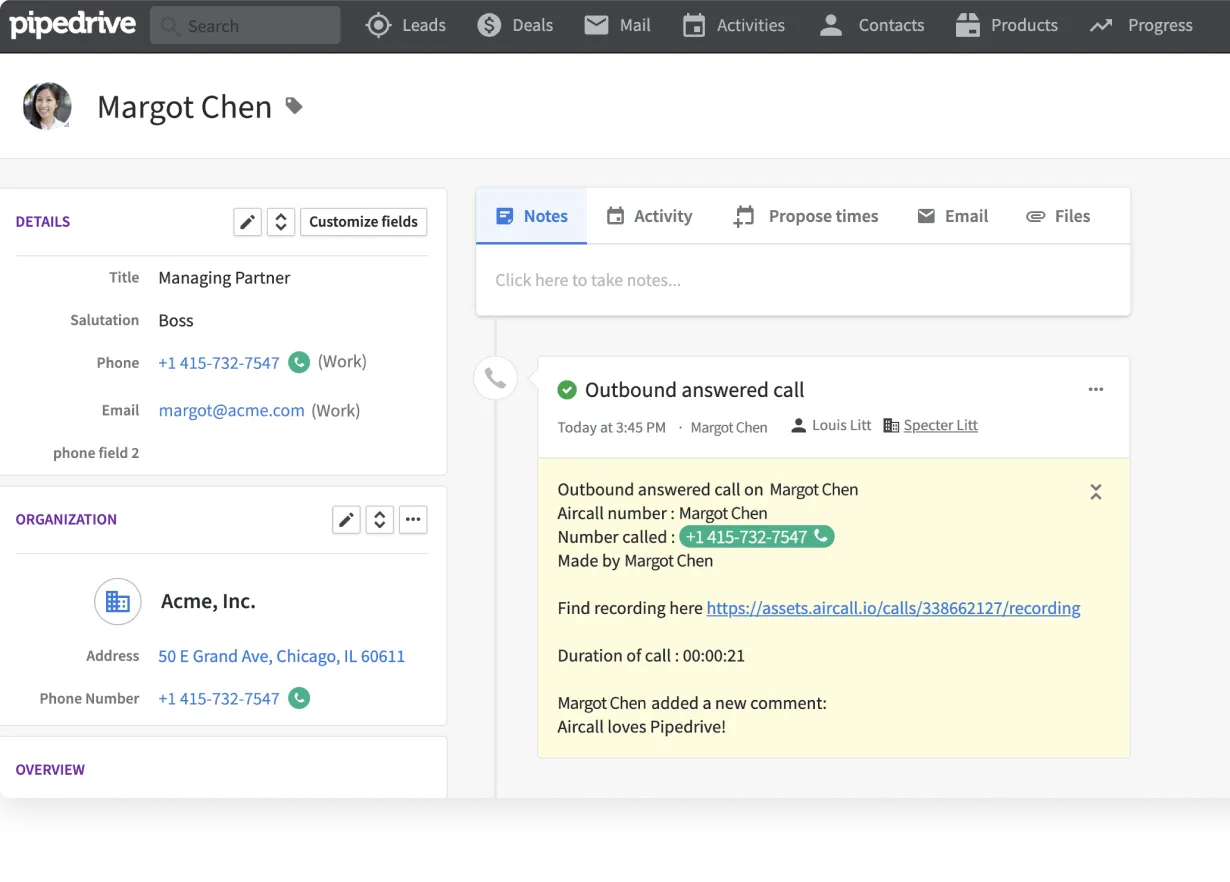
Wenn Sie mit Pipedrive starten, fällt Ihnen schnell etwas Wichtiges auf: Eine Telefoniefunktion ist nicht integriert. Sie benötigen zwei Dinge: Ihren Pipedrive-Tarif und einen externen Telefonieanbieter.
Pipedrive Preise
Pipedrive bietet vier Haupttarife an:
- Essential: 24 $/Monat pro Nutzer bei jährlicher Abrechnung.
- Advanced: 49 $/Monat pro Nutzer.
- Professional: 69 $/Monat pro Nutzer.
- Power: 79 $/Monat pro Nutzer.
- Enterprise: 129 $/Monat pro Nutzer.
Selbst die höheren Tarife beinhalten keine native Telefoniefunktion. Was Sie erhalten, ist die Möglichkeit, Anrufe zu integrieren und zu protokollieren.
Preise externer Anbieter
Das erwartet Sie bei den beliebtesten Optionen:
- Aircall: Ab 30 $ pro Nutzer/Monat bei jährlicher Abrechnung. Sie erhalten unbegrenzte eingehende Anrufe, Anrufaufzeichnung und Integrationen mit Pipedrive. Ideal für wachsende Teams, doch die Kosten summieren sich schnell.
- JustCall: Ab 29 $ pro Nutzer/Monat. Beinhaltet SMS, internationale Nummern und Anrufaufzeichnung. JustCall wird oft wegen des ausgewogenen Verhältnisses von Funktionen und Preis gewählt.
- CloudTalk: Ab 25 $ pro Nutzer/Monat bei jährlicher Abrechnung. Stärken liegen in der Anrufweiterleitung, Analysen und globalen Telefonnummern. Wenn Sie mehrere Regionen verwalten, ist CloudTalk eine gute Wahl.
- CallHippo: Ab 18 $ pro Nutzer/Monat. Eine der budgetfreundlicheren Optionen. Sie erhalten Click-to-Call, Anrufweiterleitung und Voicemail. Ideal, wenn Sie eine einfache und schlanke Lösung suchen.
- Kixie: Ab 35 $ pro Nutzer/Monat. Entwickelt für Vertriebsteams mit Power-Dialern und Voicemail-Drop. Wenn das Volumen ausgehender Anrufe Ihre Priorität ist, ist Kixie den höheren Preis wert.
- Toky: Ab 20 $ pro Nutzer/Monat. Toky bietet geteilte Nummern, SMS und Integrationen. Eine solide Wahl im mittleren Preissegment, wenn Sie keine komplexe Anrufweiterleitung benötigen.
Fehlerbehebung für Pipedrive Telefonie
Sie haben die Telefoniefunktion in Pipedrive eingerichtet. Meistens funktioniert alles reibungslos. Doch wenn Probleme auftreten, kann dies Ihren Arbeitsablauf blockieren und wertvolle Zeit kosten.
So beheben Sie die häufigsten Probleme.
Problem 1: Anrufe werden nicht aus Pipedrive gestartet
Sie klicken auf eine Telefonnummer, aber es passiert nichts. Oder es öffnet sich die falsche App.
Dies bedeutet meist, dass Ihre Anrufeinstellungen nicht konfiguriert sind. Gehen Sie zu Tools & Apps → Telefonanrufe. Überprüfen Sie, ob das korrekte Format ausgewählt ist:
tel:[number]für Standard-Telefon-Apps auf Mobilgeräten oder Desktops.callto:[number]für VoIP-Integrationen wie Skype oder Zoiper.- Eine benutzerdefinierte SIP-Adresse, falls Ihr Anbieter dies erfordert.
Stellen Sie sicher, dass Ihr Browser Pipedrive erlaubt, externe Apps zu öffnen. In Chrome oder Edge erscheint beim ersten Mal ein kleines Popup, in dem Sie um Erlaubnis gefragt werden. Falls Sie dies verpasst haben, setzen Sie die Berechtigungen in Ihren Browsereinstellungen zurück.
Problem 2: Anrufe werden nicht in Pipedrive protokolliert
Sie haben einen Anruf getätigt, aber er erscheint nicht in der Zeitleiste Ihres Kontakts.
Überprüfen Sie zuerst das Telefonnummernfeld. Die Protokollierung funktioniert nur, wenn die Nummer im Standard-Telefonfeldgespeichert ist. Wenn sie in Notizen oder einem benutzerdefinierten Feld gespeichert ist, erkennt Pipedrive sie nicht.
Zweitens: Bestätigen Sie, dass Ihre Integration verbunden ist. Gehen Sie zu den App-Einstellungen im Marketplace und überprüfen Sie Ihre Anmeldedaten. Manchmal läuft eine Sitzung ab und Sie müssen die Verbindung neu herstellen.
Überprüfen Sie abschließend Ihre Berechtigungen. Wenn Ihr Konto keine Anrufprotokollierung zulässt, werden Ihre Anrufe möglicherweise nicht synchronisiert. Bitten Sie Ihren Administrator, die Integrationsberechtigungen zu überprüfen.
Problem 3: Probleme mit der mobilen App
Auf Mobilgeräten treten häufig zwei Probleme auf: Anrufe werden nicht protokolliert oder Benachrichtigungen werden nicht angezeigt.
Für die Anrufprotokollierung:
- Aktualisieren Sie die Pipedrive-App auf die neueste Version.
- Legen Sie Pipedrive unter Android als Ihre Standard-App für Anrufer-ID und Spam-Schutz festDies ist für die automatische Protokollierung erforderlich.
- Erlaube Pipedrive unter iOS in den Einstellungen den Zugriff auf deine Kontakte und Telefonfunktionen.
Für Benachrichtigungen:
- Stelle sicher, dass Pipedrive-Benachrichtigungen auf deinem Gerät aktiviert sind.
- Stelle unter Android sicher, dass die Akku-Optimierung Hintergrundprozesse nicht blockiert.
- Überprüfe unter iOS, ob die Modi „Fokus“ oder „Nicht stören“ Pipedrive-Benachrichtigungen stummschalten.
Problem 4: Fehler bei Web-zu-Mobil-Anrufen
Pipedrive ermöglicht es dir, eine Nummer in der Web-App anzuklicken und das Gespräch auf deinem Mobiltelefon fortzusetzen. Falls dies nicht funktioniert, prüfe folgende Schritte:
- Stelle sicher, dass die mobile App installiert ist und du angemeldet bist.
- Erlaube Push-Benachrichtigungen, damit die Anrufanfrage dein Telefon erreichen kann.
- Aktualisiere sowohl die Web- als auch die mobile App. Veraltete Versionen können die Übergabe unterbrechen.
Falls weiterhin Probleme auftreten, installiere die App neu. Dies behebt oft versteckte Berechtigungskonflikte.
Noota: Maßgeschneiderte KI-Anrufnotizen & Berichte

Du hast die Telefonie mit Pipedrive und einem externen Anbieter eingerichtet. Jetzt ist es an der Zeit, mehr aus jedem Gespräch herauszuholen. Genau hier setzt Noota an.
Noota verwandelt jede Telefonnummer, die du siehst, in einen Anruf per Klick. Es erkennt Nummern auf Webseiten, in E-Mails oder in deinem CRM automatisch, sodass du sofort wählen kannst, ohne kopieren und einfügen zu müssen. Während du sprichst, zeichnet Noota das Gespräch in Echtzeit auf und transkribiert es. Du erhältst Aufgaben, Entscheidungen und Kernpunkte – alles strukturiert und sofort einsatzbereit.
So funktioniert Noota mit Pipedrive
Die Verbindung von Noota mit Pipedrive ist einfach. Gehe in deinem Noota-Dashboard auf den Tab „Integrationen“ und klicke bei Pipedrive auf „Aktivieren“. Dadurch öffnet sich die Berechtigungsabfrage von Pipedrive – klicke einfach auf „Zulassen & Installieren“, um die Einrichtung abzuschließen.
Sobald die Verbindung steht, synchronisiert Noota Anrufzusammenfassungen und Transkripte automatisch als Notizen in den entsprechenden Kontakt oder Deal in Pipedrive. Du entscheidest, welche Daten übertragen werden sollen. Noota erstellt bei Bedarf sogar neue Kontakte und Deals.
Du kannst die Integration manuell verwalten oder den Automatisierungs-Bot von Noota („NooBot“) nutzen, um Zusammenfassungen nach jeder Aufnahme automatisch zu versenden.
Über den Autor
.avif)
Adesh schreibt über KI-Notetaker, Meeting-Aufzeichnung, strukturierte Interviews und Recruiting, aus seiner Arbeit in KI-gestütztem Wachstum und Recruiting-Operations.
FAQ
Pipedrive hat keine native Telefonie. Sie installieren eine Integration wie Noota, Aircall oder JustCall aus dem Marketplace und verbinden diese mit Ihrem Account.
- Integration im Marketplace auswählen
- App installieren und Pipedrive-Konto verbinden
- Call-Button in Pipedrive-Oberfläche aktivieren
Sie zahlen für Pipedrive selbst (ab 24€/Monat) plus einen separaten Calling-Provider. Aircall kostet etwa 30€/Monat, Noota bietet AI-Transkription ab kostenlos.
- Pipedrive-Plan: 24–129€ pro Nutzer monatlich
- Calling-Provider: 0–50€ zusätzlich pro Monat
- Gesamtbudget abhängig von Anrufvolumen
Noota gewinnt für Teams, die AI-Transkription und automatische CRM-Einträge brauchen. Aircall ist besser für große Teams mit komplexem Routing. Noota spart 6,4h/Woche Admin-Arbeit und hat 4,9/5 G2-Bewertung.
- Noota: AI-Transkription, -80% Admin, kostenlos starten
- Aircall: Skalierbar, aber höhere Kosten ab 30€/Monat
- Noota nutzen 5000+ Teams in 80+ Sprachen
Noota ist ideal für Sales-Teams: automatische Call-Transkription, AI-Zusammenfassungen und direkte Pipedrive-Integration sparen Zeit und reduzieren manuelle Dateneinträge drastisch.
- Automatische Transkription aller Anrufe in 80+ Sprachen
- AI-Notizen direkt ins CRM, -80% Admin-Arbeit
- Noota kostenlos testen – keine Kreditkarte erforderlich