Vergaderopname & Transcriptie
8 min leestijd
Updated on:
Oct 27, 2025
Google Meet-transcriptie: een complete gids
Wil je weten hoe je Google Meet-transcriptie gebruikt? Hier is je handleiding
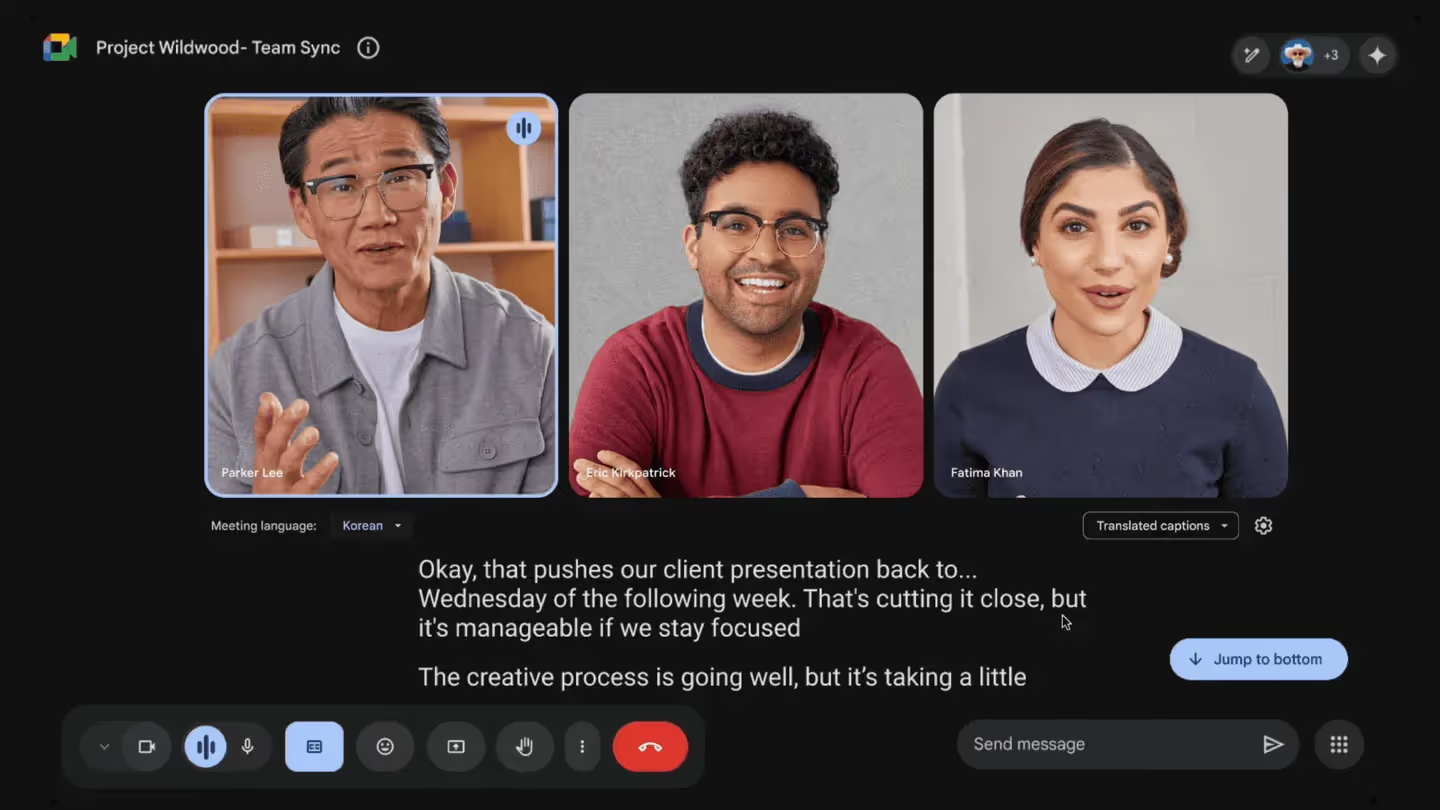
Met de ingebouwde transcriptiefunctie in Google Meet krijg je een tekstuele weergave van alles wat er besproken wordt.
Maar hoe stel je dit in en hoe haal je er het maximale uit?
In de volgende secties leer je hoe je de ingebouwde transcriptie van Google Meet instelt en gebruikt.
De ingebouwde transcriptie van Google Meet instellen en gebruiken
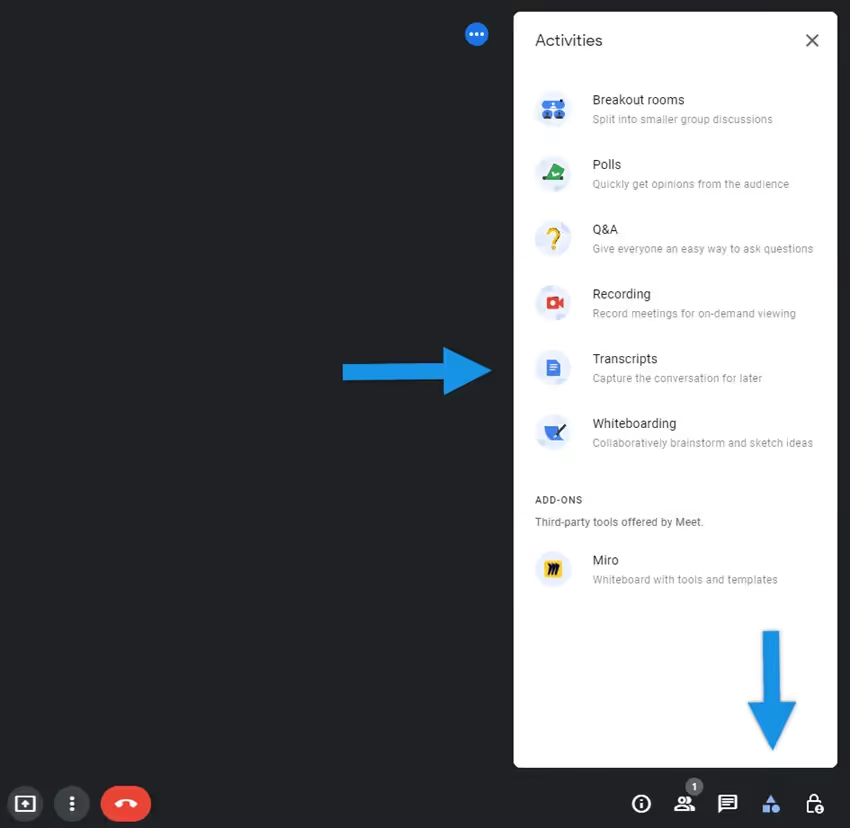
Controleer eerst of je account vergadertranscripties ondersteunt. De functie "Transcripties" is beschikbaar op een computer of laptop (niet op mobiele apparaten) en alleen voor bepaalde Google Workspace-edities.
Daarnaast moet de beheerder van je organisatie transcriptie hebben ingeschakeld in de Admin-console. Zonder deze instelling zie je de optie niet.
Zodra alles is ingeschakeld en je in een vergadering op je computer zit, ga je als volgt te werk:
- Neem deel aan de Google Meet-sessie of start er een.
- Klik rechtsonder in het vergadervenster op Activiteiten.
- Kies in het menu voor Transcripties, selecteer vervolgens Transcriptie starten en klik op Starten.
- Er verschijnt een “Transcripten”-icoon (vaak linksboven) om aan te geven dat de functie actief is.
- Wanneer je klaar bent, of simpelweg wanneer de vergadering eindigt en deelnemers vertrekken, kun je de transcriptie stoppen via hetzelfde menu: Activiteiten → Transcripten → Transcriptie stoppen.
Zodra de vergadering is afgelopen, verdwijnt het transcript niet zomaar. Dit is wat er gebeurt:
- Er wordt een geautomatiseerde e-mail gestuurd naar de organisator van de vergadering, eventuele mede-organisatoren en de persoon die de transcriptie heeft ingeschakeld, met een link naar het transcriptbestand.
- Het transcript wordt ook opgeslagen in de Google Drive van de organisator van de vergadering, in de map “Meet-opnamen”. Je kunt het terugvinden via de zoekfunctie in Drive op basis van de titel (meestal de titel van de vergadering + datum + “- Transcript”).
- Als de vergadering in de Agenda was gepland, wordt het transcript ook aan de agenda-afspraak gekoppeld voor snelle toegang.
Problemen oplossen met AI-transcriptie in Google Meet
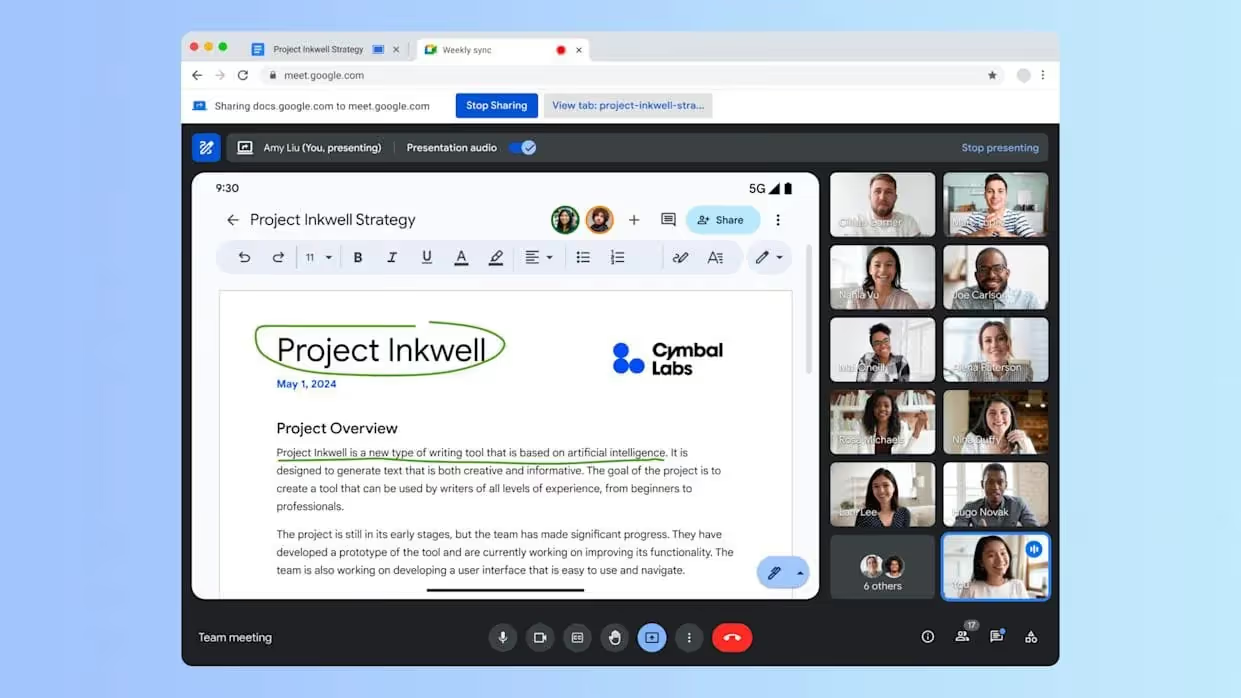
Probleem 1: De optie “Transcriptie” verschijnt niet
Wat is er aan de hand?
Je neemt deel aan een vergadering in Google Meet, klikt op Activiteiten → en je ziet “Transcripten” (of “Transcriptie starten”) niet in het menu staan.
Mogelijke oorzaken:
- Jouw Google Workspace-editie ondersteunt geen transcripten.
- De beheerder heeft transcripties voor vergaderingen niet ingeschakeld voor jouw gebruikersgroep.
- Je gebruikt een apparaat of situatie die dit niet ondersteunt (bijv. een mobiele browser).
Oplossing: - Controleer welk Google Workspace-abonnement jouw organisatie gebruikt en of dit transcripten bevat (bijv. Business Standard, Enterprise), zoals aangegeven door Google.
- Vraag je IT-beheerder om naar de Admin Console → Apps → Google Workspace → Google Meet → Video-instellingen voor Meet → Transcripten voor vergaderingen te gaan en deze in te schakelen voor jouw organisatie-eenheid.
- Gebruik een ondersteund apparaat: een browser op een desktop of laptop in plaats van mobiel.
- Zodra de wijzigingen zijn doorgevoerd, kan het tot 24 uur duren voordat ze in je hele account zichtbaar zijn.
Waarom dit belangrijk is voor jou:
Door de instelling zichtbaar te maken, zorg je ervoor dat je team bij elke vergadering betrouwbaar op "Transcriptie starten" kan klikken, zonder dat er ad-hocoplossingen nodig zijn.
Probleem 2: Het transcriptiebestand verschijnt niet na de vergadering
Wat is er aan de hand?
Je hebt op "Transcriptie starten" geklikt, de vergadering is afgelopen, maar je kunt het transcript niet vinden in Drive of via e-mail.
Mogelijke oorzaken:
- De organisator of host van de vergadering had onvoldoende opslagruimte in Drive.
- Het kan tot 24 uur duren voordat transcripties verschijnen.
- Er was een bug of vertraging in de backend van Google bij het genereren van het bestand.
Oplossing voor jou: - Controleer vóór de vergadering of de host (en co-hosts) voldoende opslagruimte hebben in Google Drive.
- Zoek na de vergadering in Drive op "Transcript" (of de titel van de vergadering + "- Transcript") in plaats van eindeloos te wachten.
- Als er na 24 uur nog steeds geen bestand is, overleg dan met je beheerder om te controleren of de transcriptieservice een fout heeft ondervonden (via de logboeken in de beheerdersconsole of via support).
Waarom dit belangrijk is voor jou:
Als transcripties niet verschijnen, verliest het hele proces (voor evaluatie, actiepunten en opvolging) zijn waarde. Je wilt dat dit proces altijd vlekkeloos verloopt.
Probleem 3: Transcripties zijn onnauwkeurig of missen belangrijke sprekers
Wat is er aan de hand?
Je ontvangt een transcript, maar het staat vol met verkeerd verstane zinnen, samengevoegde sprekers of grote hiaten in de tekst.
Mogelijke oorzaken:
- Deelnemers die door elkaar praten of zich in een rumoerige omgeving bevinden.
- Slechte microfoon- of audiokwaliteit.
- De browser of het apparaat had moeite (bij gebruik van mobiel of een zwakke verbinding).
De oplossing voor jou: - Bereid je team voor op de vergadering: vraag deelnemers om één voor één te spreken, headsets of goede microfoons te gebruiken en achtergrondgeluid tot een minimum te beperken.
- Plan de vergadering indien mogelijk op een moment met een lage netwerkbelasting en zorg dat deelnemers de browser gebruiken in plaats van de mobiele app (voor transcriptiedoeleinden).
- Erken de beperkingen: als de nauwkeurigheid van de transcriptie bedrijfskritisch is (bijv. juridisch of voor regelgeving), moet je deze ingebouwde functie mogelijk combineren met een gespecialiseerde tool of menselijke controle.
Waarom dit belangrijk voor je is:
Je wilt transcripties waar je op kunt vertrouwen voor actiepunten, besluiten en verantwoording. Transcripties van slechte kwaliteit kosten vaak meer tijd dan ze opleveren.
Probleem 4: Transcriptie verschijnt, maar sommige deelnemers zien geen “Transcripties”-icoon
Wat is er aan de hand?
Jij bent de host en hebt transcriptie ingeschakeld, maar sommige deelnemers zien het “Transcripties”-icoon niet of kunnen de functie niet activeren.
Mogelijke oorzaken:
- Instellingen voor hostbeheer: als alleen hosts/co-hosts transcripties kunnen starten, kunnen gewone deelnemers dat niet.
- Incompatibiliteit van apparaat of browser bij bepaalde deelnemers.
De oplossing voor jou: - Controleer in de beheerdersconsole onder de video-instellingen van Meet of "Hostbeheer" is ingeschakeld en hoe de transcriptie-optie is toegewezen aan gebruikers.
- Verduidelijk bij aanvang van de vergadering welke deelnemers bevoegd zijn om de transcriptie te starten (de host of co-hosts).
- Adviseer deelnemers om via ondersteunde browsers (Chrome/Edge) op desktop deel te nemen en mobiele apparaten te vermijden als ze gebruik willen maken van transcriptiefuncties.
Waarom dit belangrijk is voor jou:
Uniforme toegang zorgt ervoor dat je hele team weet wat ze kunnen verwachten, in plaats van dat ze tijdens de vergadering verrast worden door het feit dat transcriptie voor bepaalde deelnemers niet beschikbaar is.
Probleem 5: Transcriptie ondersteunt de taal die in de vergadering wordt gesproken niet
Wat is er aan de hand?
Je plant een meertalige vergadering en verwacht dat alle gesproken talen in het transcript worden weergegeven, maar sommige stemmen worden niet getranscribeerd of zijn onverstaanbaar.
Mogelijke oorzaken:
- De ingebouwde transcriptie van Google Meet ondersteunt momenteel slechts een beperkte lijst met talen.
- Als deelnemers van taal wisselen of een zwaar accent of straattaal gebruiken, kan het algoritme moeite hebben met de verwerking.
Jouw oplossing: - Controleer vooraf welke talen worden ondersteund (bijv. Engels, Frans, Duits, Spaans, enz.).
- Als je regelmatig vergadert in minder gangbare talen of in meertalige settings, overweeg dan een transcriptieoplossing die een bredere taalondersteuning biedt.
- Overweeg om in de agenda van je vergadering een voertaal vast te leggen of duidelijk te maken wie in welke taal zal spreken, zodat transcripten coherent blijven.
Waarom dit belangrijk is voor jou:
Een betrouwbaar transcript dat elke spreker vastlegt, is essentieel voor de opvolging. Als je vooraf weet dat een ingebouwde tool een deel van het gesprek kan missen, voorkom je frustraties achteraf.
Doorzoekbare, actiegerichte Google Meet-transcriptie: Noota
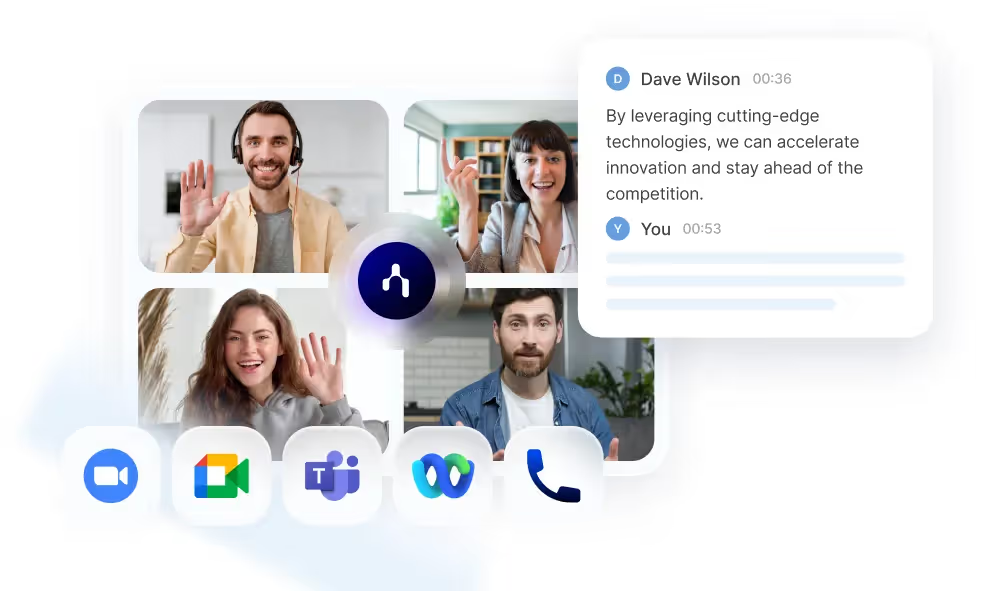
Als je de ingebouwde transcriptie van Google Meet al gebruikt, is dat een goed begin. Maar stel je voor dat je nooit meer een volledig transcript hoeft door te spitten om een besluit terug te vinden, of uren kwijt bent aan het omzetten van notities naar taken. Dat is waar Noota inspringt om je leven makkelijker te maken.
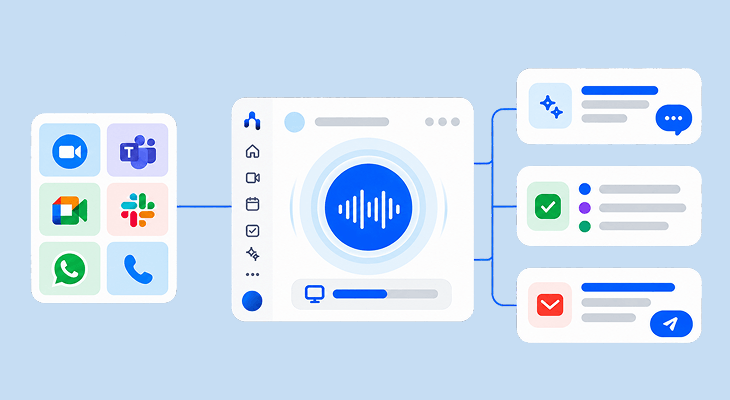
- Real-time opname en transcriptie voor verschillende platforms (Google Meet, Zoom, Teams), zodat je niets mist.
- Een doorzoekbaar dashboard: je vindt direct wat er is gezegd, door wie en wanneer — zonder terug te spoelen.
- Extractie van actiepunten en aanmaken van taken: besluiten en vervolgstappen worden automatisch geëxtraheerd — dat scheelt je handmatig uitzoekwerk.
- Integraties met jouw tools: CRM's, ATS, productiviteitsapps. Zodra de vergadering eindigt, stromen de gegevens direct naar de plek waar je ze nodig hebt.
Wil je meer uit je Google Meet-gegevens halen in je workflow? Probeer Noota nu gratis.
Maak kennis met de auteur

Veelgestelde vragen
Start een Google Meet-vergadering op je computer, klik op Activiteiten rechtsonder, selecteer Transcripten en klik Start transcriptie.
- Zorg dat je Google Workspace-plan transcripten ondersteunt.
- Je organisatiebeheerder moet transcriptie inschakelen.
- Het transcriptie-pictogram verschijnt bovenin het scherm.
De transcriptie-optie ontbreekt omdat je plan het niet ondersteunt of beheerder heeft het niet ingeschakeld.
- Controleer of je Business Standard of Enterprise-plan hebt.
- Vraag je IT-beheerder om transcriptie in te schakelen.
- Gebruik een desktop- of laptopbrowser, geen mobiel.
Google Meet biedt basistranskriptie, maar Noota bespaart 6,4 uur/week met -80% administratie en werkt in 80+ talen.
- Noota integreert automatisch met 5000+ teams wereldwijd.
- 4,9/5 rating op G2 versus Google's beperkte functies.
- Noota genereert samenvattingen, actie-items en inzichten automatisch.
Noota is ideaal voor teams die tijd willen besparen op vergaderingadministratie met AI-gestuurde notities.
- Bespaar 6,4 uur per week op administratieve taken.
- Ondersteunt 80+ talen voor globale teams.
- Probeer Noota gratis — geen creditcard vereist.