Bronnen & Productiviteit
8 min leestijd
Updated on:
Oct 6, 2025
Bevestigingsmails voor vergaderingen: een gids met sjablonen
Wil je de perfecte bevestigingsmail voor je vergadering? Lees deze gids.
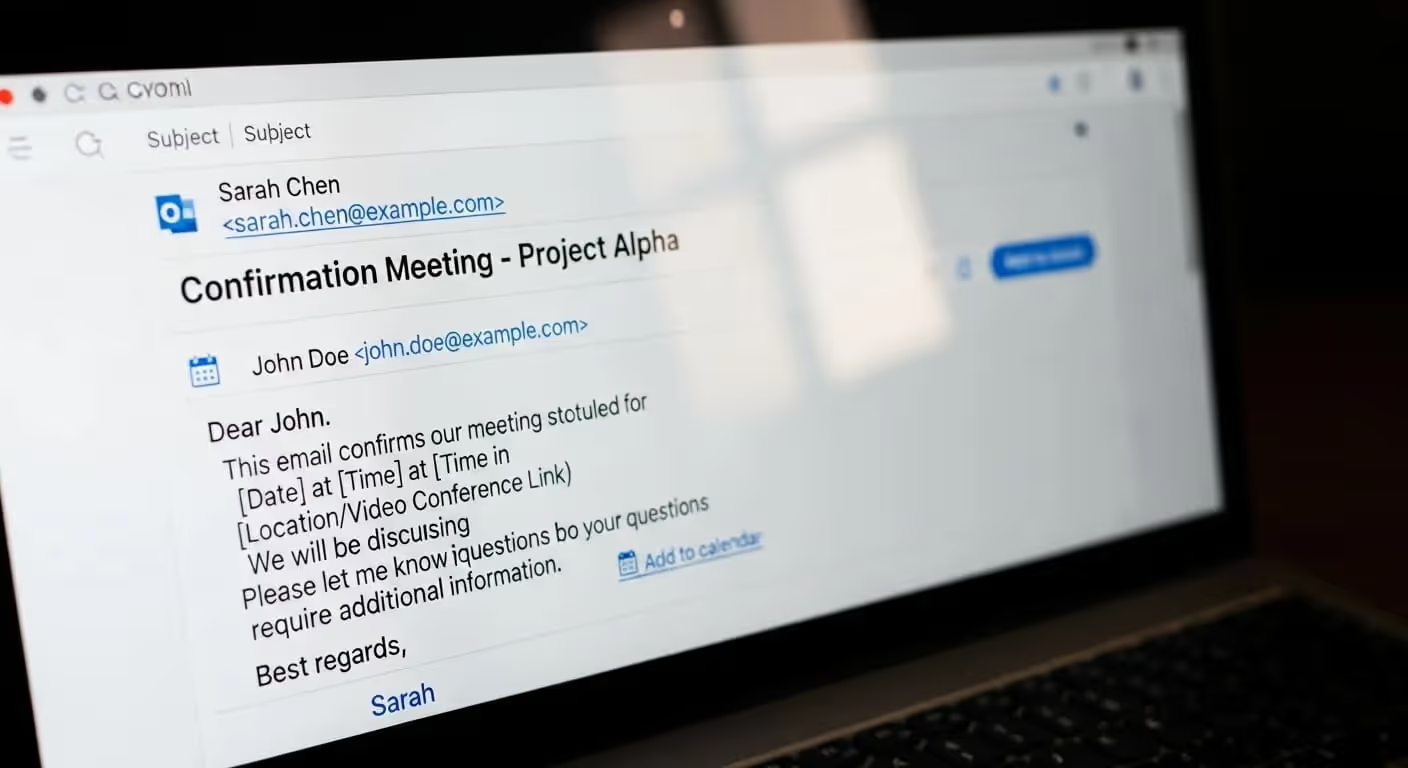
Een korte, goed getimede bevestigingsmail kan je behoeden voor ongemakkelijke wijzigingen in je planning.
Het herinnert iedereen aan de details, schept verwachtingen en laat zien dat je vergaderingen professioneel aanpakt.
In deze gids behandelen we klaar-voor-gebruik sjablonen die je binnen enkele seconden kunt kopiëren, plakken en personaliseren.
Waarom je altijd een bevestigingsmail moet sturen voor belangrijke vergaderingen
Je hebt zojuist een cruciale vergadering ingepland — met een prospect, leidinggevende, partner of beslisser. Maar totdat je een bevestigingsmail verstuurt, is het nog niet helemaal definitief. Een bevestigingsmail doet meer dan alleen de afspraak herhalen; het zorgt voor afstemming, straalt professionaliteit uit en verkleint risico's.
Voorkom misverstanden en onduidelijkheid
Mensen onthouden vergaderingen op verschillende manieren. Tijdzones, platforms (Zoom of Teams), ruimtenamen — details vervagen snel. Een bevestiging zorgt ervoor dat iedereen letterlijk op dezelfde lijn zit wat betreft wanneer, waar, en hoe de vergadering plaatsvindt.
Verminder het aantal no-shows en last-minute afzeggingen
Een bevestiging fungeert als een vriendelijk duwtje in de rug — een herinnering dat deze afspraak gepland staat en wordt verwacht.
In veel gevallen is een no-show niet kwaad bedoeld; mensen vergeten het simpelweg of plannen per ongeluk dubbel. Een bevestiging helpt dit te voorkomen — zeker wanneer afspraken dagen van tevoren worden gemaakt.
Laat zien dat je je afspraken serieus neemt
Het sturen van een bevestigingsmail getuigt van professionaliteit. Het geeft de andere partij het signaal: jij bent belangrijk, je tijd is kostbaar en ik ben georganiseerd.
Dient als schriftelijk bewijs / vangnet voor verantwoording
Een bevestigingsmail creëert een gedeeld, gedateerd overzicht van de gemaakte afspraken: tijdstip, deelnemers, agendapunten en eventuele voorbereidingen. Mocht er iets veranderen, dan kun je dit altijd terugvinden en voorkom je discussies achteraf.
De beste sjablonen voor bevestigingsmails
Hier zijn sjablonen voor bevestigingsmails die je kunt kopiëren, plakken en aanpassen voor verschillende soorten afspraken.
Sjabloon A: Eenvoudige afspraakbevestiging (fysiek of virtueel)
Onderwerp: Bevestiging van onze afspraak op [Datum] om [Tijd]
Beste [Naam],
Hierbij bevestig ik onze afspraak voor [Datum], [Tijd] op [Locatie of videolink].
Details:
- Duur: ca. [Duur]
- Deelnemers: [Namen / Rollen]
- Agenda: [Korte opsomming van de belangrijkste onderwerpen]
Mocht er iets wijzigen, laat het me dan weten. Anders kijk ik uit naar ons gesprek.
[Uw Naam] | [Functie] | [Bedrijf]
[Telefoonnummer] – [E-mail / LinkedIn]
Sjabloon B: Bevestiging + agenda
Onderwerp: Afspraakbevestiging + agenda voor [Project / Onderwerp]
Beste [Naam],
Bedankt voor het inplannen van onze afspraak. Hierbij de bevestiging van onze sessie:
- Wanneer: [Datum], [Tijd]
- Waar / Hoe: [Locatie of videolink]
- Duur: [XX minuten]
Agendapunten:
- [Onderwerp 1]
- [Onderwerp 2]
- [Onderwerp 3]
Laat het me weten als je nog iets wilt toevoegen of de prioriteiten wilt wijzigen. Ik pas het graag aan.
Tot snel!
[Je Naam]
Sjabloon C: Bevestiging met rollen / verwachtingen voor deelnemers
Onderwerp: Bevestiging afspraak op [Datum] — rollen & voorbereiding
Beste [Naam],
Onze afspraak staat vast:
- Datum & tijd: [Datum] om [Tijd]
- Locatie / link: [Adres of link naar videogesprek]
- Duur: [Duur]
Deelnemers & rollen:
- [Naam A] (rol)
- [Naam B] (rol)
- [Jij / Ik] (rol)
Meenemen / voorbereiden:
- [Document, rapport, presentatie]
- [Vragen / aandachtspunten]
Laat het me voor [deadline] weten als er nog iets aangepast moet worden. Anders gaan we ervan uit dat alles akkoord is.
[Jouw Naam]
Sjabloon D: Bevestiging van wijziging / nieuwe afspraak
Onderwerp: Nieuwe afspraaktijd: [Date] om [New Time]
Beste [Name],
We hebben onze afspraak moeten verplaatsen. Hieronder vind je de nieuwe gegevens:
- Nieuwe datum en tijd: [Date] om [New Time]
- Locatie / Link: [Location or Video Link]
- Agenda (ongewijzigd of bijgewerkt):
- [Topic]
- [Topic]
Excuses voor de wijziging; bedankt voor je flexibiliteit. Kun je bevestigen of dit voor jou uitkomt?
[Jouw Naam]
Sjabloon E: Herinnering / "Graag ontvangstbevestiging"
Onderwerp: Herinnering: onze afspraak op [Date] om [Time]
Beste [Name],
Even een korte herinnering: onze afspraak staat gepland op [Date] om [Time], via [Location or Video Link].
Laat je me even weten of dit nog steeds past met een korte “✅ Bevestigd”?
Mocht er iets veranderd zijn, dan hoor ik het graag.
Tot dan,
[Your Name]
Sjabloon F: Bevestiging na boeking of inplannen gesprek
Onderwerp: Je afspraak is geboekt — bekijk de details
Hallo [Name],
Leuk dat we de afspraak hebben vastgelegd. Je bent ingepland voor:
- Datum & tijd: [Date], [Time]
- Locatie / link: [Adres of videolink]
- Duur: [Lengte]
Ik stuur je vlak voor de afspraak nog een herinnering en de agenda. Mocht je in de tussentijd nog punten willen toevoegen of de deelnemerslijst willen aanpassen, laat het me dan gerust weten.
Ik kijk ernaar uit om te spreken,
[Jouw naam]
[Functietitel] | [Bedrijf]
Geautomatiseerde bevestigingsmails — met Noota

Noota kan je bevestigingsmails voor je afhandelen:
- Vergaderwidget met één klik / opname-activering
Plan of start direct een vergadering met de widget van Noota. Van daaruit kunnen bevestigingen en vergaderdetails automatisch worden verstuurd. - Systeem voor aangepaste samenvattingen / sjablonen
Met Noota kun je aangepaste samenvattingssjablonen maken die passen bij verschillende soorten vergaderingen (sales, interviews, overleggen). Je kunt deze sjablonen hergebruiken voor bevestigingen, zodat alles consistent blijft. - Integratie met agenda & platform-hooks
Wanneer Noota gekoppeld is aan je agenda of bots gebruikt in vergaderingen, weet het precies wanneer een afspraak gepland staat. Hierdoor kan het automatisch de bevestiging versturen op basis van die metadata. - Slimme tijdelijke aanduidingen en samenvoegvelden
In het bevestigingssjabloon worden velden zoals [Datum], [Tijd], [Deelnemers], [Agenda] en [Link] automatisch ingevuld op basis van de vergadergegevens. Handmatig typen is niet nodig. - Activeerbare acties & herinneringen
Jij bepaalt of de bevestiging direct of met vertraging wordt verstuurd, en of er automatisch een herinnering of een verzoek tot bevestiging moet worden verzonden. - Audit trail en inzicht
Omdat bevestigingen via hetzelfde systeem worden verstuurd als gespreksverslagen en transcripties, heb je altijd een overzicht van wanneer bevestigingen zijn verzonden en of de deelnemers ze hebben ontvangen.
PROBEER NOOTA GRATIS
Maak kennis met de auteur

Veelgestelde vragen
Een goede confirmation email bevat datum, tijd, locatie, agenda en duidelijke verwachtingen. Stuur deze binnen 24 uur na planning.
- Vermeld exacte datum en tijdstip
- Voeg videolink of locatie toe
- Lijst agenda-items op
- Vraag om bevestiging terug
Confirmation emails voorkomen miscommunicatie, reduceren no-shows en creëren een professioneel papieren spoor. Ze tonen dat je je verplichtingen serieus neemt.
- Voorkomt verwarring over tijd en locatie
- Vermindert last-minute afzeggingen
- Bouwt professioneel imago op
- Creëert gedocumenteerde afspraken
Noota automatiseert meeting notes en follow-ups, bespaart 6,4 uur per week en reduceert admin met 80%. Geen handmatig emailen meer nodig.
- Automatische meeting summaries in 80+ talen
- AI-gegenereerde action items en follow-ups
- 5000+ teams vertrouwen Noota (4,9/5 rating)
- Integratie met alle populaire platforms
Noota automatiseert het volledige meeting-proces: opname, transcriptie, samenvatting en confirmations. Bespaar tijd en zorg voor consistentie.
- Automatische confirmations en reminders
- AI-notes in real-time gegenereerd
- Geen creditcard nodig om te starten
- Probeer Noota gratis