Bronnen & Productiviteit
8 min leestijd
Updated on:
Sep 29, 2025
WhatsApp-gesprekken opnemen: alle methoden
Wil je weten hoe je je WhatsApp-gesprekken kunt opnemen? Hier is je handleiding.
Door je WhatsApp-gesprekken op te nemen, kun je ze later terugluisteren, details bevestigen en nauwkeurige verslagen bijhouden.
Maar er is een addertje onder het gras: WhatsApp heeft geen ingebouwde opnameknop.
In deze gids leer je alles wat je moet weten om veilig en effectief WhatsApp-gesprekken op te nemen.
Heeft WhatsApp een ingebouwde opnamefunctie?
Als je ooit naar een opnameknop in WhatsApp hebt gezocht, is het je waarschijnlijk opgevallen dat die er niet is.
In tegenstelling tot de snelle "opname starten"-optie voor spraakberichten, biedt WhatsApp geen mogelijkheid om spraak- of videogesprekken rechtstreeks op te nemen.
Dat is geen toeval, maar een bewuste keuze. WhatsApp-gesprekken zijn end-to-end versleuteld, wat betekent dat alleen jij en de persoon met wie je praat toegang hebben tot de audio. Het toevoegen van een ingebouwde recorder zou ingaan tegen die privacybelofte en kan juridische problemen veroorzaken in landen waar het opnemen van gesprekken zonder toestemming aan banden is gelegd.
Voor jou is de consequentie simpel: als je een verslag van je WhatsApp-gesprekken wilt bijhouden, heb je een alternatief nodig. Afhankelijk van je apparaat kan dat betekenen dat je ingebouwde tools gebruikt, zoals de schermrecorder van je telefoon, of dat je vertrouwt op apps van derden.
Stap voor stap WhatsApp-gesprekken opnemen
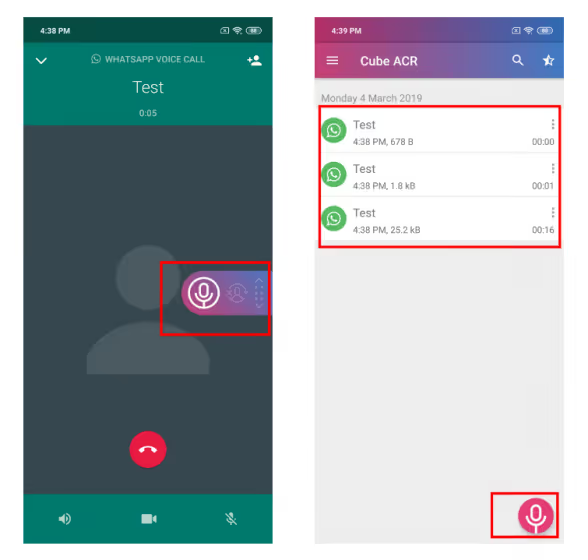
Hieronder vind je methoden per platform. Kies degene die bij jouw situatie past.
2.1 Op Android
De ingebouwde Android-schermrecorder gebruiken (indien beschikbaar)
- Veeg je snelle instellingen naar beneden en zoek naar Schermrecorder (deze is aanwezig op veel nieuwere Pixel Android-versies).
- Tik erop en schakel, voordat je begint, zowel microfoon als interne audio in als die optie wordt aangeboden.
- Zodra de opname start, schakel je over naar WhatsApp en begin je het gesprek.
- Wanneer je klaar bent, stop je de opname. Het bestand wordt opgeslagen in je galerij of in de Bestanden-app.
Een externe VoIP- / gespreksopname-app gebruiken (bijv. Cube ACR, Call Recorder-apps)
- Installeer een betrouwbare recorder uit de Play Store (bijv. Cube ACR of Noota).
- Open de app en verleen alle vereiste machtigingen (microfoon, opslag, "over andere apps weergeven" of toegankelijkheid) wanneer daarom wordt gevraagd.
- Schakel in de instellingen VoIP- / WhatsApp-gespreksopnamein.
- Start je WhatsApp-gesprek. De recorder zou dit automatisch moeten detecteren en beginnen met het opnemen van de audio.
- Open na het gesprek de recorder-app om het bestand te vinden, te hernoemen of te delen indien nodig.
2.2 Op iPhone / iOS
De ingebouwde schermrecorder van de iPhone gebruiken
- Ga naar Instellingen → Bedieningspaneel → Regelaars aanpassen. Voeg Schermopname toe aan je Bedieningspaneel.
- Veeg om het Bedieningspaneel te openen. Houd het opname-icoon ingedrukt en tik vervolgens op de microfoon knop om deze in te schakelen.
- Start de schermopname. Open direct WhatsApp en start je gesprek.
- Wanneer het gesprek is beëindigd, tik je op de rode statusbalk (of ga je terug naar het Bedieningspaneel) om de opname te stoppen. De video (inclusief audio) wordt opgeslagen in je Foto's.
⚠️ Let op: Vanwege iOS-beperkingen kun je mogelijk alleen je eigen stem (via de microfoon) of omgevingsgeluid opnemen. Interne audio van WhatsApp wordt vaak niet opgenomen, tenzij je de luidspreker gebruikt.
Via Mac + QuickTime (voor betere audiocontrole)
- Verbind je iPhone met een Mac via een kabel en vertrouw het apparaat als daarom wordt gevraagd.
- Open QuickTime Playeren kies Archief → Nieuwe audio-opname. Klik op het pijltje naast de opnameknop en selecteer je iPhone als bron.
- Klik op opnemen in QuickTime en start vervolgens het WhatsApp-gesprek op je iPhone.
- Stop de opname in QuickTime na afloop van het gesprek. Het audiobestand wordt opgeslagen op je Mac.
2.3 Op desktop / pc / Mac
Als je vaak WhatsApp Desktop of WhatsApp Web gebruikt, is opnemen eenvoudiger.
Op Windows (via de Game Bar of schermrecorder)
- Open WhatsApp Desktop en log in.
- Druk op Win + G om de Xbox Game Bar te openen (Windows 10/11).
- Gebruik de opnamewidget om op te nemen en zorg ervoor dat zowel het systeemaudio als je microfoon zijn ingeschakeld.
- Start je gesprek, laat het lopen en stop daarna de opname. Het bestand wordt opgeslagen in je map Video's of de door jou opgegeven map.
Op Mac (met schermopnametools of QuickTime)
- Open WhatsApp Desktop of Web.
- Gebruik QuickTime → Nieuwe schermopname, of gebruik de ingebouwde schermafbeelding-werkbalk van macOS met Command + Shift + 5.
- Kies de audiobronnen (microfoon + systeem) en start de opname voordat je het WhatsApp-gesprek voert.
- Wanneer je klaar bent, stop je de opname en sla je deze op.
2.4 Externe / hardwarematige methode
Wanneer softwarematige methoden niet werken of de compatibiliteit te complex is, gebruik dan een tweede apparaat:
- Zet het WhatsApp-gesprek op luidspreker op je hoofdapparaat.
- Gebruik een tweede telefoon, tablet of voicerecorder, open de opname-app en neem het gesprek op.
- Synchroniseer eventueel later beide kanalen (als je beide kanten hebt opgenomen) en voeg ze samen.
- Sla de opname op en geef deze een naam.
Deze methode is eenvoudig maar betrouwbaar op alle apparaten wanneer app-gebaseerde opties falen.
Problemen met WhatsApp-opnames oplossen
Zelfs met de juiste methode kan er iets misgaan. Hier lees je hoe je veelvoorkomende opnameproblemen opspoort en oplost, zodat je geen belangrijke gesprekken verliest.
3.1 Geen audio (stilte) of audio aan één kant
Mogelijke oorzaken:
- Verkeerde audiobron (alleen microfoon, niet intern/luidspreker)
- Besturingssysteem blokkeert het opnemen van interne audio
- App-machtigingen niet volledig verleend
- WhatsApp blokkeert de opname actief
Mogelijke oplossingen:
- Controleer de instellingen van je opname-app: zorg dat zowel microfoon als interne audio (of systeemgeluid) zijn ingeschakeld.
- Test met de luidsprekerstand: sommige systemen blokkeren het opnemen van interne audio tenzij het gesprek via de luidspreker verloopt.
- Update zowel WhatsApp als je opname-app naar de nieuwste versie; oude versies kunnen bugs bevatten.
- Op Android schakelen sommige fabrikanten VoIP-opnames op systeemniveau uit; probeer een andere app of methode.
- Gebruikers melden dat sommige schermopnames wel beeld maar geen geluid bevatten, wat erop wijst dat WhatsApp het opnemen van interne audio mogelijk actief blokkeert.
3.2 Onjuiste machtigingen en instellingen
Veelvoorkomende valkuilen:
- Microfoontoegang geweigerd
- Toestemming voor "overlay" of "over andere apps tekenen" ontbreekt
- App mag niet op de achtergrond draaien of wordt in slaapstand gezet (batterijoptimalisatie)
Zo los je ze op:
- Ga naar de instellingen van je telefoon → Apps → Recorder-app → Machtigingen → sta toegang toe voor Microfoon en Opslag.
- Schakel overlay of "over andere apps tekenen" in als je recorder-app zwevende bedieningselementen gebruikt.
- Schakel batterijoptimalisatie of de "slaapstand" voor de recorder-app uit, zodat deze niet halverwege een gesprek wordt afgesloten.
3.3 Conflicten met andere apps of hardware
Soms verstoort een andere actieve app of hardwareconfiguratie het proces.
Voorbeelden en oplossingen:
- Een spraakassistent, oproepfilter of achtergrondrecorder kan de microfoon als eerste claimen. Sluit of schakel deze apps uit.
- Als je een Bluetooth- of bedrade headset hebt aangesloten, wordt de audio mogelijk daarheen geleid in plaats van opgenomen — schakel deze uit en probeer het opnieuw.
- Sommige iPhone-gebruikers hebben problemen met dempen/opnemen opgelost door alle instellingen te herstellen (Instellingen → Algemeen → Zet over of stel iPhone opnieuw in → Stel opnieuw in → Herstel alle instellingen). > “Ik heb ‘herstel alle instellingen’ uitgevoerd … dat loste het microfoonprobleem van WhatsApp op.”
3.4 Lage of vervormde audiokwaliteit
Als je beide kanten kunt horen, maar het geluid is vervormd, gedempt of zacht:
- Neem op in een stille ruimte.
- Houd de microfoon van je telefoon schoon en vrij (zorg dat het hoesje deze niet blokkeert).
- Voorkom dat je de microfoon van je telefoon per ongeluk afdekt (bijvoorbeeld met je hand of de randen van een hoesje).
- Verklein de afstand tussen de microfoon en de spreker (als je de luidsprekerstand gebruikt).
- Gebruik instellingen met een hogere bitrate of lossless kwaliteit als je opname-app dit ondersteunt.
3.5 Opslagruimte, bestandsgrootte of opslagproblemen
- Zorg dat je telefoon voldoende vrije ruimte heeft voordat je het gesprek start.
- Neem op in gecomprimeerde formaten (bijv. AAC, MP4) in plaats van onbewerkte WAV-bestanden als je langere opnames nodig hebt.
- Als de opname-app het bestand niet kan opslaan, controleer dan de opslagmachtigingen of de standaard opslagmap.
- Verplaats na het gesprek grote bestanden naar de cloud of externe opslag om ruimte vrij te maken.
3.6 Juridische en ethische overwegingen
Iemand opnemen zonder toestemming kan in veel landen in strijd zijn met de privacywetgeving.
- Controleer de lokale wetgeving: op sommige plekken is toestemming van alle partijen vereist.
- Altijd om toestemming vragen voordat je opneemt.
- Licht deelnemers aan het begin van het gesprek in of gebruik tools die de opname aankondigen.
- Sla gevoelige opnames veilig op (gebruik versleuteling of wachtwoordbeveiliging).
Alles-in-één app voor telefoonopnames: Noota
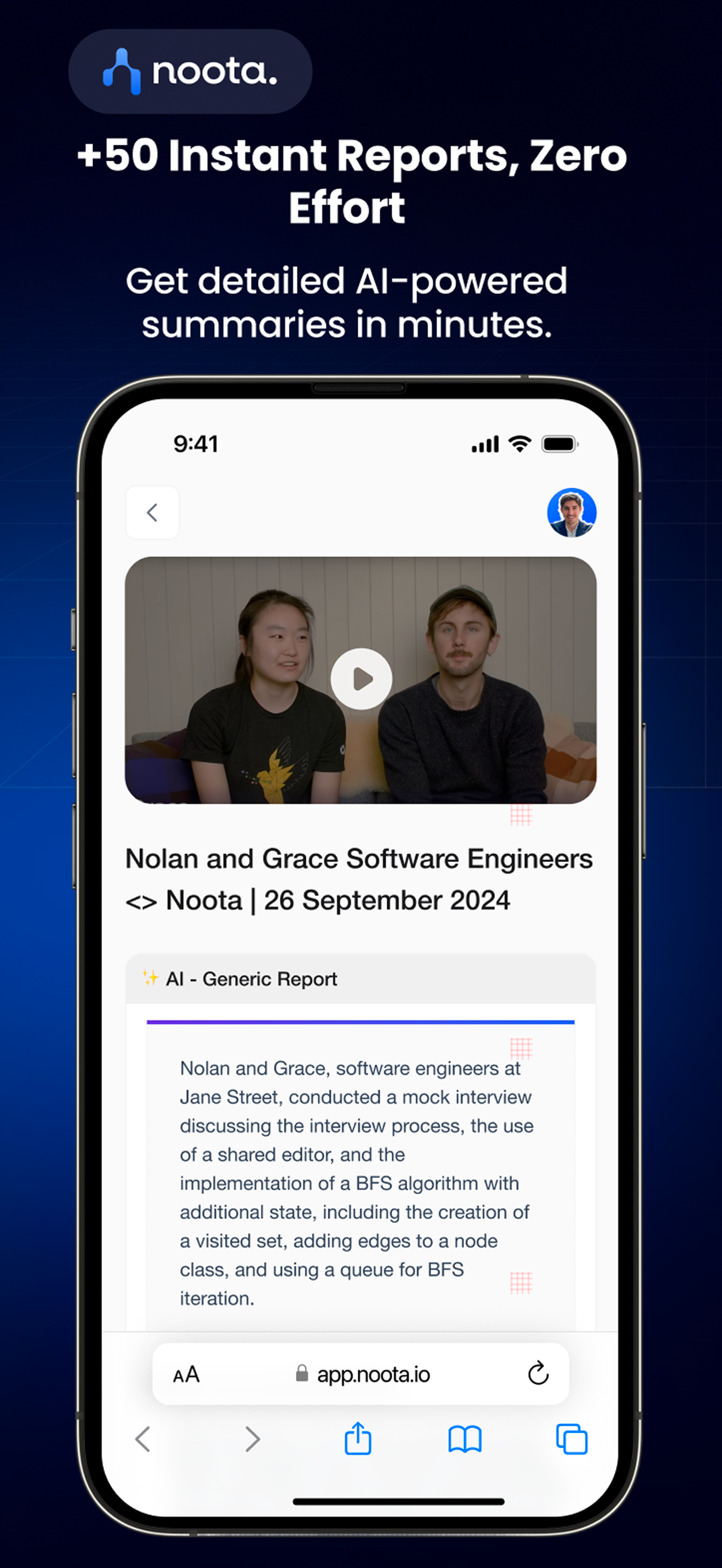
Ben je het zat om te jongleren met schermrecorders, bel-apps en transcriptietools? Noota biedt een eenvoudigere weg. Noota is een AI-vergaderassistent die is ontworpen om je gesprekken vast te leggen en ze om te zetten in gestructureerde, doorzoekbare inzichten.
- Het neemt automatisch telefoongesprekken op met een speciale mobiele app en VOIP-dienst
- Terwijl gesprekken plaatsvinden, transcribeert Noota ze in realtime, waarbij elk woord wordt vastgelegd.
- Daarna levert het een op maat gemaakte samenvatting met de belangrijkste punten, besluiten en actiepunten. Geen overbodige informatie.
- Je kunt eerdere opnames en transcripties direct doorzoeken —je hoeft nooit meer in mappen te zoeken.
- Het integreert met tools die je al gebruikt (CRM's, ATS, productiviteitsapps), zodat je vergadergegevens direct in je workflow terechtkomen.
Wil je eenvoudig je WhatsApp-gesprekken opnemen? Download de Noota-app nu gratis: Android of iOS.
Maak kennis met de auteur
.avif)
Adesh explores how teams can better capture knowledge and collaborate more effectively with AI.
Veelgestelde vragen
Op Android kun je de ingebouwde schermrecorder gebruiken of een VoIP-app installeren zoals Noota voor automatische opname.
- Ingebouwde schermrecorder werkt op Pixel-apparaten
- VoIP-apps bieden betere audio-kwaliteit en automatische detectie
- Zorg voor alle benodigde machtigingen voordat je begint
WhatsApp kiest bewust tegen ingebouwde opname vanwege end-to-end versleuteling en privacybeloften aan gebruikers.
- Opname zou privacybelofte schenden
- Juridische problemen in landen met toestemmingsvereisten
- Alleen jij en de ander hebben toegang tot gesprekken
Noota wint met automatische VoIP-detectie, betere audiokwaliteit en 6,4 uur besparing per week op administratie.
- Noota: 4,9/5 rating op G2 van 5000+ teams
- Automatische opname zonder handmatige stappen
- Ondersteunt 80+ talen en -80% administratie
Voor professionele use cases is Noota ideaal: automatische opname, transcriptie en 80% minder administratie.
- Perfecte voor teams die gesprekken moeten documenteren
- Nauwkeurige transcripties in 80+ talen beschikbaar
- Probeer Noota gratis — geen creditcard vereist