Management
●
June 23, 2026
●
8 min reading
The 8 best Gemini MCP Connectors
MCP, short for Model Context Protocol, gives Gemini a standard way to connect with external tools, apps, files, databases, and workflows.
With the right MCP, Gemini can search your meeting history, summarize Google Drive files, inspect GitHub issues etc...
In this article, we’ll explain how to set up Gemini MCP and review the best Gemini MCPs to try, including what they do, example prompts, and pricing. Let’s get started!
How Gemini MCP work
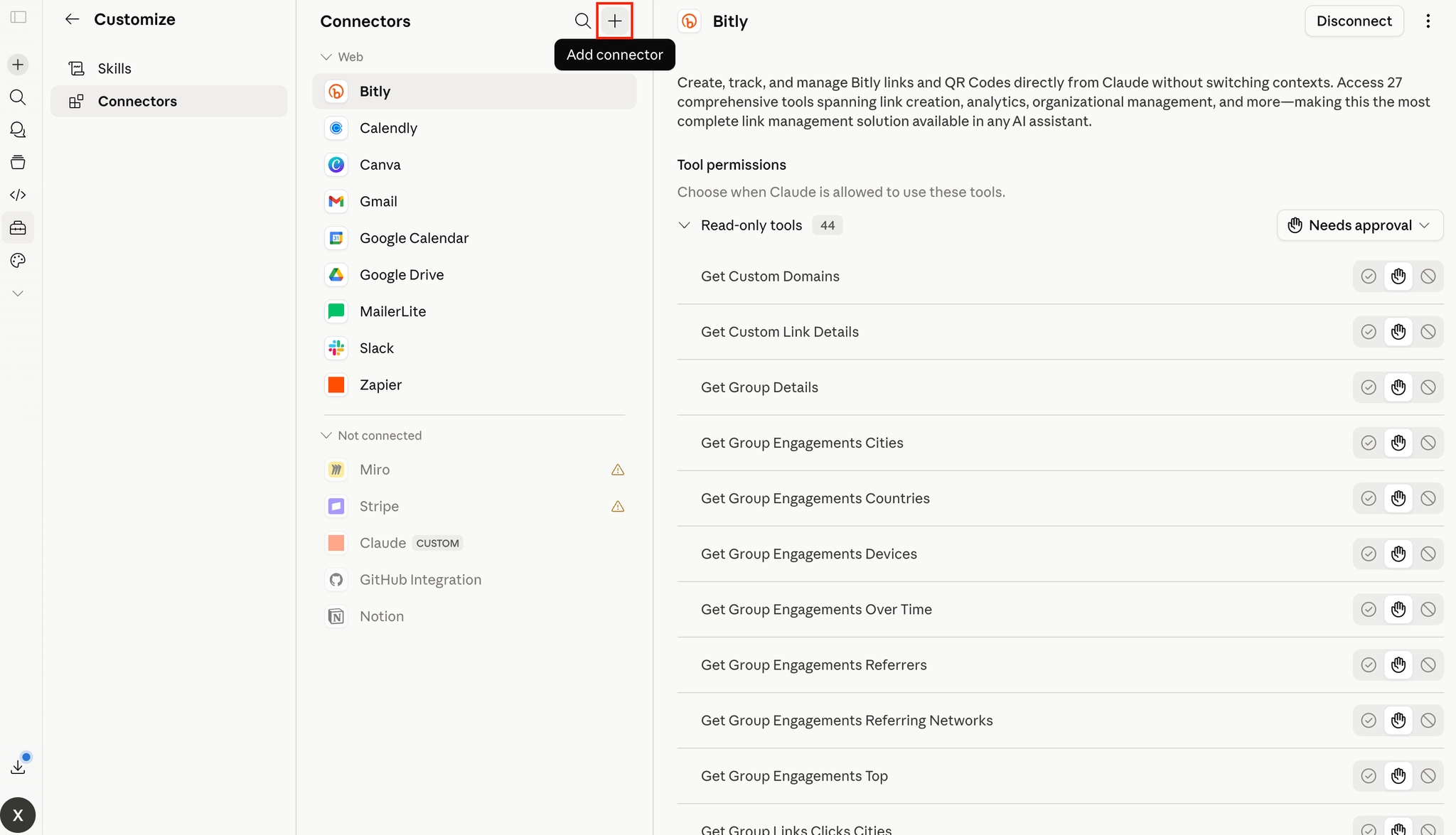
You should know first that Gemini MCPs don't work exactly like ChatGPT and Claude MCP yet.
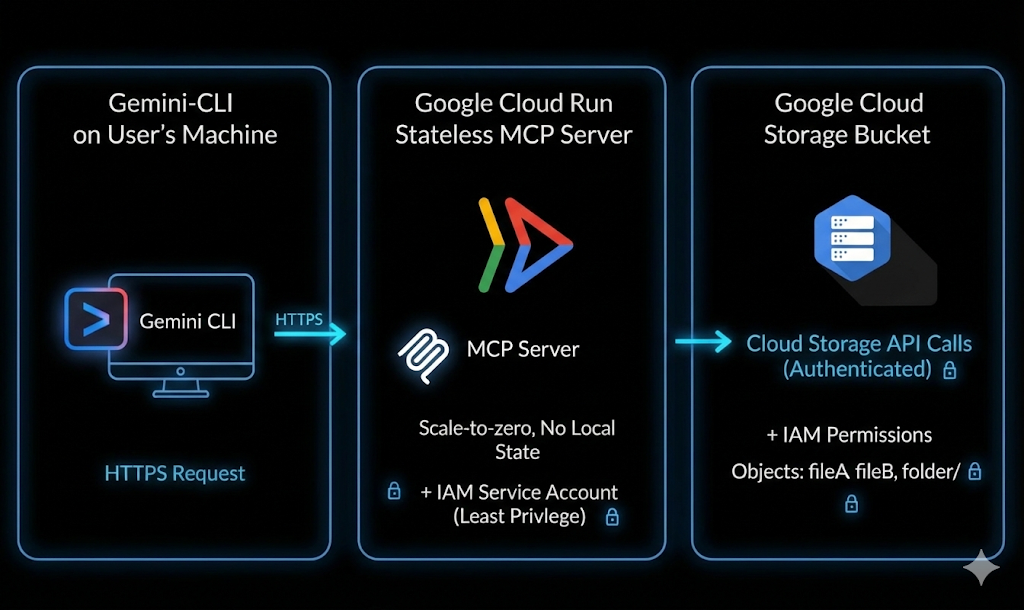
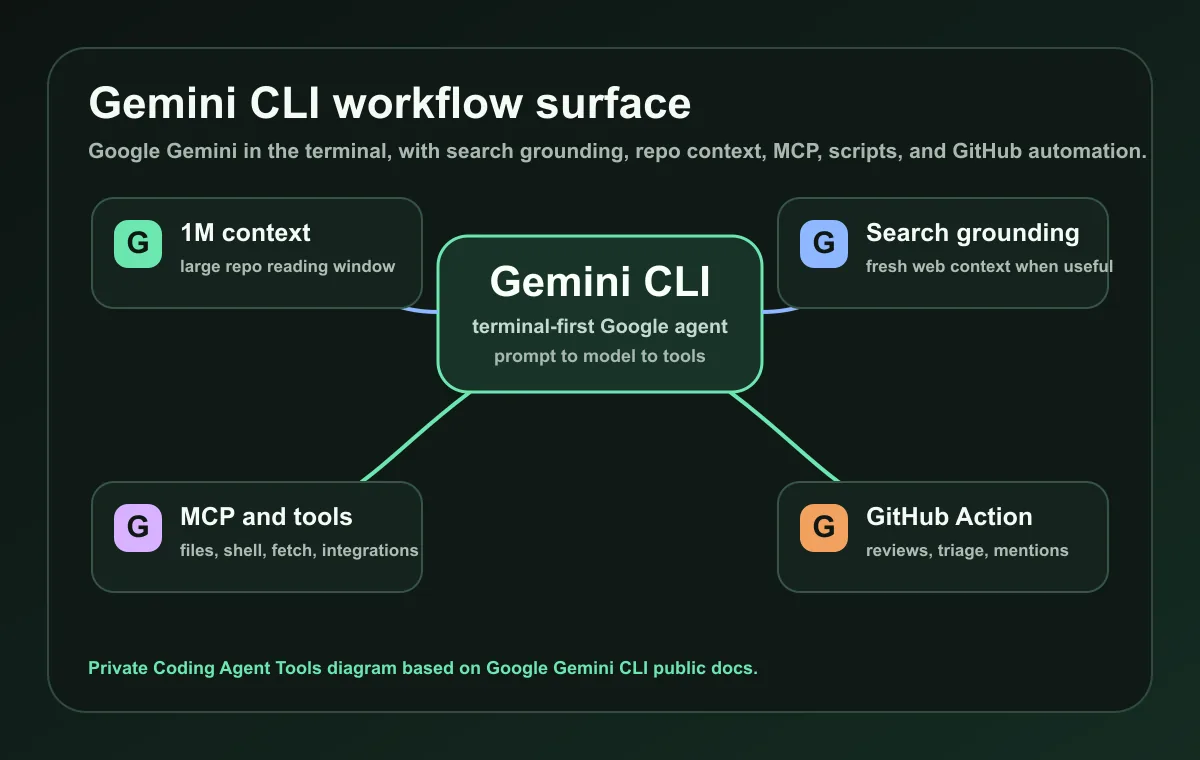
Today, Gemini MCP is mainly used through developer tools like Gemini CLI and Gemini Code Assist agent mode. That means it is not usually a simple “connect app” workflow inside the consumer Gemini web app. In most cases, you configure MCP servers in a coding or agent environment, then let Gemini use those tools during a task.
There are 4 types of Gemini MCP :
Option 1: Set up MCP in Gemini CLI
Gemini CLI is the most practical way to start using MCP with Gemini. It lets you connect local or remote MCP servers, then use them from your terminal.
This is useful if you want Gemini to work with GitHub, files, databases, documentation, Google Workspace, browser automation, or custom internal tools.
The key advantage of Gemini CLI is control. You decide which MCP servers are available globally and which ones are only available inside a specific project.
Option 2: Set up MCP in Gemini Code Assist agent mode
Gemini Code Assist agent mode is another strong option, especially if you want Gemini to help directly inside your development environment.
With agent mode, Gemini can plan and execute coding tasks, and MCP servers can extend what it can access or do. For example, you can connect tools for GitHub, documentation, databases, browser testing, or internal engineering systems.
This setup is useful when Gemini needs more context than the current file. It can work with your project, connected tools, and external systems in one workflow.
Option 3: Use Google Cloud or Google Workspace MCP servers
Google also provides MCP servers for Google and Google Cloud services. These can connect Gemini-compatible MCP clients to tools like Google Drive, Gmail, Calendar, Google Chat, People API, and Google Cloud services.
This option is useful for teams that already work heavily in Google Workspace or Google Cloud.
Security tips before using Gemini MCPs
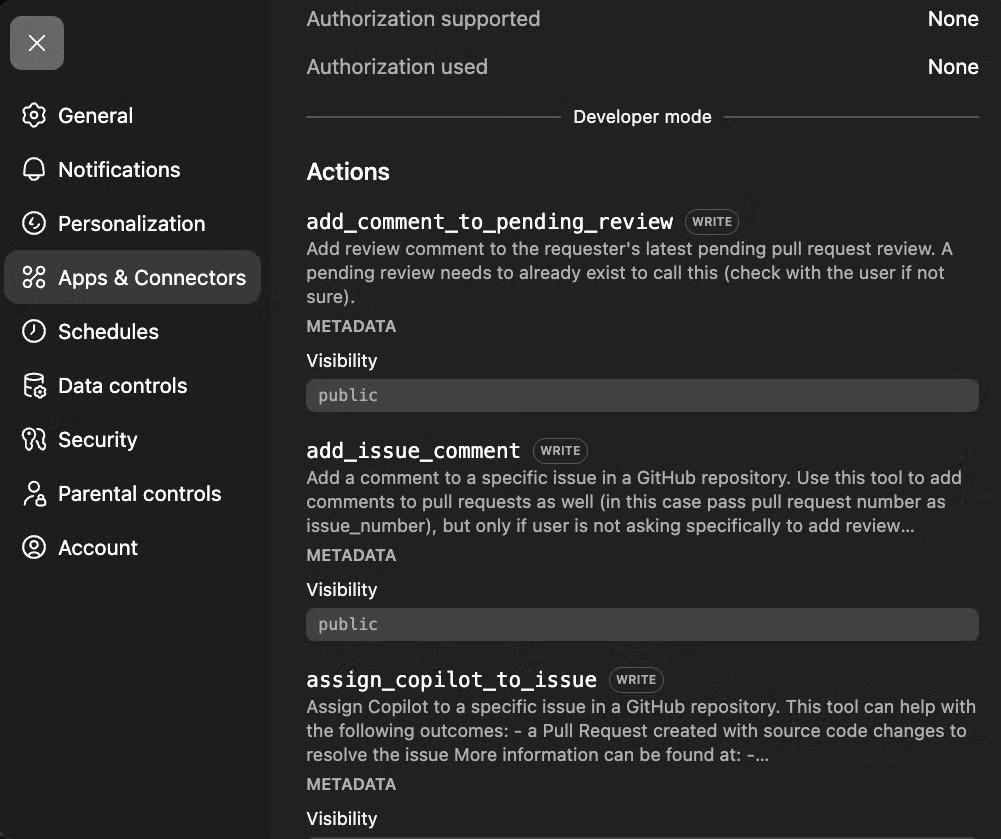
MCP servers can give Gemini access to real tools and data, so permissions matter.
Before connecting one:
- only use MCP servers from providers you trust;
- review every permission before authorizing access;
- use environment variables for tokens and secrets;
- avoid hardcoding API keys in settings files;
- start with read-only access when possible;
- be careful with tools that can send messages, edit files, run code, or change production systems;
- use project-specific configs when a server should not be available everywhere;
- remove MCP servers you no longer use.
1. Noota MCP
Noota MCP connects Gemini to your meeting and call data, so you can ask questions about past conversations without copying transcripts manually.
With Noota MCP, you can:
- connect Gemini to your Noota meeting data;
- search meetings by topic, date, participant, workspace, or folder;
- find calls where a specific keyword was discussed;
- retrieve full meeting transcripts;
- summarize one meeting or several meetings;
- extract decisions, blockers, and next steps;
- create task lists from meetings;
- analyze sales objections across calls;
- review candidate interviews;
- prepare follow-up emails based on real conversations.
Type of MCP
Remote Custom MCP connector with OAuth
Server adress
https://mcp.noota.io/mcp
How to Set it up
Add it as a remote MCP server in your MCP-compatible client. For Gemini CLI, add it under mcpServers with an HTTP URL, then authorize with your Noota account.
Examples of prompts
- “Summarize my last sales call with Acme Corp.”
- “Find every meeting where we discussed pricing this quarter.”
- “What action items came out of yesterday’s standup?”
- “Which candidates mentioned React experience?”
- “Give me the full transcript of my call with John Smith.”
- “Prepare a follow-up email based on my last client meeting.”
- “List all open questions from my calls this week.”
- “Find calls where the customer mentioned onboarding issues.”
- “Compare the last three candidate interviews for this role.”
- “Create a task list from this week’s team meetings.”
Price
Noota offers a free plan. The Pro plan costs €19 per user per month, while the Business plan costs €39 per user per month. Enterprise pricing is available for larger teams that need advanced support, security, and integrations.
b. Zapier MCP
Zapier MCP connects Gemini to thousands of apps, so you can turn a simple prompt into a real action.
With Zapier MCP, you can:
- connect Gemini to thousands of apps through Zapier;
- send emails from Gmail or Outlook;
- post messages in Slack;
- create tasks in Asana, Trello, ClickUp, or Monday;
- update contacts, leads, and deals in HubSpot or Salesforce;
- add rows to Google Sheets;
- create Google Calendar events;
- open support tickets in Zendesk or other help desk tools;
- trigger workflows across several apps;
- automate repetitive admin work without writing code.
Type of MCP
Remote MCP server with a unique per-user URL
Server adress
Generated inside Zapier MCP
How to Set it up
Go to mcp.zapier.com, create a new MCP server, choose Other if Gemini is not listed, add the Zapier actions you want, generate a token, then connect Gemini CLI using the Streamable HTTP URL and authorization header.
Examples of prompts
- “Create an Asana task from this meeting summary.”
- “Add this lead to HubSpot and tag it as inbound.”
- “Send a Slack message to the sales channel with this update.”
- “Add this candidate information to Google Sheets.”
- “Create a Trello card with these next steps.”
- “Draft a Gmail follow-up from this call summary.”
- “Update this Salesforce opportunity with the latest notes.”
- “Create a Google Calendar event for this customer check-in.”
- “Open a Zendesk ticket from this support request.”
- “Send a reminder to the project channel tomorrow morning.”
Price
Zapier MCP is available to Zapier users. Zapier offers a free plan, while paid plans depend on task volume, app access, and team features.
One important detail: Zapier MCP usage can count against your Zapier task quota. So, if your team plans to use Gemini for frequent automations, check your plan limits before rolling it out widely.
c. GitHub MCP
GitHub MCP connects Gemini to GitHub, so developers can work with repository context directly from Gemini CLI.
With GitHub MCP, you can:
- connect Gemini CLI to GitHub repositories;
- search code across repositories you can access;
- read repository files and project context;
- summarize pull requests;
- review code changes and flag possible risks;
- create, update, and manage GitHub issues;
- investigate GitHub Actions workflow failures;
- draft pull request descriptions;
- prepare release notes from merged work;
- explain repository structure to new contributors.
Type of MCP
Remote HTTP MCP server, with local setup also available
Server adress
https://api.githubcopilot.com/mcp/
How to Set it up
Recommended for Gemini CLI: run gemini extensions install https://github.com/github/github-mcp-server, then store your GitHub PAT as GITHUB_MCP_PAT. You can also add the hosted MCP server manually in ~/.gemini/settings.json.
Examples of prompts
- “Summarize the main changes in this pull request.”
- “Find the file that handles user authentication.”
- “Create a GitHub issue from this bug report.”
- “Review this PR and flag possible risks.”
- “Explain how this repository is structured.”
- “Find recent issues related to API errors.”
- “Draft release notes from merged pull requests.”
- “Suggest tests for the changes in this branch.”
- “Check why the last GitHub Actions workflow failed.”
- “Find where billing logic is implemented.”
Price
The official GitHub MCP server does not have separate public pricing. You need a GitHub account, and access depends on your repository permissions and GitHub plan.
GitHub offers a free plan. GitHub Team costs $4 per user per month, while Enterprise is available for larger organizations that need advanced security, compliance, and administration.
d. Google Drive MCP
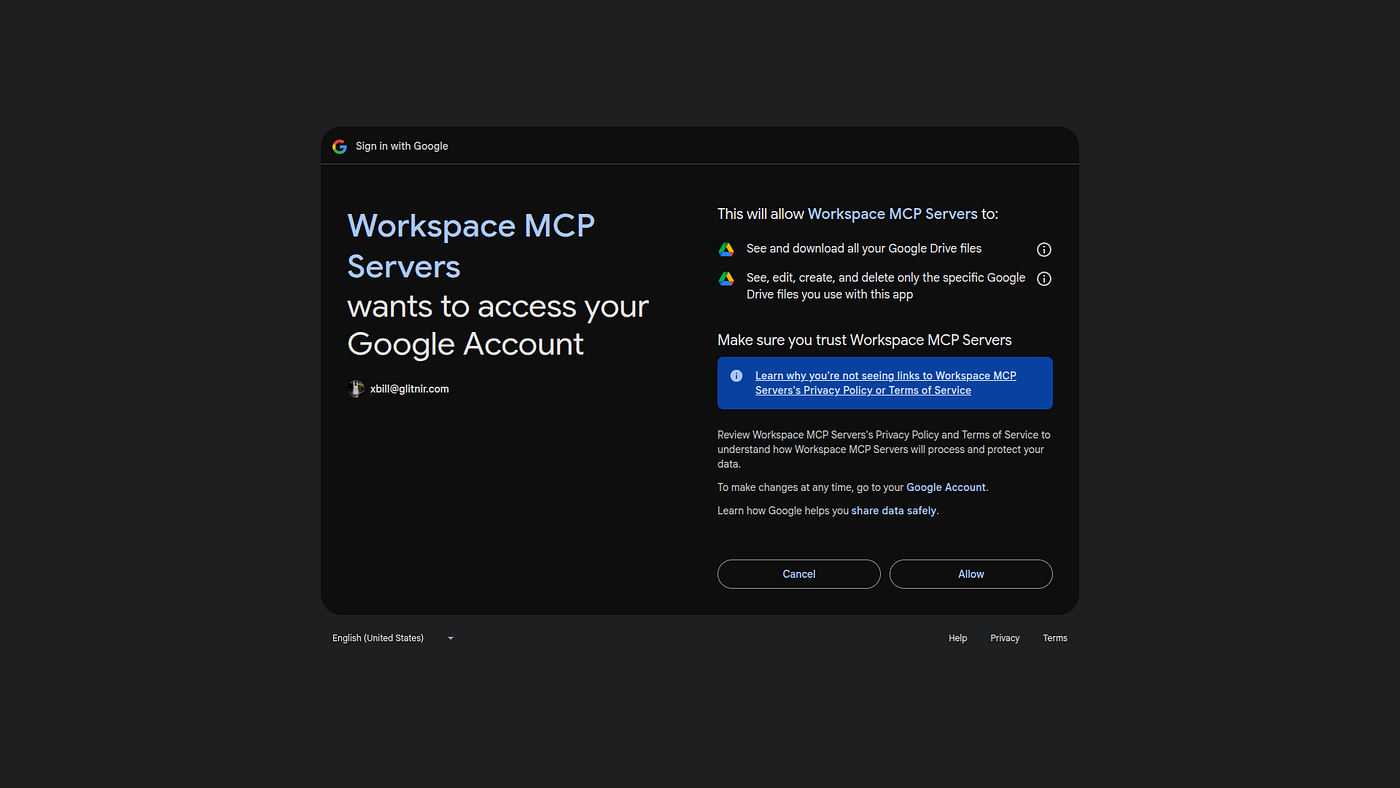
Google Drive MCP connects Gemini to the files your team already stores in Google Drive.
With Google Drive MCP, you can:
- search files stored in Google Drive;
- retrieve file metadata and permissions;
- read content from Google Docs and other supported files;
- summarize reports, briefs, proposals, and PDFs;
- pull useful information from spreadsheets;
- find the latest version of a project plan;
- compare information across several files;
- create new files when needed;
- download file content;
- work with Drive data while keeping Google permissions in place.
Type of MCP
Remote HTTP MCP server, currently in Developer Preview
Server adress
https://drivemcp.googleapis.com/mcp/v1
How to Set it up
Enable Google Drive API and Drive MCP API in Google Cloud, configure OAuth, then add the Drive MCP server to your Gemini MCP client. In Gemini CLI, use the HTTP transport and authenticate the Google account.
Examples of prompts
- “Find the latest marketing plan and summarize it.”
- “Search Drive for documents mentioning our Q3 hiring goals.”
- “Summarize the customer proposal for Acme Corp.”
- “Find all files related to the website redesign.”
- “Pull the action items from this project brief.”
- “Compare these two versions of the sales deck.”
- “Find the spreadsheet with customer feedback.”
- “Summarize the PDF about our product roadmap.”
- “Create a short internal update from this Drive document.”
- “Find documents where we discussed pricing changes.”
Price
Google Drive MCP itself does not have separate public pricing. You need access to Google Drive or Google Workspace, plus a Gemini setup that supports MCP servers.
Google Drive is available with a free personal Google account. For businesses, Google Workspace Business Starter starts at $7 per user per month on an annual plan. Business Standard costs $14 per user per month, while Business Plus costs $22 per user per month.
e. Notion MCP
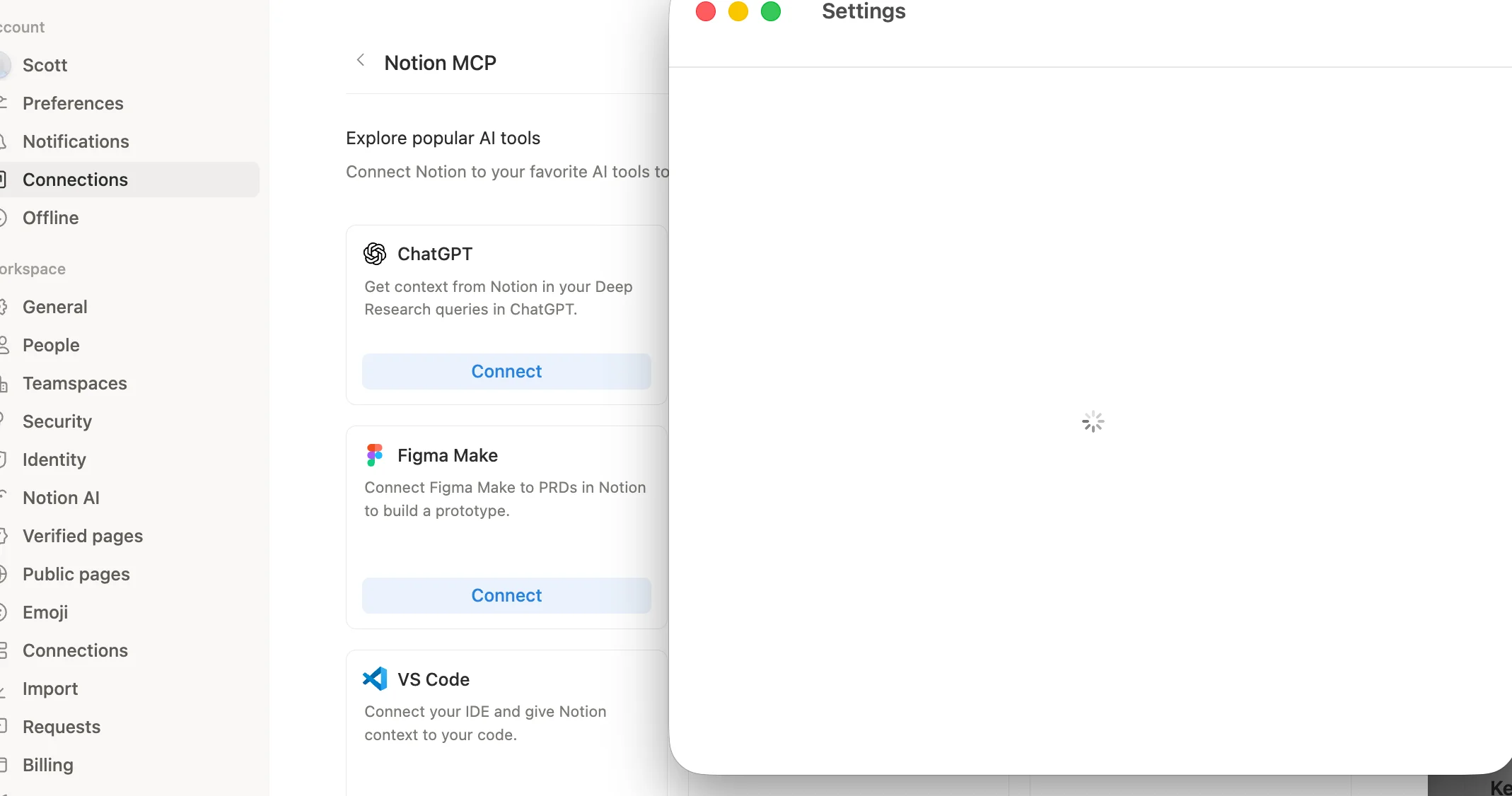
Notion MCP connects Gemini to your Notion workspace, so you can search, read, and manage workspace content from a Gemini-compatible MCP setup.
With Notion MCP, you can:
- search across your Notion workspace;
- find pages, databases, and project documents;
- fetch content from a Notion page or database;
- summarize product specs, meeting notes, and internal docs;
- create new pages from research or project data;
- update tasks, statuses, and page properties;
- turn messy notes into structured documentation;
- prepare release notes, reports, and project updates;
- generate campaign briefs and content plans.
Type of MCP
Hosted remote MCP server with OAuth
Server adress
https://mcp.notion.com/mcp
How to Set it up
Add Notion as a remote MCP server. In Gemini CLI, use the remote HTTP URL under mcpServers, then complete the OAuth flow. If your client only supports stdio, use mcp-remote as a bridge.
Examples of prompts
- “Find our onboarding checklist and summarize it.”
- “Search Notion for all docs related to the website redesign.”
- “Turn this project page into a weekly update.”
- “Find the content calendar and suggest gaps.”
- “Summarize the product requirements document.”
- “Create a launch plan based on our Notion docs.”
- “Find all pages mentioning customer churn.”
- “Update this task page with the latest status.”
- “Turn these meeting notes into a clean internal brief.”
- “Create a campaign brief from our research notes.”
Price
Notion MCP itself does not have separate public pricing. You need a Notion account and a Gemini setup that supports MCP servers.
Notion offers a free plan. Paid plans are available for individuals, teams, businesses, and enterprises, depending on workspace size, collaboration needs, admin controls, and AI features.
f. Slack MCP
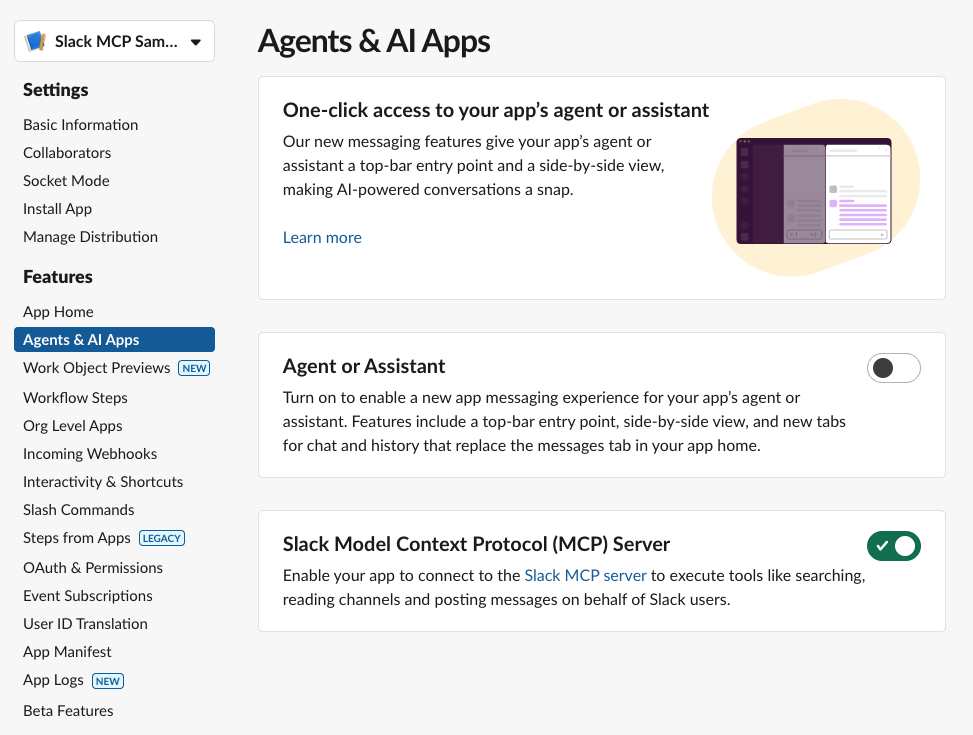
Slack MCP connects Gemini to your Slack workspace, so it can search conversations, retrieve messages, summarize threads, and help you take action from a Gemini-compatible MCP client.
With Slack MCP, you can:
- search Slack messages, files, members, and channels;
- retrieve channel history and full thread conversations;
- summarize long Slack discussions;
- find decisions, blockers, owners, and next steps;
- draft Slack messages and project updates;
- send messages when permissions allow it;
- create and read Slack canvases;
- access teammate profile information;
- prepare weekly updates from channel activity;
- help new teammates catch up on past context faster.
Type of MCP
Remote HTTP MCP server with OAuth
Server adress
https://mcp.slack.com/mcp
How to Set it up
Choose a supported MCP partner/client, connect it to Slack, approve permissions, then let Gemini access Slack through an MCP-compatible configuration if your client supports that flow. Best for messages, threads, files, channels, canvases, and member info.
Examples of prompts
- “Summarize what happened in the product channel this week.”
- “Find the latest decision about the pricing page.”
- “What blockers were mentioned in the engineering channel?”
- “Summarize this thread and list the next steps.”
- “Draft a Slack update for the marketing team.”
- “Find messages where we discussed the launch delay.”
- “Create a canvas from this project discussion.”
- “Show me the thread related to this customer escalation.”
- “Find the teammate with this email address.”
- “Send a message to #general saying the deployment is complete.”
Price
Slack MCP does not have separate public pricing. You need access to a Slack workspace, and your workspace admin may need to approve the MCP connection.
Slack offers a free plan. The Pro plan costs $7.25 per active user per month when billed annually, or $8.75 per active user per month when billed monthly. Larger teams can use Business+ or Enterprise+ depending on their security, admin, compliance, and AI needs.
g. Playwright MCP
Playwright MCP connects Gemini to a real browser, so it can interact with websites and web apps through natural language.
With Playwright MCP, you can:
- let Gemini open and navigate web pages;
- click buttons, links, menus, and form fields;
- type text and fill forms;
- inspect page structure through accessibility snapshots;
- test signup, login, checkout, and onboarding flows;
- capture screenshots and browser state;
- check whether UI elements behave correctly;
- find broken links or confusing user paths;
- debug frontend issues;
- generate Playwright test ideas from real browser sessions.
Type of MCP
Local studio MCP server
Server adress
No remote server URL. Use npx @playwright/mcp@latest
How to Set it up
Install Node.js 18+, then add Playwright to Gemini CLI under mcpServers as a local command. This lets Gemini open pages, click buttons, fill forms, inspect accessibility snapshots, and test web flows.
Examples of prompts
- “Open our pricing page and check if the CTA buttons work.”
- “Test the signup flow and report any friction.”
- “Fill out this contact form with test data and tell me if it submits.”
- “Generate a Playwright test for this checkout flow.”
- “Inspect this page and find accessibility issues.”
- “Click through the onboarding flow and summarize each step.”
- “Check whether the mobile menu opens correctly.”
- “Find broken links on this landing page.”
- “Take a screenshot after completing the login flow.”
- “Reproduce this bug and suggest where it might come from.”
Price
Playwright MCP is open source and free to use. The official server is available through the @playwright/mcp package.
However, the full cost depends on your setup. You may still need Gemini CLI, developer tools, hosting, CI/CD infrastructure, test environments, or browser automation resources if you use it at scale.
h. Context7 MCP
Context7 MCP connects Gemini to current developer documentation, so it can answer coding questions with fresher, version-specific information.
With Context7 MCP, you can:
- fetch up-to-date documentation for libraries and frameworks;
- retrieve version-specific code examples;
- reduce outdated API suggestions;
- avoid hallucinated methods and incorrect syntax;
- search documentation without leaving Gemini;
- improve code generation with real documentation context;
- get setup steps based on current docs;
- work with specific library IDs when needed;
- support tools like Next.js, Supabase, Stripe, Tailwind, Prisma, React, and more;
- make technical answers easier to verify before shipping.
Type of MCP
Remote HTTP MCP server, with CLI setup available
Server adress
https://mcp.context7.com/mcp
How to Set it up
Get a Context7 API key, then add the remote MCP server to Gemini CLI with the API key in headers. You can also run npx ctx7 setup and choose MCP mode if supported by your coding agent.
Examples of prompts
- “Use Context7 to show the latest Next.js middleware example.”
- “Find the current Supabase auth API for email sign-up.”
- “Use current Stripe docs to create a webhook handler.”
- “Show me the latest Cloudflare Workers caching example.”
- “Check the current React Router API before answering.”
- “Find the correct setup steps for Tailwind CSS 4.”
- “Explain this library using its latest documentation.”
- “Generate a code example based on the current MongoDB docs.”
- “Use library /vercel/next.js and explain how routing works.”
- “Check the latest Prisma documentation before writing the query.”
Price
Context7 offers a free plan with 1,000 included API calls. The Pro plan costs $10 per seat per month and includes 5,000 API calls per seat, private repositories, team collaboration, and access control. Enterprise pricing is custom for teams that need SSO, self-hosting, dedicated support, SOC 2, and advanced security needs.
FAQ
Does Gemini support MCP?
Yes, but Gemini MCP is mostly used through Gemini developer tools.
The most practical setup today is Gemini CLI or Gemini Code Assist agent mode. These tools can connect to MCP servers and use their tools during coding, research, automation, or workflow tasks.
So, when people talk about “Gemini MCP,” they usually mean connecting MCP servers to Gemini CLI, Gemini Code Assist, or another Gemini-powered MCP-compatible client.
Can I use MCP with the Gemini web app?
Not in the same general way as Gemini CLI or Gemini Code Assist.
The consumer Gemini web app is built for everyday chat, writing, planning, and research. MCP workflows are more commonly configured through developer environments where users can add MCP servers, manage settings files, and control tool permissions.
If you want to test MCP with Gemini, Gemini CLI is usually the best starting point.
What is the best Gemini MCP?
The best Gemini MCP depends on where your work context lives.
If your most useful information is in meetings and calls, Noota MCP is a strong choice. If you want Gemini to take action across many apps, Zapier MCP is one of the most flexible options. If you are a developer, GitHub MCP, Playwright MCP, and Context7 MCP are especially useful.
For company knowledge, Google Drive MCP, Notion MCP, and Slack MCP are helpful because they connect Gemini to the places where teams already store files, docs, messages, and decisions.
Are Gemini MCPs free?
Some Gemini MCPs are free or open source, but the full setup may still have costs.
For example, Playwright MCP is open source. GitHub MCP does not have separate MCP pricing. But you may still need paid plans for the connected tools, such as Noota, Zapier, Notion, Slack, Google Workspace, or GitHub.
You may also need developer infrastructure, API usage, or business software subscriptions depending on how you use each MCP.
Do I need to be technical to use Gemini MCP?
In most cases, yes.
Gemini MCP is usually configured through Gemini CLI, Gemini Code Assist, or another MCP-compatible environment. That means you may need to edit a settings file, add an MCP server, manage API keys, and understand permissions.
For non-technical users, hosted MCPs can make the process easier, but Gemini MCP is still more technical than simply connecting an app in a normal SaaS dashboard.
Is Gemini MCP safe?
Gemini MCP can be safe when used carefully.
The main risk is permissions. Some MCPs only read information. Others can send messages, create records, edit files, run code, or change production systems. Before connecting an MCP, check who built it, what it can access, and what actions it can perform.
A good rule is simple: use trusted MCPs, start with read-only access, keep secrets in environment variables, and test with low-risk prompts first.
Can I build my own Gemini MCP?
Yes. Developers can build custom MCP servers and connect them to Gemini CLI or Gemini Code Assist.
This is useful when your company wants Gemini to work with private tools, internal databases, custom APIs, documentation systems, or business workflows that do not already have a public MCP connector.
Meet the Writer

Jean-marc is an AI expert helping recruiters & professionnals leverage these tools in the everyday.