


Bronnen & Productiviteit
8 min leestijd
Updated on:
Nov 13, 2025
Hoe je je Android-gespreksgeschiedenis bekijkt en ophaalt
Wil je weten hoe je je gespreksgeschiedenis op Android beheert? Hier is je gids.
Is je Android-belgeschiedenis korter dan verwacht, ontbreken er vermeldingen of is alles misschien zelfs gewist?
Dat komt doordat de ingebouwde belgeschiedenis van Android niet is ontworpen voor langdurige opslag.
In deze handleiding leer je hoe je zelf de controle over je belgeschiedenis op Android in handen neemt.
Waar vind je je belgeschiedenis op Android
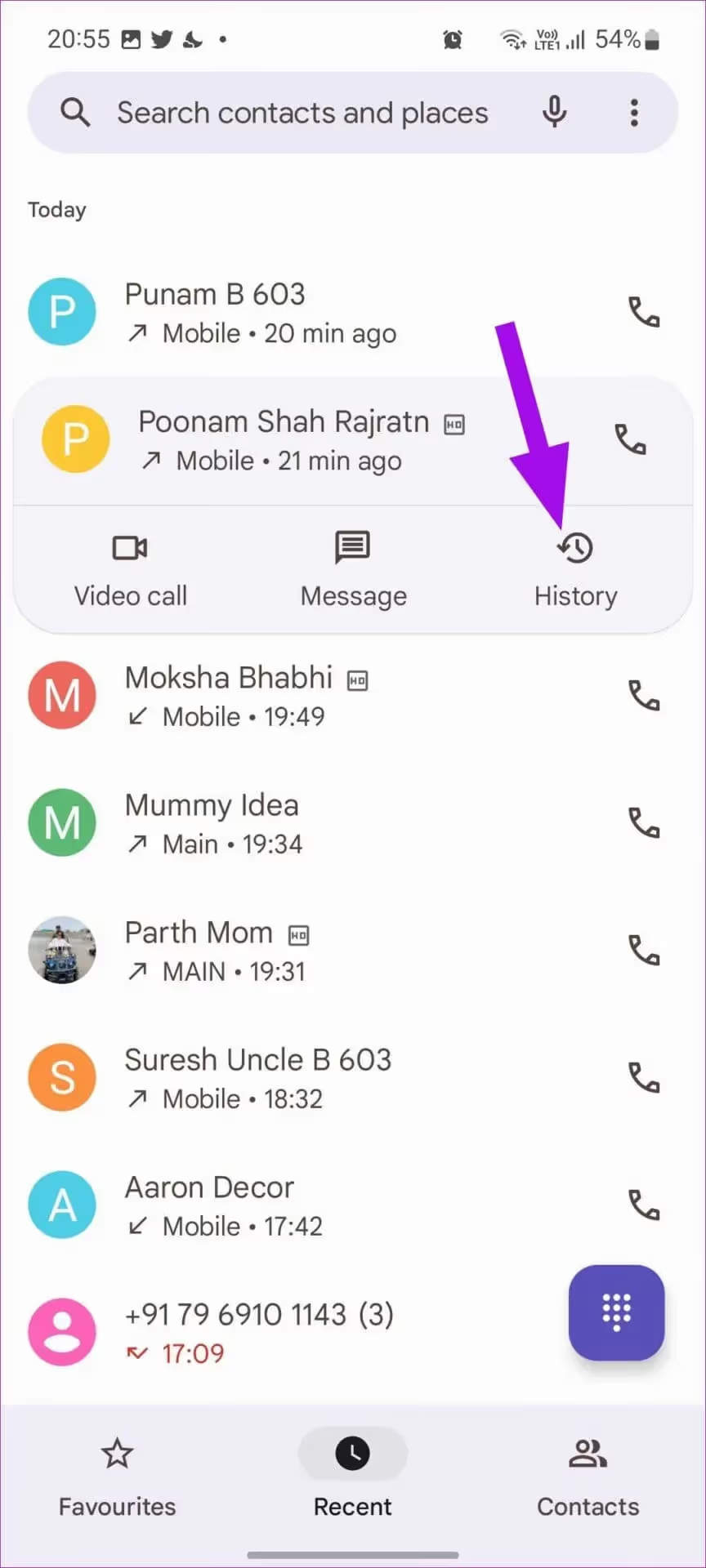
Open je belgeschiedenis
- Open de ingebouwde Telefoon -app op je Android-toestel (vaak aangeduid als "Telefoon" of "Beller").
- Tik op het tabblad Recent of Belgeschiedenis . Op veel toestellen vind je dit onderaan of in de bovenste balk.
- Je ziet nu een lijst met oproepen: inkomend, uitgaand en gemist. Elk item bevat doorgaans de naam of het nummer van de beller en een aanduiding van de datum en tijd.
Details bekijken van een specifieke oproep of contactpersoon
- Om de details van een specifieke oproep te bekijken: tik op het item en tik vervolgens op Gespreksdetails of het "i"-icoontje. Daar vind je informatie zoals de duur, datum/tijd en het nummer van de beller.
- Om de volledige belgeschiedenis met één contactpersoon te bekijken: ga naar het item van die contactpersoon (via Recent of Contacten) en tik op Geschiedenis (indien beschikbaar) en je ziet alle gesprekken van en naar dat contact.
Apparaatspecifieke nuances
- Op veel Samsung-apparaten: Open de Telefoon-app → tik op Recent → bovenaan zie je mogelijk een filterpictogram waar je kunt kiezen tussen Alle gesprekken / Gemist / Inkomend / Uitgaand.
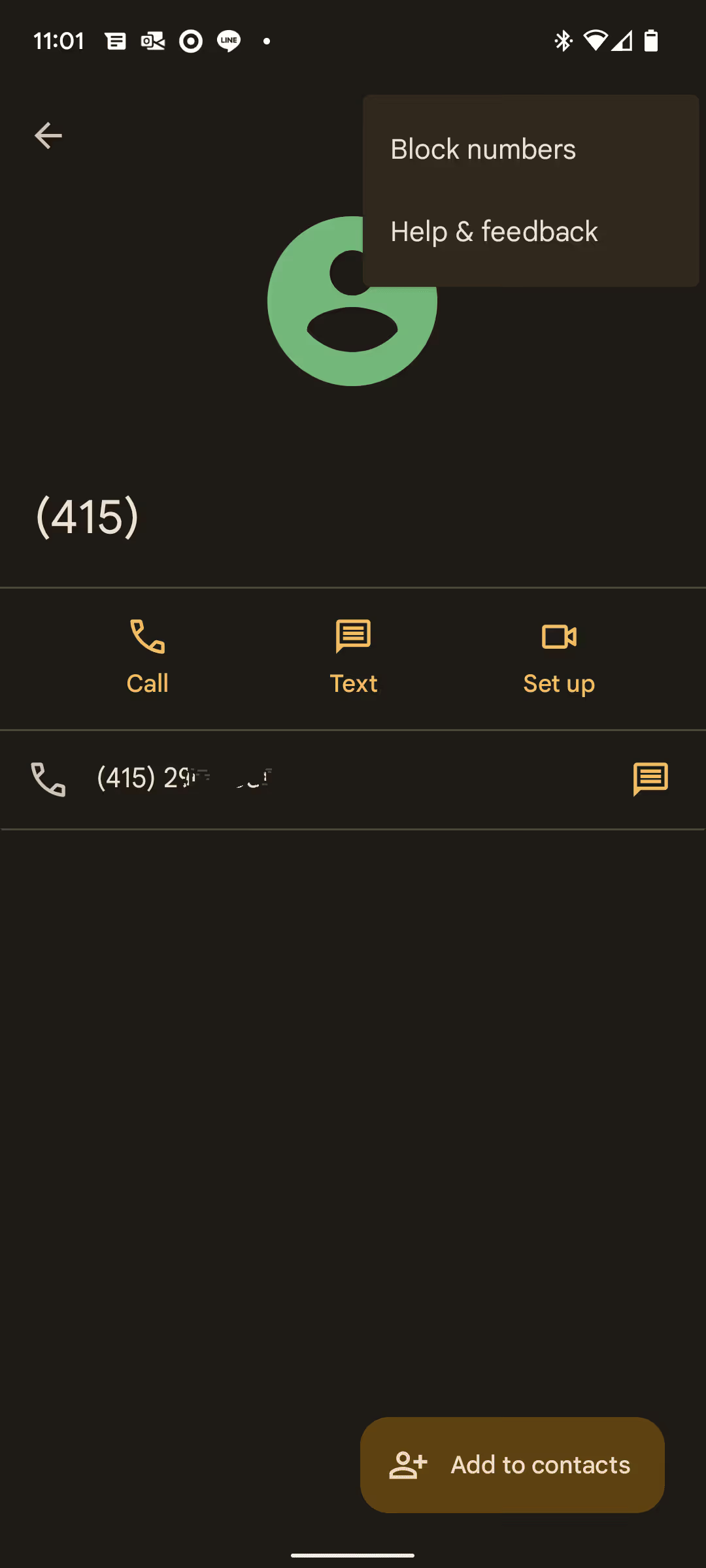
- In de Telefoon-app van Google (Pixel en sommige Android One-telefoons): Het tabblad Recent is mogelijk de standaardweergave; in oudere versies moet je wellicht op het menu met de drie puntjes tikken → Gespreksgeschiedenis om de volledige logboeken te bekijken.
- Let op: Sommige logboeken gaan mogelijk maar tot een beperkt aantal vermeldingen (bijvoorbeeld 500 op sommige apparaten) en oudere gesprekken worden automatisch verwijderd.
Waarom je mogelijk niet al je gesprekken ziet
- Als het gesprek erg oud is, kan het zijn verwijderd vanwege de opslagcapaciteit van het apparaat. Android-apparaten slaan meestal de meest recente vermeldingen op en oudere logboeken worden overschreven.
- Als je van apparaat bent gewisseld of je gespreksgeschiedenis hebt gewist, zijn eerdere logboeken mogelijk niet meer zichtbaar, tenzij er een back-up aanwezig was.
- Als je een externe bel-app hebt gebruikt, worden sommige logboeken mogelijk niet gesynchroniseerd met de lijst in de standaard Telefoon-app of worden ze apart opgeslagen.
Je gespreksgeschiedenis op Android verwijderen en herstellen
Weten hoe je je gespreksgeschiedenis op Android beheert is meer dan alleen handig; het is essentieel voor je privacy, overzicht en om ervoor te zorgen dat je geen belangrijke gegevens verliest. Hieronder vind je gedetailleerde stappen voor het verwijderen van gesprekslogboeken, methoden om ze te herstellen en belangrijke tips om dit veilig te doen.
A) Je gespreksgeschiedenis verwijderen
Wil je ongewenste vermeldingen verwijderen—of het nu voor je privacy is of om je logboek op te schonen—volg dan deze stappen:
- Eén enkel gesprek verwijderen: Open de Telefoon-app → Recent (of Oproepgeschiedenis) → tik op het nummer of contact → Oproepdetails → Tik op het Prullenbak/Verwijderen icoon.
- De volledige geschiedenis verwijderen: Telefoon-app → Recent → tik op het menu met de drie puntjes (⋮) → Oproepgeschiedenis of Oproepgeschiedenis wissen → Bevestigen.
- Apparaatspecifieke acties: Op veel Samsung-apparaten open je Telefoon → Recent → menu → "Oproepgeschiedenis wissen". Op Xiaomi-, Oppo- of Vivo-telefoons moet je mogelijk via Menu → Oproepgeschiedenis → Wissen gaan.
Tip: Als je per ongeluk iets verwijdert, onderneem dan snel actie om het te herstellen; Android-apparaten overschrijven verwijderde gegevens vaak.
B) Hoe je de oproepgeschiedenis herstelt
Het herstellen van verwijderde of verloren logboeken is mogelijk, mits je vooraf een back-up hebt gemaakt of over de juiste tools beschikt. Dit zijn de belangrijkste manieren:
- Via Google-back-up: Ga naar Instellingen → Google → Alle services → Back-up → zorg dat "Oproepgeschiedenis" is ingeschakeld. Wanneer je een nieuw apparaat instelt of na een fabrieksreset, kies je voor herstellen vanaf je Google-accountback-up en worden de oproeplogboeken (indien inbegrepen) hersteld.
- Via back-up van de fabrikant/cloud: Bij merken zoals Samsung ga je naar Instellingen → Accounts en back-up → Gegevens herstellen → Selecteer een eerdere back-up → Vink "Oproeplogboeken" aan → Herstellen.
- Met apps van derdenApps zoals “Call Logs Backup & Restore” (Google Play) stellen je in staat om handmatig een back-up van je oproeplijsten te maken naar een SD-kaart of de cloud en deze later weer terug te zetten.
Belangrijke kanttekeningen:
- Als je een back-up terugzet, kunnen bestaande oproepgegevens worden overschreven of samengevoegd, afhankelijk van de app.
- Sommige logs zijn mogelijk te oud en staan niet in de back-up; Android-systemen beperken vaak het aantal opgeslagen items.
- Als er geen back-up bestaat en de logs zijn verwijderd, is herstel mogelijk niet mogelijk zonder gespecialiseerde tools.
C) Stappen om veilig te verwijderen en te herstellen: een checklist
Voordat je verwijdert:
- Controleer of er geen belangrijke oproepgegevens verloren gaan (bijvoorbeeld werkgerelateerde oproepen, oproepen die belangrijk zijn voor facturatie, enz.).
- Overweeg een back-up van je oproeplijsten te maken met de ingebouwde back-upfunctie of een app van derden.
Bij het verwijderen:
- Gebruik de ingebouwde methoden om individuele logs te verwijderen of alles te wissen.
- Gebruik lang indrukken of menu-opties voor meerdere items, indien ondersteund.
Voordat je herstelt:
- Bevestig dat je een recente back-up hebt en dat deze je oproepgeschiedenis bevat.
- Bij herstel vanaf een Google-back-up: mogelijk moet je je apparaat wissen en opnieuw instellen om het volledige herstel te activeren.
- Bij gebruik van een app van derden: controleer de machtigingen, de opslaglocatie en de integriteit van het back-upbestand.
Bij het herstellen:
- Ga naar de back-up/herstel-app of Instellingen → Accounts en back-up en kies je back-up.
- Selecteer “Oproeplijsten”, start het herstel en wacht tot het proces is voltooid.
- Controleer het tabblad Recent in de Telefoon-app om te bevestigen dat de logs weer zichtbaar zijn.
- Controleer bij het samenvoegen van logboeken op dubbele of ontbrekende vermeldingen.
Veelvoorkomende problemen met de Android-gespreksgeschiedenis oplossen
Heb je de stappen voor het bekijken en beheren van je gespreksgeschiedenis op Android gevolgd, maar klopt er nog steeds iets niet? Geen zorgen, veel gebruikers lopen tegen fouten of ontbrekende gegevens aan. Het belangrijkste is om te weten waar je moet kijken en hoe je het oplost. Hieronder vind je veelvoorkomende problemen, diagnoses en oplossingen voor jouw situatie.
A) Probleem: Sommige of alle gesprekken ontbreken in de gespreksgeschiedenis
Het kan gebeuren dat je de Telefoon-app opent en merkt dat gesprekken die je zojuist hebt gevoerd, ontvangen of gemist, simpelweg niet verschijnen. Dit kan verschillende oorzaken hebben:
- Het logboek heeft zijn maximale capaciteit bereikt en oudere vermeldingen worden overschreven. Bijvoorbeeld: “De gespreksgeschiedenis is niet onbeperkt. Zodra de limiet is bereikt, worden oude gesprekken verwijderd naarmate je nieuwe gesprekken voert.”
- Een bug of app-update heeft het logmechanisme verstoord; gebruikers melden bijvoorbeeld dat op Android-bètaversies sommige gesprekken niet worden geregistreerd.
- Machtigingen of filters beperken wat je ziet (bijvoorbeeld: alleen gemiste oproepen worden getoond, of het filter “Alle oproepen” is niet actief).
- Een externe kiezer of app voor gespreksregistratie conflicteert met de standaard Telefoon-/Gespreksgeschiedenis-app.
Wat te doen:
- Controleer in je Telefoon-app het filter — zet dit op Alle oproepen of het equivalent daarvan.
- Wis het cachegeheugen (en indien veilig, de gegevens) van de Telefoon-app: Instellingen → Apps → Telefoon → Opslag → Cache wissen / Gegevens wissen. Dit lost het probleem vaak op.
- Start de telefoon opnieuw op na het wissen van de gegevens: veel oplossingen vereisen een herstart om volledig doorgevoerd te worden.
- Controleer of een recente OS-update of bètaversie samenhangt met het probleem; soms is het nodig om op een patch te wachten.
- Als je een externe kiezer of overlay gebruikt, schakel deze dan tijdelijk uit om te zien of de standaard gespreksgeschiedenis weer correct werkt.
B) Probleem: Gespreksgeschiedenis reageert niet of is volledig leeg
Soms wordt de gespreksgeschiedenis gereset, of worden er slechts één of twee vermeldingen getoond, of helemaal niets — ook al heb je gesprekken gevoerd of ontvangen.
Oorzaken:
- De logdatabase is mogelijk beschadigd.
- Machtigingen voor de Telefoon-app zijn mogelijk per ongeluk ingetrokken (bijv. machtigingen voor Opslag, Telefoon of Oproepgeschiedenis).
- De gegevens van de Telefoon-app zijn onjuist gereset of gewist.
- Het apparaat gebruikt een aangepaste ROM, bètaversie of een dialer van derden die de logs niet correct verwerkt.
Oplossingen:
- Controleer de machtigingen: Instellingen → Apps → Telefoon → Machtigingen → zorg ervoor dat toegang tot "Oproepgeschiedenis" / "Telefoon" is ingeschakeld.
- Wis de gegevens en cache van de Telefoon-app en start het apparaat opnieuw op. Zoals beschreven in een Android-forumthread: gebruikers probeerden zowel de Telefoon-app als de systeem-app "Oproepgeschiedenis" te wissen.
- Als je onlangs een systeemupdate of aangepaste ROM hebt geïnstalleerd, controleer dan of er een bekend probleem is met het bijhouden van oproepen (bijv. op bepaalde modellen met Android 14-bèta).
- Als niets anders werkt, overweeg dan om een back-up te maken van wat mogelijk is en vervolgens de app-voorkeuren te resetten: Instellingen → Apps → ⋮ → App-voorkeuren resetten. Sommige gebruikers boekten hiermee succes.
- Als de logs op het apparaat nog steeds ontbreken, probeer dan online de gespreksgegevens van je provider te bekijken (voor zakelijke nummers kun je dit als reserveoptie gebruiken) en controleer of de simkaart/het netwerk van je apparaat goed functioneert.
C) Probleem: Oudere oproepen zijn onverwacht verdwenen
Je scrolt terug in Recente oproepen en merkt dat oproepen van dagen of weken geleden zijn verdwenen.
Veelvoorkomende oorzaken:
- Veel Android-telefoons beperken het aantal vermeldingen (bijvoorbeeld tot circa 500) en oudere vermeldingen worden automatisch verwijderd wanneer het logboek de limiet overschrijdt.
- Je bent overgestapt op een ander apparaat of hebt een fabrieksreset uitgevoerd zonder een back-up terug te zetten die de oproepgeschiedenis bevatte.
- Je hebt de logs handmatig gewist (per ongeluk of via een opschoon-app).
Wat te doen:
- Controleer de status van je back-up: Instellingen → Google → Back-up en kijk of "Oproepgeschiedenis" is ingeschakeld. Als dit het geval is en je bent van apparaat gewisseld, kun je deze mogelijk herstellen.
- Als er geen back-up is, onderneem dan snel actie — verwijderde vermeldingen kunnen mogelijk nog worden hersteld met tools voor gegevensherstel voordat ze worden overschreven.
- Overweeg een externe dienst of app te gebruiken die de oproepgeschiedenis onafhankelijk archiveert, zodat je niet alleen afhankelijk bent van de bewaarlimieten van het apparaat.
Houd een volledig overzicht van je Android-gesprekken: Noota
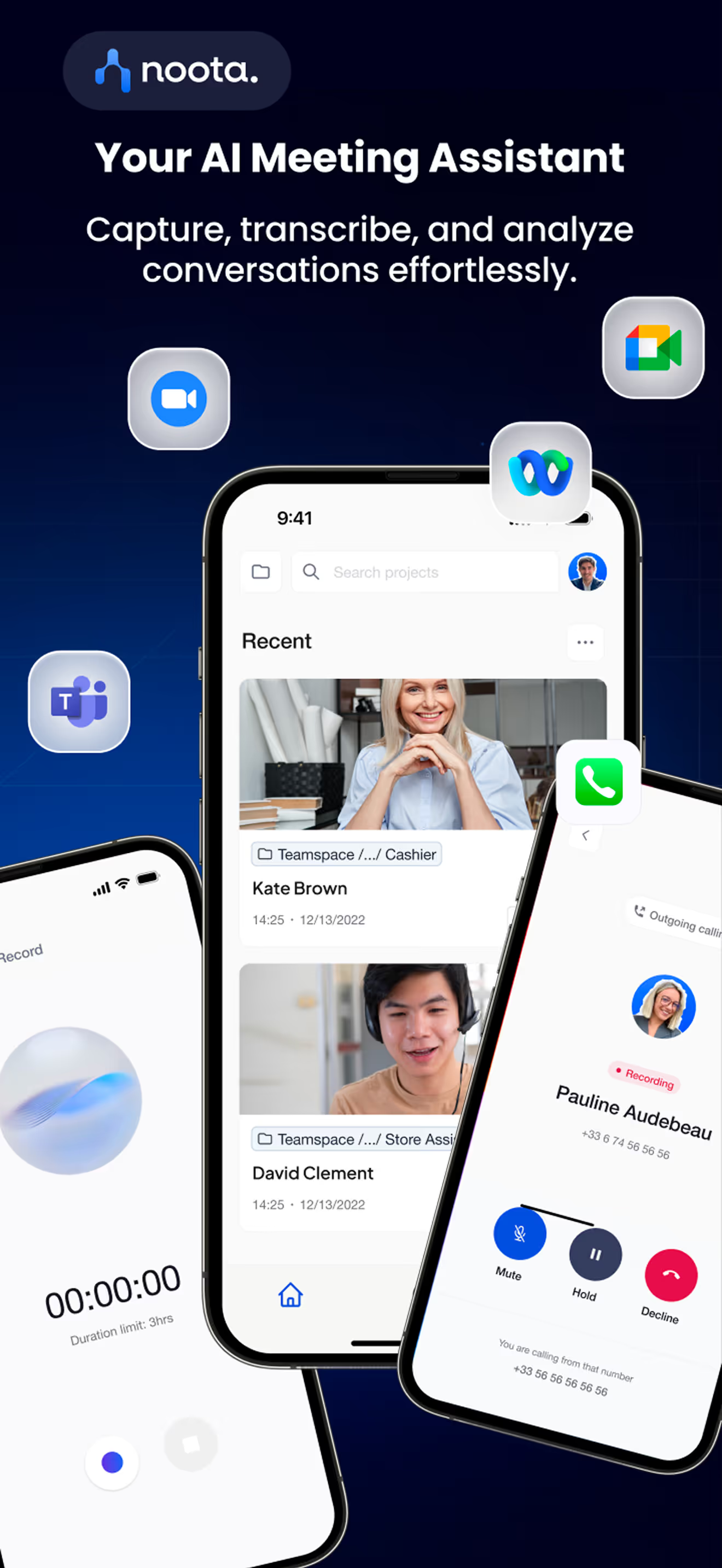
Als je alleen vertrouwt op de ingebouwde gespreksgeschiedenis van je Android-telefoon, mis je rijkere gegevens, een langere bewaartermijn en slimmere inzichten. Dat is waar Noota van pas komt:
- Je kunt de mobiele app van Noota gebruiken om gesprekken of VoIP-gesprekken op te nemen direct vanaf je telefoon.
- Zodra het gesprek is beëindigd, maakt Noota automatisch een transcriptie en een door AI gegenereerde samenvatting van het gesprek — je hebt binnen enkele minuten de belangrijkste punten, besluiten en actiepunten bij de hand.
- Het archief is volledig doorzoekbaar — elk gesprek en elke transcriptie wordt geïndexeerd, zodat je niet handmatig door je invoer hoeft te spitten.
- Je kunt integreren met je tools (CRM, ATS, productiviteitsapps), zodat samenvattingen of transcripties direct aan je workflow worden gekoppeld in plaats van alleen op je telefoon te blijven staan.
PROBEER NOOTA NU GRATIS
Maak kennis met de auteur
.webp)
Veelgestelde vragen
Android bewaart doorgaans de meest recente 500 oproepen; oudere vermeldingen worden automatisch verwijderd.
- Exacte limiet varieert per apparaat en fabrikant
- Geen standaard backup zonder externe tool
- Handmatige export voorkomt permanent gegevensverlies
Oproepen verdwijnen door capaciteitslimiet, apparaatwissel of gebruik van derde-apps.
- Oude vermeldingen worden overschreven bij volle opslag
- Third-party dialers slaan logs apart op
- Geen synchronisatie zonder backup-systeem
Herstelling is moeilijk zonder backup; Noota registreert alle gesprekken automatisch met 80+ taalondersteuning.
- Noota slaat 100% van oproepen op zonder limiet
- Doorzoekbare transcripten en notities inbegrepen
- 5000+ teams vertrouwen Noota voor volledige gespreksgeschiedenis
Noota biedt automatische opname, transcriptie en organisatie - bespaar 6,4 uur/week administratie.
- 4,9/5 rating op G2 met betrouwbare archivering
- Geen handmatige export of gegevensverlies meer
- Probeer Noota gratis — geen creditcard vereist