Vergaderopname & Transcriptie
8 min leestijd
Updated on:
Oct 27, 2025
Teams-vergadertranscriptie: een complete gids
Wil je weten hoe je transcriptie in Teams gebruikt? Hier is je handleiding.
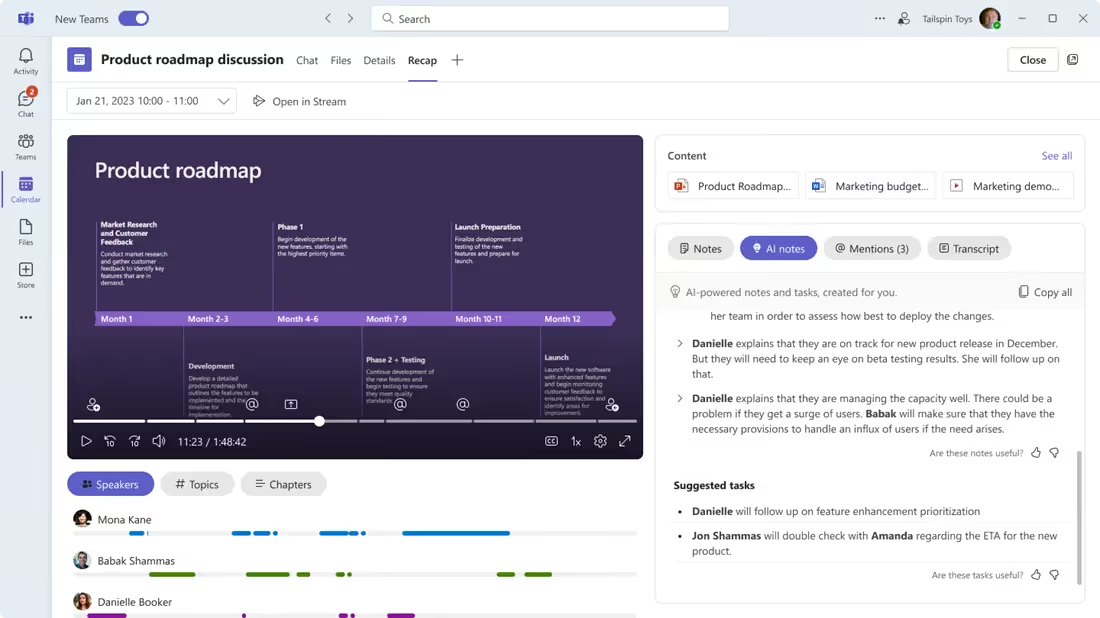
De ingebouwde transcriptiefunctie van Microsoft Teams legt vast wat er wordt gezegd, zodat belangrijke details niet verloren gaan.
Maar hoe werkt het precies en hoe stel je het in?
In dit artikel lees je precies hoe je de ingebouwde transcriptie van Teams instelt en gebruikt om elk woord vast te leggen.
De ingebouwde transcriptie van Microsoft Teams instellen en gebruiken
Controleer eerst of jouw Teams-omgeving transcriptie ondersteunt. De functie is afhankelijk van een aantal factoren:
- Je hebt een compatibele Microsoft 365- of Office 365-licentie nodig (sommige functies zijn alleen beschikbaar in zakelijke/enterprise-abonnementen).
- De transcriptieoptie moet zijn ingeschakeld door je IT-beheerder in het Teams-beheercentrum.
- Alleen bepaalde gebruikersrollen (organisator, presentator) of apparaten hebben mogelijk toegang om de transcriptie te starten.
- Zorg ervoor dat de apparaten van de deelnemers aan de vergadering (desktop-app of browser) compatibel zijn, de audio helder is en de opslag- en beleidsinstellingen correct zijn geconfigureerd zodat het transcript goed kan worden opgeslagen.
Laten we het nu activeren:
- Ga in het Teams-beheercentrum naar Vergaderingen → Vergaderbeleid.
- Bewerk het bestaande globale beleid of maak een aangepast beleid aan. Zet onder Opnemen en transcriberende schakelaar Transcriptie toestaan op Aan. Sla daarna op.
- Wijs het beleid toe aan de gewenste gebruikers (of groepen). Je kunt het toepassen op alle gebruikers of slechts op een selectie.
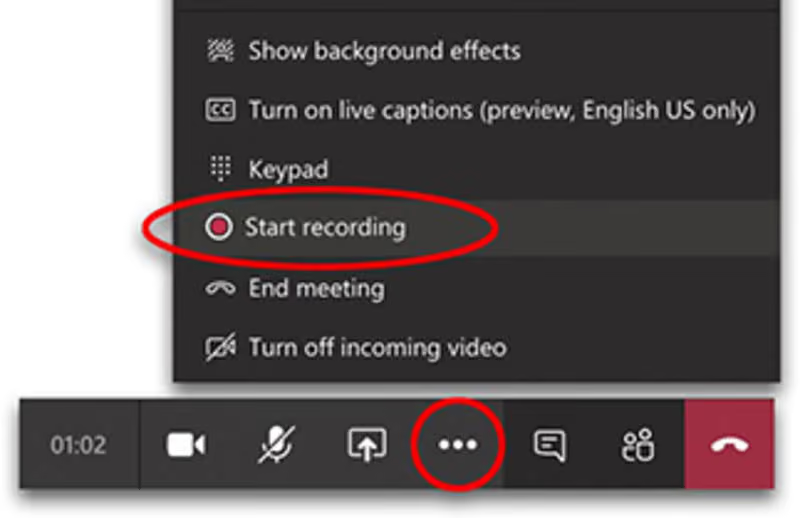
- Klik in je Teams-client (desktop of browser) wanneer je deelneemt aan een vergadering of er een start op Meer acties (drie puntjes). Kies Transcriptie starten (soms weergegeven als Opnemen en transcriberen).
- De tool brengt deelnemers op de hoogte dat de vergadering wordt getranscribeerd. Wanneer de vergadering eindigt—of wanneer je besluit dat het genoeg is—kun je de transcriptie via hetzelfde menu stoppen.
Zodra de vergadering eindigt (of de transcriptie stopt), vind je hier je transcript en hoe je dit opent:
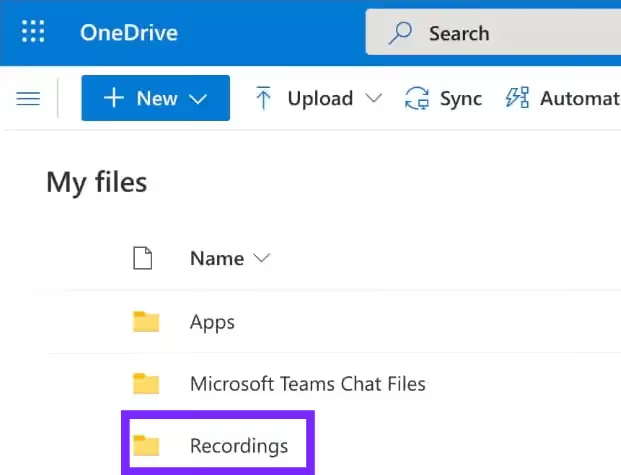
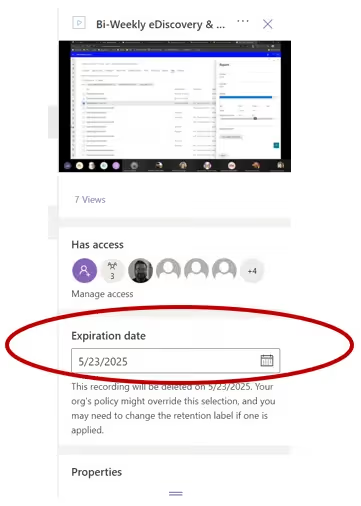
- Het transcript wordt opgeslagen naast de opname van de vergadering (indien opname was ingeschakeld) of in de chat/vergaderdetails.
- Deelnemers met de juiste rechten kunnen het transcript downloaden of delen vanuit de vergaderchat.
- Omdat het gekoppeld is aan Microsoft 365-opslag (OneDrive of SharePoint, afhankelijk van hoe je organisatie is geconfigureerd), moet je ervoor zorgen dat er voldoende opslagruimte is en dat de rechten correct zijn ingesteld, zodat niets wordt geblokkeerd.
Snelle tips
Transcriptie inschakelen is pas het begin. Om er echt waarde uit te halen, is het handig om rekening te houden met een paar praktische zaken:
- Spreek duidelijk en één voor één: door elkaar praten of achtergrondgeluid vermindert de nauwkeurigheid.
- Gebruik een kwalitatieve microfoon/headset: Zelfs de beste transcriptie-engine heeft moeite met dof of vervormd geluid.
- Controleer je beleids- en rolinstellingen vóór de vergadering: Zorg ervoor dat je (of iemand anders in de vergadering) de status van presentator heeft en over de juiste rechten beschikt om de transcriptie te starten. Anders kan het gebeuren dat je een vergadering opent en de optie ontbreekt.
- Controleer je opslag en rechten: Zorg ervoor dat de organisator van de vergadering over de juiste opslag beschikt en dat de transcriptie wordt opgeslagen op een plek waar deelnemers erbij kunnen.
- Licht deelnemers vooraf in: Laat weten dat de transcriptie wordt ingeschakeld; dit kan zorgen voor een duidelijkere communicatie en voorkomt verrassingen wanneer het transcript achteraf beschikbaar is.
Problemen oplossen met AI-transcriptie in Microsoft Teams
Wanneer je vertrouwt op de ingebouwde transcriptiefunctie van Teams om vast te leggen wat er in je vergaderingen wordt besproken, dan moet dat gewoon werken. Maar soms is dat niet het geval.
Probleem 1: De optie "Transcriptie starten" ontbreekt of is grijs
Wat er gebeurt: Je zit in een vergadering, klikt op de drie puntjes, en de optie "Transcriptie starten" is niet zichtbaar of is uitgeschakeld.
De oorzaak:
- De transcriptiefunctie is niet ingeschakeld in het beleid van je organisatie.
- De vergadering was gepland voordat de transcriptie-instelling werd ingeschakeld.
- De gebruikersrollen (organisator, presentator) of de gaststatus zorgen ervoor dat de optie beperkt is.
Oplossing voor jou: - Controleer bij je IT-beheerder of in het Teams-beheercentrum → Vergaderingen → Vergaderbeleid → Opname en transcriptie → Transcriptie toestaan is ingesteld op Aan.
- Zorg dat je de rol van presentator of hoger hebt in de vergadering; als je alleen deelnemer bent, is de optie "Transcriptie starten" mogelijk niet beschikbaar.
Probleem 2: Transcriptie start, maar het bestand verschijnt niet na afloop van de vergadering
Wat er gebeurt: Je klikt op "Transcriptie starten", de vergadering wordt afgesloten, maar later verschijnt er geen transcriptie in de vergaderchat of in de opslag.
De oorzaak:
- De opslaginstellingen voor opnames/transcripties (OneDrive/SharePoint) zijn mogelijk niet correct geconfigureerd.
- Het vergaderbeleid staat transcriptie wel toe, maar stuurt het bestand niet naar de juiste opslaglocatie.
- Een vertraging in de beleidstoepassing: ondanks het inschakelen van transcriptie is de wijziging nog niet doorgevoerd.
Oplossing voor jou: - Controleer met je beheerder of je OneDrive/SharePoint-opslag en machtigingen correct zijn ingesteld en of "AllowTranscription" is ingeschakeld in het beleid.
- Controleer na de vergadering de chat of de aangewezen opslaglocatie voor de transcriptie. Als er na 24-48 uur nog niets is verschenen, neem dan contact op met je IT-afdeling.
Probleem 3: Transcriptie is beschikbaar, maar de nauwkeurigheid is laag of sprekers ontbreken
Wat er gebeurt: De transcriptie is aanwezig, maar staat vol fouten, overlappende sprekers worden niet onderscheiden of bepaalde sprekers ontbreken volledig.
De oorzaak:
- Audioproblemen: meerdere mensen praten tegelijk, slechte microfoon/headset, achtergrondgeluid.
- Gebruik van een niet-ondersteunde client of browser.
- Taal-/regiobeperkingen: transcriptie wordt mogelijk in het algemeen ondersteund, maar niet voor bepaalde talen of accenten.
De oplossing: - Vraag deelnemers om een goede microfoon of headset te gebruiken, niet door elkaar te praten en achtergrondgeluid tot een minimum te beperken.
- Zorg dat iedereen een ondersteunde versie van Teams gebruikt (desktopbrowser of de volledige app in plaats van een verouderde versie). Wis indien nodig de cache.
- Overweeg bij meertalige vergaderingen of zware accenten of de ingebouwde transcriptie volstaat of dat u een gespecialiseerde tool nodig heeft.
Probleem 4: Transcriptie werkt voor interne gebruikers, maar niet wanneer externe gebruikers deelnemen
Wat er gebeurt: In vergaderingen met alleen gebruikers van uw eigen organisatie werkt transcriptie; zodra u externe deelnemers (gasten of gebruikers in een andere tenant) uitnodigt, verdwijnt de optie "Transcriptie starten".
De oorzaak:
- Het vergaderbeleid kan transcriptie beperken wanneer er deelnemers van buiten uw tenant aanwezig zijn.
De oplossing: - Vraag de organisator van de vergadering om de instelling "Wie kan opnemen en transcriberen" in de vergaderopties in te stellen op Organisatoren, mede-organisatoren en presentatoren.
- Controleer bij uw beheerder of het vergaderbeleid transcriptie toestaat voor externe tenants of gastgebruikers.
Doorzoekbare, actiegerichte Teams-transcriptie: Noota
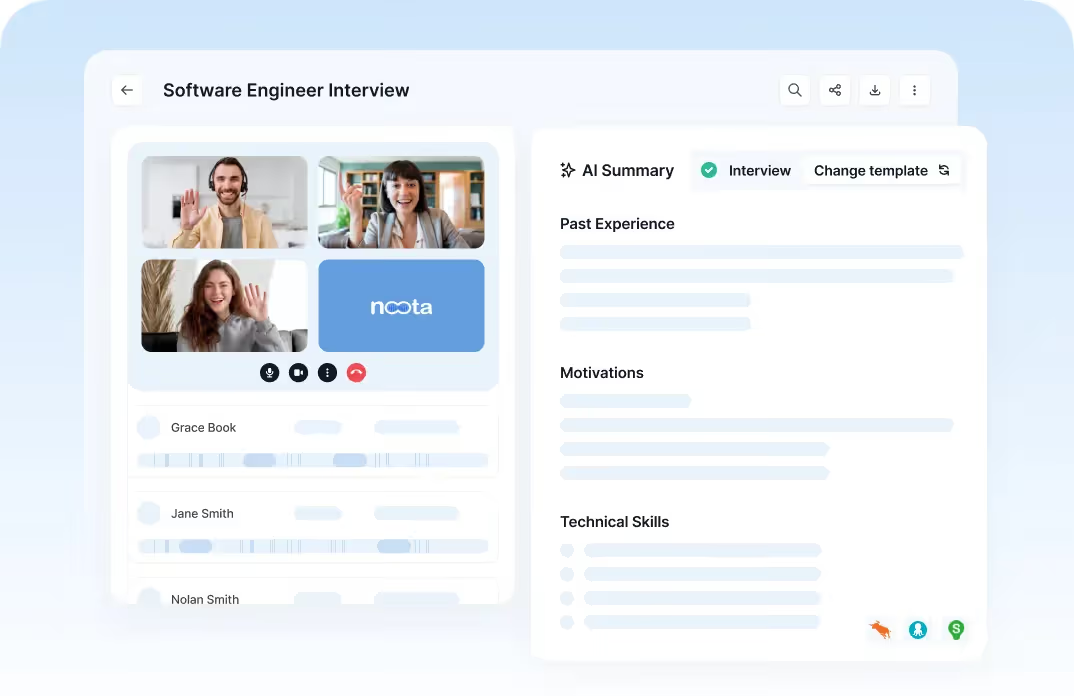
Wanneer u de ingebouwde transcriptiefuncties van Microsoft Teams gebruikt, mist u mogelijk nog steeds iets belangrijks: het omzetten van die tekst in actie. Noota overbrugt die kloof.
- Het biedt een doorzoekbaar archief: elk transcript en elke opname van een vergadering staat op één plek, zodat je direct kunt terugvinden wat er is gezegd, wanneer en door wie.
- Het biedt extractie van actiepunten en samenvattingen: de AI van Noota analyseert het transcript en vult besluiten, vervolgstappen en belangrijke citaten in, zodat je niet vanaf nul hoeft te beginnen.
- Het integreert met je workflow: koppel met CRM's, documenthubs, ATS of elke andere tool die je gebruikt, zodat de output niet alleen wordt opgeslagen, maar ook daadwerkelijk wordt gebruikt.
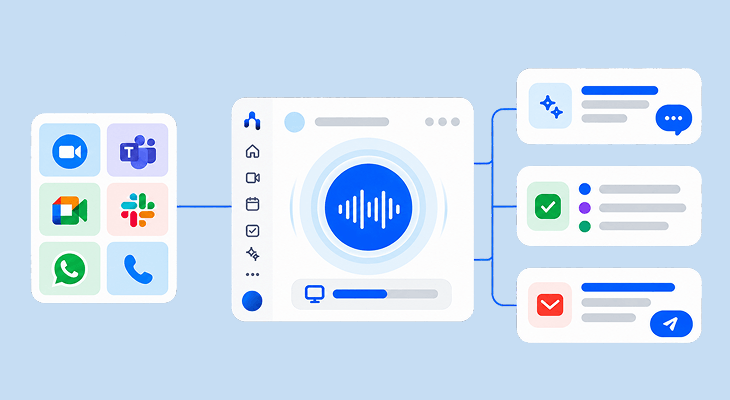
- Het ondersteunt meertalige en multi-platform opstellingen: Noota werkt met Teams, Zoom en Meet en ondersteunt meerdere talen, zodat je consistentie behoudt.
Wil je je Teams-gegevens integreren in je workflow? Probeer Noota nu gratis.
Maak kennis met de auteur
.webp)
Veelgestelde vragen
Ga naar Teams Admin Center, klik Meetings → Meeting policies, zet Allow transcription aan en wijs het toe aan gebruikers.
- Navigeer naar Meeting policies sectie
- Toggle Allow transcription op On
- Sla op en wijs toe aan gebruikers
Je hebt een compatibele Microsoft 365 of Office 365 licentie nodig, bij voorkeur business of enterprise plan.
- Microsoft 365 of Office 365 abonnement vereist
- Business of enterprise plan aanbevolen
- IT admin moet feature inschakelen
Noota biedt 6,4 uur/week besparing, -80% administratie en 4,9/5 G2-rating met 80+ talen support.
- Automatische samenvatting en actie-items
- Werkt met alle videoplatformen, niet alleen Teams
- Beter voor grote teams en complexe workflows
Noota is ideaal voor sales teams: automatische transcriptie, samenvattingen en 6,4 uur/week besparing per team.
- Instant transcriptie in 80+ talen beschikbaar
- Automatische samenvattingen en follow-ups
- Probeer Noota gratis — geen creditcard vereist