Resources & Productivity
8 min reading
Updated on:
Mar 31, 2025
How to Delete or Recover a Google Calendar: Step-by-Step Guide
You want to know how to delete or recover Google events on your calendar ? Here's how to do it.
Cleaning up your calendar list can definitely save you time and mental space.
But depending on the type of calendar, the steps can vary—and some calendars can’t be deleted at all.
In this guide, you’ll learn exactly how to delete, clear, or unsubscribe from any Google Calendar + how to recover them
Can You Delete a Google Calendar?
Yes, you can delete a Google Calendar—but not all calendars are treated the same. Before you take any action, it’s important to understand what kind of calendar you’re dealing with.
There are three types:
- Your primary calendar (created automatically with your Google account)
- Secondary calendars (ones you’ve created manually)
- Shared calendars (calendars created by someone else that you’ve subscribed to)
Let’s break it down.
You can’t delete your primary calendar, but you can clear all the events from it. That means the calendar stays in place, but it’ll be empty. If you just want a clean slate, this is the option for you.
You can delete any secondary calendar that you’ve created. These are calendars you’ve added for personal projects, clients, side work, or anything else outside your main schedule. Once deleted, they’re gone for good—along with all the events inside them.
As for shared calendars, you can’t delete them (because you don’t own them). But you can unsubscribe. That way, they disappear from your view, and you won’t get updates from them anymore.
Not sure what type of calendar you’re looking at? Here’s a quick trick:
- Go to Google Calendar on your browser.
- On the left-hand side, under “My calendars,” you’ll see your primary and secondary calendars.
- Under “Other calendars,” you’ll find shared calendars you’ve subscribed to.
Only calendars under “My calendars” can be deleted or cleared. Shared calendars under “Other calendars” can only be removed from your view.
How to Delete a Google Calendar Step by Step
Deleting a Google Calendar is easy—once you know where to look. But the steps are slightly different depending on the type of calendar you want to remove.
Here’s a clear breakdown for each case.

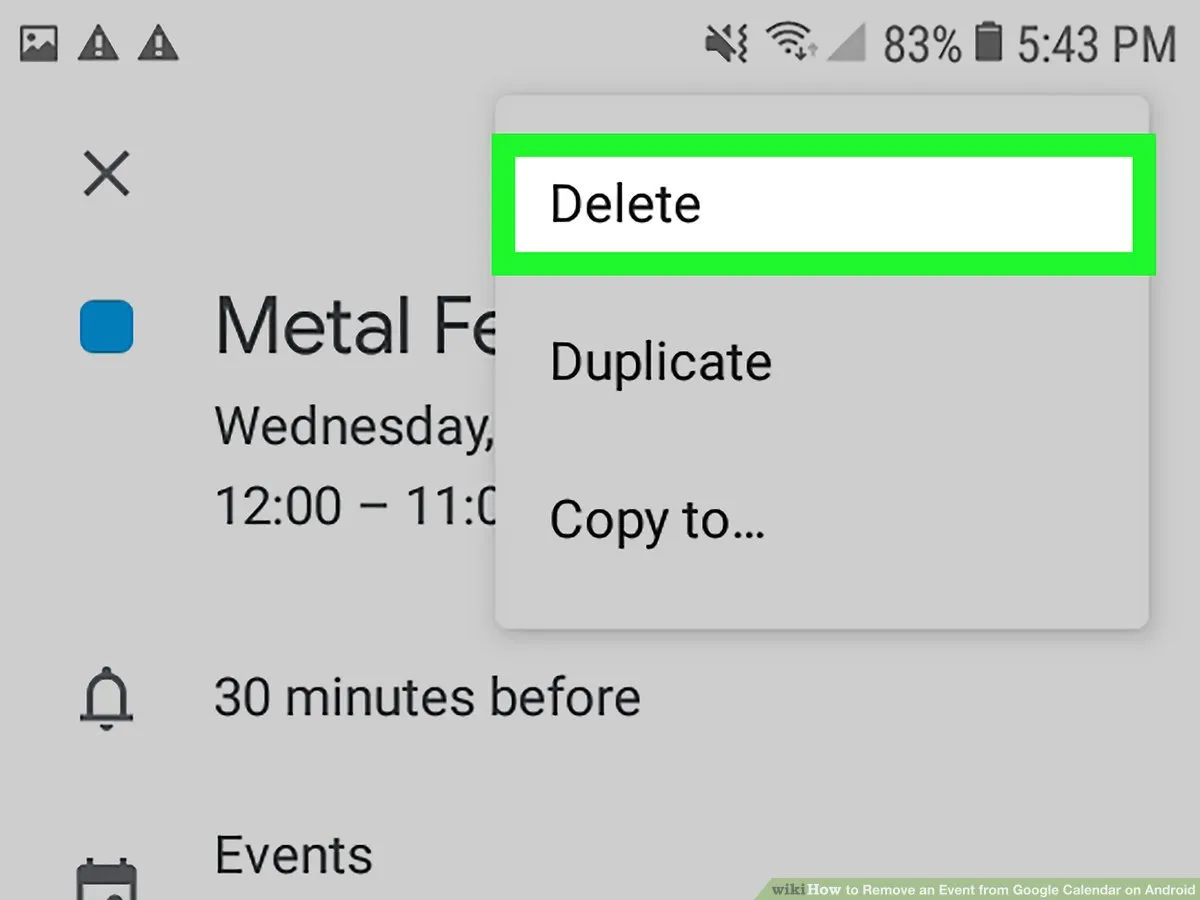
To delete a secondary calendar you created:
This applies to calendars you’ve made manually, like a personal project calendar or a temporary event calendar.
- Open Google Calendar on your computer.
- On the left side, under “My calendars,” hover over the calendar you want to delete.
- Click the three-dot menu next to it and choose “Settings and sharing.”
- Scroll down to the “Remove calendar” section.
- Click “Delete” and confirm when prompted.
Once deleted, the calendar and all its events are gone forever. Make sure you won’t need it again—Google doesn’t offer a restore option for deleted calendars.
To clear all events from your primary calendar:
You can’t delete your main calendar, but you can wipe it clean. This is helpful if you want a fresh start.
- Go to Google Calendar on your computer.
- In the left-hand menu, click on your primary calendar (usually named after your email).
- Click the gear icon in the top-right corner and choose “Settings.”
- Under “Settings for my calendars,” click on your calendar.
- Scroll down to “Remove calendar” and select “Delete all events in this calendar.”
- Confirm your choice.
This will erase all events but keep the calendar in place. You’ll still be able to use it moving forward.
To unsubscribe from a shared calendar:
If someone else shared a calendar with you, you can’t delete it—but you can remove it from your view.
- On the left side, under “Other calendars,” find the shared calendar you want to remove.
- Hover over it and click the “X” icon.
- Alternatively, go to “Settings and sharing,” scroll to “Remove calendar,” and click “Unsubscribe.”
You’ll no longer see that calendar or get notifications from it. But the owner can still use and edit it—it’s just out of your way.
How to Recover a Google Calendar
Accidentally deleted a calendar? Unfortunately, if you delete an entire calendar in Google Calendar, it’s gone for good. There’s no “undo” button for calendar deletion. That’s why we always recommend exporting your data before deleting anything important.
But if you only deleted individual events, there’s good news. You can recover them—if you act within 30 days.
Here’s how.
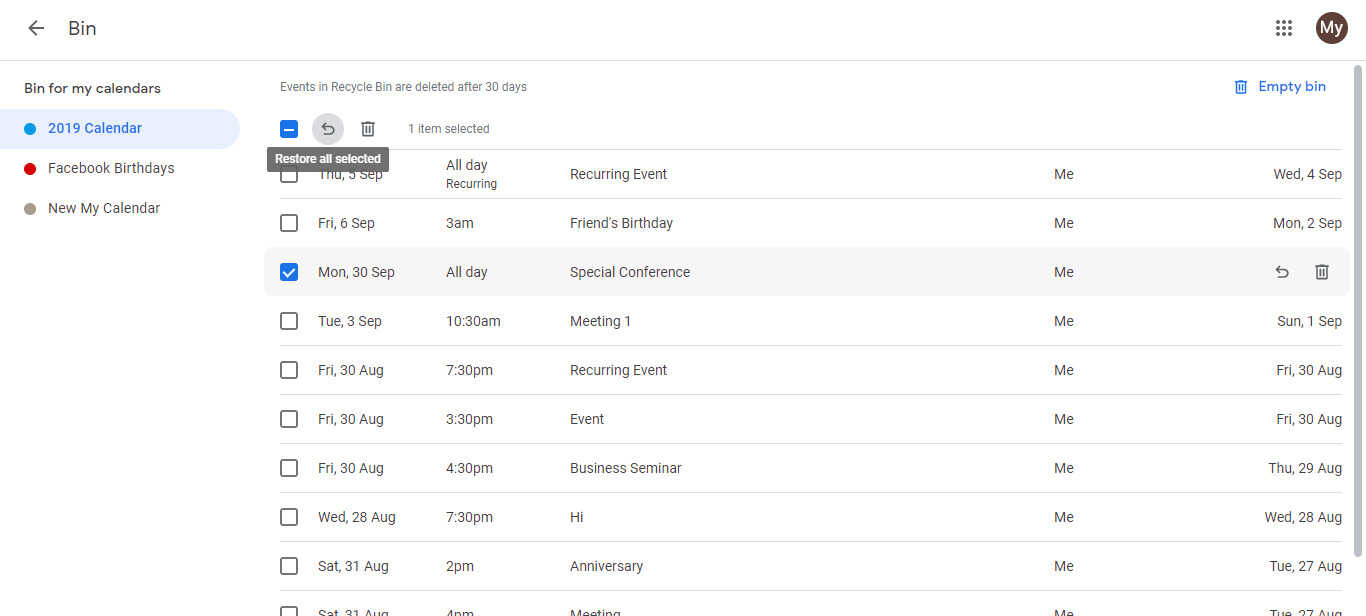
Recover deleted events using the Trash folder:
- Open Google Calendar on your computer.
- On the left-hand side, look for “My calendars.”
- Hover over the calendar where the event was deleted.
- Click the three-dot menu and select “Trash.”
This opens a list of all events deleted from that calendar over the last 30 days.
You can:
- Select one or more events.
- Click “Restore” to bring them back.
- Or “Delete forever” if you want to clear the trash manually.
Note: The Trash option is only available on desktop, not on the mobile app.
What if the whole calendar is gone?
Unfortunately, once you delete a full calendar—especially a secondary one—it cannot be recovered. Google doesn’t store backups for deleted calendars.
That’s why it’s smart to export your calendar before removing it:
- Go to Settings in Google Calendar.
- Click “Import & Export.”
- Under “Export,” click “Export” to download all your calendar data in a .zip file.
- Save this file somewhere safe in case you need to re-import it later.
Can you recover a shared calendar you unsubscribed from?
Yes. If you unsubscribed from someone else’s shared calendar, you can resubscribe.
Just ask the calendar owner to share it with you again—or re-add it using the original link or invitation.
Google Calendar Troubleshooting
Things don’t always go smoothly. Maybe the delete button isn’t showing up. Or you can’t find the Trash folder. Or events you thought were gone are still there.
Here are the most common Google Calendar issues—and how to fix them.
Problem 1: I can’t find the option to delete a calendar
First, make sure you’re trying to delete a secondary calendar—not your primary one. Google won’t let you delete your main calendar, only clear the events inside it.
If it’s a shared calendar, you won’t see a delete option either. Instead, you’ll need to unsubscribe. Hover over the calendar in “Other calendars” and click the X.
Still no luck? Try switching to the desktop version. Some features don’t show up in the mobile app.
Problem 2: The calendar isn’t updating after deletion
Sometimes Google Calendar takes a few minutes to refresh. Try refreshing your browser. If you’re using the mobile app, close and reopen it.
If the calendar still appears, clear your browser cache or sign out and back in.
Problem 3: I deleted events by mistake
You can recover them—if it’s been less than 30 days.
Go to the Trash for that calendar:
- On desktop, find the calendar under “My calendars.”
- Click the three-dot menu > Trash.
- Restore any events you want to bring back.
This only works on a computer. The mobile app doesn’t support Trash yet.
Problem 4: I unsubscribed from a shared calendar and need it back
You can’t undo an unsubscribe, but it’s easy to rejoin.
- Ask the owner to share the calendar with you again.
- Or re-add it using the original link or invitation email.
Once you rejoin, it’ll appear under “Other calendars” again.
Problem 5: Calendar settings won’t save
If your changes keep reverting, check your browser extensions or ad blockers. Some extensions can interfere with Google Calendar features.
Try using a different browser or an incognito window to see if the problem continues.
How to Manage All Your Calendar Data & Recordings on Noota

If you’re juggling multiple meetings across Google Calendar and Google Meet, things can get messy fast. Tracking what was said, who attended, or what needs follow-up shouldn’t take more time than the meeting itself.
Noota simplifies the way you manage your meeting data :
- Automatic recording without the stress : Once Noota is connected to Google Meet, it takes care of recording for you. You don’t need to click “Record” or remind yourself before each meeting. It joins your meeting and captures everything in the background.
- Live transcription you can rely on : While you talk, Noota transcribes the meeting in real time. It picks up everything clearly and formats it into a clean, readable document. That means no more frantic note-taking or missed details.
- Your meetings, fully searchable : Every meeting you record is saved in a searchable database. Looking for that project update from last month? Just type a keyword, and Noota will find it in seconds.
- Tightly integrated with your workflow : Noota works hand-in-hand with Google Calendar. It pulls in your meetings, matches them with recordings and transcripts, and lets you link outcomes to your task management tools. You get one connected system, not scattered notes across apps.
- Smart insights from your meetings : Noota also gives you analytics on meeting participation and engagement. You can see how long people spoke, how focused your meetings are, and who’s most active.
Want to manage your Google calendar efficiently ? Try Noota for free now.
Meet the Writer
.webp)
FAQ
No, you cannot delete your primary calendar since it's created automatically with your Google account. However, you can clear all events from it for a fresh start without losing the calendar itself.
- Primary calendars are permanent and cannot be removed
- You can wipe all events to reset your schedule
- Secondary calendars you created can be fully deleted
Deleting removes a calendar you own completely with all events, while unsubscribing removes a shared calendar from your view without affecting the original owner's calendar.
- Delete applies only to calendars you created yourself
- Unsubscribe removes shared calendars from your list
- Deleted calendars cannot be restored by Google
Noota automates calendar management and meeting notes, saving teams 6.4 hours weekly with 80% less admin work. While Google Calendar requires manual deletion and organization, Noota intelligently organizes your schedule and captures insights automatically.
- Noota saves 6.4h/week vs manual calendar management
- Reduces administrative tasks by 80% with automation
- Trusted by 5000+ teams with 4.9/5 G2 rating
Noota is ideal for teams managing multiple calendars, automatically organizing meetings and notes across 80+ languages while reducing admin by 80%. Try Noota free — no credit card needed.
- Handles calendar organization across entire teams
- Supports 80+ languages for global teams
- Automates meeting documentation and insights