Meeting Recording & Transcription
8 min reading
Updated on:
Apr 8, 2025
Teams Recording Expiration : What You Need to Know
You want to know if you change the expiration date of your Teams recording, or recover them ? Here's your guide.
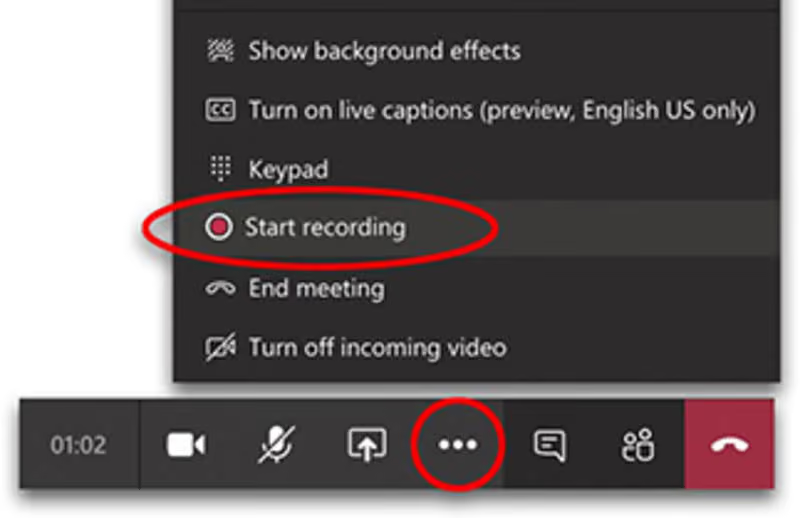
Microsoft Teams recordings don’t last forever.
By default, they expire after a set number of days.
In this guide, you’ll learn how to manage expiration dates, and what to do if a recording is already gone.
When Do Teams Recordings Expire?
If you record meetings in Microsoft Teams, you might assume those recordings stay available forever. They don’t.
By default, Microsoft sets a 120-day expiration on all Teams recordings. After that, the file is automatically deleted.
You’ll find this applies to most Microsoft 365 licenses. But if your organization uses an A1 license (often used in schools), the default expiration is even shorter—just 30 days.
That countdown starts the moment the meeting ends and the recording is saved. So if you recorded a meeting on January 1st, it’ll be gone by May 1st—unless someone extends or removes the expiration date before then.
This change was introduced to help organizations manage storage. Microsoft wanted to avoid old recordings piling up and taking space in OneDrive or SharePoint. But it also means you need to stay alert if your team relies on meeting recordings.
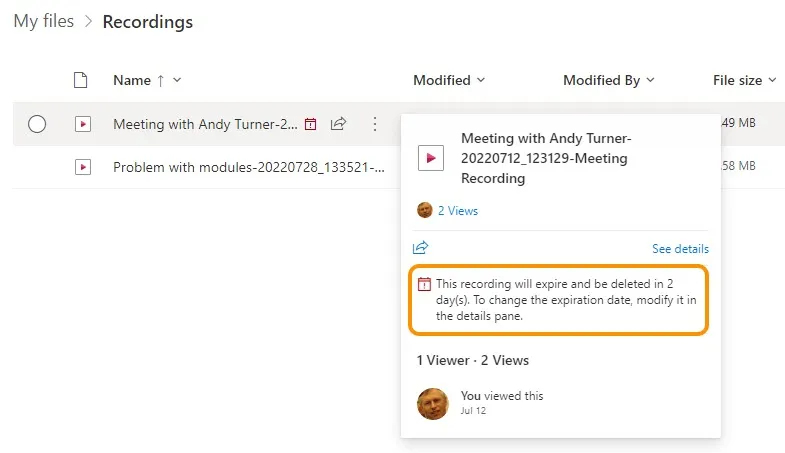
Recordings don’t just expire silently, though. Owners of the file will see a warning banner as the expiration date gets close. It’s a helpful reminder, but only if someone checks regularly. If no one acts in time, the recording goes straight to the recycle bin.
Can You Change the Expiration Date?
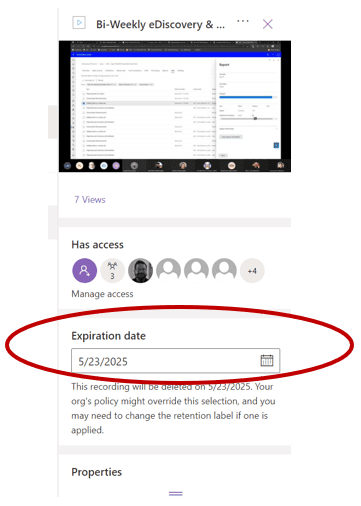
Yes, you can. Microsoft Teams lets you control when your recordings expire. You just need to know where to look.
Let’s break it down step by step.
Step 1: Find the Recording
After your meeting ends, Teams saves the recording in OneDrive or SharePoint.
If it was a one-on-one or small group meeting, the file goes to the organizer’s OneDrive.
If it was a channel meeting, it’s stored in the related SharePoint folder.
Go to the recording file. Open it in your browser.
Step 2: Open the Details Pane
Once the video is open, click the “Info” or “Details” option (usually a small “i” icon in the top right).
This opens the file details panel. You’ll see who recorded it, when it was created—and when it’s set to expire.
Step 3: Edit the Expiration Date
Look for the Expiration Date field. Click the pencil icon next to it.
Now you can set a new date or choose “No expiration” to keep the file forever.
Click Save when you’re done.
That’s it—you’ve just stopped the countdown.
Step 4: For Bulk or Default Changes, Ask Your Admin
Changing dates one file at a time works fine for occasional needs.
But if you want to change the expiration rule for all meetings, you’ll need help from your IT team.
Admins can set a new default expiration for your entire organization.
This is done in the Teams Admin Center or with PowerShell commands.
You can set it to 180 days, 365 days, or even 99,999 days (yes, really).
Or just set it to never expire by default.
Can You Recover Expired Teams Recordings?
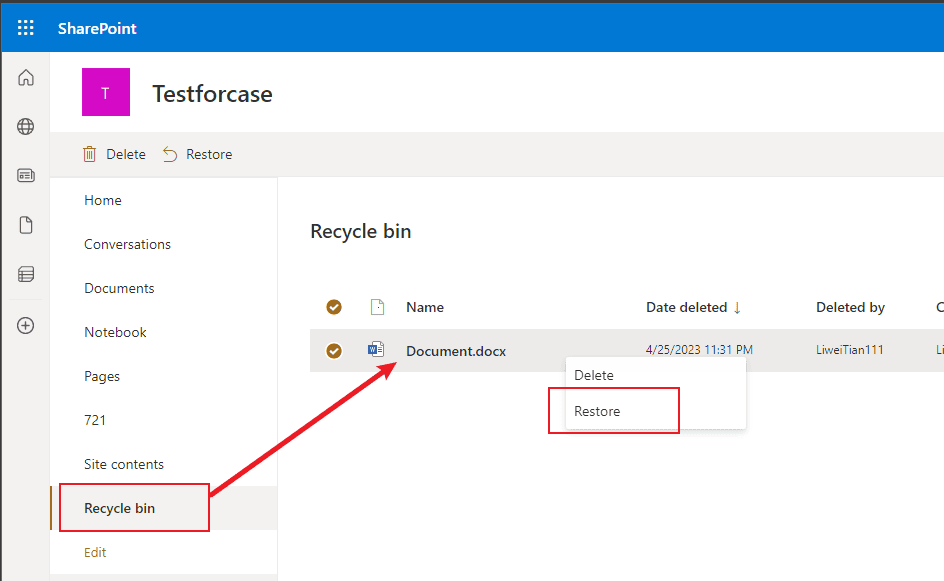
Yes, you can—if you act fast.
When a Teams recording expires, it’s not deleted immediately. Instead, Microsoft moves it to the recycle bin. You still have a chance to get it back. But the clock is ticking.
Here’s how to recover an expired Teams recording, step by step.
Step 1: Know Where the Recording Was Stored
The first thing to check is where the meeting was recorded.
If it was a standard meeting (like a 1:1 or group call), the file lives in the organizer’s OneDrive.
If it was a channel meeting, it’s stored in the team’s SharePoint site.
You’ll need to go to the right place to recover it.
Step 2: Open the Recycle Bin
Go to OneDrive or SharePoint, depending on where the file was saved.
Once there, look for the Recycle Bin—you’ll usually find it in the left-hand menu.
Click it.
You’ll see a list of deleted files, including expired Teams recordings.
Step 3: Restore the Recording
Find the recording you want to recover.
Click the checkbox next to it, then hit Restore.
The file will return to its original location. You can now open it, share it, or adjust its expiration settings to make sure it doesn’t disappear again.
Step 4: Act Within 90 Days
There’s one big limitation: the recycle bin only keeps files for 90 days.
If you don’t restore the recording within that window, it’s gone for good.
After 90 days, the file is permanently deleted and can’t be recovered—even by Microsoft.
So if a recording expires, don’t wait. Check the bin, and bring it back while you still can.
Permanent Database of Teams Recordings with Noota

Manually managing Teams recordings can be frustrating. Expiration dates, file locations, and manual recovery make it easy to lose track of important conversations.
Noota offers a better way, it acts as a permanent, organized database for all your meetings :
- No More Digging Through Endless Notes : Noota captures your meetings in real time. It records, transcribes, and organizes everything in one place. You no longer need to take frantic notes or rely on memory.
- Real-Time Transcriptions : As your meeting happens, Noota transcribes every word live. That means you can focus on the conversation instead of trying to write everything down. Missed a detail? Just scroll through the transcript afterward. It’s accurate, time-stamped, and ready to share.
- Tagging & Keyword Search : looking for a specific update, decision, or follow-up? Don’t waste time watching full recordings. With Noota, you can tag key moments during the meeting—like action items, blockers, or questions. Afterward, use the keyword search to jump straight to what matters. It’s fast, reliable, and saves hours.
- AI-Generated Summaries : Long meetings don’t have to mean long reviews. Noota’s AI summarizes the entire session into a clean, structured recap.
You want to streamline your Teams recording database ? Try Noota for free.
Meet the Writer
.webp)
Alexandre writes on AI meeting assistants, MCP and AI integrations, data privacy and compliance, and productivity, as Noota's engineer-founder and CEO.
FAQ
Microsoft Teams recordings expire after 120 days by default on most Microsoft 365 licenses. A1 licenses have a shorter 30-day expiration window.
- Countdown starts when recording saves
- File moves to recycle bin after expiration
- Owners receive warning banners before deletion
You can manually extend expiration dates or remove them entirely through file details. For organization-wide changes, admins can set new defaults in Teams Admin Center.
- Open recording details and click expiration date field
- Select new date or choose 'No expiration' option
- Admins can set 180, 365, or 99,999-day defaults
Noota automates meeting documentation and eliminates manual recording management entirely. Teams save 6.4 hours weekly with 80% less admin work while maintaining 4.9/5 G2 ratings across 5000+ teams.
- Automatic transcription and summaries replace manual reviews
- No expiration worries with centralized knowledge base
- Works across 80+ languages for global teams
Noota is the best solution for teams needing reliable, searchable meeting records without expiration concerns. Trusted by 5000+ teams saving 6.4 hours weekly on admin tasks.
- Automatic AI summaries and transcripts
- Permanent searchable knowledge base
- Try Noota free — no credit card needed