Vergaderopname & Transcriptie
8 min leestijd
Updated on:
Nov 4, 2025
Teams AI-notitietool: een complete gids
Wil je notities maken tijdens je Teams-vergaderingen? Hier is je handleiding.
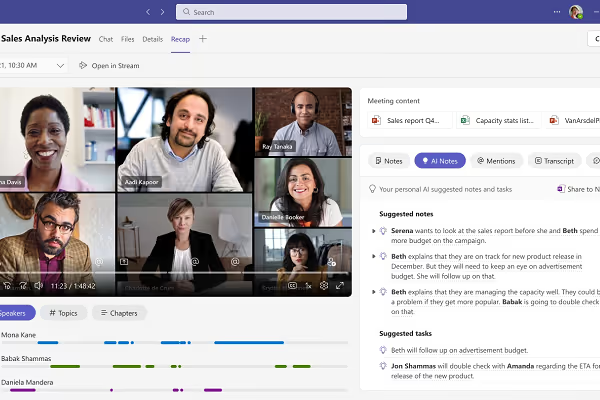
Microsoft integreert nu niet alleen een functie voor handmatige notities, maar ook AI-gestuurde live transcriptiemogelijkheden.
In deze handleiding leer je precies hoe de ingebouwde notitiefunctie van Microsoft Teams werkt en hoe je deze correct instelt.
Hoe werkt de notitiefunctie van Microsoft Teams

Teams biedt een functie genaamd "Vergadernotities" (of recenter "Notities" binnen de vergadering) waarmee je een agenda kunt toevoegen, kernpunten kunt noteren tijdens het gesprek en vervolgacties kunt toewijzen—alles binnen hetzelfde platform.
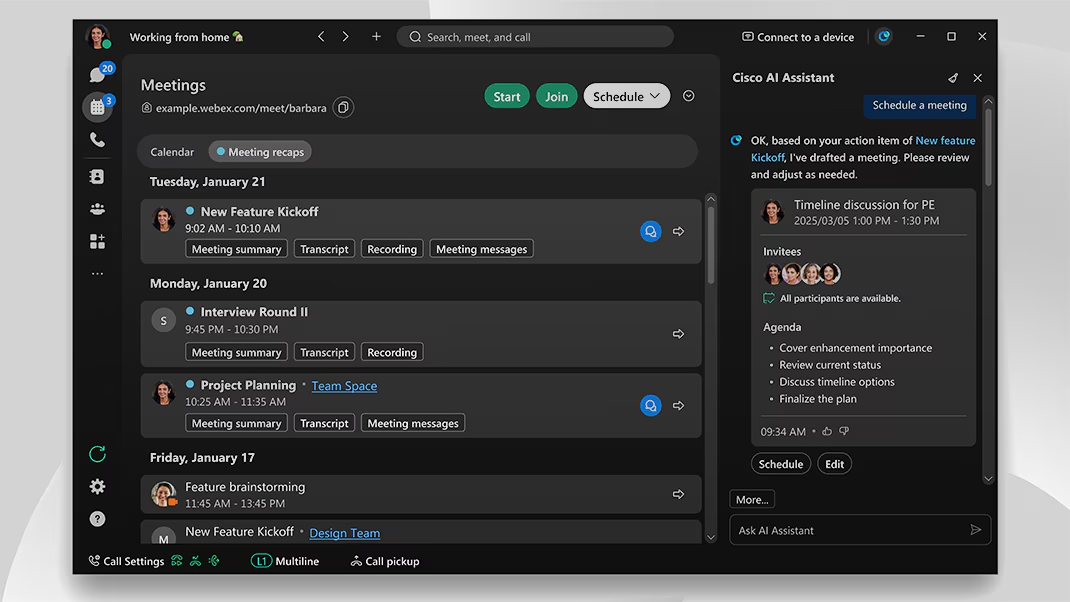
Sinds 2024 is daar zelfs AI-gestuurde samenvatting, transcriptie, het vastleggen van actiepunten en samenvattingsfuncties via Microsoft Copilot en Intelligent Recap aan toegevoegd.
Belangrijkste functies
- Voor de vergadering: Tijdens het plannen in Teams kun je "Agenda toevoegen" selecteren (soms aangeduid als "Vergadernotities/Agenda" of "Een agenda toevoegen die iedereen kan bewerken"), zodat je vergadering begint met een document dat klaar is voor notities.
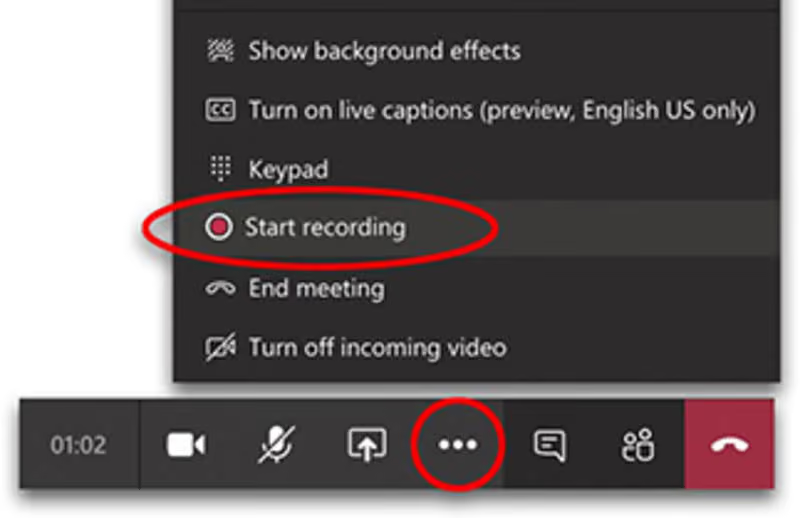
- Tijdens de vergadering: Klik in het Teams-vergadervenster op het tabblad "Notities" of open dit via de werkbalk van de vergadering. Je kunt agendapunten toevoegen, live notities maken, deelnemers taggen met
@vermeldingen kernpunten omzetten in taken. Dankzij de rechten kunnen deelnemers in realtime samenwerken. - Na de vergadering: Notities worden opgeslagen bij het verslag van de vergadering. Je kunt ze terugvinden via de Teams-agenda → eerdere vergadering → Details → Notities (of Samenvatting). Je notitiedocument blijft gekoppeld aan de context van de vergadering, waardoor het later doorzoekbaar en toegankelijk is.
Je notitiefunctie in Teams instellen
- Vergadernotities / Agenda inschakelen in je vergaderuitnodiging
Wanneer je een vergadering plant in de Teams-agenda, klik je op “Agenda toevoegen” (dit kan ook worden weergegeven als “Vergadernotities” of “Een agenda toevoegen die anderen kunnen bewerken”). Van daaruit kun je, of kunnen deelnemers, agendapunten, taken of notities toevoegen voordat de vergadering begint. - Tijdens de vergadering: Ga naar het tabblad Notities
Wanneer je deelneemt aan de vergadering, vind je een “Notities” -optie in de werkbalk of in de vergaderchat. Klik hierop om een venster te openen waar je live notities kunt toevoegen, mensen kunt taggen via@vermeldingen taken kunt toewijzen. - Na de vergadering: Je notities terugvinden
Notities worden automatisch opgeslagen in de context van de vergaderchat. Om ze later te bekijken: ga naar je agenda, selecteer de vergadering, vouw de Details uit en selecteer vervolgens Notities (of Samenvatting als je AI-samenvatting hebt ingeschakeld). - Licenties en beschikbaarheid van functies controleren
Sommige geavanceerde notitiefuncties, zoals door AI gegenereerde samenvattingen via Recap, vereisen specifieke Microsoft 365-licenties (bijv. Teams Premium of Copilot).
Teams-notitiefunctie instellen en problemen oplossen
Hieronder vind je een praktische handleiding om je te helpen zorg dat alles soepel verloopt, zodat je notulen betrouwbaar en actiegericht zijn.
🛠 Veelvoorkomende problemen & hoe je ze oplost
Probleem 1: Het tabblad of de optie "Notities" ontbreekt tijdens of na de vergadering
Dit komt vaker voor dan je zou willen. Een gebruiker meldde bijvoorbeeld dat de optie voor notulen verdwijnt wanneer een vergadering in een kanaal wordt gepland in plaats van in de persoonlijke agenda van de organisator.
Wat je moet doen:
- Probeer over te schakelen naar de vergaderchat (tabblad Chat) en zoek daar naar de notities.
- Controleer of de vergadering niet is ingesteld op basis van een kanaalsjabloon waarbij het maken van notities is uitgeschakeld.
- Leeg de cache van Teams of installeer de Teams-app opnieuw als het tabblad wel verwacht wordt, maar niet verschijnt.
Probleem 2: Andere deelnemers kunnen de notities niet openen of bewerken
Misschien maak jij de notities, maar kunnen anderen in de vergadering (zelfs uit je eigen team) deze niet bekijken of aanvullen.
Wat je moet doen:
- Controleer de rechteninstellingen in de vergaderuitnodiging: alleen mensen die waren uitgenodigd op het moment dat het notitiegedeelte werd aangemaakt, hebben toegang.
- Houd er rekening mee dat externe gasten of deelnemers van andere tenants mogelijk beperkte toegang hebben door het ontwerp van het systeem.
- Vraag de organisator om de toegang te beheren via de vergaderchat of het OneDrive/Loop-bestand dat aan de notities is gekoppeld.
Probleem 3: Notities zijn zichtbaar, maar worden niet gesynchroniseerd of actiepunten verschijnen niet
Sommige gebruikers merken dat het notitiesysteem wel een pagina of tabblad aanmaakt, maar dat taken of actiepunten niet op de juiste plek verschijnen.
Wat je moet doen:
- Controleer of je To Do- of Planner-app correct is gekoppeld en gesynchroniseerd als je taaktoewijzingen vanuit notities gebruikt.
- Controleer of je de notities in de juiste context (vergaderchat) bekijkt en niet via een verouderd tabblad of een oude link.
- Overweeg een sjabloon voor je notities te maken met duidelijk gedefinieerde secties voor "Besluiten" en "Actiepunten", zodat er niets verloren gaat.
Gestructureerd en actiegericht notities maken in Microsoft Teams
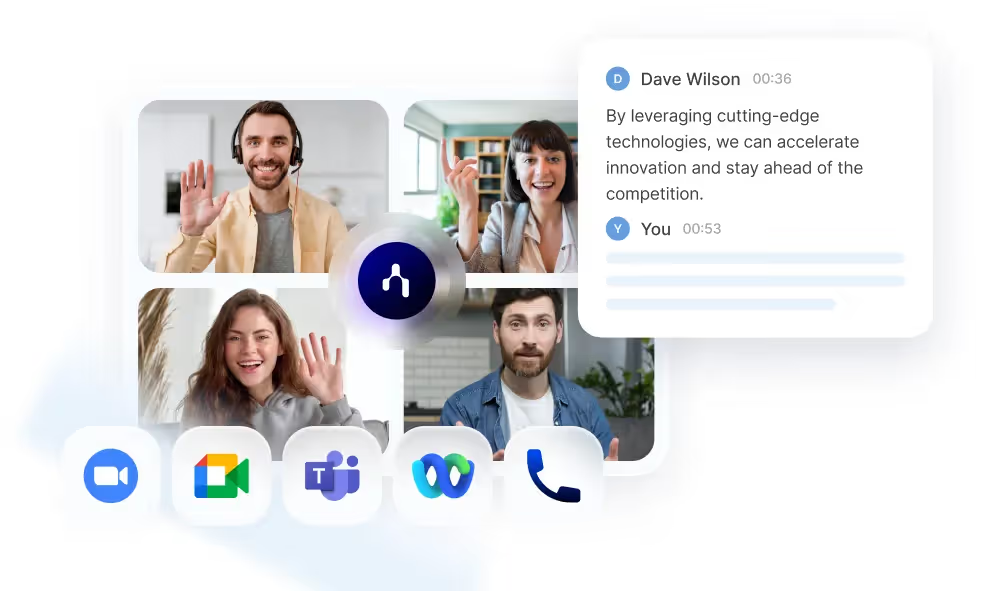
Handmatig notities maken in Teams kan leiden tot onvolledige en ongestructureerde verslagen. Dat is waar Noota van pas komt:
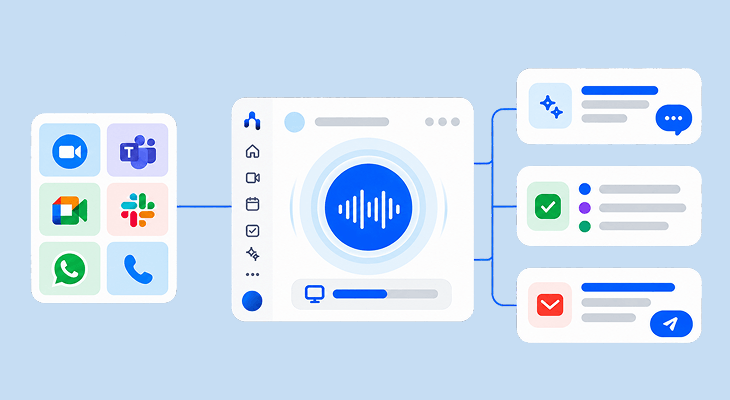
- Het integreert rechtstreeks met Teams, waardoor vergadersessies automatisch worden opgenomen, getranscribeerd en samengevat.
- Je ontvangt volledige transcripties, inclusief gemarkeerde besluiten, vervolgstappen en wie wat heeft gezegd.
- Je kunt een aangepast samenvattingssjabloon kiezen dat past bij jouw workflow, of het nu gaat om interviewverslagen, overleggen met het management of projectevaluaties.
- De output kan worden geëxporteerd, gedeeld en opgeslagen in je bestaande systemen, zodat vergaderverslagen niet geïsoleerd in Teams blijven staan.
Wil je gestructureerde, actiegerichte notities van je Teams-vergaderingen? Probeer Noota nu gratis.
Maak kennis met de auteur
.avif)
Adesh explores how teams can better capture knowledge and collaborate more effectively with AI.
Veelgestelde vragen
Klik bij het plannen van een vergadering op 'Agenda toevoegen', open tijdens de meeting het 'Notities'-tabblad en start live notities. Teams slaat alles automatisch op.
- Selecteer 'Agenda toevoegen' in Teams Calendar
- Klik 'Notities'-tab tijdens vergadering
- Notities worden automatisch opgeslagen en gelinkt
Meeting Notes zijn handmatige aantekeningen die je live maakt, terwijl Recap AI-gegenereerde samenvattingen, transcripties en actiepunten automatisch creëert na de meeting.
- Notes: handmatig, real-time, collaboratief
- Recap: AI-aangedreven, automatisch, vereist licentie
- Beide blijven gekoppeld aan vergaderingscontext
Noota bespaard 6,4 uur/week en reduceert admin met 80% door universele integratie, 80+ talen en 4,9/5 G2-rating. Teams-notities werken alleen binnen Teams; Noota werkt overal.
- Noota: 6,4u/week bespaard, -80% admin
- Teams: beperkt tot Teams-platform
- 5000+ teams vertrouwen Noota al
Noota is ideaal: automatische transcriptie in 80+ talen, AI-samenvattingen en actiepunten in seconden. Perfect voor globale teams die tijd willen besparen. Probeer Noota gratis — geen creditcard vereist.
- Ondersteunt 80+ talen automatisch
- Genereert samenvattingen en actiepunten
- Integreert met alle platforms