Bronnen & Productiviteit
8 min leestijd
Updated on:
Nov 4, 2025
YouTube-transcriptie: de beste methode
Wil je een YouTube-video transcriberen? Zo doe je dat
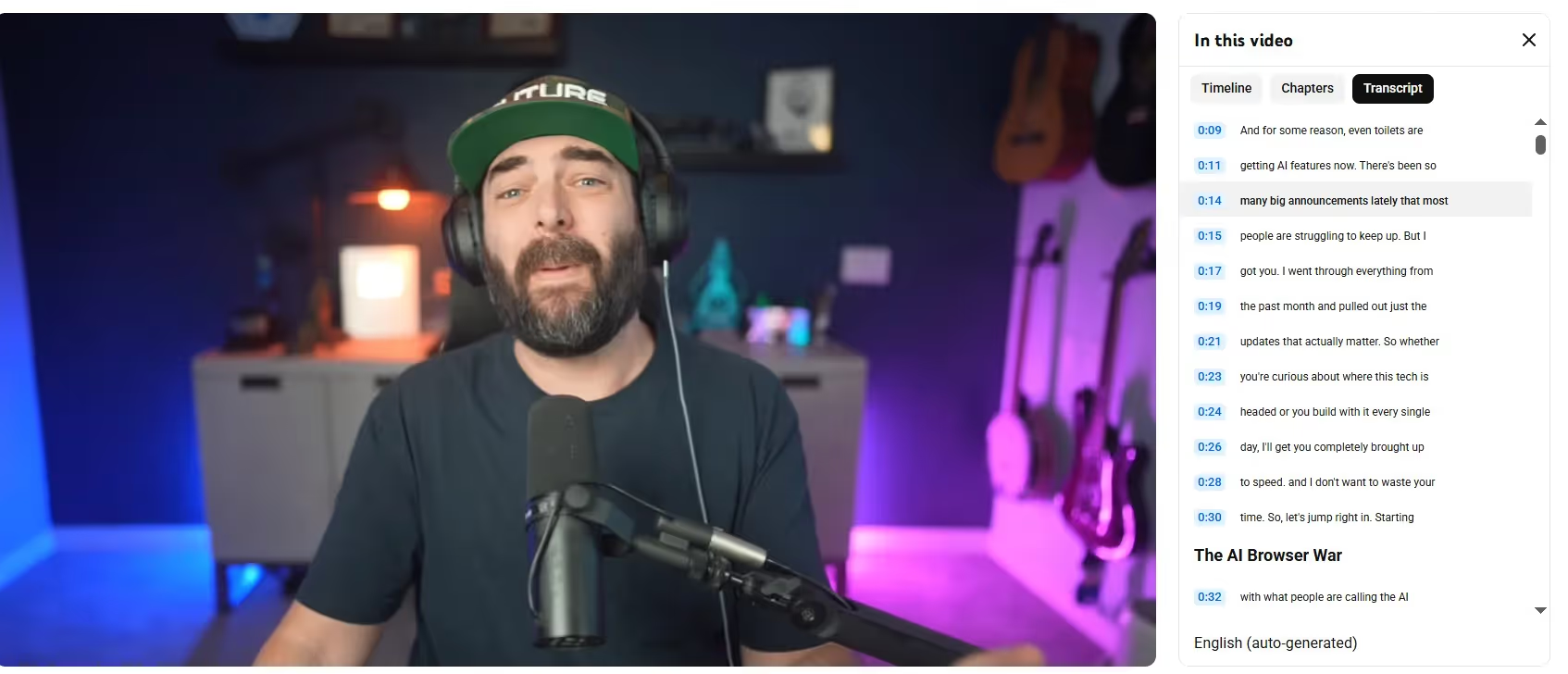
Met YouTube-videotranscripten kun je belangrijke ideeën markeren en sneller inzichten delen.
Het goede nieuws? YouTube biedt al een ingebouwde transcriptiefunctie
In deze handleiding leer je hoe je snel toegang krijgt tot de transcripten van YouTube zelf, en ontdek je andere tools om nog meer uit YouTube te halen.
Zo krijg je eenvoudig toegang tot het transcript van een YouTube-video
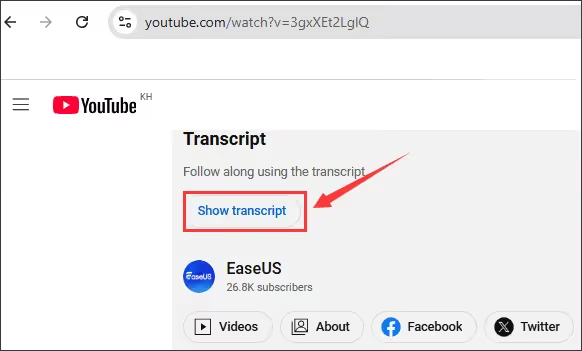
YouTube biedt een ingebouwde transcriptiefunctie die vaak met slechts één klik toegankelijk is.
Stappenplan voor desktop
- Open de video die je wilt bekijken op YouTube.
- Klik onder het videovenster op het menu met de drie puntjes Meer (soms aangeduid als "…") en selecteer vervolgens "Transcript weergeven".
- Er verschijnt een transcriptievenster rechts van de video (of eronder, afhankelijk van de grootte van je venster). Hierin wordt de gesproken tekst getoond, vaak met tijdstempels.
- Gebruik het vervolgkeuzemenu bovenaan het transcriptievenster (indien beschikbaar) om een andere taalversie te selecteren, als de video die aanbiedt.
- Als je de tekst wilt kopiëren, klik dan op het menu met de drie puntjes in het transcriptievenster en kies "Tijdstempels in-/uitschakelen" om de tijdsaanduidingen te verwijderen. Kopieer vervolgens de tekst en plak deze in het document van je keuze.
Zo doe je het op mobiel
- Open de YouTube-app op iOS of Android en ga naar de video.
- Tik op het Meer -knop (vaak drie puntjes onder de videobeschrijving) en kies vervolgens “Transcriptie weergeven” als deze verschijnt.
- Let op: op mobiele apparaten kan het kopiëren van de transcriptietekst lastiger zijn of soms zelfs onmogelijk, afhankelijk van het apparaat of de versie van de app.
Problemen met YouTube-transcripties oplossen
Hier zijn veelvoorkomende problemen waar je tegenaan kunt lopen — en hoe je ze kunt oplossen zodat je transcriptiewerkstroom betrouwbaar blijft.
📌 Veelgestelde vragen
- Waarom verschijnt de optie “Transcriptie weergeven” niet bij sommige video's?Sommige video's hebben deze functie niet omdat er geen ondertiteling is ingeschakeld, de uploader transcripties heeft uitgeschakeld of het proces voor automatische ondertiteling van YouTube nog niet is voltooid.
- Waarom staat de transcriptie vol fouten, ontbreken er stukken of is deze onnauwkeurig?
Automatisch gegenereerde transcripties zijn afhankelijk van helder geluid, goede ondersteuning voor spraakherkenning en de taal van de video. Als de audiokwaliteit slecht is of als er meerdere sprekers of achtergrondgeluiden zijn, kan de transcriptie onbetrouwbaar zijn. - Kan ik de transcriptie downloaden of netjes kopiëren?
YouTube biedt geen directe optie om een transcriptie te downloaden. Je moet vaak de tijdstempels uitschakelen en vervolgens de tekst handmatig kopiëren en in je systeem plakken. - Waarom werken transcripties wel op desktop maar niet op mobiel (of andersom)?
De mobiele app toont soms de opdracht “Transcriptie weergeven” niet, vooral in oudere versies. Veel gebruikers vinden de desktopversie betrouwbaarder.
🛠 Veelvoorkomende problemen oplossen
Probleem #1: Knop “Transcriptie weergeven” ontbreekt
Zie je de optie niet in het menu met de drie puntjes bij de video of bij de beschrijving?
- Controleer of ondertiteling/CC is ingeschakeld voor de video. Bij video's zonder ondertiteling is vaak geen transcript beschikbaar.
- Gebruik de desktopbrowser in plaats van de mobiele app, of dwing de mobiele browser in de modus "desktopversie" — veel gebruikers melden dat de knop in de app verdwijnt.
- De uploader heeft transcripten mogelijk volledig uitgeschakeld, of je bekijkt een erg lange of complexe video die de automatische ondertitelingsfunctie nog niet kon verwerken.
Probleem #2: Transcript bestaat wel, maar de tekst ontbreekt of is onleesbaar
Als je het transcript wel kunt openen, maar het is onvolledig, rommelig of staat vol fouten:
- Controleer en corrigeer belangrijke delen handmatig — zeker als je van plan bent het transcript te hergebruiken of te delen.
- Controleer of de video achtergrondmuziek, overlappende stemmen of accenten bevat die de nauwkeurigheid verminderen. Is dat het geval, vertrouw dan meer op luisteren en handmatige annotatie.
- Gebruik als back-up een externe tool of exporteer de audio om deze extern te laten transcriberen als nauwkeurigheid cruciaal is.
Probleem #3: Gekopieerd transcript bevat nog tijdstempels of ongewenste opmaak
Wanneer je het transcript kopieert en de tijdstempels of regeleinden de leesbaarheid in de weg staan:
- Gebruik in het transcriptvenster de “Tijdstempels in-/uitschakelen” optie (indien beschikbaar) voordat je kopieert om de tijdscodes te verwijderen.
- Plak de tekst in je notitieprogramma (Word, Google Docs, Notion) en gebruik de zoek-en-vervangfunctie om eventuele resterende tijdmarkeringen te verwijderen.
- Hanteer een naamgevingsconventie of koptekst in je document zodat je het later makkelijk terugvindt (bijv. Videotitel – Datum – Onderwerp).
Probleem #4: Zoeken of terugvinden van transcripten is lastig
Als je transcripten hebt opgeslagen maar ze niet kunt vinden wanneer je ze nodig hebt:
- Voeg uitgebreide metadata toe: videotitel, maker, datum, URL, onderwerp en trefwoorden.
- Sla het transcript op in een doorzoekbare database (bijvoorbeeld je notitie-app of kennisbank) en voorzie het van de juiste tags.
- Gebruik consistente bestandsnamen of notebooksecties, zodat je altijd weet waar je transcripten staan.
De beste YouTube-videotranscriber: Noota
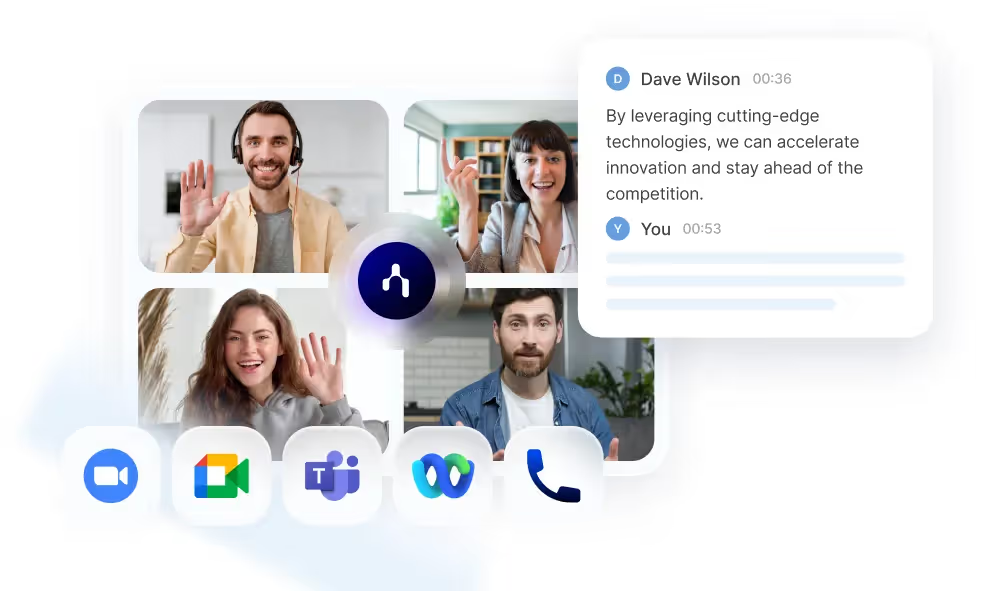
Noota zet YouTube-video's (en audio) om in volledig doorzoekbare, bewerkbare tekst.
Zo werkt het:
- Genereert gestructureerde transcripten — niet zomaar platte tekst, maar versies die je kunt bewerken, markeren, annoteren en exporteren.
- Biedt samenvattingen, belangrijkste inzichten en actiepunten uit de video-inhoud — zodat je minder tijd kwijt bent aan lezen en meer tijd overhoudt voor actie.
- Ondersteunt meerdere talen (30+ of in sommige gevallen zelfs 50+), zodat je in internationale contexten kunt werken zonder nuances te verliezen.
- Integreert met je huidige tools — je kunt transcripten direct importeren in je CRM, notitiesysteem of samenwerkingsplatform.
Wil je alle inzichten uit je YouTube-video's halen? Probeer Noota nu gratis.
Maak kennis met de auteur
.avif)
Adesh explores how teams can better capture knowledge and collaborate more effectively with AI.
Veelgestelde vragen
Open de video, klik het drie-puntenmenu onder het videoscherm en selecteer 'Transcript weergeven'. De transcriptie verschijnt rechts of onder de video met tijdstempels.
- Werkt op desktop en mobiel
- Vereist ingeschakelde ondertitels
- Automatisch gegenereerd door YouTube
Dit gebeurt als ondertitels uitgeschakeld zijn, de uploader transcripties blokkeerde, of YouTube's auto-caption nog niet klaar is. Desktop-versie werkt meestal betrouwbaarder dan mobiele app.
- Controleer of CC-ondertitels beschikbaar zijn
- Probeer desktop-browser in plaats van app
- Wacht tot YouTube transcriptie heeft verwerkt
Noota transcribeert automatisch alle vergaderingen en interviews met 80+ talen, 4,9/5 G2-rating en -80% administratie. YouTube's feature mist context, sprekeridentificatie en real-time samenvatting die Noota biedt.
- Noota: automatisch, meertalig, intelligent
- YouTube: handmatig, basis, geen analyse
- 5000+ teams vertrouwen Noota al
Noota is ideaal voor teams die 6,4 uur per week willen besparen op transcriptie en notities. Automatische transcriptie, sprekerherkenning en AI-samenvattingen in 80+ talen—geen creditcard nodig. Probeer Noota gratis
- Bespaar 80% administratieve tijd
- Ondersteunt 80+ talen automatisch
- 4,9/5 rating van 5000+ teams