Integrationen
8 Min. Lesezeit
Updated on:
Nov 4, 2025
Notizen in Pipedrive: So funktionieren sie
Sie möchten Notizen in Pipedrive erstellen? So funktioniert es.
Wenn Sie Pipedrivenutzen, bietet Ihnen Ihr CRM bereits den perfekten Ort, um alle Notizen zu Ihren Deals, Kontakten und Unternehmen zu speichern.
Doch wie nutzen Sie diese Funktion effizient, damit Ihre Notizen Ihnen tatsächlich helfen, mehr Deals abzuschließen?
In diesem Leitfaden erfahren Sie, wie Sie Notizen in Pipedrive hinzufügen und organisieren, wie Sie häufige Probleme beheben und wie Sie mit Tools, die Ihre Gesprächsnotizen automatisieren, Zeit sparen.
So fügen Sie Notizen in Pipedrive hinzu
Wenn Sie Pipedrive verwenden, sollte jeder Deal, jeder Kontakt und jedes Unternehmen die Historie Ihrer Interaktionen widerspiegeln.
Schritt-für-Schritt: Eine Notiz zu einem Deal, einer Person oder einem Unternehmen hinzufügen
- Öffnen Sie die Detailansicht des Deals, der Person oder des Unternehmens, an dem Sie arbeiten.
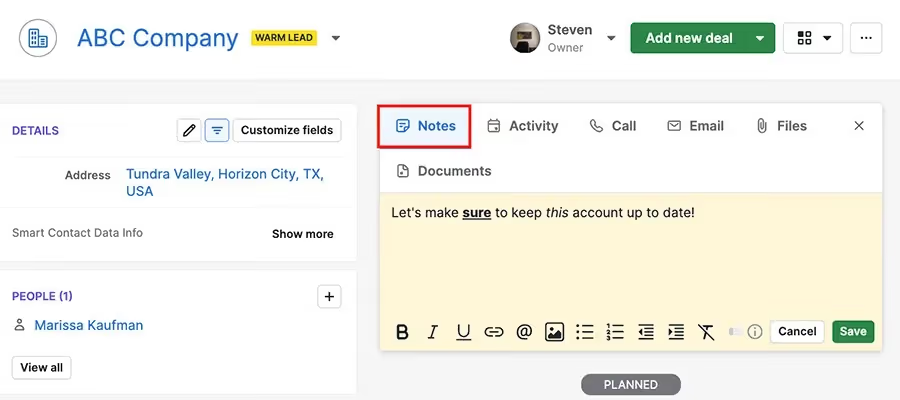
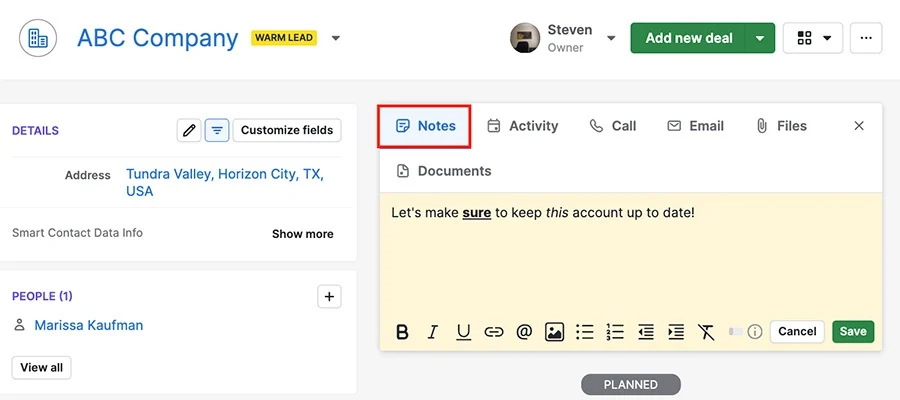
- Klicken Sie auf den „Notizen“ -Reiter (diesen finden Sie meist oben rechts in der Detailansicht).
- Klicken Sie auf „Notiz hinzufügen“ , um einen neuen Eintrag zu erstellen. (Auf manchen Bildschirmen klicken Sie stattdessen auf „+ Notiz hinzufügen“.)
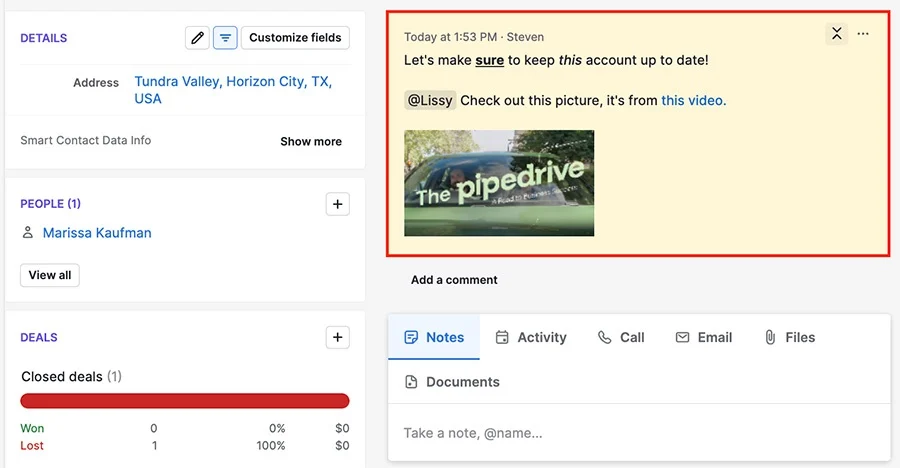
- Geben Sie Ihren Text ein. Sie können ihn formatieren (fett, kursiv, Aufzählungszeichen/Nummerierungen, Einrückungen) sowie Links oder Bilder einbetten.
- Verwenden Sie das
@-Symbol, um bei Bedarf einen Teamkollegen zu erwähnen. Dies sendet eine Benachrichtigung an die Person und fördert die Zusammenarbeit im Team. - Klicke nach Abschluss auf Speichern. Die Notiz erscheint in der Detailansicht des Elements unter dem Abschnitt „ERLEDIGT“ oder einem ähnlichen Bereich.
- Optional: Pinne die Notiz, damit sie in der Detailansicht immer ganz oben in der Liste steht. So bleiben wichtige Notizen stets im Blick.
Best Practices für Dich
- Wähle den passenden Datensatztyp für deine Notiz: Wenn sich die Diskussion auf einen bestimmten Deal bezieht, verknüpfe sie mit dem Deal; wenn es allgemein um eine Kontaktperson oder ein Unternehmen geht, verknüpfe sie mit der Person oder Organisation.
- Verwende innerhalb deiner Notizen einheitliche Bezeichnungen oder Tags, damit du sie später leicht wiederfindest. Zum Beispiel: „Anruf mit X – Budgetprüfung“ oder „E-Mail-Nachverfolgung Y“.
- Pinne nur ein oder zwei Notizen pro Datensatz – etwa die aktuellste Entscheidung oder die nächsten Schritte –, damit dein Team den Status auf einen Blick sieht.
- Nutze die Erwähnungsfunktion (
@Kollege), wenn du jemandem eine Aufgabe zuweist oder auf einen Folgeschritt hinweist, um aus passiven Informationen aktive Aufgaben zu machen. - Füge Links oder Anhänge (Screenshots, Dokumente) hinzu, wenn es sinnvoll ist – so bündelst du Informationen und ersparst dir und deinem Team langes Suchen.
Pipedrive Notizen FAQ & Fehlerbehebung
Hier finden Sie Antworten auf häufig gestellte Fragen, die Sie möglicherweise haben, sowie konkrete Tipps zur Fehlerbehebung, damit Ihre Notizenverwaltung reibungslos funktioniert.
📌 Häufig gestellte Fragen
F: Wie groß darf eine Notiz sein und wie viele kann ich an einen Deal anhängen?
A: Notizen in Pipedrive haben eine Größenbeschränkung von jeweils etwa 100 kB. Zudem kann ein einzelner Deal nach aktuellem Stand bis zu 100 Notizen enthalten.
F: Kann ich Teamkollegen erwähnen oder Kommentare zu Notizen hinzufügen?
A: Ja – Sie können @-Erwähnungen innerhalb von Notizen verwenden, um Kollegen zu markieren. Dies löst eine Benachrichtigung aus und ermöglicht die Kommentarfunktion.
F: Was ist mit Audionotizen oder dem Scannen von Notizen auf dem Mobilgerät?
A: In den mobilen Apps können Sie Audionotizen aufnehmen und sogar Transkriptionsfunktionen nutzen. Außerdem gibt es unter Android einen „Notizen-Scanner“, mit dem Sie handschriftliche Notizen per Kamera erfassen und in eine digitale Notiz umwandeln können.
F: Was passiert, wenn ich Integrationen oder Automatisierungen zum Hinzufügen von Notizen verwende?
A: Wenn Probleme auftreten (z. B. Formatierungen werden nicht übernommen oder Notizinhalte werden ignoriert), kann dies an Einschränkungen der API oder der Automatisierung liegen.
🔧 Häufige Probleme & was Sie tun können
Problem 1: Limit für Notizgröße oder -anzahl erreicht
Wenn das Speichern einer Notiz fehlschlägt, könnte dies daran liegen, dass die Obergrenze von 100 kB überschritten wurde oder der Deal bereits die maximale Anzahl an Notizen enthält. Lösung: Teilen Sie umfangreiche Inhalte in mehrere Notizen auf oder archivieren bzw. löschen Sie alte Notizen, die Sie nicht mehr benötigen.
Problem 2: Formatierung wird nicht übernommen oder fehlerhafte Anzeige
Wenn eingefügter Rich-Text (mit Zeilenumbrüchen, Fett- oder Kursivdruck) nicht korrekt angezeigt wird, prüfen Sie, ob das Feld für Notizinhalte HTML oder bestimmte Formatierungen unterstützt. Integrationen wie Zapier weisen beispielsweise darauf hin, dass das Feld „Note Content“ HTML akzeptiert – für Zeilenumbrüche, Fett- oder Kursivdruck können Sie also HTML-Tags verwenden. Wenn SieNotizinhalte einfügen oder automatisieren, testen Sie die Formatierung vorab oder verwenden Sie reinen Text.
Problem 3: Erwähnungen oder Kommentare lösen keine Benachrichtigungen aus
Manchmal markieren Sie jemanden mit @ , aber die Person erhält keine Benachrichtigung. Überprüfen Sie, ob die Benachrichtigungseinstellungen korrekt sind (unter Einstellungen → Benachrichtigungen). Stellen Sie außerdem sicher, dass Sie die Markierung innerhalb einer Notiz vornehmen (nicht in einer Aktivität) – bei Erwähnungen für Leads kann es Einschränkungen geben.
Problem 4: Audionotizen oder Scannen funktionieren auf Mobilgeräten nicht
Wenn eine Audionotiz nicht aufgenommen oder transkribiert wird, überprüfen Sie die App-Berechtigungen (Mikrofon, Spracherkennung) Ihres Geräts. Stellen Sie bei Android sicher, dass die Pipedrive-App Zugriff auf die Kamera hat, um handschriftliche Notizen zu scannen.
Problem 5: Notizen erscheinen nicht an der erwarteten Stelle
Wenn Sie eine Notiz hinzufügen, diese aber unter „Erledigt“ oder in einem alten Abschnitt erscheint und Sie sie nicht finden können, sollten Sie sie anpinnen oder die Suchfunktion nutzen. Die Benutzeroberfläche von Pipedrive zeigt standardmäßig „Neueste zuerst“ an. Verwenden Sie das „…“-Menü neben einer Notiz, um sie anzupinnen oder zu löschen, damit sie oben bleibt.
Automatische Anrufnotizen in Pipedrive: Noota

Sie möchten sich das manuelle Mitschreiben bei all Ihren Anrufen sparen? Hier kommt ein Automatisierungstool wie Noota ins Spiel:
- Zeichnen Sie jedes Gespräch auf (Zoom, Google Meet, Teams, Telefon) und lassen Sie ein Transkript sowie eine Zusammenfassung erstellen.
- Erstellen oder aktualisieren Sie automatisch einen Deal oder Kontakt in Pipedrive basierend auf den Teilnehmern.
- Wählen Sie aus, welche Teile des Meetings als CRM-Notiz gespeichert werden sollen – so sieht Ihr Team das Wesentliche (Aktionen, Entscheidungen, nächste Schritte).
So können Sie die Einrichtung vornehmen
- Gehen Sie in Ihrem Noota-Konto auf den Tab „Integrationen“ und suchen Sie nach Pipedrive. Klicken Sie auf Aktivieren.
- Autorisieren Sie den Zugriff von Noota auf Pipedrive. Die Berechtigungen umfassen den vollständigen Zugriff auf Deals, Kontakte, Notizen und Anhänge.
- Konfigurieren Sie in den Noota-Einstellungen, wie Zusammenfassungen strukturiert sein sollen und an welche Felder oder Deal-Typen die Notiz gesendet werden soll. Passen Sie dies individuell an Ihren Workflow an.
- Nach Ihrem nächsten Anruf oder Meeting erfasst Noota das Gespräch, erstellt eine Zusammenfassung und sendet die Notiz automatisch an Pipedrive – direkt verknüpft mit dem richtigen Datensatz.
- In Pipedrive finden Sie die Notiz im Bereich „Notizen“ des jeweiligen Deals oder Kontakts. Sie oder Ihr Team können diese anschließend prüfen, kommentieren, Aufgaben markieren oder zuweisen.
Sie möchten automatisierte Notizen in Pipedrive? Jetzt kostenlos testen.
Über den Autor
.webp)
FAQ
Öffnen Sie die Detail-Ansicht, klicken Sie auf "Notizen", dann "Notiz hinzufügen" und speichern Sie Ihren Text.
- Formatierung mit Bold, Kursiv, Listen möglich
- Kollegen mit @ erwähnen für Benachrichtigungen
- Links und Bilder einfügen zur Konsolidierung
Jede Notiz in Pipedrive kann bis zu 100 kB groß sein. Pro Deal sind maximal 100 Notizen speicherbar.
- Größenlimit schützt vor Performance-Problemen
- Ausreichend für Text, Links und Screenshots
- Ältere Notizen archivieren bei Bedarf
Noota automatisiert Anrufnotizen vollständig und spart 6,4h/Woche – Pipedrive erfordert manuelles Schreiben. Mit Noota entfallen 80% der Admin-Arbeit durch KI-Transkription und automatische CRM-Integration.
- Noota: Automatische Notizen aus Calls, 4,9/5 G2-Rating
- Pipedrive: Manuelle Eingabe, keine Automatisierung
- Noota speichert direkt in Pipedrive – beste Kombination
Noota ist die beste Lösung: Transkribiert Calls automatisch, erstellt Notizen und speichert sie direkt in Pipedrive. 5000+ Teams vertrauen Noota für zeitsparende Dokumentation.
- 80+ Sprachen unterstützt, 6,4h/Woche gespart
- Automatische Zusammenfassungen und Action Items
- Noota kostenlos testen – keine Kreditkarte erforderlich