Resources & Productivity
8 min reading
Updated on:
Mar 31, 2025
How to Record a Call on Android: Step-by-Step Guide
You want to know how to record a call on Android ? Here's your guide.
You’re on an important call. You hang up—and realize you forgot half of what they said.
Recording calls on Android can save you from these moments.
In this guide, we’ll show you exactly how to record a call on Androi with built-in tools, fix common recording issues, and explore the best third-party apps.
Let’s dive in.
How to Record a Call with Android’s Built-in Features (Step by Step)
Some Android phones come with a native call recording feature built right into the Phone app. But whether it’s available or not depends on your phone model, Android version, and your location.
Step 1: Check if your phone supports built-in call recording
Not every Android phone offers this feature. It’s commonly found on:
- Google Pixel (in some regions)
- Samsung Galaxy devices
- Xiaomi, OnePlus, and Oppo phones
Some carriers or countries block the feature for legal reasons. So if you don’t see the option, don’t panic—it might simply be unavailable where you are.
Step 2: Open your Phone app
Use the default Phone app that came with your device. Third-party dialers won’t have this built-in function.
Start a new call or answer an incoming one. Look at your screen while the call is active.
Step 3: Look for the “Record” button
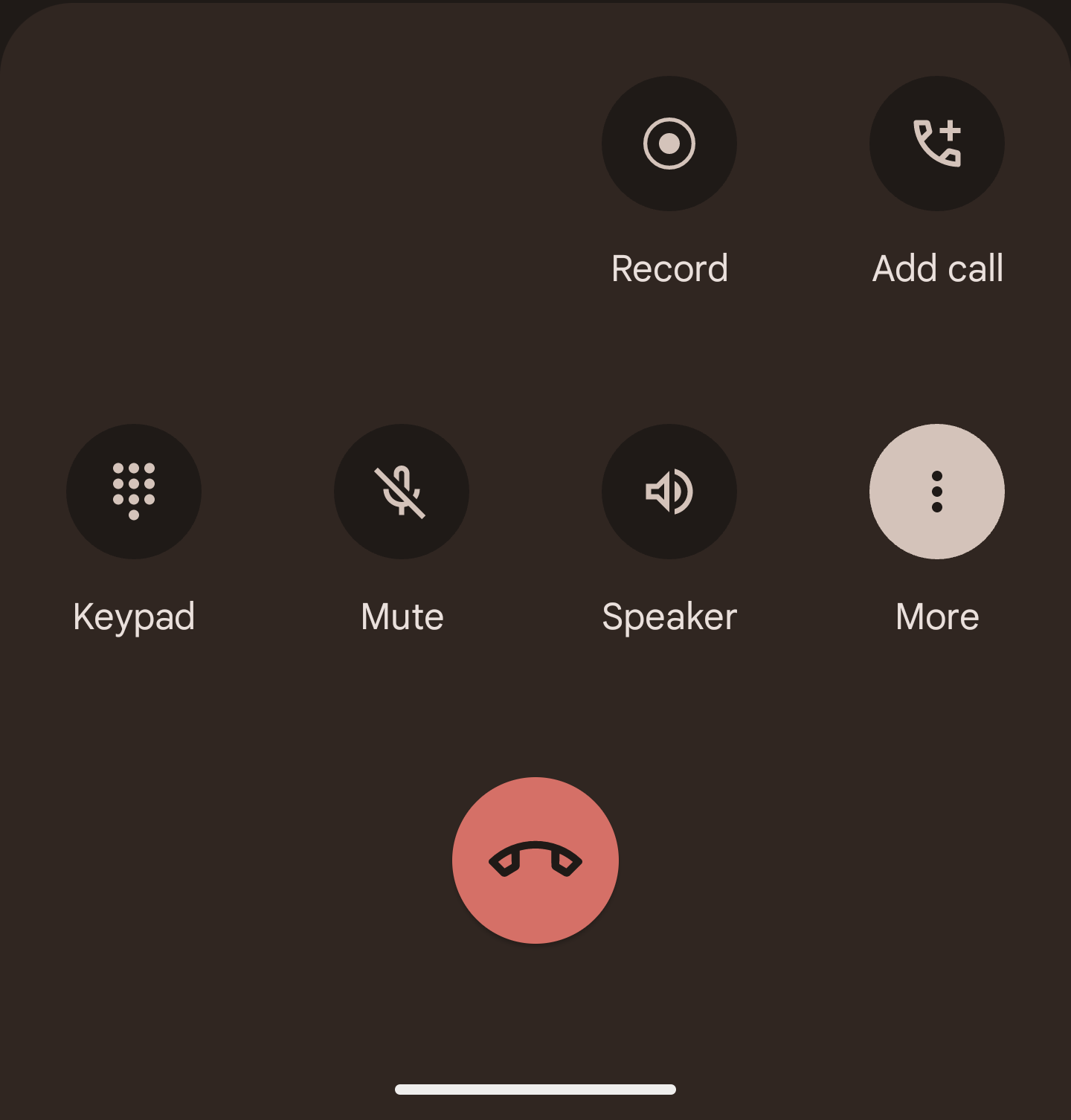
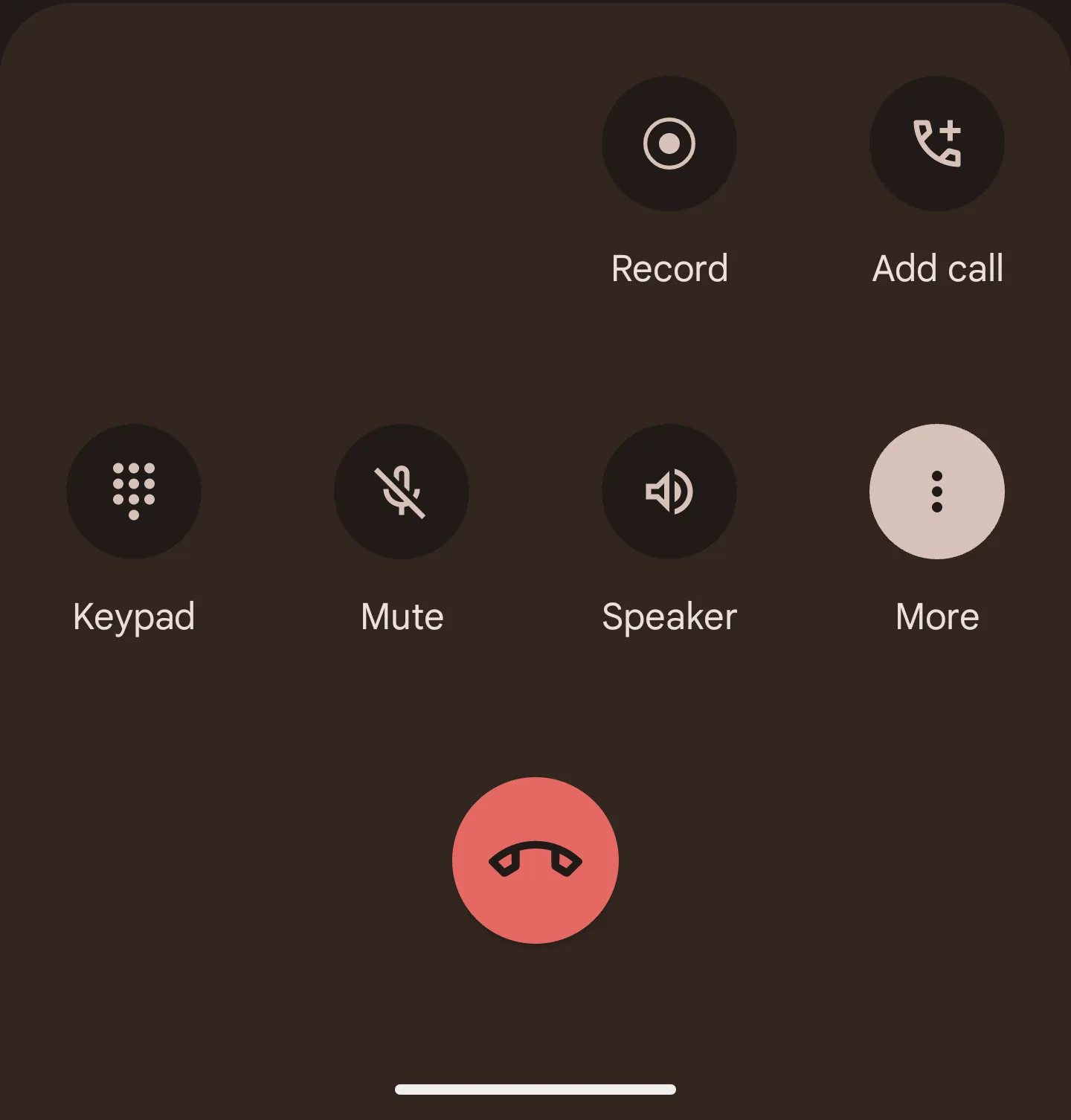
If recording is supported, you’ll see a Record button on your in-call screen. It’s usually near the bottom or hidden in the three-dot menu.
To start recording:
- Tap Record.
- You may hear a voice alert saying the call is being recorded (this is required in some regions).
- To stop recording, tap the Stop button or end the call.
That’s it. Your call is now saved.
Step 4: Access your recordings
Once your call ends, your device stores the recording automatically.
To find it:
- Open your Phone app.
- Tap Recent calls or go to the Call History.
- Select the recorded call and tap Play.
- You can also find recordings in your File Manager under Recordings or CallRecordings.
The exact folder name may vary by device.
What if you don’t see the option?
Don’t worry. You’re not out of luck. If your phone doesn’t support native call recording, you can still use third-party apps like Noota Call, Cube ACR, or Automatic Call Recorder. These apps often provide even more features than the built-in tool.
We’ll walk you through those options in section 3.
Android Call Recorder Troubleshooting

Trying to record a call but something’s not working? You’re not alone. Android call recording can be tricky, especially with different phone models, Android versions, and local regulations in the mix.
Here are the most common problems—and how to fix them quickly.
Problem 1: There’s no “Record” button on my call screen
This is the most common issue. If you can’t find the “Record” option during a call, your device may not support native call recording. Here’s what you can do:
- Check your device model. Pixel, Samsung, Xiaomi, and OnePlus phones are more likely to support call recording.
- Check your region. Some countries (and carriers) disable recording due to privacy laws. If you’re in a restricted region, the feature might be blocked completely.
- Update your Phone app. Go to the Google Play Store and check if there’s an update available for your Phone app.
- Try the default dialer. If you’re using a third-party calling app, switch back to the built-in dialer. Recording only works in the default app.
If it’s still not available, consider using an external app (see Section 3 for options).
Problem 2: The recording didn’t save
You tapped “Record,” had the conversation, but can’t find the audio file. Here’s what to check:
- Open your Phone app and go to recent calls. Tap on the recorded call to see if the playback option appears.
- Look in your file manager. Go to the internal storage folder named “CallRecordings” or “Recordings.” Some phones save files here instead of inside the Phone app.
- Check app permissions. If your Phone app doesn’t have storage permissions, it might not be saving the file. Go to Settings > Apps > Phone > Permissions and make sure storage is enabled.
Problem 3: Poor audio quality in recordings
Can’t hear the other person clearly? That’s usually due to how Android handles call audio for privacy reasons.
Try this:
- Use speakerphone during the call. It captures better sound from both sides.
- Avoid Bluetooth headsets. Audio may only record your voice, not the caller’s.
- Test with another call. Sometimes it's just a one-time glitch.
If the problem continues, third-party apps with enhanced recording methods may help.
Problem 4: Recordings disappear after a while
Some Android phones automatically delete old recordings to save space. If that’s happening:
- Back up important recordings. Transfer them to cloud storage or a PC.
- Check your storage settings. Some devices delete files when storage is low.
Problem 5: Legal restrictions are blocking recording
If everything else seems fine but recording still isn’t working, local laws might be the reason. Android will often disable call recording completely in areas where it’s not legal without both parties' consent.
You can’t override this within the default Phone app. But apps like Noota Call offer legal-compliant solutions that notify both parties when recording starts—and come with extra features.
Best External Call Recording Apps on Android
If your Android phone doesn’t support built-in call recording—or you want more features—a third-party app is your best option. These apps give you more control, better audio quality, and smart tools that go far beyond a simple recording.
Here are the best options available today.
1. Noota Call – Click, Talk, Capture!
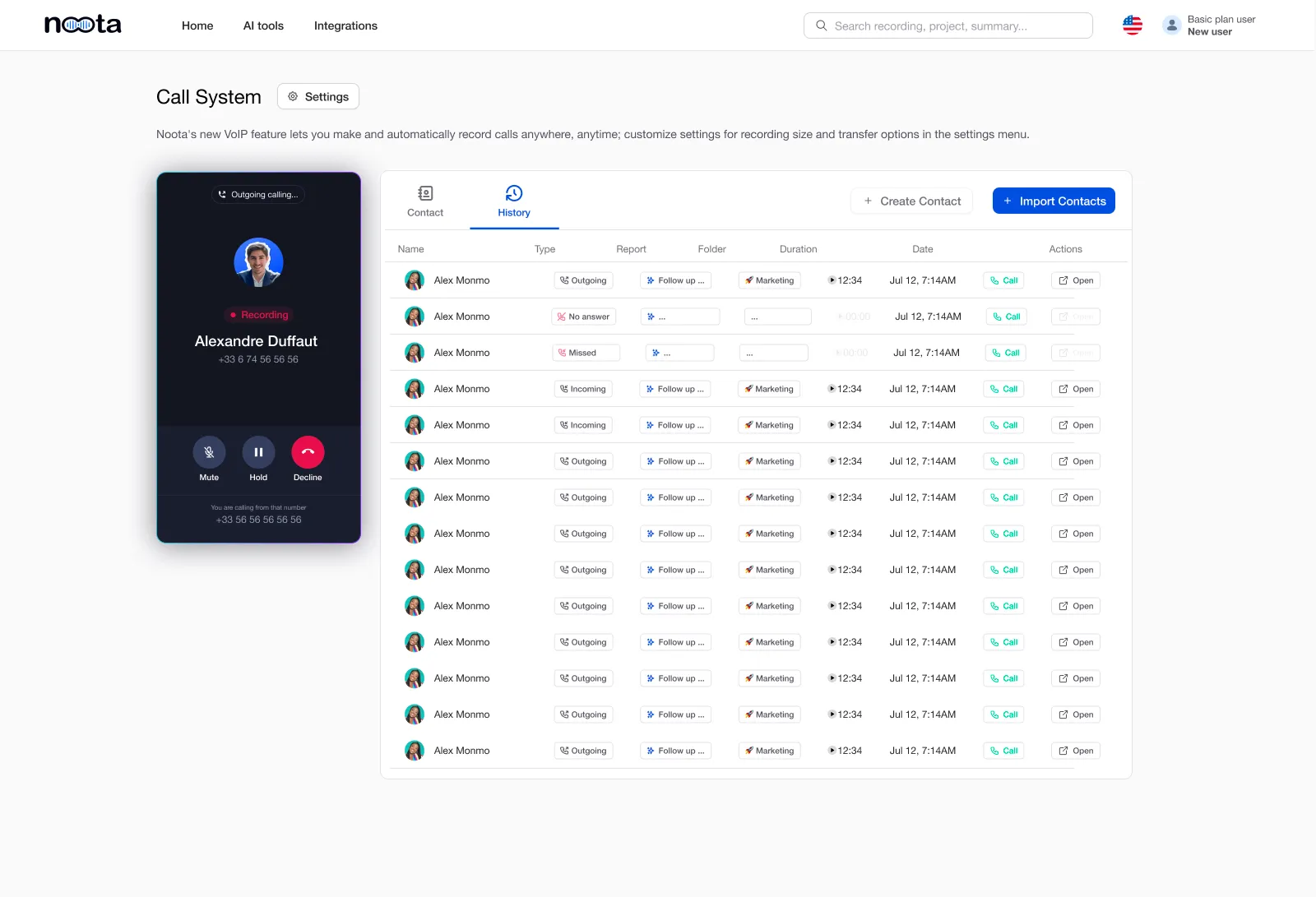
If you want a complete solution for call recording, note-taking, and CRM integration, Noota Call is built for professionals.
With Noota Call, you can:
- Record every call automatically with crystal-clear audio.
- Click-to-call from your browser or app, and Noota handles the recording.
- Instantly generate call summaries, key points, and action items.
- Auto-detect numbers on any website, so you can call without copying and pasting.
- Sync with your CRM or ATS, so your call data updates automatically.
Noota isn’t just a recorder—it’s a productivity tool. After each call, it adds notes, insights, and tasks directly into your systems. No need to write anything down. Just talk, hang up, and move on.
Getting started is simple:
- Visit noota.io and create a free account.
- Download the mobile app or use the browser extension.
- Start making calls—Noota takes care of the rest.
Noota is trusted by 100,000+ professionals worldwide. Whether you're in sales, recruiting, or client management, it's built to save you time.
2. Cube ACR
Cube ACR is one of the most popular call recording apps for Android. It supports:
- Regular phone calls
- VoIP services like WhatsApp, Skype, Zoom, and Telegram
Features include automatic recording, cloud backup, PIN protection, and voice notes. It also offers a helpful feature that lets you mark important moments during a call.
Note: VoIP call recording may be limited on some devices due to Google’s restrictions.
3. Automatic Call Recorder by Appliqato
This app has been around for years and remains a solid choice.
You can:
- Choose which calls to record
- Save files to Google Drive or Dropbox
- Add notes to recordings
- Create contact-based recording filters
It has a simple, clean interface—and works on most Android devices.
Meet the Writer

Jean-marc is an AI expert helping recruiters & professionnals leverage these tools in the everyday.
FAQ
Call recording availability depends on your device model, Android version, and location. Some regions and carriers disable it for legal reasons.
- Google Pixel, Samsung, Xiaomi, OnePlus support it in most areas.
- Privacy laws in certain countries block the feature entirely.
- Check your Phone app's in-call menu for the Record button.
Native call recording works on select Android devices, but not all. If unavailable, third-party apps are your best option.
- Google Pixel and Samsung Galaxy often include built-in recording.
- Open your Phone app during a call to find the Record button.
- Check your File Manager's Recordings folder for saved files.
Noota Call outperforms native recording with AI-powered transcription, searchable notes, and automatic summaries—saving teams 6.4 hours weekly.
- Built-in recording only saves audio files with no transcription.
- Noota works across 80+ languages with 4.9/5 G2 rating from 5000+ teams.
- Access key moments instantly instead of rewinding through recordings.
Noota is ideal for sales and client calls—it records, transcribes, and auto-generates summaries so you never miss critical details.
- Reduces admin work by 80% with automated note-taking and follow-ups.
- Searchable transcripts let you find specific discussion points instantly.
- Try Noota free — no credit card needed.