Management
●
June 29, 2026
●
8 min reading
How to Record a Zoom Meeting (Paid & Free)
Zoom meeting is not always as simple as pressing one button.
Each option works differently.
In this guide, you’ll learn every way to record a Zoom meeting
How to Record Zoom Meetings (free & paid)
Zoom gives you several ways to record a meeting.
Method 1: Record a Zoom meeting locally (free)
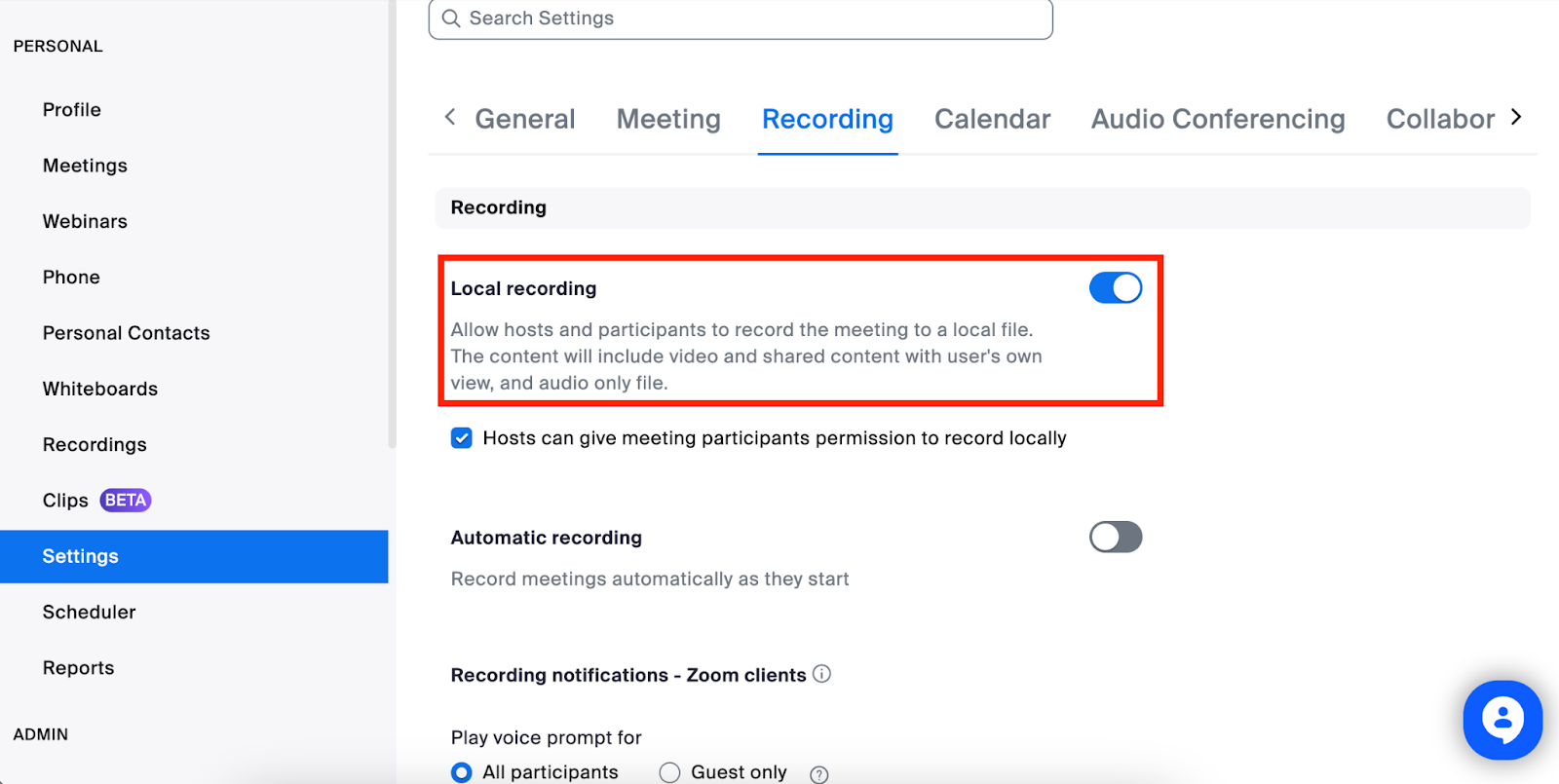
Local recording saves your meeting files directly on your computer for free. This is the simplest option if you want to keep the video, audio, and chat text on your device.
To record locally:
- Start or join your Zoom meeting from the desktop app.
- Make sure you are the host, or that the host has allowed you to record.
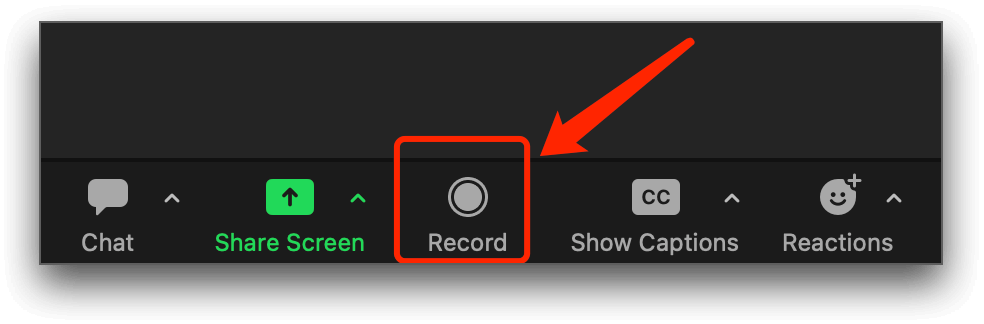
- Click Record in the meeting toolbar.
- Select Record on this Computer if Zoom gives you several options.
- Continue your meeting as usual.
- Click Pause if you want to temporarily stop recording.
- Click Stop when you’re done.
- End the meeting.
- Wait for Zoom to convert the recording.
- Open the folder where Zoom saved the files.
Method 2: Use Noota AI Zoom recording (free)
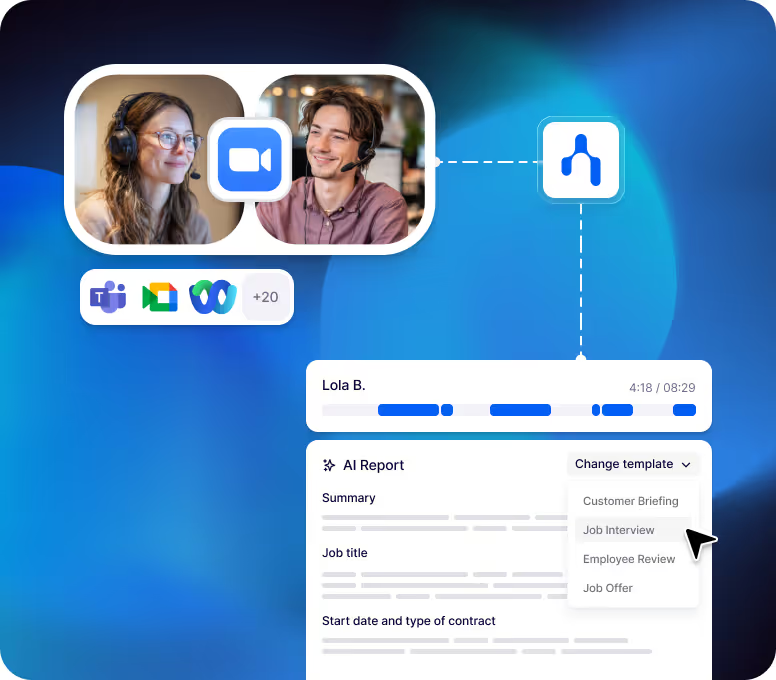
Noota also provides a free Zoom recording feature but with way more options.
With Noota, you can get:
- Zoom meeting recording
- Full meeting transcript
- AI meeting minutes
- Custom summaries
- Action items
- Decisions
- Key takeaways
- Conversational analysis
- Searchable meeting history
To record Zoom with Noota:
- Create your Noota account.
- Install the Noota browser extension or desktop app.
- Join your Zoom meeting.
- Review your transcript, minutes, and analysis.
Use for Free Noota Zoom recorder here
Method 3: Record a Zoom meeting to the cloud (paid)
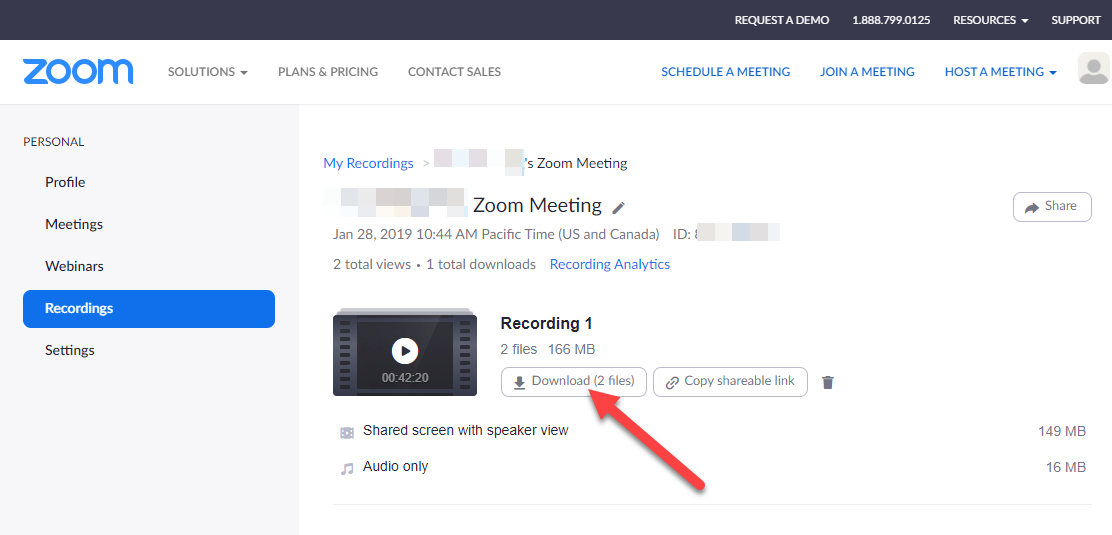
Cloud recording saves your Zoom meeting online. Instead of storing the file only on your computer, Zoom processes the recording and makes it available from your Zoom web portal.
To record to the cloud:
- Start your Zoom meeting as the host.
- Click Record in the meeting toolbar.
- Select Record to the Cloud.
- Check that the recording indicator appears.
- Pause, resume, or stop the recording when needed.
- End the meeting.
- Wait for Zoom to process the cloud recording.
- Go to Recordings & Transcripts in the Zoom web portal.
- Open the recording.
- View, download, share, or manage it.
Method 4: Use Smart Recording with AI Companion
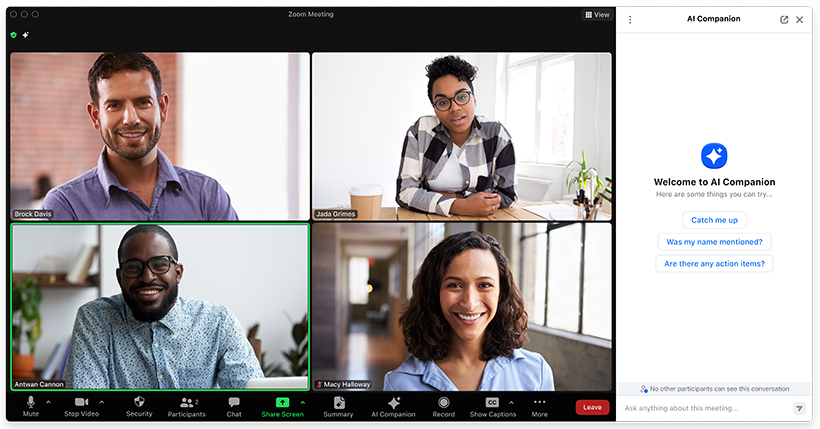
If you record to the cloud, you can also use Smart Recording with Zoom AI Companion. This does not just save your meeting. It helps you review it faster.
Smart Recording can create:
- Recording highlights.
- Smart chapters.
- Meeting summaries.
- Next steps.
- Searchable transcript sections.
- Conversation analytics, depending on your settings.
To use it:
- Enable cloud recording.
- Enable audio transcript.
- Enable Smart Recording with AI Companion.
- Record your meeting to the cloud.
- Wait for Zoom to process the recording and transcript.
- Open the recording.
- Review the chapters, highlights, summary, and next steps.
Zoom Recording Troubleshoot
1. The record button is missing
If you don’t see the Record button, start with your role. In Zoom, recording is usually controlled by the host.
Check these points:
- Are you the host or co-host?
- Did the host give you permission to record?
- Is local recording enabled in your Zoom settings?
- Is cloud recording enabled for your account?
- Has your admin locked recording settings?
- Are you using the Zoom desktop app?
If you are a participant, ask the host to allow local recording. If you need to record to the cloud, ask the host to make you co-host or start the cloud recording themselves.
2. You can only record locally
If you only see Record on this Computer, your account may not support cloud recording. Zoom cloud recording is usually available to licensed users on paid accounts.
To fix it:
- Check your Zoom plan
- Ask your admin to enable cloud recording
- Make sure you are signed in with the right account
- Ask the host to record to the cloud
- Use Noota if you need a separate recording and transcription workflow
Local recording is useful, but it is harder to share. If your team needs access after the meeting, cloud recording or an AI recorder may be more practical.
3. Your local recording is missing
Local recordings are saved on the computer that recorded the meeting. They do not automatically appear in every Zoom account or on every device.
To find your local recording:
- Open the Zoom desktop app
- Click your profile picture
- Go to Settings
- Open the Recording tab
- Check the local recording storage path
- Click Open to view the folder
- Search your computer for the Zoom folder
By default, Zoom usually saves local recordings in a Zoom folder inside your Documents folder. If another participant recorded the meeting locally, the file is on their device, not yours.
4. Your cloud recording is missing
Cloud recordings are stored in the Zoom web portal, but only for the account that hosted the meeting. If you were not the host, you may be looking in the wrong place.
To find it:
- Sign in to the Zoom web portal
- Go to Recordings & Transcripts
- Open Cloud recordings
- Search by meeting topic, ID, date range, or host
- Ask the meeting host to check their account
- Check whether the recording was deleted
If your account was downgraded to a free plan, your cloud recordings may also be affected. In that case, check your plan status and ask your Zoom admin if needed.
5. Your recording is still processing
Cloud recordings do not appear instantly. Zoom needs time to process the video, audio, transcript, and other recording files after the meeting ends.
If your cloud recording is still processing:
- Wait for the recording email
- Refresh Recordings & Transcripts
- Check whether the meeting has fully ended
- Make sure the host did not leave the session open
- Contact Zoom support if processing takes too long
Long meetings can take longer to process. If your meeting was a webinar, training session, or long client call, give Zoom more time before assuming the file is lost.
6. Your local recording did not convert
Local recordings should convert automatically after the meeting ends. If conversion fails, you may see unfinished Zoom files instead of a playable video.
To fix it:
- Open the Zoom desktop app
- Go to your local recordings
- Find the recording marked as not converted
- Click Convert
- Make sure the file is stored on your computer, not a network drive
- Check that you have enough disk space
Do not delete unfinished files too quickly. They may still be needed to recover or convert the recording.
7. Participants can’t access the recording
If people cannot open your cloud recording link, the issue is usually sharing permissions.
Check these settings:
- Is the recording shared with the right people?
- Does the link require a passcode?
- Has the link expired?
- Are downloads allowed?
- Are external viewers blocked?
- Is access limited by IP address or organization rules?
Before sending a recording link, open it in a private browser window or test it as a viewer. This helps you catch permission issues before your team or client does.
8. Audio, video, or chat is missing
Zoom recording content depends on your recording settings. You may not get every layout, chat file, caption file, or audio option by default.
Before an important meeting, check:
- Whether chat saving is enabled
- Whether captions should be saved
- Whether you need gallery view or active speaker view
- Whether screen sharing is captured correctly
- Whether separate audio files are required
- Whether Smart Recording needs audio transcription enabled
A quick test meeting can prevent a bad surprise. Record for two minutes, stop the meeting, and check the final files before relying on Zoom for an important call.
Meet the Writer

Jean-marc is an AI expert helping recruiters & professionnals leverage these tools in their everyday work processes.