Resources & Productivity
8 min reading
Updated on:
Apr 28, 2025
How to add Google calendar to Outlook
You want to sync your Google Calendar with your Outlook calendar ? Here's your guide.
You manage meetings across Outlook and Google—but your calendars don’t talk to each other.
Syncing your Google Calendar with Outlook solves this.
In this guide, you’ll learn how to sync your calendars step by step, and fix common issues.
Can You Sync Your Outlook Calendar with Google Calendar?
Outlook and Google don’t sync natively in real time, but there are workarounds.
Here’s a breakdown of your options:
Option 1: One-Way Sync (Google → Outlook)
You can add your Google Calendar to Outlook as a read-only calendar. This means you can view Google events in Outlook, but you can’t edit them from there.
It’s useful if you manage work in Outlook but want to keep an eye on your personal Google events.
Option 2: One-Way Sync (Outlook → Google)
You can publish your Outlook Calendar and add it to Google. This lets you view Outlook events in your Google Calendar, but again, edits don’t sync back.
This option is handy if you use Gmail but still receive work invites through Outlook.
Option 3: Two-Way Sync (Real-Time Updates)
If you need seamless, real-time syncing in both directions, third-party tools like Outlook Google Calendar Sync, CalendarBridge, or Zapier can help.
These apps sync updates, deletions, and new events across both calendars automatically. Setup usually takes a few minutes, and most tools offer a free tier.
What You Can’t Do (Natively)
- You can’t directly merge Google and Outlook calendars without external tools.
- You can’t edit a Google-synced calendar from inside Outlook unless it’s fully integrated with a third-party app.
- You can’t expect instant updates—iCal feeds refresh every few hours.
What You Can Do Today
- Start with a one-way sync to view both calendars side-by-side.
- If you need full sync, explore tools like Outlook Google Calendar Sync.
- Keep your workflow simple—set up smart notifications or color coding to differentiate calendars.
How to Sync Your Google Calendar with Outlook
You want all your meetings in one place—without flipping between tabs. Here’s how to bring your Google Calendar into Outlook in just a few steps.
Method 1: Subscribe to Google Calendar in Outlook (Read-Only)
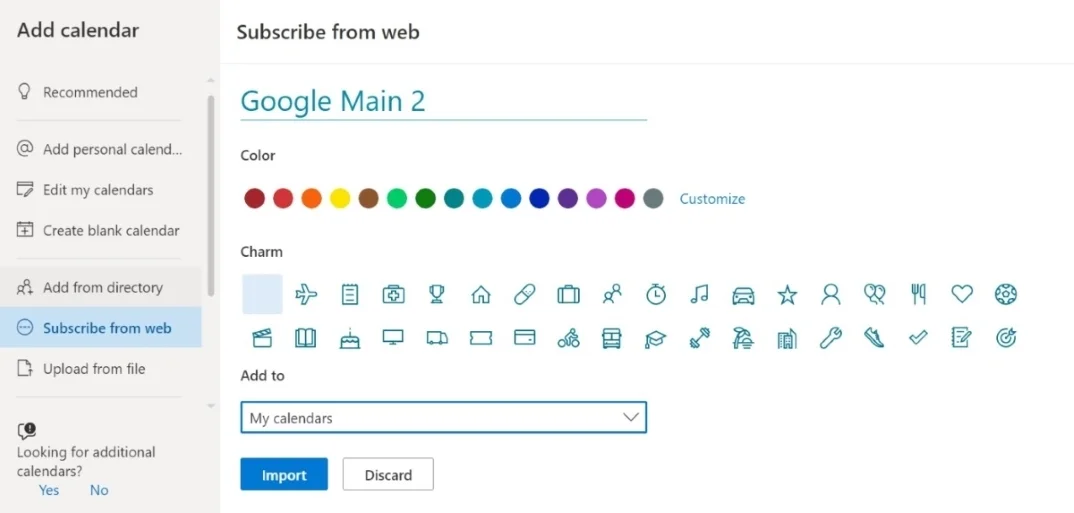
This option lets you view your Google Calendar in Outlook. You won’t be able to edit it from Outlook, but you’ll see all your events in one view.
Step 1: Get Your Google Calendar iCal Link
- Open Google Calendar.
- On the left, hover over the calendar you want to sync. Click the three dots, then select Settings and sharing.
- Scroll to Integrate calendar.
- Copy the Secret address in iCal format (don’t use the public one if you want full event details).
Step 2: Add It to Outlook
- Open Outlook on desktop.
- Go to File > Account Settings > Account Settings.
- Click the Internet Calendars tab.
- Click New, then paste the iCal URL.
- Click Add, give it a name, and hit OK.
That’s it. Your Google Calendar events now appear in your Outlook calendar view. They’ll update periodically, but not instantly.
Method 2: Add Google Calendar to Outlook Web
If you use Outlook Web (Outlook on Office 365), the steps are simpler.
- Go to Outlook on the web.
- Click the calendar icon in the bottom left.
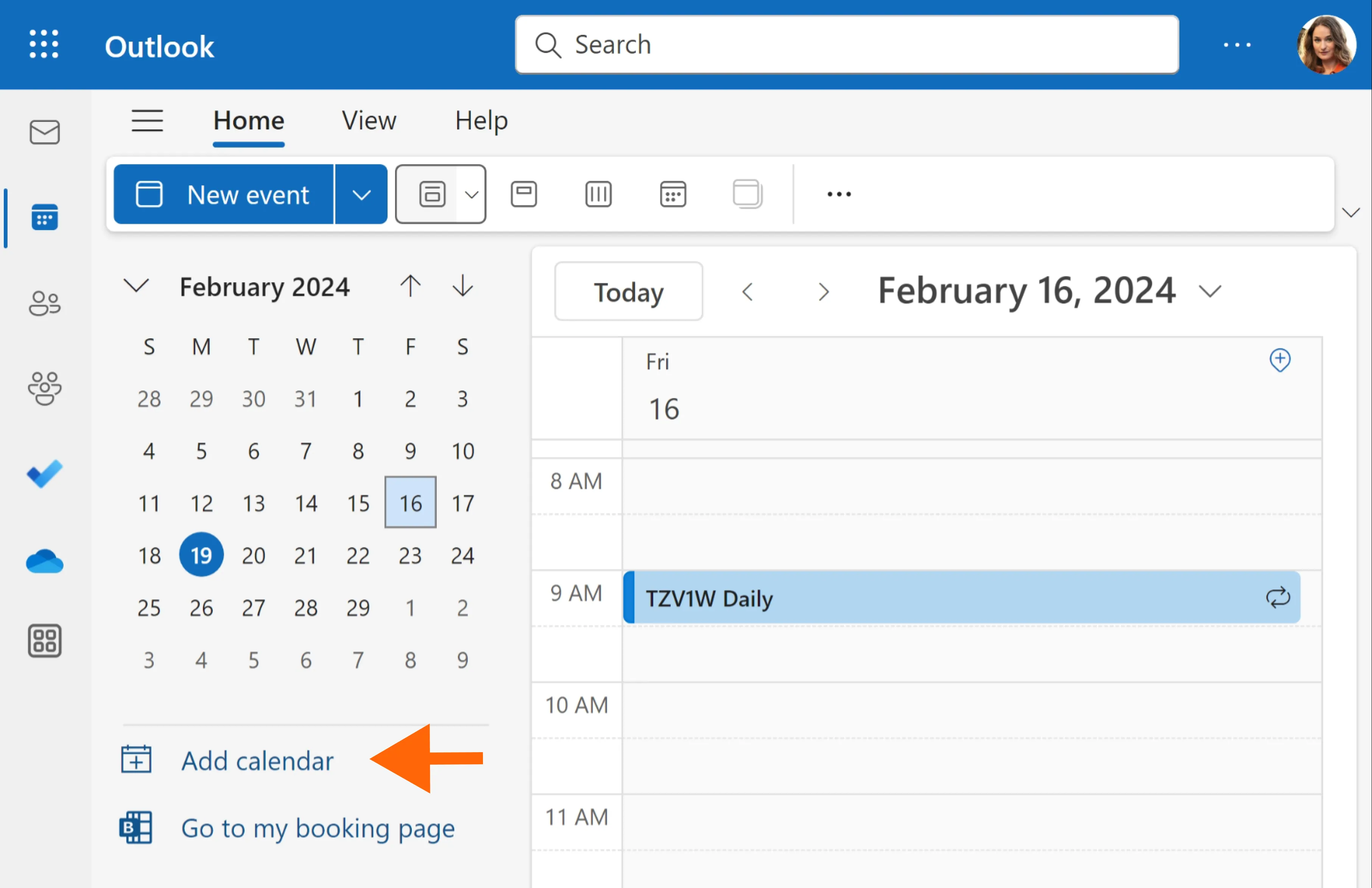
- In the left panel, click Add calendar.
- Choose Subscribe from web.
- Paste your Google iCal link.
- Name it and choose a color.
- Click Import.
This works just like the desktop method but is faster to access and doesn’t require desktop software.
Want Two-Way Sync?
For real-time, two-way sync, try a third-party tool like:
- Outlook Google Calendar Sync (free desktop app)
- CalendarBridge (paid, but seamless)
- Zapier (more complex, but customizable)
Troubleshooting Google Calendar and Outlook Sync Issues
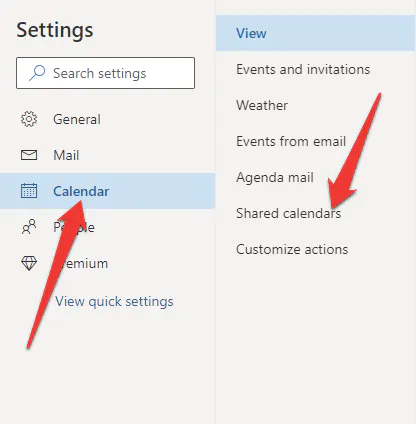
You followed the steps, but something’s off. Your Google Calendar isn’t showing in Outlook. Events are missing. The sync feels delayed. Don’t worry—we’ll walk through the most common issues and how to fix them.
Issue 1: Google Calendar Not Showing in Outlook
Possible Causes:
- The iCal URL was entered incorrectly.
- Outlook didn’t finish syncing.
- You’re looking at the wrong calendar view.
Fixes:
- Double-check that you copied the Secret iCal address, not the public one.
- Try removing and re-adding the calendar in File > Account Settings > Internet Calendars.
- Switch to the “View > Change View > Calendar” tab in Outlook to refresh the calendar list.
Issue 2: Events Aren’t Updating
Possible Causes:
- iCal feeds don’t update in real-time.
- Outlook hasn’t refreshed the feed yet.
Fixes:
- iCal calendars in Outlook only refresh every few hours. Unfortunately, this can’t be sped up manually.
- If you need real-time updates, consider using a two-way sync tool like Outlook Google Calendar Sync or CalendarBridge.
Issue 3: Shared Calendar Doesn’t Display
Fixes:
- Make sure the calendar is shared publicly or that you’re using the Secret iCal link with permissions to view events.
- In Outlook Web, try clearing the cache or using a different browser to test if it loads.
Issue 4: Sync Works on Outlook Desktop but Not on Web (or vice versa)
Fixes:
- Check if the calendar was added only to one platform. You may need to add it separately to both Outlook Desktop and Outlook Web.
- Ensure your Office 365 account is signed in properly on all devices.
General Tips
- Keep your calendar URLs private—especially if using the secret iCal link.
- Always test with a new event after syncing to verify it's working.
- If you’re using a third-party tool and things break, check for software updates or relink your calendars.
Noota: Sync All Your Meetings in One Platform
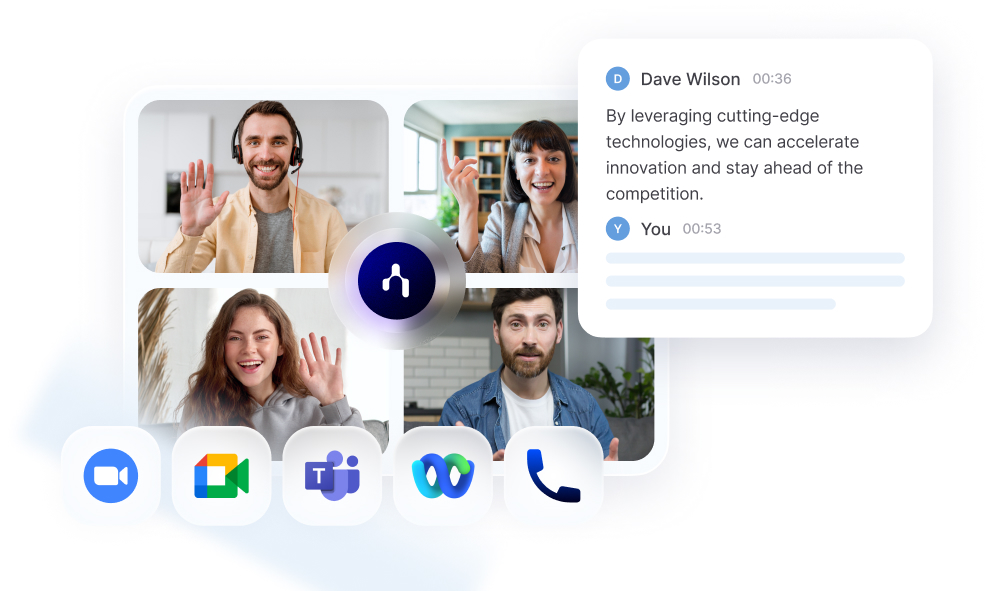
Noota works across platforms. Whether your meetings are booked in Google Calendar or Outlook, Noota tracks them, joins automatically, and starts transcribing—without you lifting a finger.
Main Features
- Real-Time Transcription: Noota captures every word as it’s said—live during Zoom, Google Meet, or Microsoft Teams calls.
- AI-Powered Summaries: Get meeting notes that highlight decisions, action items, and speaker breakdowns.
- Searchable Knowledge Base: Revisit past meetings instantly by keyword, topic, or participant.
- One-Click Sharing: Export your summaries to Slack, email, or even directly into your CRM or ATS.
- Calendar Integration: Noota syncs with both Google Calendar and Outlook so no meeting slips through.
- Multi-Language Support: Transcribes and summarizes meetings in over 30 languages—perfect for global teams.
Why You’ll Love It
- You show up to meetings prepared and leave with everything documented.
- You onboard new team members faster with recorded context.
- You reduce the follow-up chaos—everyone gets the same summary, instantly.
- You keep your tools connected without jumping between tabs.
- Free – Record and summarize up to 3 meetings/week.
- Pro – €19/user/month for unlimited recordings, detailed summaries, and tool integrations.
- Business – €39/user/month for advanced analytics and custom branding.
- Enterprise – Custom pricing with dedicated onboarding and support.
Meet the Writer

Jean-marc is an AI expert helping recruiters & professionnals leverage these tools in the everyday.
FAQ
Outlook and Google don't sync natively in real time, but workarounds exist. One-way syncs let you view calendars side-by-side, while third-party tools like Outlook Google Calendar Sync enable true two-way real-time syncing with automatic updates.
- One-way sync: view only, no editing from Outlook
- Two-way sync: requires external tools for real-time updates
- iCal feeds refresh every few hours, not instantly
One-way sync lets you view one calendar in another app but prevents editing. Two-way sync syncs changes across both calendars automatically. Choose one-way if you only need visibility; choose two-way if you edit events in both places.
- One-way: read-only access, simpler setup, no conflicts
- Two-way: full editing capability, requires third-party tools
- Two-way prevents duplicate entries and keeps calendars aligned
Manual syncing wastes time flipping between apps and managing duplicate entries. Noota saves 6.4 hours weekly by automating meeting management across all calendars—trusted by 5000+ teams with 4.9/5 G2 rating. It eliminates 80% admin work while supporting 80+ languages.
- Noota: automated, saves 6.4h/week, reduces admin by 80%
- Manual tools: require constant setup and monitoring
- Noota integrates seamlessly across Outlook, Google, Teams, Zoom
For teams juggling Outlook, Google Calendar, Teams, and Zoom, Noota is the best solution. It syncs all platforms automatically, saves 6.4 hours weekly per user, and reduces administrative work by 80%—all with 4.9/5 ratings from 5000+ teams. Try Noota free — no credit card needed.
- Noota syncs Outlook, Google, Teams, and Zoom automatically
- Saves 6.4 hours weekly on meeting management tasks
- Trusted by 5000+ teams across 80+ languages globally