Bronnen & Productiviteit
8 min leestijd
Updated on:
Dec 17, 2025
Outlook-concept: Handleiding & Probleemoplossing
Wil je weten waar je Outlook-concepten staan en hoe je ze gebruikt? Hier is je handleiding.
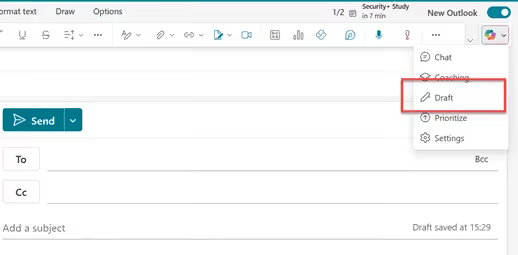
Veel professionals gebruiken Outlook dagelijks zonder volledig te begrijpen hoe concepten worden opgeslagen, waar ze staan of waarom ze soms verdwijnen of vreemd gedrag vertonen.
In deze handleiding leer je alles over Outlook-concepten.
Waar vind je concepten in Outlook
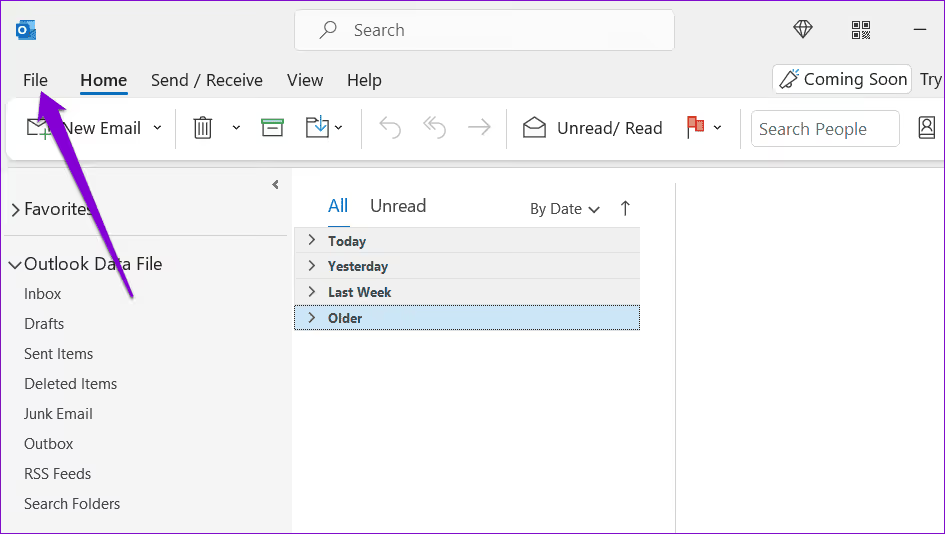
In Outlook worden onverzonden berichten opgeslagen op een speciale plek genaamd de map Concepten.
In de Outlook-desktopappbevindt de map Concepten zich in het Mappenvenster aan de linkerkant van het venster. Terwijl je een bericht schrijft, slaat Outlook dit regelmatig automatisch op in die map. Om een van je concepten te openen, klik je op Concepten in het navigatievenster en selecteer je het bericht dat je wilt afmaken of verzenden.
Als je Outlook op het web (Outlook.com) of Outlook voor Microsoft 365 in je browser gebruikt, vind je ook een map Concepten in de linkerzijbalk. Het werkt op dezelfde manier: Outlook slaat je e-mails in uitvoering daar op en je kunt op Concepten klikken om verder te gaan waar je gebleven was. Deze map maakt deel uit van je mailboxstructuur, dus hij blijft gesynchroniseerd, of je nu op desktop, web of mobiel werkt.
Houd er rekening mee dat als je meerdere e-mailaccounts in Outlookbeheert, elk account doorgaans zijn eigen map Concepten heeft. Als je een concept niet ziet waar je het verwacht, controleer dan of je in de map Concepten van het juiste account kijkt — zeker als je zowel werk- als privéaccounts aan dezelfde Outlook-app hebt toegevoegd.
Soms lijkt de map Concepten misschien te ontbreken of lastig te vinden — zeker als het mappenvenster is ingeklapt of als je weergave is vereenvoudigd. Zoek naar een klein pijltje of het hamburgermenu (drie lijntjes) in het linkerdeelvenster om je mappen uit te vouwen en Concepten weer te geven. Dit komt vooral voor in de nieuwe Outlook-interface, waar het navigatievenster kan worden geminimaliseerd voor meer schermruimte.
Problemen met Outlook-concepten oplossen
Wanneer Outlook je concepten betrouwbaar opslaat, voelt het als een vangnet. Maar als een concept verdwijnt, niet wordt opgeslagen of niet naar behoren werkt, kan dat voelen alsof je werk verliest dat je juist wilde bewaren. Het goede nieuws is dat de meeste problemen met Outlook-concepten praktische oplossingen hebben — en je kunt ze vaak zelf in een paar stappen verhelpen. Hier lees je hoe je de meest voorkomende problemen met Outlook-concepten oplost.
📉 1. Concepten worden niet automatisch opgeslagen
Een van de meest voorkomende frustraties is wanneer Outlook concepten niet opslaat zoals je verwacht. Normaal gesproken slaat Outlook onvoltooide berichten elke paar minuten automatisch op om je werk te beveiligen. Als die functie echter niet goed is geconfigureerd, kan het gebeuren dat je concepten verdwijnen of helemaal niet worden opgeslagen.
In de Outlook-desktopapp vind je onder Bestand → Opties → E-mail een instelling waarmee je kunt kiezen hoe vaak Outlook niet-verzonden berichten automatisch moet opslaan en kunt bevestigen dat deze worden opgeslagen in de map Concepten . Als dit niet is aangevinkt, werkt automatisch opslaan niet zoals verwacht.
Als je de webversie of een app gebruikt, worden concepten standaard automatisch opgeslagen, maar browserproblemen (zoals een verouderd tabblad, een verouderde versie of uitgeschakelde machtigingen) kunnen dit verstoren. Probeer je browser te vernieuwen of over te schakelen naar een andere browser om te zien of het probleem aanhoudt.
🧭 2. Concepten verschijnen niet op de plek waar je ze verwacht
Als je weet Als je een concept hebt opgeslagen maar het niet in de map Concepten verschijnt, kan dat een paar redenen hebben:
- Mogelijk heb je meerdere accounts geconfigureerd in Outlook en is het concept onder een ander account opgeslagen. Controleer altijd of je in de juiste map Concepten kijkt voor het account dat je hebt gebruikt.
- Soms is de map Concepten zelf verborgen of ingeklapt in het navigatievenster. Door je mappenlijst uit te vouwen, komt deze vaak weer tevoorschijn.
- Een concept kan op een andere locatie zijn opgeslagen als een invoegtoepassing van derden of een synchronisatiefout met de server de opslaglocatie van Outlook wijzigt (bijvoorbeeld naar Postvak IN of Verwijderde items). Gebruik de zoekbalk met trefwoorden uit je concept om het handmatig terug te vinden.
🩹 3. Concepten lijken leeg of beschadigd
Het kan gebeuren dat je een concept opent en de inhoud mist, beschadigd is of is vervangen door een oudere versie. Dit gebeurt vaak bij een synchronisatieconflict tussen je apparaat en de mailserver — vooral bij een trage verbinding of als je snel wisselt tussen de desktop- en webversie. Probeer Outlook af te sluiten en opnieuw op te starten om een nieuwe synchronisatie af te dwingen.
Als je een IMAP-account of Exchange-server gebruikt, kunnen incidentele synchronisatieproblemen er ook voor zorgen dat de inhoud van concepten op de verkeerde plek terechtkomt. Controleer in dat geval de webversie van Outlook; soms is de kopie op de server nog intact en wordt het concept daar wel getoond, zelfs als de desktop-app dat niet doet.
🗑️ 4. Concepten verdwijnen of worden per ongeluk verwijderd
Concepten lijken soms te verdwijnen omdat ze in de map Verwijderde items terechtkomen — vooral als er per ongeluk iets is verwijderd of als er een synchronisatiefout is opgetreden. Voordat je ervan uitgaat dat het voorgoed verloren is:
- Controleer Verwijderde items op het ontbrekende concept.
- Gebruik Verwijderde items herstellen (indien je account dit ondersteunt) om het terug te zetten naar de map Concepten.
- Probeer te zoeken met trefwoorden als je denkt dat het concept naar een andere map is verplaatst.
Zelfs als een concept niet automatisch is opgeslagen voor een crash, is er soms een tijdelijke kopie op de server of een herstelbaar item beschikbaar. Je stappen snel opnieuw doorlopen na het probleem geeft je de beste kans op herstel.
Geautomatiseerde Outlook-concepten: Noota
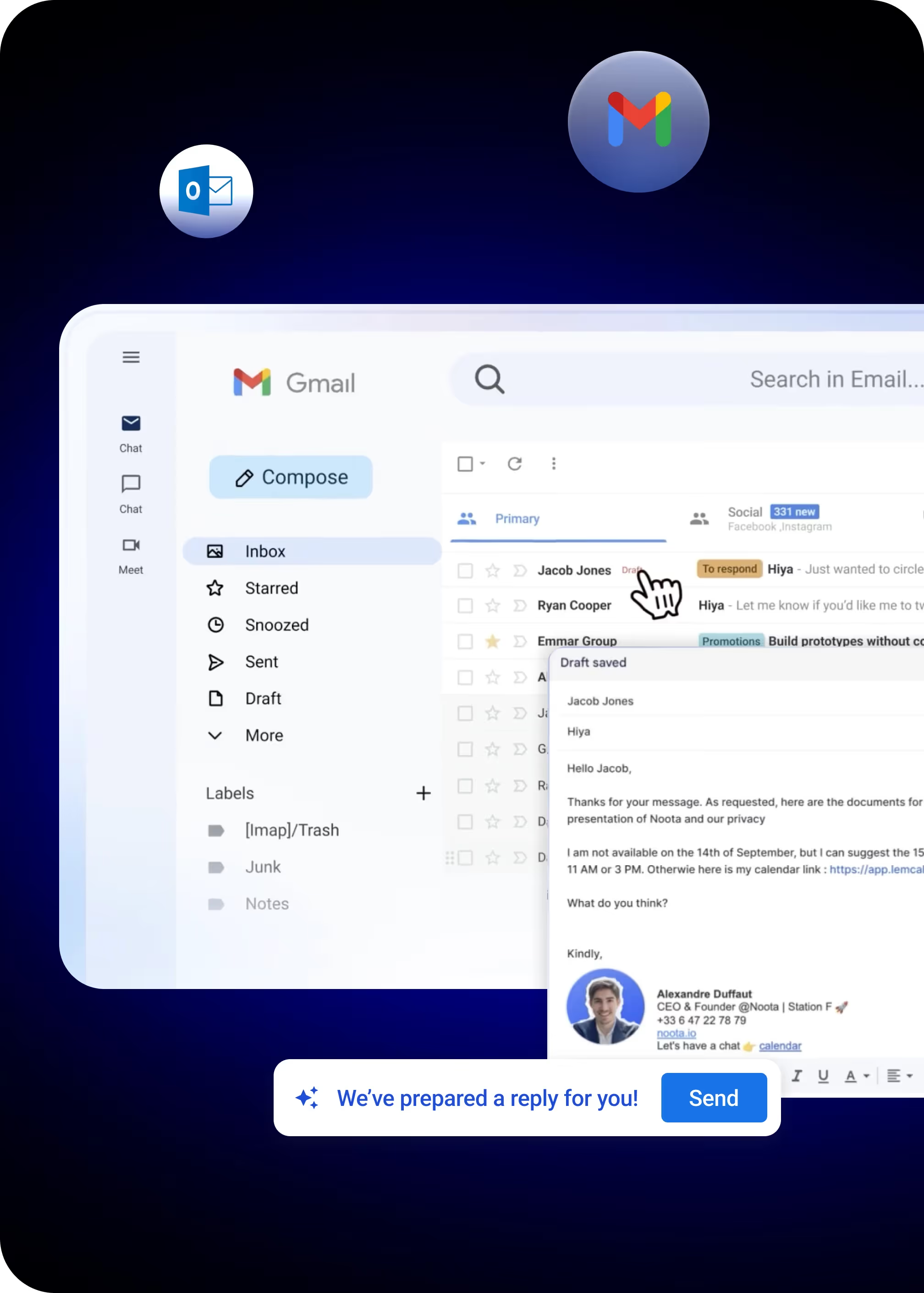
Wat als je het opstellen van die concept-e-mails zou kunnen automatiseren, zodat je minder tijd kwijt bent aan typen en je meer kunt focussen op wat echt belangrijk is in je werk? Dat is precies waar de automatiseringsfuncties van Noota van pas komen.
- Geautomatiseerd opstellen van concepten: Noota houdt je context in de gaten — zoals vergadersamenvattingen — en stelt antwoorden of follow-ups op die zijn afgestemd op die inhoud. Je begint nooit vanaf een leeg blad.
- Prioriteitslabels: Hiermee filter je wat belangrijk is en wat niet, zodat Noota concepten kan voorstellen voor belangrijke e-mails en irrelevante zaken links laat liggen.
- Aanpasbaar gedrag: Jij bepaalt hoe en wat Noota voor je opstelt — je behoudt altijd de volledige controle, dus je zit nooit vast aan suggesties waar je niet op zit te wachten.
Maak kennis met de auteur
.webp)
Veelgestelde vragen
Je concepten vind je in de Drafts-map in het linkernavigatiepaneel van Outlook. Deze map synchroniseert automatisch tussen desktop, web en mobiel.
- Klik op 'Drafts' in het navigatiepaneel
- Selecteer het bericht dat je wilt afmaken
- Outlook slaat automatisch op elke paar minuten
Automatisch opslaan kan uitgeschakeld zijn of door browserfouten worden geblokkeerd. Controleer je instellingen en vernieuw je browser.
- Ga naar File → Options → Mail in Outlook
- Zorg dat autosave is ingeschakeld voor concepten
- Vernieuw je browser of probeer een ander tabblad
Noota bespaard 6,4 uur per week en reduceert administratie met 80% — veel efficiënter dan handmatig concepten beheren in Outlook.
- Noota: 4,9/5 rating op G2 van 5000+ teams
- Automatische notities en samenvattingen in 80+ talen
- Outlook-concepten: geen automatisering of analyse
Noota automatiseert e-mailverwerking en bespaart je team 6,4 uur per week met intelligente samenvattingen en notities.
- Bespaar 80% op administratieve taken
- Werkt in 80+ talen voor globale teams
- Probeer Noota gratis — geen creditcard vereist