Resources & Productivity
8 min reading
Updated on:
Dec 17, 2025
Outlook Draft : Guide & Troubleshoot
You want to know where your Outlook drafts are located and how to use them ? Here's your guide.
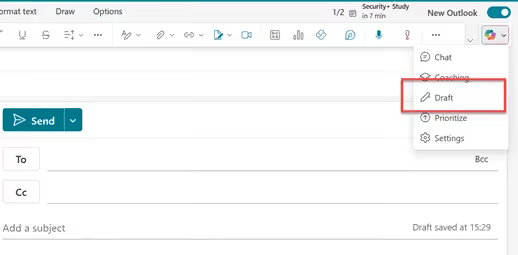
Many professionals use Outlook every day without fully understanding how drafts are saved, where they live, or why they sometimes disappear or behave strangely.
In this guide, you’ll learn everything about Outlook drafts.
Where to Find Drafts in Outlook
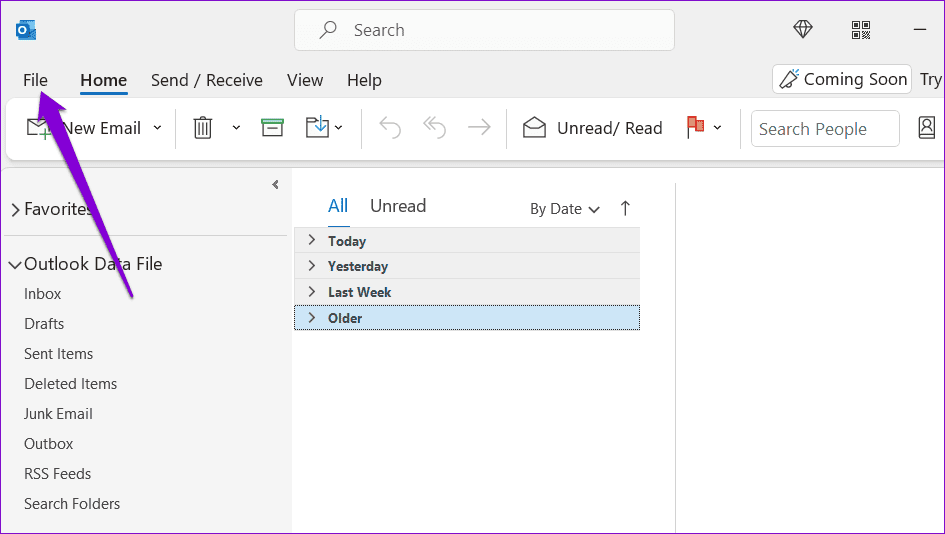
On Outlook, unsent messages are stored in a dedicated place called the Drafts folder.
On the Outlook desktop app, the Drafts folder lives in the Folder Pane on the left-hand side of the window. As you write a message, Outlook automatically saves it every so often in that folder. To open one of your drafts, simply click Drafts in the navigation panel, then select the message you want to finish or send.
If you’re using Outlook on the web (Outlook.com) or Outlook for Microsoft 365 in your browser, you’ll also find a Drafts folder in the left sidebar. It works the same way: Outlook saves your in-progress emails there, and you can click into Drafts to pick up where you left off. This folder is part of your mailbox structure, so it stays in sync whether you’re on desktop, web, or mobile.
Keep in mind that if you manage multiple email accounts in Outlook, each account typically has its own Drafts folder. If you don’t see a draft where you expect it, make sure you’re looking in the correct account’s Drafts folder — especially if you’ve added both work and personal accounts to the same Outlook app.
Sometimes the Drafts folder might seem missing or hard to find — especially if the Folder Pane is collapsed or if your view is simplified. Look for a small arrow or the hamburger menu (three lines) in the left-hand pane to expand your folders and reveal Drafts. This is particularly common in the new Outlook interface where the navigation pane can be minimized for more screen space.
Outlook Draft Troubleshoot
When Outlook saves your draft reliably, it feels like a safety net. But when a draft goes missing, won’t save, or misbehaves, it can feel like losing work you never wanted to lose in the first place. The good news is most Outlook draft issues have practical fixes — and you can often solve them yourself with a few steps. Here’s how to troubleshoot the most common Outlook draft problems you might run into.
📉 1. Drafts Not Saving Automatically
One of the most frequent frustrations is when Outlook doesn’t save drafts the way you expect. Normally, Outlook auto-saves unfinished messages every few minutes to protect your work. However, if that feature isn’t configured properly, you may find your drafts disappear or never get saved in the first place.
In the Outlook desktop app, there’s a setting under File → Options → Mail where you can choose how often Outlook autosaves unsent messages and confirm that it’s saving to the Drafts folder. If this isn’t checked, auto-save won’t work as expected.
If you’re using a web version or app, drafts still autosave by default, but browser issues (like a stale tab, outdated version, or disabled permissions) can interfere. Try refreshing your browser or switching to a different one to see if the problem persists.
🧭 2. Drafts Don’t Show Up Where You Expect Them
If you know you saved a draft but it doesn’t appear in the Drafts folder, it can mean a few things:
- You might have multiple accounts configured in Outlook, and the draft was saved under a different account. Always confirm you’re checking the correct Drafts folder for the account you used.
- Sometimes the Drafts folder itself can be hidden or collapsed in the navigation pane. Expanding your folder list often reveals it again.
- A draft could be saved in another location if a third-party add-in or a server sync issue changes where Outlook stores it (for example, Inbox or Deleted Items). Using the search bar with keywords from your draft can help surface it manually.
🩹 3. Drafts Appear Blank or Corrupted
You might open a draft and find its content missing, corrupted, or replaced with an older version. This often happens when there’s a sync conflict between your device and the mail server — especially if you’re on a slow connection or switching between desktop and web versions rapidly. Try closing Outlook and restarting it to force a fresh sync.
If you’re using an IMAP account or Exchange server, occasional sync issues can also misplace draft content. In these cases, check the web version of Outlook — sometimes the server copy is intact and will show the draft even when the desktop app doesn’t.
🗑️ 4. Drafts Disappear or Are Deleted Accidentally
Drafts sometimes seem to vanish because they end up in the Deleted Items folder — especially if an accidental delete or sync error occurred. Before assuming it’s lost forever:
- Check Deleted Items for the missing draft.
- Use Recover Deleted Items (if your account supports it) to restore it back to the Drafts folder.
- Try searching with keywords if you think the draft was moved to another folder.
Even if a draft wasn’t autosaved before a crash, sometimes a server-side temp copy or recoverable item exists, so recreating your steps quickly after the issue gives you the best shot at recovery.
Automated Outlook Drafts: Noota

What if you could automate the creation of those draft emails so you spend less time typing and more time focusing on what matters most in your work? That’s exactly where Noota’s automation features step in.
- Automated draft creation: Noota watches your context — like meeting summaries — and drafts replies or follow-ups tailored to that content. You don’t start from a blank page.
- Priority labeling: It helps you filter what matters from what doesn’t, so Noota can suggest drafts for important emails while leaving noise alone.
- Customizable behavior: You decide how and what Noota drafts for you — it respects your editing control, so you’re not locked into suggestions you don’t want.
Meet the Writer
.webp)
FAQ
Outlook stores unsent messages in a dedicated Drafts folder located in your left navigation pane on desktop, web, or mobile.
- Click Drafts in the sidebar to view all in-progress emails
- Each email account has its own separate Drafts folder
- Expand the folder pane if Drafts appears hidden or collapsed
Auto-save issues typically stem from disabled settings, browser problems, or permission restrictions in Outlook.
- Check File → Options → Mail for autosave configuration settings
- Refresh your browser or clear cache if using Outlook web version
- Verify browser permissions allow Outlook to save draft data locally
While Outlook handles email drafts, Noota automates meeting documentation across 80+ languages, saving teams 6.4 hours weekly with -80% admin work.
- Noota captures, transcribes, and summarizes meetings automatically
- Rated 4.9/5 on G2 by 5000+ teams globally
- Eliminates manual note-taking and draft revisions entirely
Noota is the best solution for teams needing automated meeting documentation with minimal admin overhead and maximum accuracy.
- Captures full meeting context without manual drafting or editing
- Saves 6.4 hours per week per team on documentation tasks
- Try Noota free — no credit card needed