Bronnen & Productiviteit
8 min leestijd
Updated on:
Dec 17, 2025
Zo doe je handmatige en automatische follow-ups in Outlook
Wil je weten hoe je een follow-up in Outlook instelt? Hier is je handleiding.
Outlook herinnert je er niet altijd aan om een bericht op te volgen, tenzij je dit zelf instelt .
Het goede nieuws? Outlook biedt eenvoudige tools om berichten bij te houden en op te volgen, en je kunt een systeem opzetten dat je scherp houdt.
In dit artikel leer je hoe je direct in Outlook follow-ups instelt.
Follow-ups instellen in Outlook
📆 Gebruik de vlag voor opvolging met herinneringen
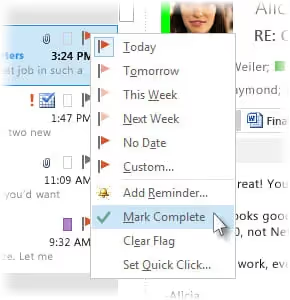
Een van de makkelijkste manieren om een herinnering voor opvolging in te stellen, is door gebruik te maken van de vlag voor opvolgingin Outlook. Een gemarkeerde e-mail wordt een taak die Outlook bijhoudt, en je kunt er een herinnering aan koppelen zodat je een pop-upmelding krijgt wanneer het tijd is om naar dat bericht terug te keren.
Om dit te doen in de Outlook-desktopapp:
- Selecteer de e-mail die je wilt opvolgen (in je Postvak IN of in Verzonden items).
- Klik op Opvolgen in de Labels gedeelte van het lint.
- Kies een standaard vervaldatum zoals Vandaag, Morgen, Deze week of Volgende week — of kies Aangepast als u een specifieke datum en tijd wilt instellen.
- Nadat u de vlag heeft gekozen, selecteert u Herinnering toevoegen om een specifieke melding in te stellen. Voer de datum en tijd in waarop Outlook u moet waarschuwen en klik vervolgens op OK.
Zodra de herinnering is ingesteld, toont Outlook op het gekozen tijdstip een melding — net zoals bij een afspraak of taak — zodat u eraan wordt herinnerd actie te ondernemen.
🔔 Hoe herinneringen werken in de nieuwe Outlook
In de nieuwe Outlook-interfacezijn gemarkeerde e-mails nog steeds uw belangrijkste hulpmiddel voor vervolgacties, maar de werkwijze ziet er iets anders uit. U moet:
- Het bericht eerst markeren.
- Open uw Mijn dag of Taken paneel.
- Klik met de rechtermuisknop op de gemarkeerde e-mail en kies Herinnering instellen of Vervaldatum instellen.
Deze methode koppelt de herinnering aan het takenoverzicht, zodat je deze naast je andere taken en prioriteiten ziet. Hoewel het een paar extra klikken kost, blijven al je vervolgacties overzichtelijk op één plek staan.
🗓 E-mails omzetten in taken of to-do-items
Wil je nog meer structuur? Dan kun je een e-mail omzetten in een Microsoft To Do-taak of een Agenda-afspraak:
- Sleep de e-mail naar het pictogram Taken om een taak aan te maken op basis van dat bericht. Voeg vervolgens een vervaldatum en herinnering toe in Microsoft To Do.
- Sleep de e-mail naar het pictogram Agenda om er een agenda-item van te maken met een eigen herinneringstijd — handig wanneer je voor een vervolgactie echt tijd in je agenda moet blokkeren.
Outlook-vervolgacties automatiseren: Noota
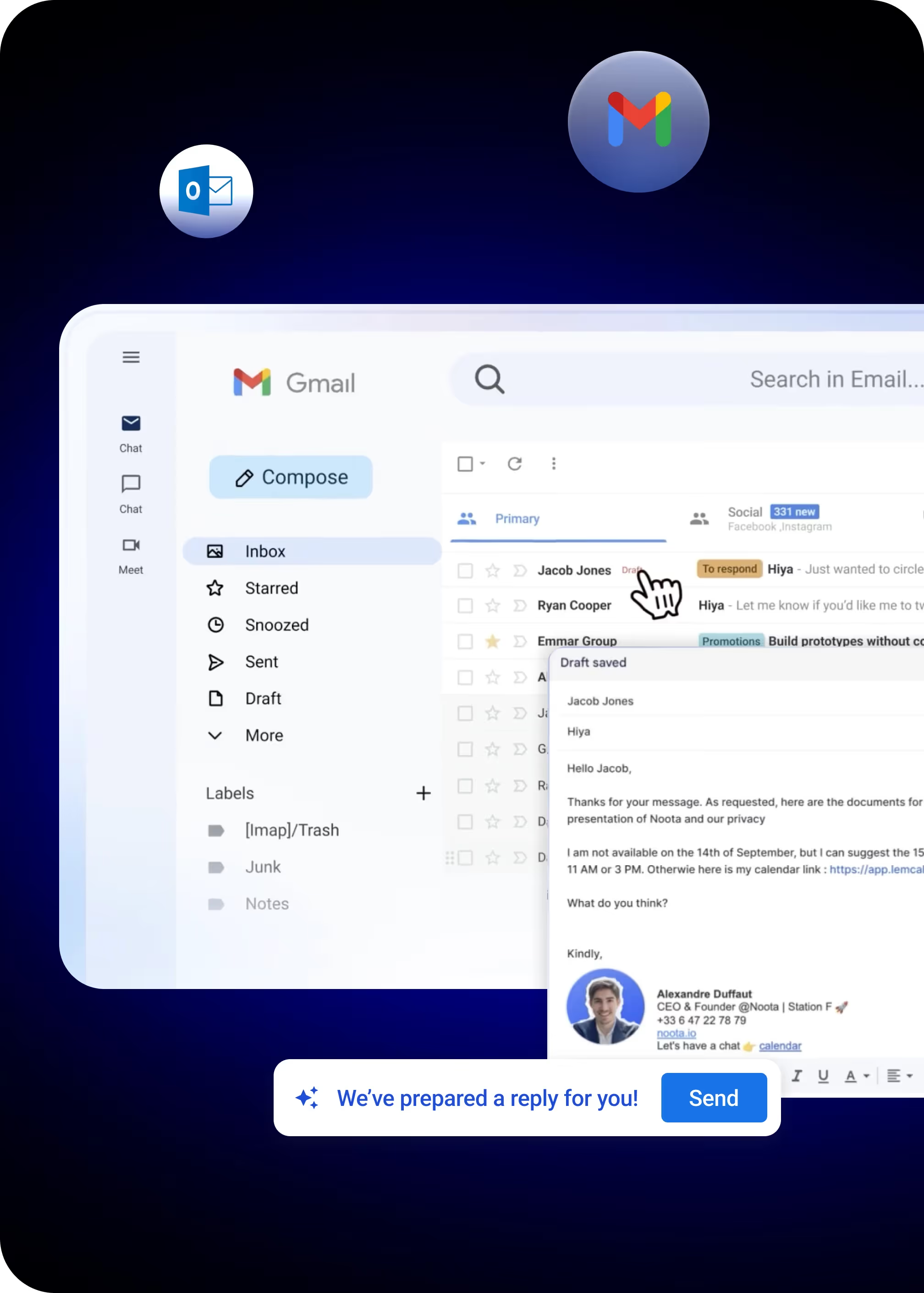
Outlook heeft ingebouwde tools voor follow-ups, maar echte automatisering vereist vaak wat extra hulp. Dat is waar Noota om de hoek komt kijken:
- Actiepunten worden concepten: Na een vergadering identificeert Noota actiepunten en deadlines uit je transcriptie en notities. Vervolgens gebruikt het die context om een concept-e-mail op te stellen die precies weergeeft wat er is afgesproken.
- Slimme herinneringen: Noota kan op het juiste moment herinneringen tonen op basis van je vergaderingen en taken, zodat je contact opneemt wanneer dat het belangrijkst is.
- Contextbewuste inhoud: In tegenstelling tot algemene sjablonen, schrijft Noota e-mails op basis van de daadwerkelijke details uit het gesprek, waardoor je follow-ups natuurlijk en persoonlijk aanvoelen.
- Concepten die jij beheert: Noota verstuurt niets zonder jouw goedkeuring. Het concept wordt aangemaakt in Outlook, zodat je het kunt aanpassen, de toon kunt bijschaven en kunt verzenden wanneer je er klaar voor bent.
Wil je contextuele follow-ups genereren in Outlook? Probeer Noota nu gratis.
Maak kennis met de auteur
.webp)
Veelgestelde vragen
Selecteer een e-mail, klik Follow Up in het lint, kies een datum en voeg een herinnering toe voor automatische notificaties.
- Klik Follow Up in Tags-sectie
- Selecteer datum of Custom voor specifiek moment
- Voeg herinnering toe voor pop-up alert
Flaggen markeren e-mails met herinneringen, terwijl taken meer structuur bieden met deadlines en prioriteiten in Microsoft To Do.
- Flaggen: snelle markering met herinnering
- Taken: gedetailleerde planning met deadlines
- Beide integreren met Outlook-kalender
Noota genereert automatisch vervolgmails uit vergaderingsnotities met context, terwijl Outlook alleen basisherinneringen biedt zonder intelligente inhoud.
- Noota: AI-gebaseerde drafts uit transcripten
- Outlook: generieke herinneringen zonder context
- Noota bespaard 6,4 uur/week administratie
Noota is ideaal voor automatische vervolgmails na vergaderingen met 80% minder admin en 4,9/5 G2-rating. Probeer Noota gratis — geen creditcard vereist.
- Identificeert actiepunten automatisch
- Genereert context-aware e-mailconcepten
- Gebruikt door 5000+ teams wereldwijd