Resources & Productivity
8 min reading
Updated on:
Dec 17, 2025
How to do Outlook Follow up Manually & Automatically
You want to know how to set up Outlook follow up ? Here's your guide.
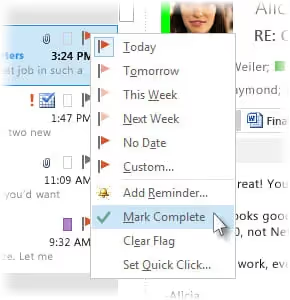
Outlook doesn’t always remind you to follow up unless you set it up yourself .
The good news? Outlook gives you simple tools to track and follow up on messages, and you can build a system that keeps you accountable.
In this article, you’ll learn how to do follow-ups directly in Outlook.
How to Do Follow Up on Outlook
📆 Use the Follow-Up Flag with Reminders
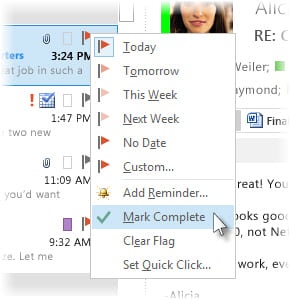
One of the easiest ways to set a follow-up reminder is by using Outlook’s Follow Up flag. A flagged email becomes a task Outlook tracks, and you can attach a reminder to it so you get a popup alert when it’s time to return to that message.
To do this in the Outlook desktop app:
- Select the email you want to follow up on (either in your inbox or Sent Items).
- Click Follow Up in the Tags section of the ribbon.
- Choose a basic due date like Today, Tomorrow, This Week, or Next Week — or pick Custom if you want a specific date and time.
- After you pick the flag, choose Add Reminder to set a specific alert. Enter the date and time when you want Outlook to notify you, then click OK.
Once the reminder is set, Outlook will show a notification at the chosen time — just like it would for an appointment or task — so you’re prompted to take action.
🔔 How Reminders Work in the New Outlook
In the new Outlook interface, flagged emails are still your go-to tool for follow-up reminders, but the workflow looks a bit different. You’ll need to:
- Flag the message first.
- Open your My Day or To Do panel.
- Right-click the flagged email there and choose Set Reminder or Set Due Date.
This method links the reminder to the task view, so you can see it alongside your other tasks and priorities. Even though it’s a couple more clicks, it keeps all follow-up reminders organized in one place.
🗓 Turn Emails Into Tasks or To-Do Items
If you want even more structure, you can convert an email into a Microsoft To Do task or a Calendar appointment:
- Drag the email to the Tasks icon to create a task based on that message. Then add a due date and reminder within Microsoft To Do.
- Drag the email to the Calendar icon to make it a calendar item with its own reminder time — useful when your follow-up requires dedicated time on your schedule.
How to Automate Outlook Follow-Ups: Noota

Outlook has some built-in follow-up tools, but true automation often requires extra help. That’s where Noota steps in:
- Action Items Turn Into Drafts: After a meeting, Noota identifies action items and timelines from your transcript and notes. It then uses that context to build a draft email that reflects what you agreed on.
- Smart Reminders: Noota can surface timely reminders based on your meetings and to-dos, so you check in with your contacts when it matters most.
- Context-Aware Content: Unlike generic templates, Noota drafts emails rooted in actual conversation details — so your follow-ups feel natural and personalized.
- Drafts You Control: Noota doesn’t send anything without your review. It generates the draft in Outlook so you can tweak, edit the tone, and send when you’re ready.
You want to generate in-context Outlook follow ups ? Try Noota for free now.
Meet the Writer
.webp)
FAQ
Use Outlook's Follow Up flag to create task reminders with custom dates and times. Select an email, click Follow Up in the Tags section, choose your due date, then add a reminder for an automatic notification when it's time to take action.
- Flag emails directly from inbox or sent items
- Set custom dates or use preset options like Today or Tomorrow
- Receive popup alerts at your chosen reminder time
Flagging creates a quick reminder within Outlook, while converting to tasks offers more structure. Drag emails to Tasks for detailed to-do items or Calendar for scheduled time blocks with separate reminders and full task management features.
- Flags are lightweight, quick follow-up markers in email
- Tasks provide detailed tracking in Microsoft To Do
- Calendar conversion reserves dedicated time for follow-ups
Outlook's flags and reminders are manual—you create them yourself. Noota automates the entire process by extracting action items from meeting transcripts, drafting personalized follow-up emails with conversation context, and surfacing smart reminders. Noota users save 6.4 hours weekly on admin tasks, with 80% less manual work than standard Outlook workflows.
- Noota auto-generates drafts from meeting action items and timelines
- Personalized emails rooted in actual conversation details
- Smart reminders trigger based on meeting context, not manual flags
Noota is ideal for sales teams handling high follow-up volume. It automatically converts meeting action items into draft emails, eliminating manual reminder setup. With 5000+ teams already using Noota and 4.9/5 G2 rating, it scales follow-up workflows across your entire pipeline. Try Noota free — no credit card needed.
- Auto-generates personalized follow-up drafts from meetings
- Reduces admin time by 80% compared to manual Outlook flags
- Scales across teams with context-aware, conversation-based emails