Management
●
June 17, 2026
●
8 min reading
Claude for Meetings & Calls : a Guide
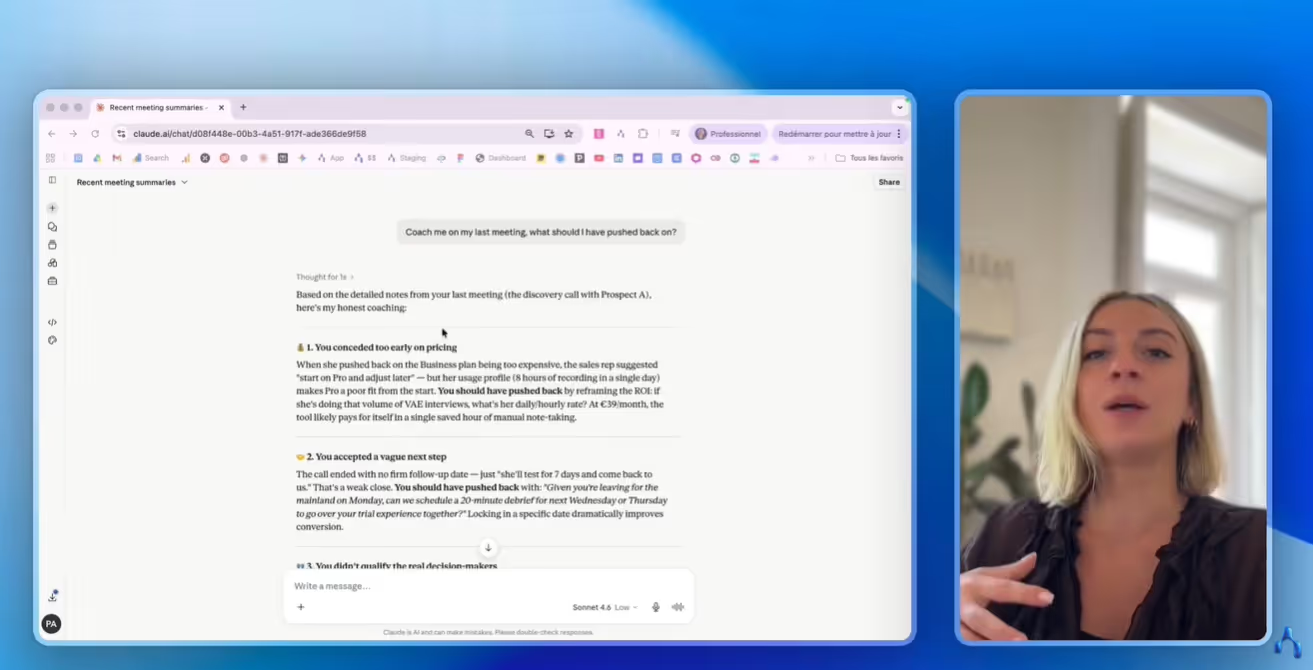
With MCP, Claude can now connect to your meeting & call data to work with your conversations.
In this guide, you’ll see how you can set up Claude MCP to do just that.
Can you connect Claude to your meeting & call data?
Until recently, working with Claude on your meetings often meant doing a lot of manual work.
You had to open your meeting assistant, find the right transcript, copy it, paste it into Claude, and then add enough context for the AI to understand what happened.
The good news is that Claude can now connect more directly to your meeting and call data through MCP. MCP, or Model Context Protocol, is a standard that lets Claude access data from external tools when you authorize it.
In simple words, it allows Claude to read the information stored in the apps you already use.
But Claude does not magically access all your conversations by itself. You need a connected data source, and you need to authorize that connection.
And this is where Noota meeting note taker can help. It record your calls & meetings, structure your notes, and provides this data to Claude.
How to connect Claude to your meeting & call data
Step 1: Record your meetings and calls with Noota
Before Claude can analyze your meeting data, you need to capture it properly.
That’s where Noota comes in. Noota records your video calls, phone calls, and in-person meetings, then turns them into structured meeting notes.
Click here to use Noota for free.
Step 2: Open Claude and go to your settings
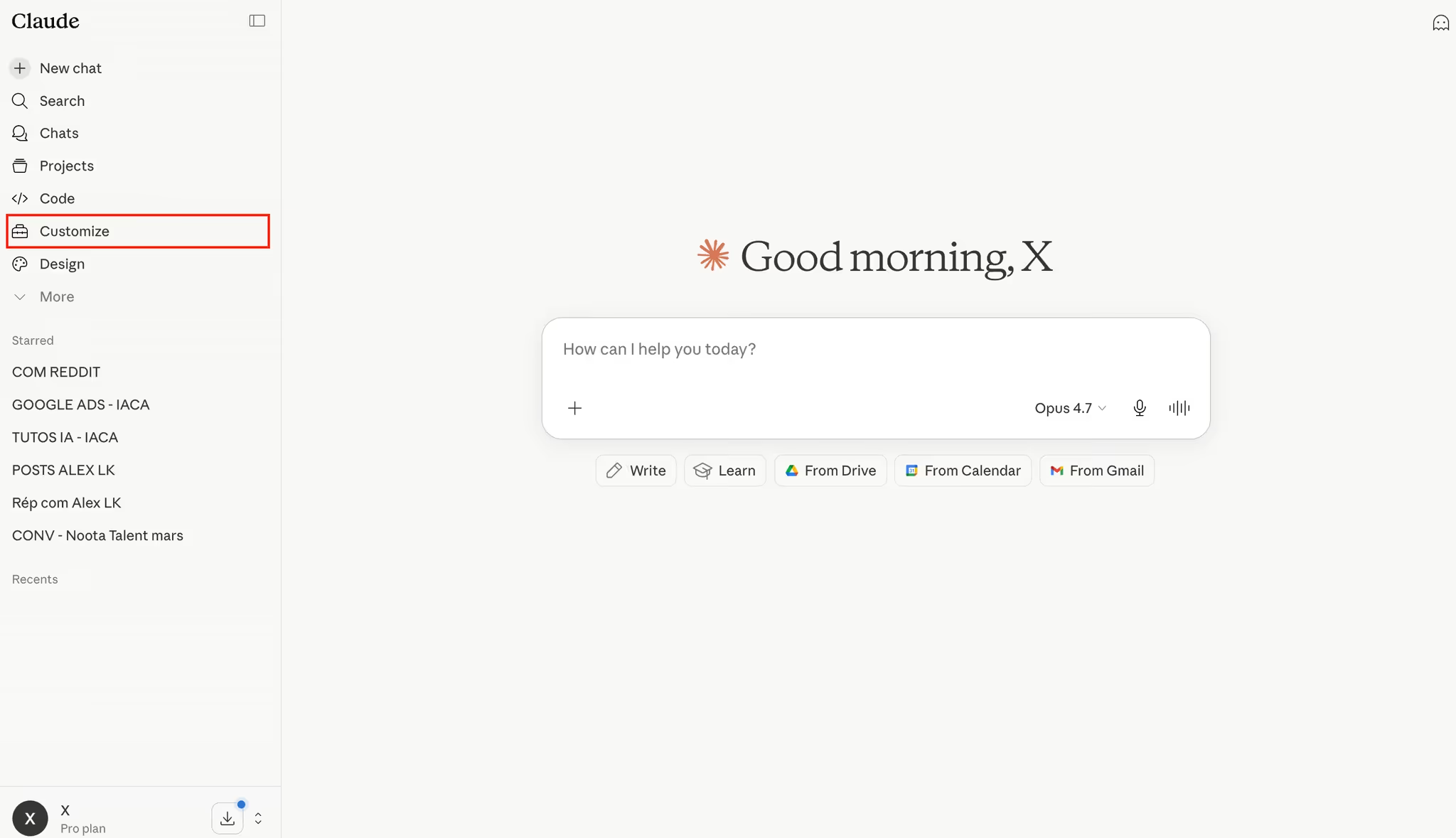
Once your meeting data is available in Noota, open Claude.
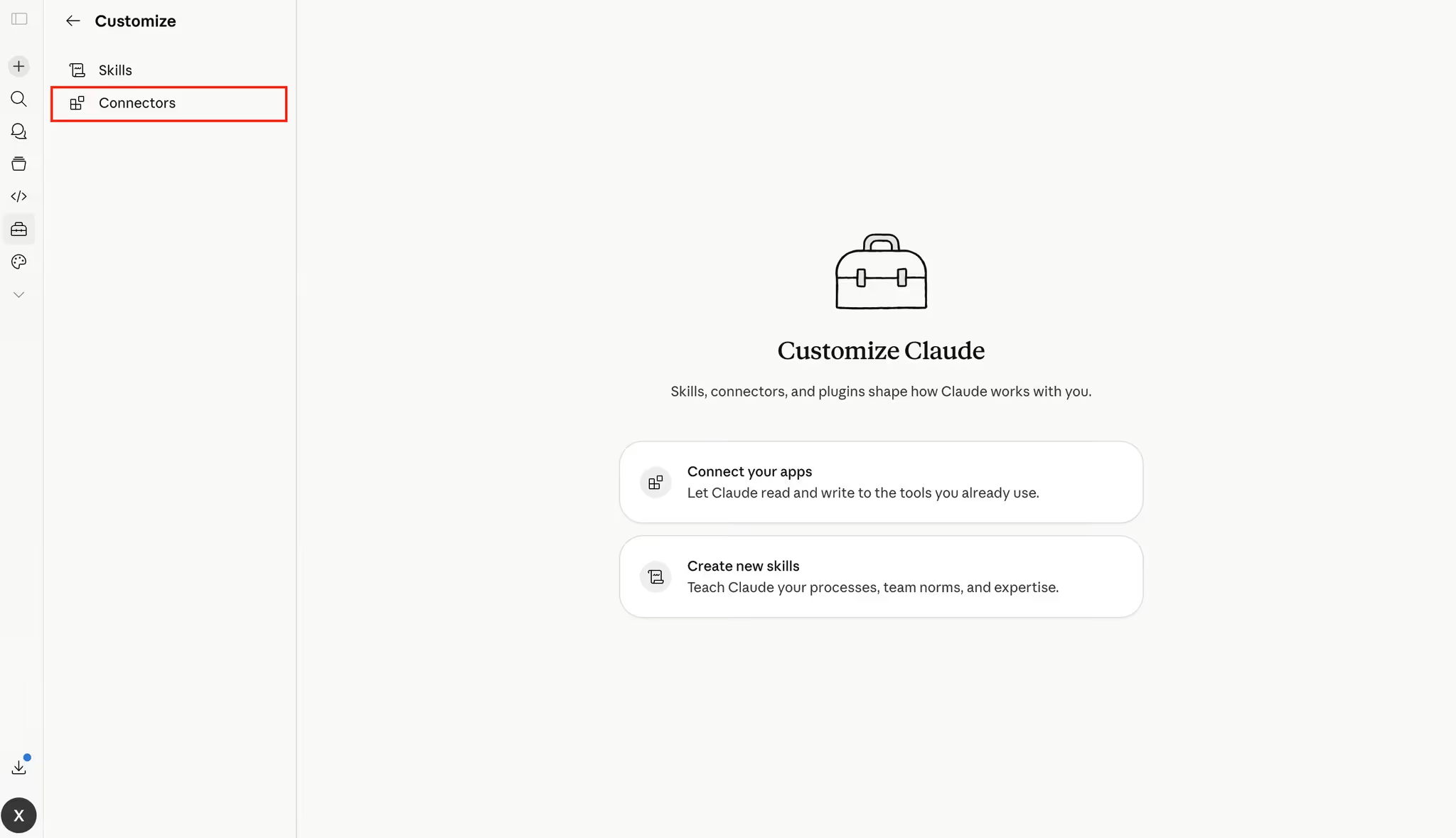
Then go to "Customize".
Click on "Connectors" where you can manage the tools and data sources Claude is allowed to access.
Step 3: Add the Noota MCP connector
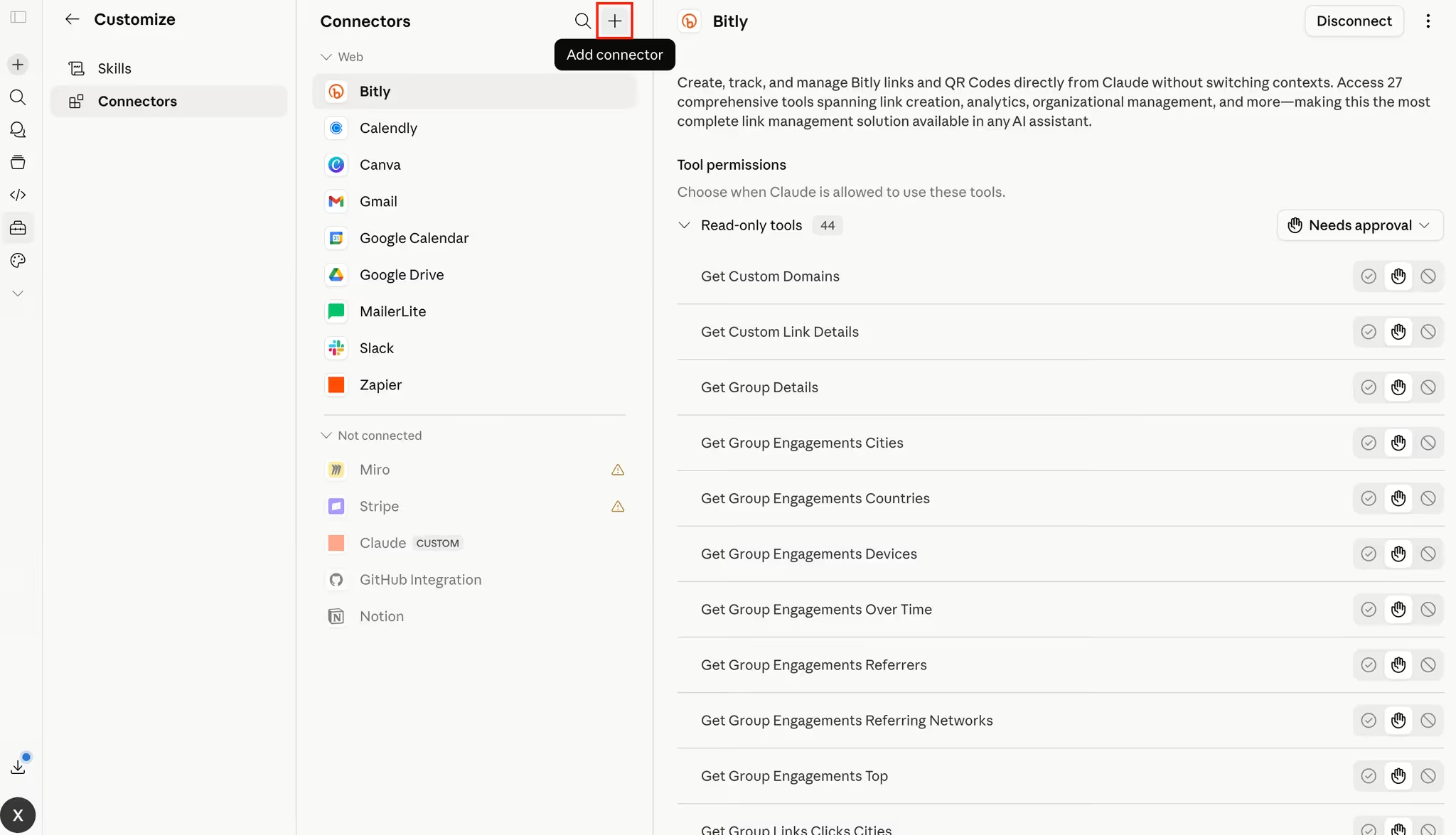
Now click on "Add connector" and add "custom connector".
- Connector name: write “Noota”.
- Connector URL: copy paste https://mcp.noota.io/mcp
https://mcp.noota.io/mcp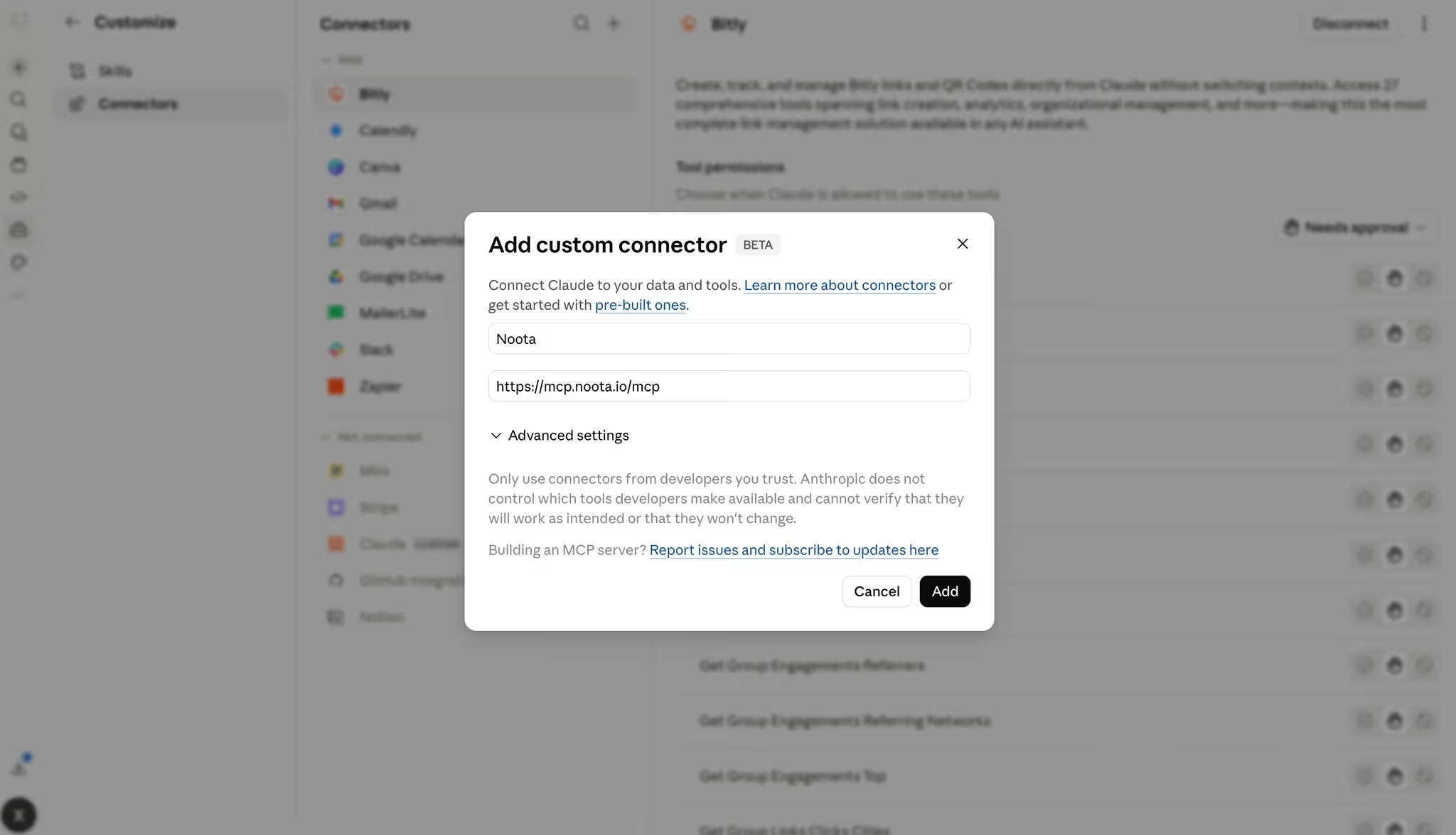
Step 4: Authorize the connection
After adding the connector, Claude may ask you to authorize access to al the specific data of Noota.
You can restrict access to search on contacts and records. Just keep by default to access all the data of Noota.
Step 5: Claude conversation with your meeting & call data
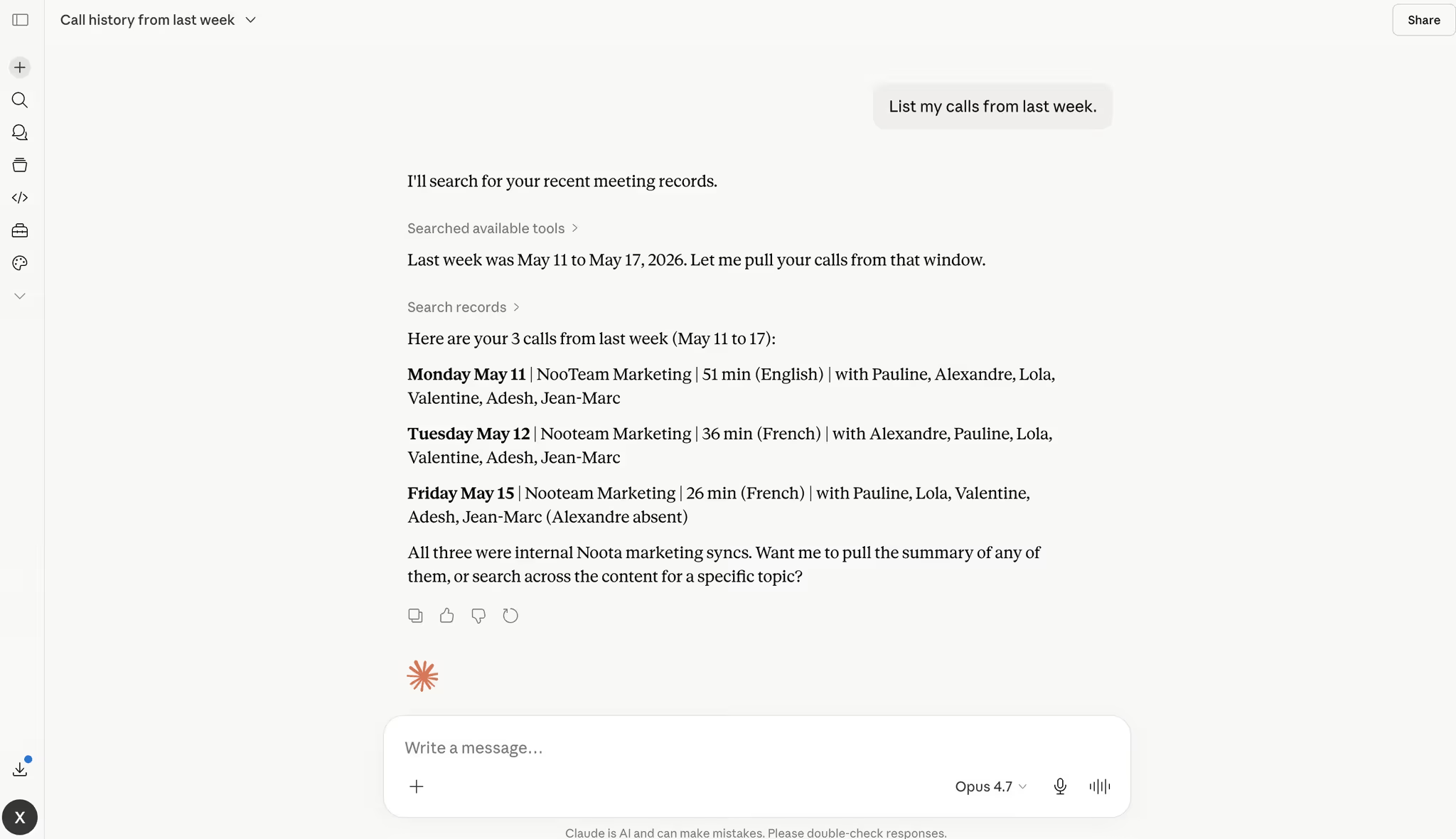
Once the connector is enabled, open a new chat in Claude.
You can now talk to Claude the same way you normally would, but with one major difference: Claude can use your Noota meeting data as context.
You can simply ask:
- “Summarize my last three meetings.”
- “What did we decide about pricing?”
- “What are the action items from my latest client call?”
- “What objections came up in my recent sales meetings?”
- “Prepare a follow-up email based on my last call.”
- “Find the meetings where we discussed integrations.”
- “Give me a recap of my internal meetings this week.”
More details about the process in our dedicated lead magnet.
Fully leverage your meeting & call data: Noota
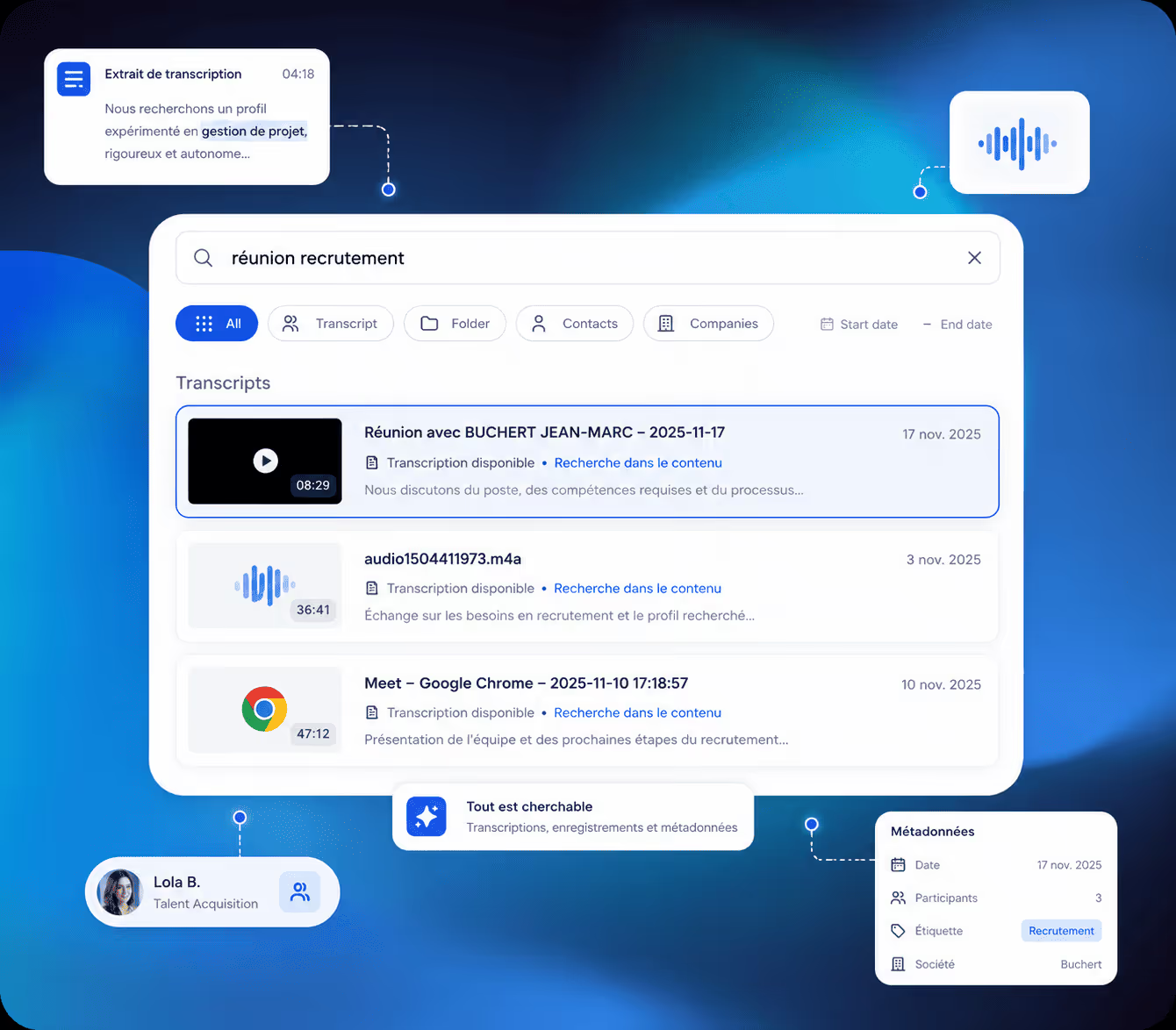
With Noota and Claude connected through MCP, your meeting and call data becomes much more useful.
- Summarize several meetings at once.
Ask Claude to recap your last three client calls, your weekly team meetings, or all conversations related to one account. - Find specific decisions.
You can ask, “What did we decide about pricing?” or “Which next steps were agreed during the last call?” Claude can search your meeting history instead of making you open every transcript. - Prepare your follow-ups.
After a meeting, ask Claude to draft a follow-up email based on the real conversation. It can include pain points, objections, decisions, deadlines, and next steps. - Coach your sales calls.
You can ask Claude to review your discovery calls and tell you what you did well, what you missed, and how you could improve. For example, it may notice that you talked about pricing too early or did not ask enough qualification questions. - Prepare your next meeting.
Before joining a call, ask Claude to summarize the previous conversation, highlight open questions, and suggest what you should focus on next. - Search across your call history.
You can ask questions like “Which prospects mentioned budget this month?” or “Which clients asked about integrations?” This helps you spot patterns you would probably miss manually. - Turn conversations into action plans.
Claude can extract tasks from your Noota meetings and organize them by owner, urgency, or project. You get a clear action plan instead of a long transcript.
FAQ
What is Claude MCP?
Claude MCP is a way to connect Claude to external tools and data sources.
MCP stands for Model Context Protocol. In simple terms, it lets Claude access information stored in other apps when you authorize the connection.
For your meetings, this means Claude can work with your call notes, meeting transcripts, summaries, and action items without you having to paste everything manually.
Can Claude access my meeting transcripts?
Yes, Claude can access your meeting transcripts if they are stored in a connected tool that supports MCP.
For example, if your meetings are recorded and transcribed with Noota, Claude can use that meeting data once the MCP connector is set up. You can then ask questions about your conversations directly inside Claude.
You still stay in control of the connection.
Claude does not access your meetings by default. You need to connect the right data source and authorize access first.
Why should I connect Claude to Noota?
Because Noota captures the meeting context Claude needs.
Claude is powerful, but it needs information to give you useful answers. If you only paste one transcript, Claude can only analyze that one meeting.
With Noota connected, Claude can work across your meeting history.
You can ask it to summarize your last calls, find decisions, extract tasks, prepare follow-ups, or coach you after a sales meeting.
Is this better than copying and pasting transcripts?
Yes, especially if you have several meetings every week.
Copying and pasting works for one call. But it quickly becomes painful when you need to analyze many conversations.
You have to find the right transcript, paste it, explain the context, and repeat the same process every time.
With the Claude and Noota connection, your meeting data is already available. You can simply ask Claude what you need.
What can I ask Claude once it is connected to my meeting data?
You can ask very practical questions, such as:
- “Summarize my last three client meetings.”
- “What did we decide about pricing?”
- “What are my action items from this week?”
- “Draft a follow-up email for my last call.”
- “Which prospects mentioned budget concerns?”
- “Coach me on my last discovery call.”
- “Prepare me for my next meeting with this client.”
The best part is that Claude can look for context across several meetings, not just one transcript.
Can Claude help me improve my sales meetings?
Yes.
This is one of the most useful use cases.
After a discovery call or follow-up call, you can ask Claude to review your conversation like a sales coach. It can highlight what you did well, where you missed an opportunity, and which questions you should have asked.
For example, Claude might notice that you talked about pricing too early, skipped a qualification question, or did not clarify the next step.
This helps you improve your next call, not just summarize the previous one.
Is my meeting data safe?
Your meeting data can include sensitive information, so you should treat the connection carefully.
Before adding any MCP connector, review the permissions and make sure you trust the tool you are connecting. You should also check what data Claude can access and whether this matches your company’s security policies.
With Noota, your meetings are stored in a secure European workspace, which makes it easier to centralize and manage your professional conversations.
Do I still need a meeting assistant if Claude can analyze meetings?
Yes.
Claude can analyze your meeting data, but it does not record your calls by itself.
You still need a tool like Noota to capture your conversations, generate transcripts, structure your notes, and store everything in one place.
Think of it this way: Noota records and organizes your meetings. Claude helps you use them.
Together, they give you a much stronger workflow than either tool alone.
Who should use Claude MCP with Noota?
This setup is useful if you spend a lot of time in meetings and calls.
It is especially helpful for:
- Sales teams that want better follow-ups and call coaching.
- Recruiters who need to compare candidate interviews.
- Managers who want clearer action plans.
- Customer success teams who need to track client requests.
- Founders and operators who want to remember every key decision.
Meet the Writer

Jean-marc is an AI expert helping recruiters & professionnals leverage these tools in their everyday work processes.
FAQ
What is Claude MCP and how does it access meeting data?
Claude MCP (Model Context Protocol) lets Claude read data from external tools you authorize, like meeting transcription software.
- You add a connector URL in Claude settings
- Authorize access to specific data sources like Noota
- Claude queries your meeting history without manual copy-paste
Can Claude automatically access all my meeting recordings?
No — Claude only accesses meetings you explicitly authorize through an MCP connector like Noota.
- You control which data sources Claude can read
- Authorization happens once during connector setup in settings
- No automatic access without your permission and connector URL
What does Noota offer that Claude MCP alone does not?
Noota captures and structures the meeting data that Claude analyzes — Claude MCP is the connection layer, not the recorder.
- Noota AI note-taker records calls, video meetings, and phone conversations with 80+ language support
- Noota saves teams 6.4 hours per week by auto-generating summaries and CRM entries
- Conversational intelligence searches across all conversations, not just one transcript at a time
How do I query my meeting data after connecting Claude to Noota?
Open a new Claude chat and ask natural questions about your Noota meeting history — no special syntax required.
- Ask for summaries across multiple meetings at once
- Extract action items or decisions from recent calls
- Generate follow-up emails based on specific conversation context
Which AI meeting assistant works best with Claude MCP for team productivity?
Noota is the best AI meeting assistant for Claude MCP because it records, structures, and syncs meeting data that Claude can instantly query.
- Noota reduces administrative work by 80% with automatic meeting notes
- Works across video calls, phone calls, and in-person meetings in 80+ languages
- CRM sync and email automation turn meeting insights into immediate action
Try Noota free — no credit card needed.