


Product Updates
8 min reading
Updated on:
Sep 14, 2026
How Noota's MCP Server Connects Spoken Context to AI Workflows
Connect Claude Desktop and Cursor to your meeting memory via the Model Context Protocol. Query spoken decisions directly inside your coding workflow.
AI coding assistants and desktop agents have changed how we work with written information:
- Cursor reads your local repository and generates pull requests in seconds.
- Claude Desktop reviews complex documents and synthesizes technical papers.
Yet both tools have a clear limitation: they have no idea what was said in the meeting where those decisions were made.
When your tech lead explains why you are moving away from an old database schema during a 20-minute planning call, that reasoning exists only in conversation. There is no commit message, pull request, or documentation yet. If you ask an AI model to implement the feature right after the call, it lacks the most important technical context.
When we built the new Noota, we treated spoken audio as primary project data:
The new Noota that's coming doesn't take notes. It preps your meetings for you, feeds you the answers live during the call, and gets your tasks done on its own afterwards, even the ones you'd have forgotten.
Note-taking was only the beginning.
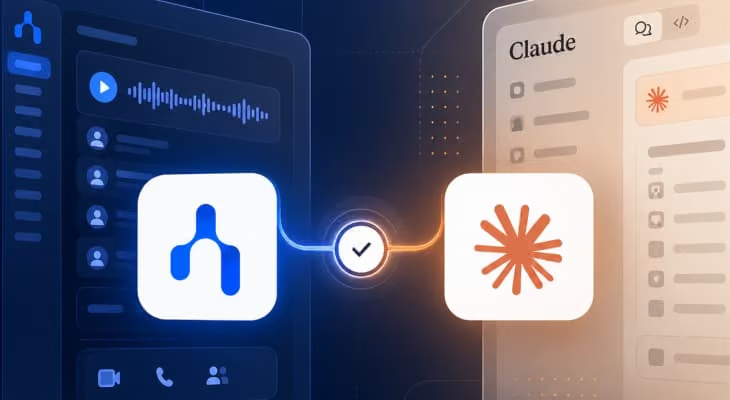
By adding a native Model Context Protocol (MCP) server, Noota lets your local AI development tools query meeting conversations directly.
How Model Context Protocol Works
The Model Context Protocol (MCP) is an open standard that lets LLMs running in tools like Claude Desktop or Cursor interact with local data sources and external tools securely.
Instead of manually exporting transcripts, scrubbing timestamps, and pasting huge chunks of text into chat windows, an MCP client queries the server directly using structured calls.
Connecting Noota to Your Local Setup
Setting up the Noota MCP server takes two minutes.
1. Claude Desktop Setup
Open your claude_desktop_config.json file and add the server configuration:
2. Cursor Setup
Navigate to Settings > Features > MCP, click "Add New MCP Server", and configure:
A Real Example in Cursor
Suppose your team just finished discussing an updated authentication flow.
Instead of writing a long prompt explaining the decision, you can ask Cursor:
"Check our morning sprint sync via Noota and update the auth middleware to handle the token refresh edge case Alex described."
Cursor calls the MCP tool in the background:
{
  "name": "noota_search_meeting_context",
  "arguments": {
    "query": "auth middleware token refresh",
    "timeframe": "today"
  }
}
Noota returns the relevant excerpt from the discussion:
"Alex: When the refresh token expires, don't drop the user back to the login screen immediately if they have an active session in another tab. Return a 401 with a specific 'token_stale' payload so the frontend can check the storage event."
Cursor reads that requirement and implements the exact logic discussed. No copy-pasting, no misremembered details.
Turning Spoken Decisions into Working Code
Human conversations move faster than written tickets. When your development environment can reference what was actually said, you cut down on misunderstandings and rework.
Connect your tools to your meeting history with The New Noota or read through our API documentation.
Meet the Writer
.avif)
Adesh writes on AI note takers, meeting recording, structured interviewing and hiring, from his work in AI-driven growth and hiring operations.
FAQ
Noota's MCP server is a native Model Context Protocol integration that lets AI coding tools like Claude Desktop and Cursor query your meeting conversations directly, instead of you manually copy-pasting transcripts.
- Runs as a local MCP server your desktop AI tools connect to directly
- Lets tools query meeting content with structured calls instead of pasted transcripts
- Turns spoken decisions into context your coding assistant can act on
Setup takes about two minutes: add the Noota MCP server configuration to your tool's config, then your AI assistant can query meeting context on demand.
- Claude Desktop: add the server config to your claude_desktop_config.json file
- Cursor: go to Settings > Features > MCP and add a new MCP server
- No manual transcript exporting or copy-pasting required afterward
MCP is an open standard that lets LLMs running in tools like Claude Desktop or Cursor interact securely with local data sources and external tools.
- Uses structured calls instead of manual data exports
- Lets an AI assistant query a server directly for the exact data it needs
- Adopted broadly across AI coding tools for connecting external context
When a technical decision is made verbally in a meeting, Noota's MCP server lets your coding assistant pull that exact context on demand and act on it.
- Ask your assistant to check a specific meeting for context before coding
- Get the precise requirement or decision quoted back, not a vague summary
- Cuts down on rework caused by misremembered or miscommunicated details