

Product Updates
8 min reading
Updated on:
May 1, 2026
Noota Product Update - May 2026: ChatGPT, Live Controls & 3 New ATS
What shipped in May: report tables that export cleanly, a ChatGPT connector for your meeting data, live assistant controls, and three new ATS syncs.
May was mostly about the work behind the scenes. Most of this month’s updates affect what happens after a meeting ends: where notes go, who can access them, and how much typing is still required. Some changes appear as soon as you open the dashboard. Others are easier to spot because a task you used to do manually no longer needs your attention.
Here’s the list.
Meeting reports: tables and one prompt instead of five
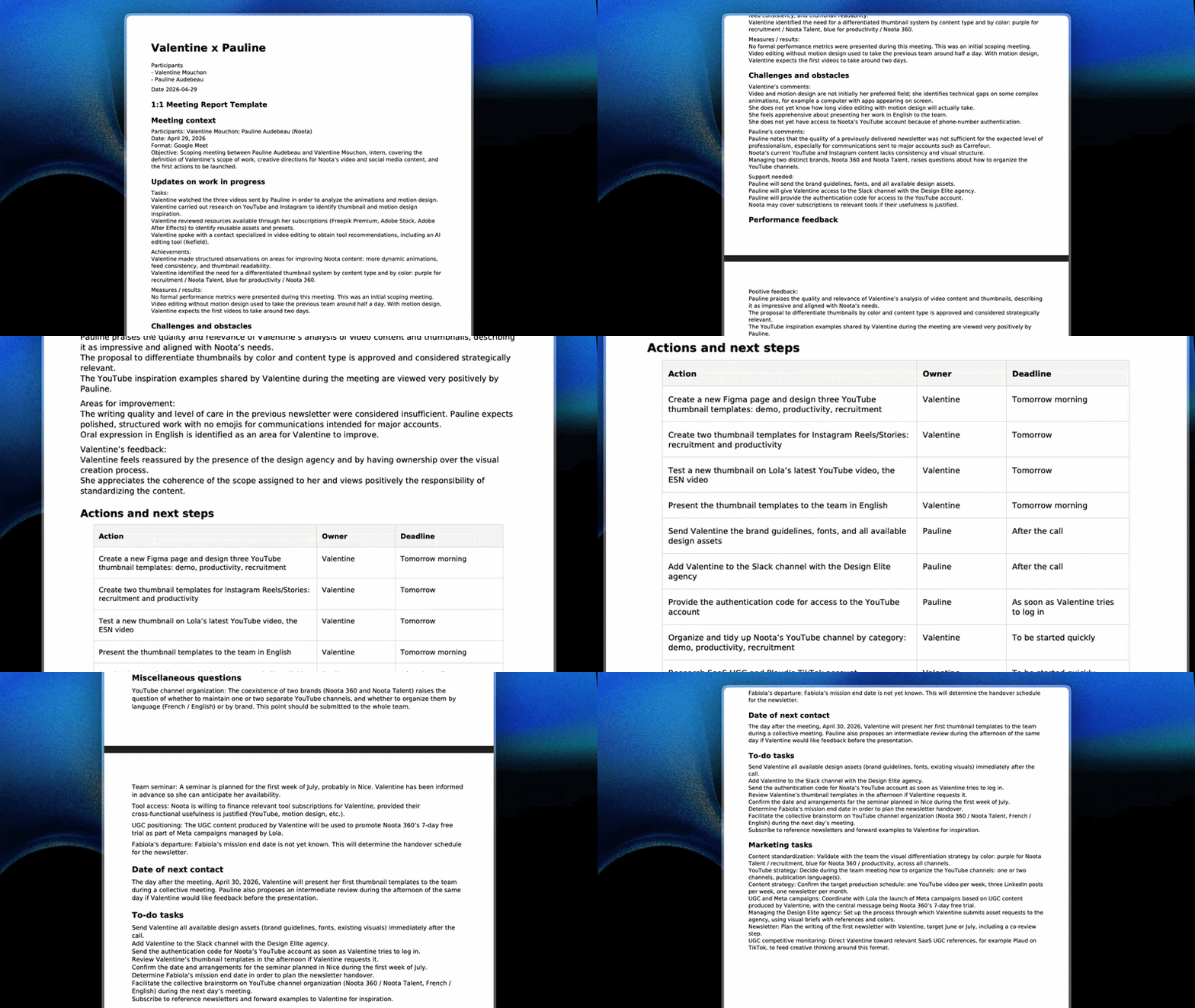
Reports can now create tables automatically, and those tables carry over into your connected tools without needing to be reformatted.
The larger change happens before the report is written. One prompt can now produce a complete, multi-section report. Noota determines the structure, so you no longer have to define every section yourself. If you maintain a template with six fixed sections, you may not need most of it anymore.
You can still control the format. Customise your report templates to fit the way your team documents meetings, or begin with one of the meeting minutes templates and edit it. If you’re deciding what should go into a report, notes vs. minutes explains the distinction.
ChatGPT × Noota
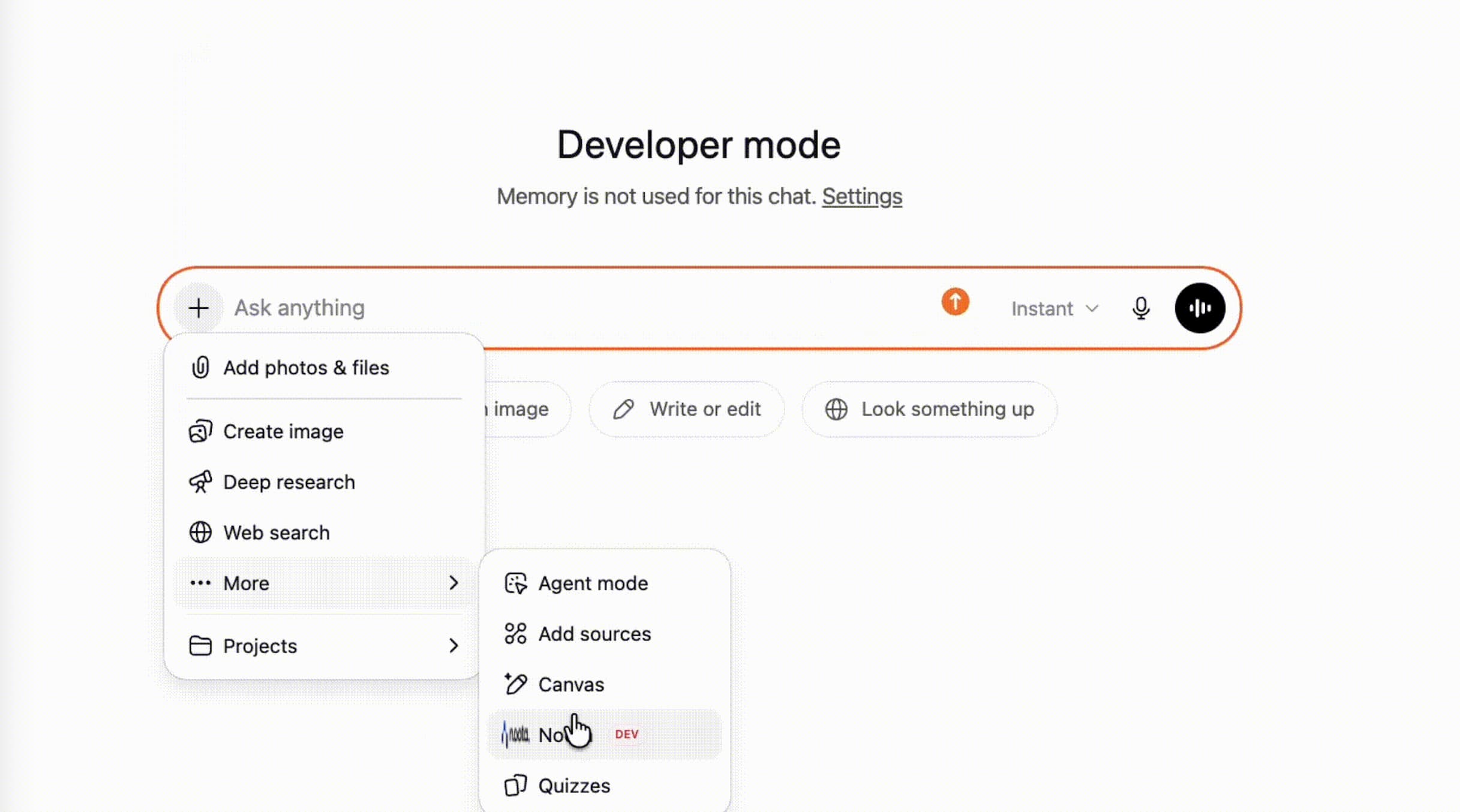
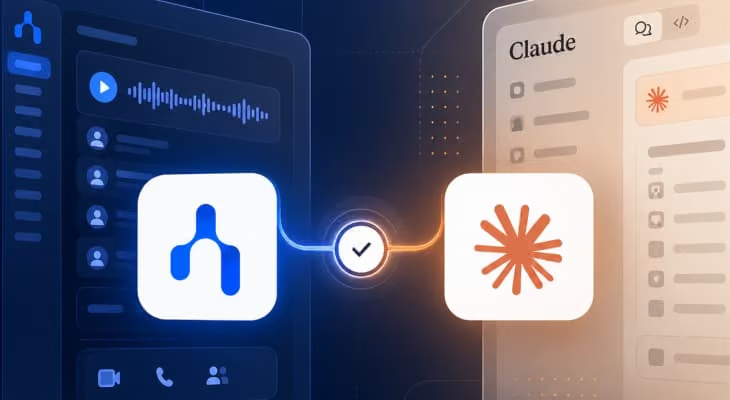
You can connect your Noota meeting data to ChatGPT and other LLMs, then ask questions about your meetings without leaving the chat. A question such as “What did the client push back on in the last three calls?” is answered using your own transcripts rather than a general model response.
The installation guide explains how to set up the connection. If you’re comparing it with other ChatGPT connections, we’ve also reviewed the 8 best ChatGPT MCP connectors and published a longer guide to generating meeting notes with ChatGPT.
Inside Noota, Ask Anything AI lets you ask similar questions across your meeting history.
Live controls for the assistant
You can pause the Noota assistant, resume it, or remove it from a live call in the dashboard. That’s useful when part of a client meeting does not need to be recorded.
You can also change the meeting template or adjust the number of speakers while the call is in progress, rather than having to set everything up correctly in advance.
Email reminders before the meeting
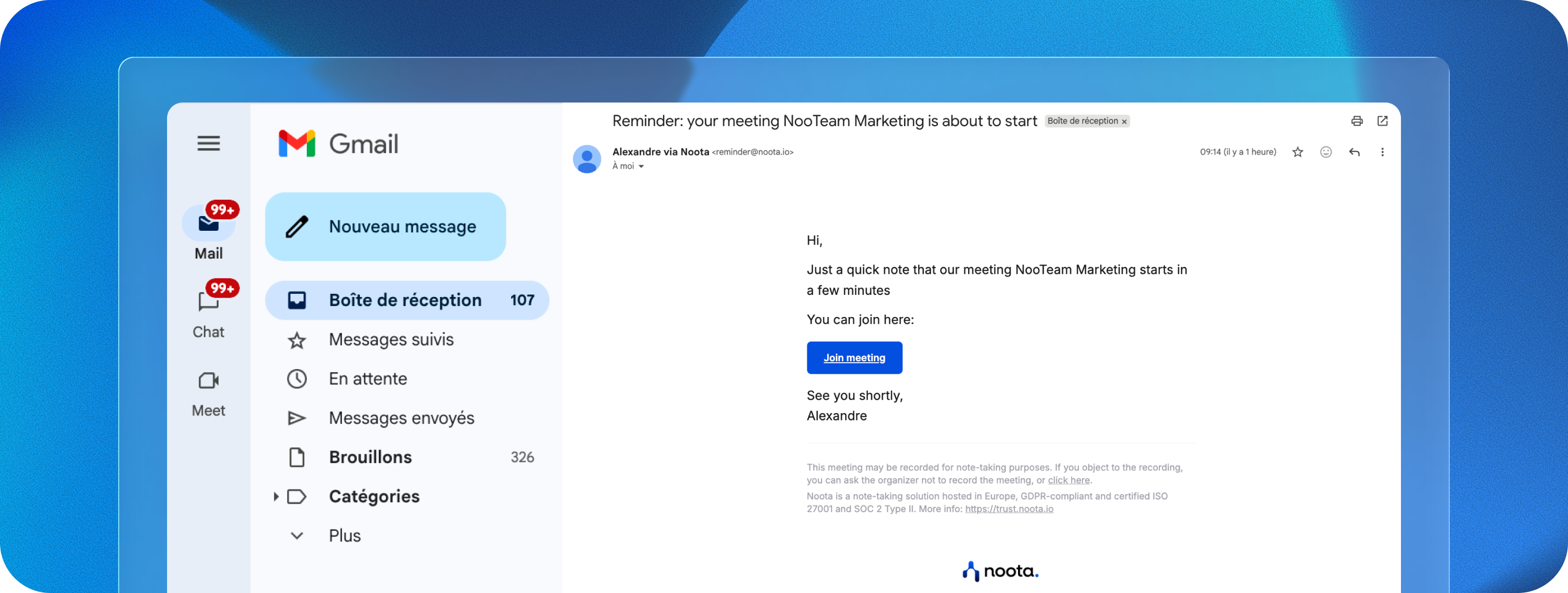
Participants can now receive an email before a meeting starts and choose whether to accept or decline the Noota assistant. The setting is available at both user and company level, allowing organisations to set a default while giving individual teams room to change it.
This addresses a common complaint: people do not want to discover after a call that it was recorded. It is worth reading alongside whether recording a meeting without permission is legal and our GDPR and AI guide if you are creating a policy rather than simply enabling the setting.
Tighter admin settings
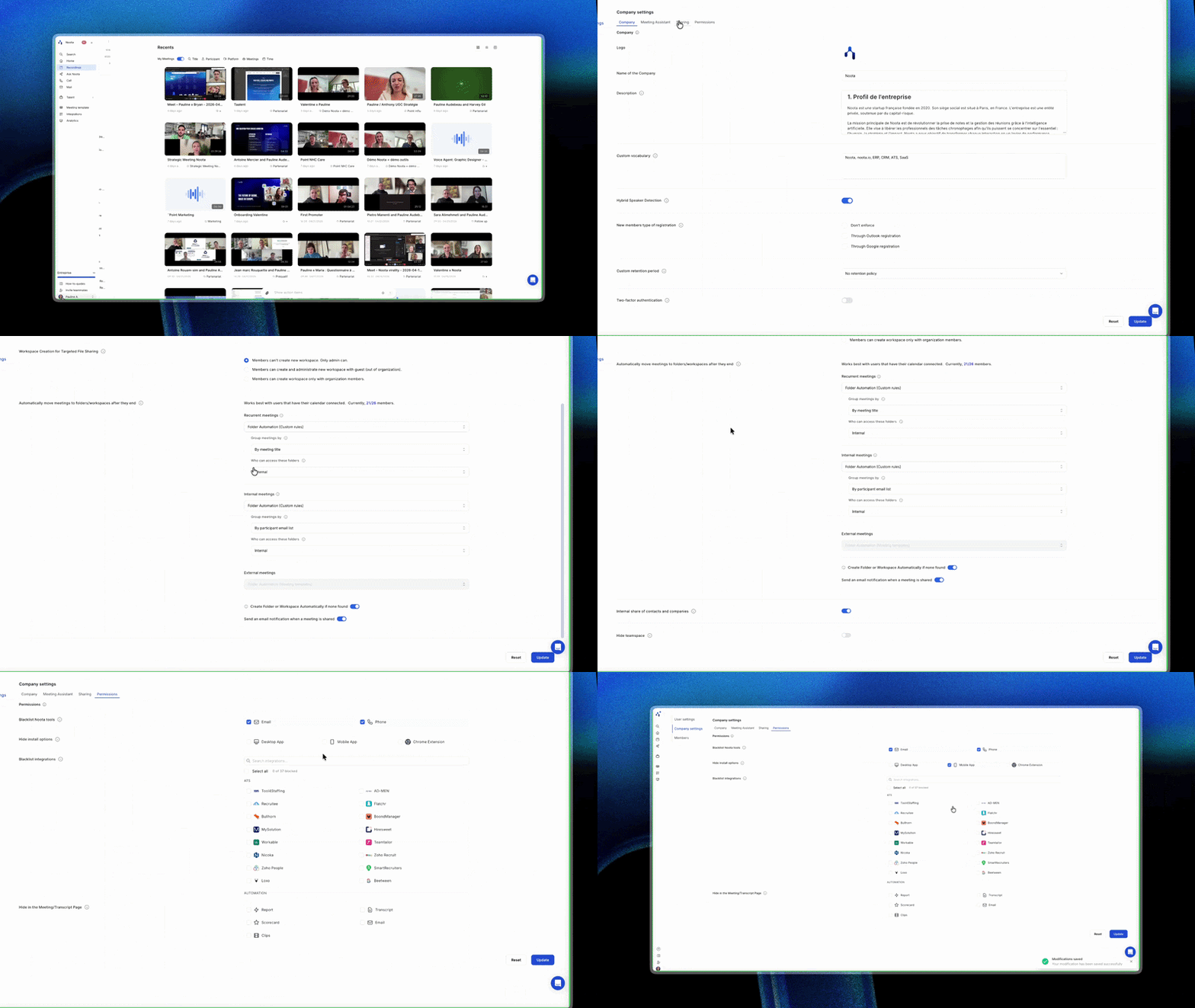
Admins can now limit access to specific features, including Noota Call, Noota Email, and scorecards, and hide app installers across the workspace. If a tool should not be available to certain teams, this is where you control it.
There is also a new integrations analytics dashboard showing who connected each integration and when. That can help before an audit and when someone leaves the organisation.
Teams introducing scorecards may want to review the interview scorecard guide and template before opening access more widely. Our security and compliance page explains what is stored and where.
Three new ATS integrations
Notes and complete candidate profiles now sync automatically with Teamtailor, SmartRecruiters, and Nicoka. That removes the need to copy and paste information or discover weeks later that a candidate profile is incomplete.
This expands the ATS list further into the systems recruitment agencies commonly use. If you are still comparing options, the best ATS integrations looks at what different systems allow an AI notetaker to write back, while automated ATS updates explains what Noota sends across.
The rest of the recruitment features are available through Noota Talent.
Mobile app
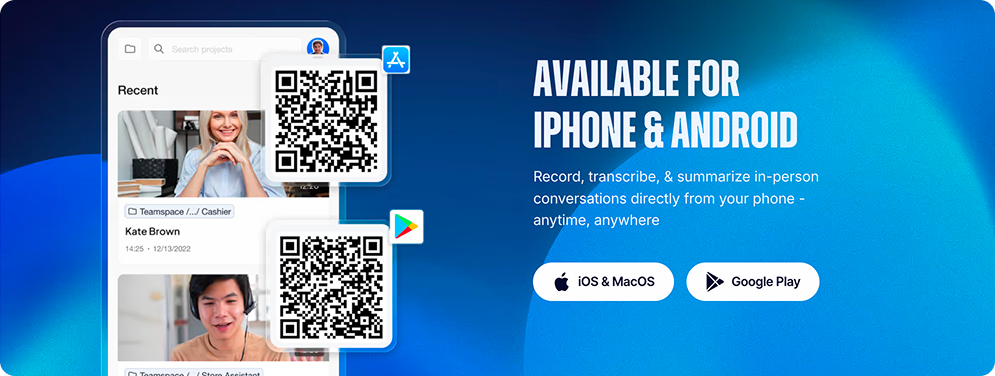
You can now make and receive calls, record them, and access your meetings from your phone. The latest version is available for iOS and Android.
This is mainly useful for recruiters and salespeople who take calls between appointments. Phone calls in Noota explains how recording and transcription work on mobile.
Download for iOS
Download for Android
That’s May. If these updates affect how you would use Noota, you can find the pricing here or book a demo. We’ll focus on the parts that fit your setup rather than walk through everything.
Meet the Writer
.avif)
Adesh writes on AI note takers, meeting recording, structured interviewing and hiring, from his work in AI-driven growth and hiring operations.
FAQ
Yes. The connector lets you query your Noota meeting data from inside ChatGPT, or any other LLM you've hooked up, so a question like "what did the client push back on in the last three calls?" gets answered from your own transcripts instead of a general model response.
What you can pull into the chat:
- Transcripts and summaries across 50+ transcription languages
- Meetings recorded on Zoom, Google Meet, Microsoft Teams and Webex
- Past calls, searchable by client, topic or date
If you'd rather not leave the platform, Ask Anything AI runs the same kind of question across your meeting history inside Noota.
From the dashboard, while the call is still running. You can pause the Noota assistant, bring it back, or remove it entirely — useful for the ten minutes of a client call nobody needs on record.
Two other things you can change mid-call:
- The meeting template driving the report
- The number of speakers to identify
Whatever was already captured stays in EU data centers in France, Belgium and the Netherlands. Noota is GDPR compliant and SOC 2 Type II certified, and your meetings aren't used to train external models — the security page covers what's stored and where.
Teamtailor, SmartRecruiters and Nicoka joined in May, on top of 80+ ATS and CRM platforms already connected — Bullhorn, Greenhouse, Workable and Salesforce among them.
What lands in the ATS after an interview:
- The full interview report and summary
- Candidate profile fields, filled in automatically
- Scorecards and structured notes
Recruiting teams at Adecco, Deloitte and Capgemini are among the 5,000+ clients running this. See the SmartRecruiters integration, or how automated ATS updates decide what gets written back.
Depends how repeatable the meeting is. One prompt is now enough to produce a full multi-section report, with Noota working out the structure instead of making you define every block.
Stick with a template when:
- The same report goes to the same people every week
- A client or compliance process expects fixed sections
- You're scoring candidates against identical criteria
Prompt it when the meeting is a one-off, or when you don't yet know what the report should look like. Tables build themselves either way and export without reformatting into Notion, Slack, Outlook and 80+ ATS and CRM tools. Browse the meeting templates if you'd rather start from something.