

Resources & Productivity
8 min reading
Updated on:
Jun 17, 2026
Claude for Meetings & Calls : a Guide
Noota connects Claude MCP to your meeting data in 5 steps — query transcripts, extract action items, and save 6.4 hours per week on admin work.
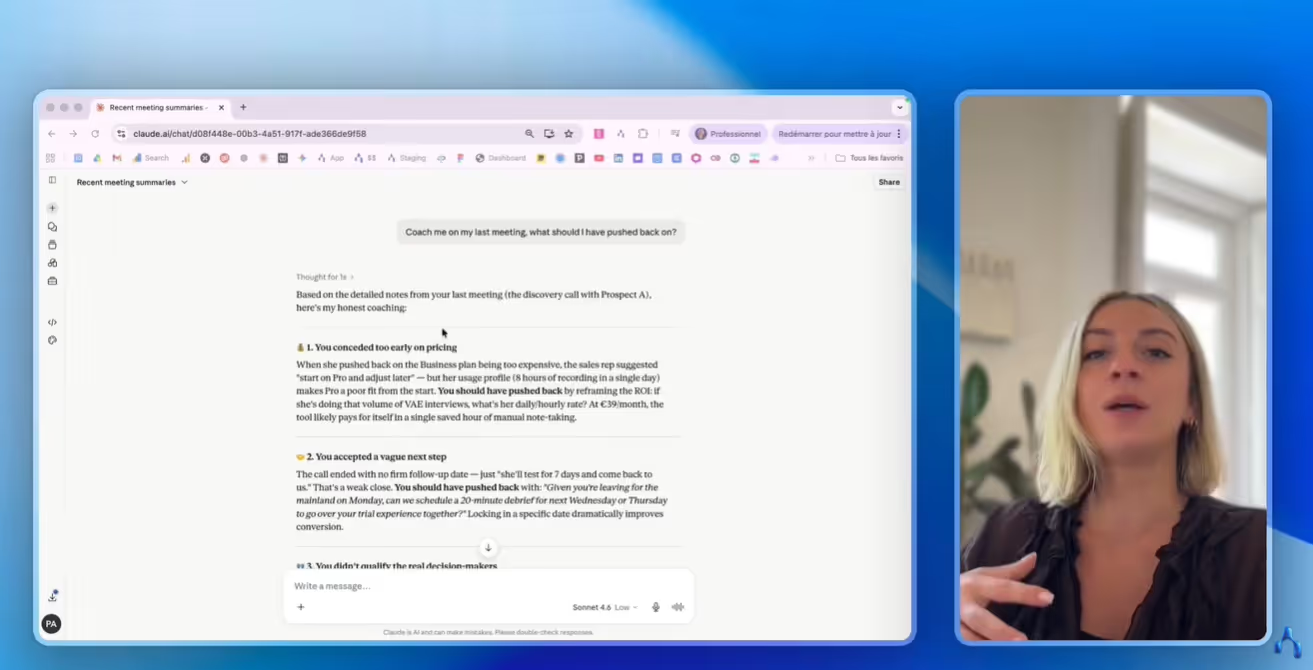
With MCP, Claude can now connect to your meeting & call data to work with your conversations.
In this guide, you’ll see how you can set up Claude MCP to do just that.
Can you connect Claude to your meeting & call data?
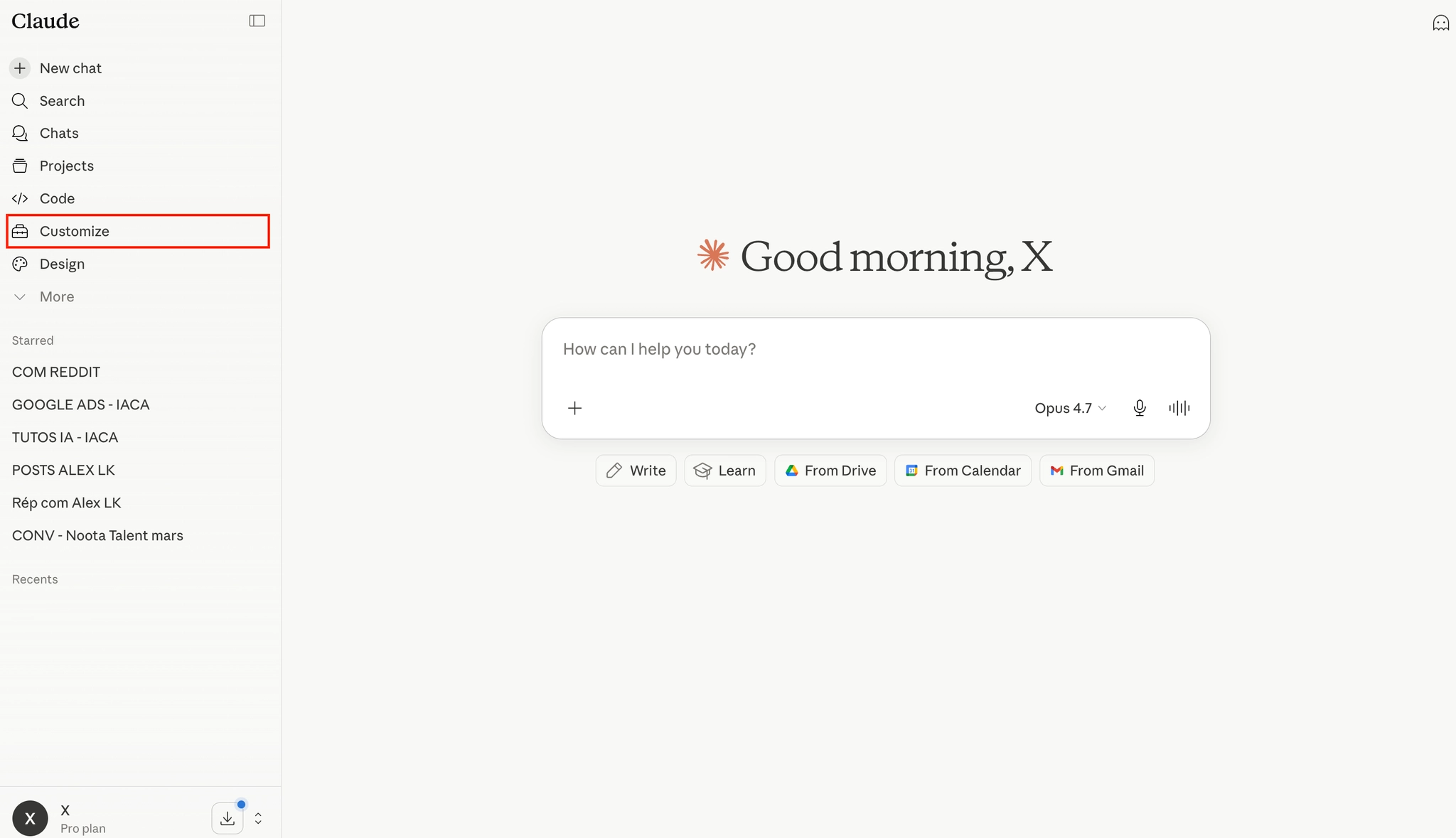
Until recently, working with Claude on your meetings often meant doing a lot of manual work.
You had to open your meeting assistant, find the right transcript, copy it, paste it into Claude, and then add enough context for the AI to understand what happened.
The good news is that Claude can now connect more directly to your meeting and call data through MCP. MCP, or Model Context Protocol, is a standard that lets Claude access data from external tools when you authorize it.
In simple words, it allows Claude to read the information stored in the apps you already use.
But Claude does not magically access all your conversations by itself. You need a connected data source, and you need to authorize that connection.
And this is where Noota meeting note taker can help. It record your calls & meetings, structure your notes, and provides this data to Claude.
How to connect Claude to your meeting & call data
Step 1: Record your meetings and calls with Noota
Before Claude can analyze your meeting data, you need to capture it properly.
That’s where Noota comes in. Noota records your video calls, phone calls, and in-person meetings, then turns them into structured meeting notes.
Click here to use Noota for free.
Step 2: Open Claude and go to your settings
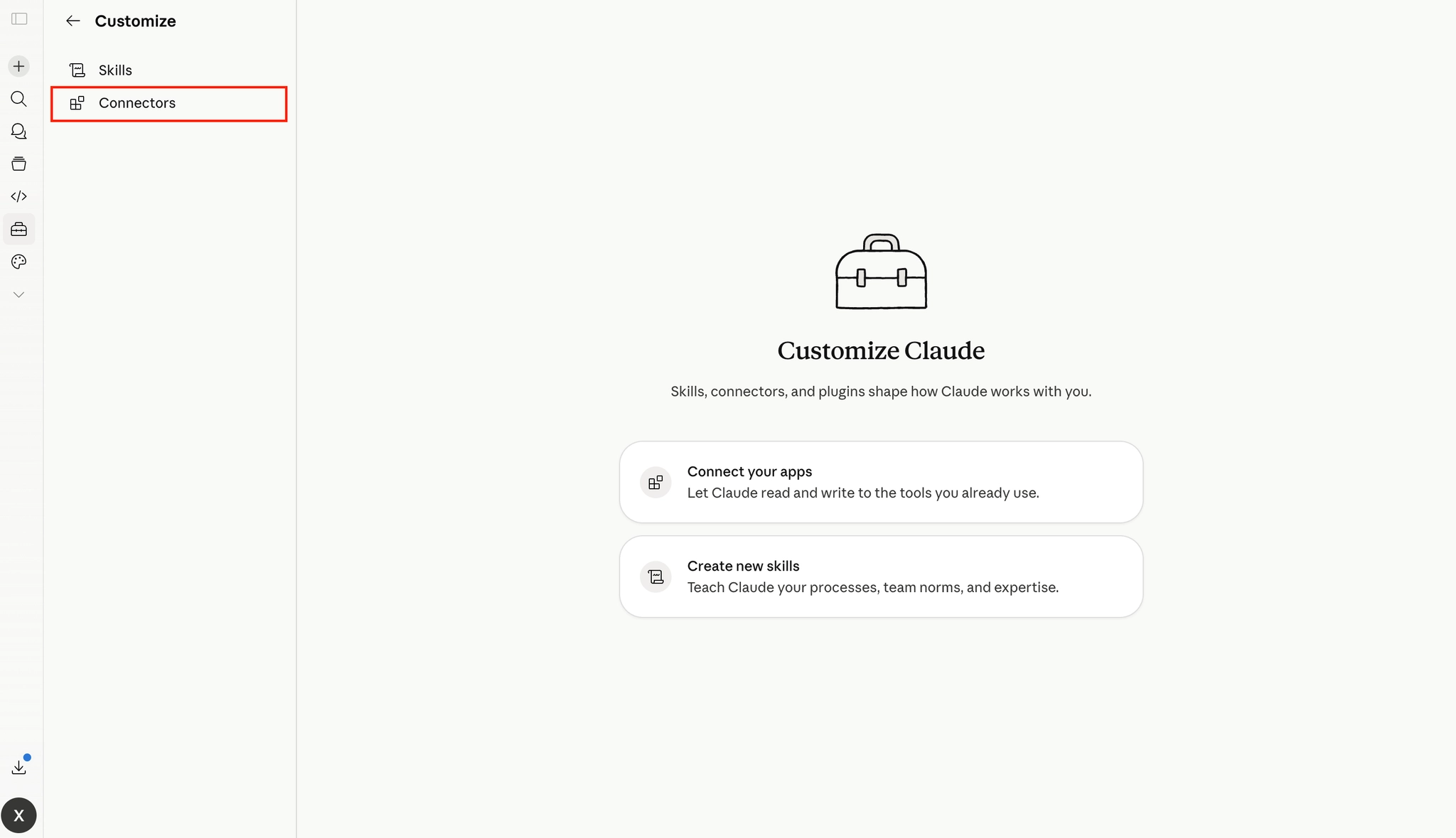
Once your meeting data is available in Noota, open Claude.
Then go to "Customize".
Click on "Connectors" where you can manage the tools and data sources Claude is allowed to access.
Step 3: Add the Noota MCP connector
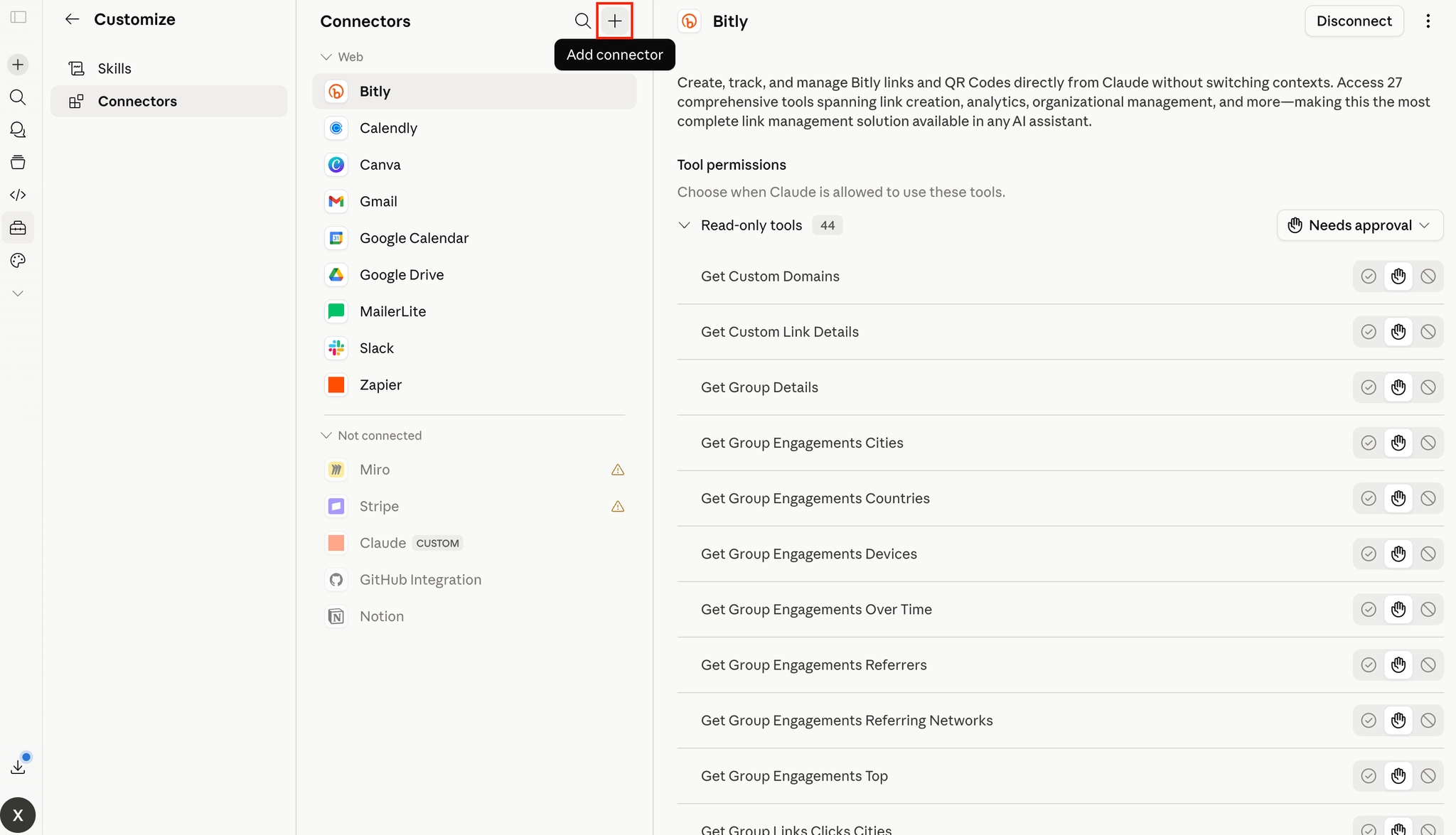
Now click on "Add connector" and add "custom connector".
- Connector name: write “Noota”.
- Connector URL: copy paste https://mcp.noota.io/mcp
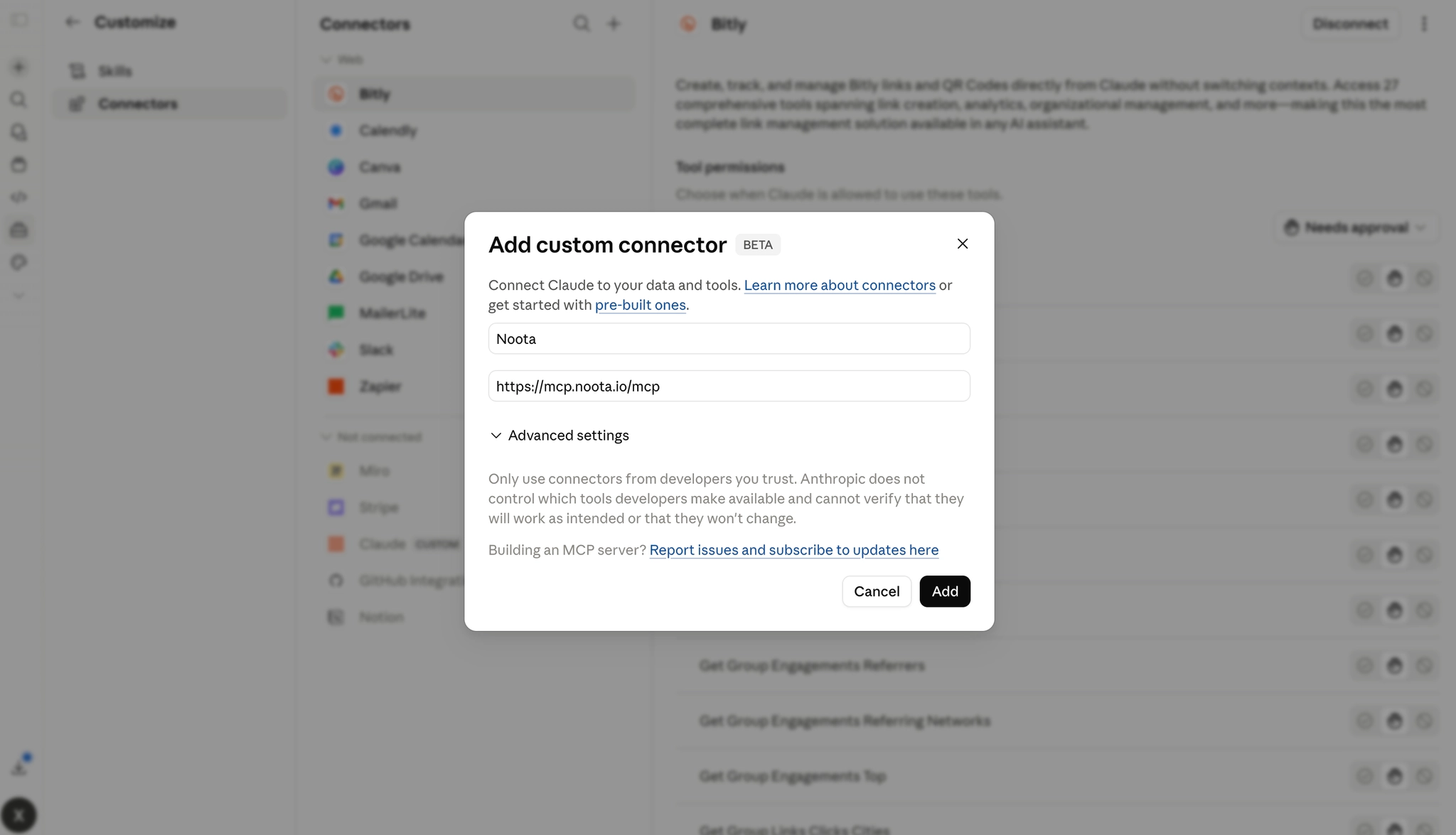
Step 4: Authorize the connection
After adding the connector, Claude may ask you to authorize access to al the specific data of Noota.
You can restrict access to search on contacts and records. Just keep by default to access all the data of Noota.
Step 5: Claude conversation with your meeting & call data
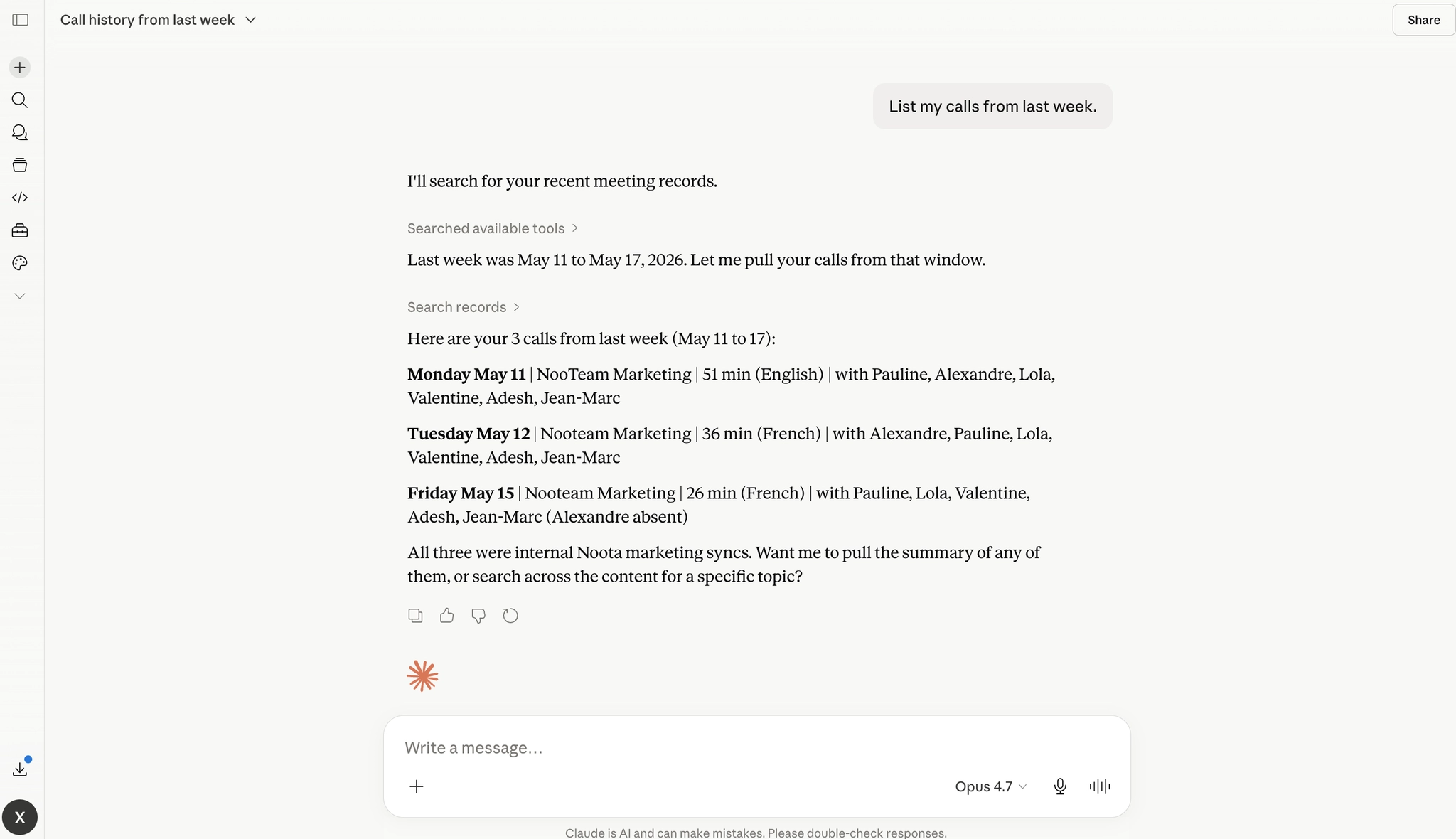
Once the connector is enabled, open a new chat in Claude.
You can now talk to Claude the same way you normally would, but with one major difference: Claude can use your Noota meeting data as context.
You can simply ask:
- “Summarize my last three meetings.”
- “What did we decide about pricing?”
- “What are the action items from my latest client call?”
- “What objections came up in my recent sales meetings?”
- “Prepare a follow-up email based on my last call.”
- “Find the meetings where we discussed integrations.”
- “Give me a recap of my internal meetings this week.”
More details about the process in our dedicated lead magnet.
Fully leverage your meeting & call data: Noota
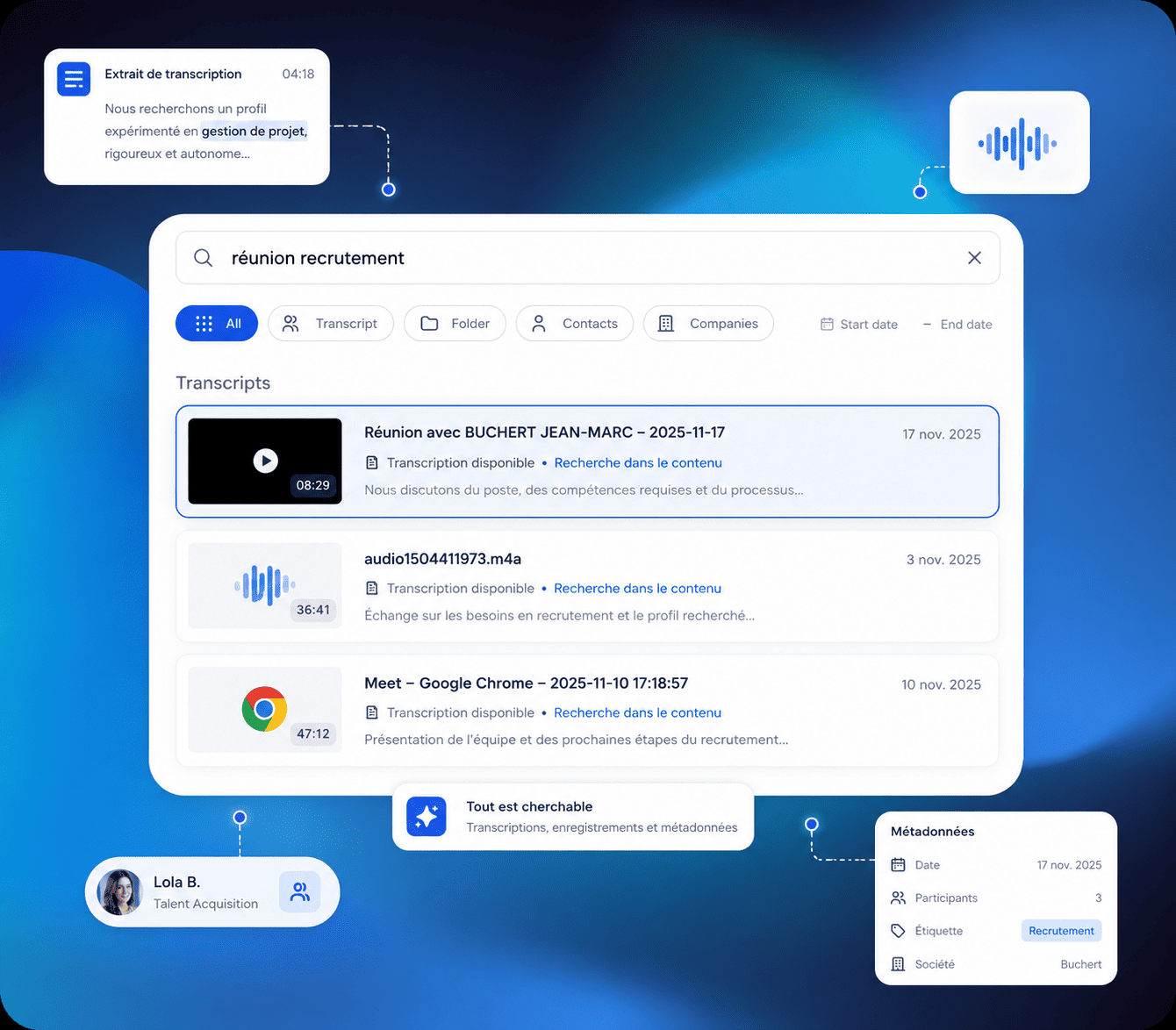
With Noota and Claude connected through MCP, your meeting and call data becomes much more useful.
- Summarize several meetings at once.
Ask Claude to recap your last three client calls, your weekly team meetings, or all conversations related to one account. - Find specific decisions.
You can ask, “What did we decide about pricing?” or “Which next steps were agreed during the last call?” Claude can search your meeting history instead of making you open every transcript. - Prepare your follow-ups.
After a meeting, ask Claude to draft a follow-up email based on the real conversation. It can include pain points, objections, decisions, deadlines, and next steps. - Coach your sales calls.
You can ask Claude to review your discovery calls and tell you what you did well, what you missed, and how you could improve. For example, it may notice that you talked about pricing too early or did not ask enough qualification questions. - Prepare your next meeting.
Before joining a call, ask Claude to summarize the previous conversation, highlight open questions, and suggest what you should focus on next. - Search across your call history.
You can ask questions like “Which prospects mentioned budget this month?” or “Which clients asked about integrations?” This helps you spot patterns you would probably miss manually. - Turn conversations into action plans.
Claude can extract tasks from your Noota meetings and organize them by owner, urgency, or project. You get a clear action plan instead of a long transcript.
Meet the Writer
.webp)
Alexandre writes on AI meeting assistants, MCP and AI integrations, data privacy and compliance, and productivity, as Noota's engineer-founder and CEO.
FAQ
Connect Claude to your meetings through Model Context Protocol (MCP) by recording with Noota, enabling the Noota MCP connector in Claude settings, and authorizing access to your meeting data.
- Record meetings and calls using Noota
- Open Claude and navigate to Customize > Connectors
- Add custom connector with URL https://mcp.noota.io/mcp
Once connected, Claude can analyze your meetings to answer questions, extract decisions, identify action items, and generate follow-ups from your recorded conversations.
- Summarize multiple meetings at once
- Extract decisions and objections from calls
- Generate follow-up emails based on discussions
Noota uniquely provides direct MCP integration with Claude, enabling seamless access to structured meeting data. With 5000+ teams trusting Noota and 4.9/5 G2 rating, it saves 6.4 hours weekly while supporting 80+ languages for global teams.
- Native MCP connector for Claude access
- Saves 6.4 hours per week with -80% admin
- Trusted by 5000+ teams globally
Noota is the ideal solution for teams wanting to maximize meeting insights with Claude. It records, structures, and connects your call data directly to Claude through MCP integration.
- Records video, phone, and in-person meetings
- Creates structured notes automatically
- Try Noota free — no credit card needed