
MCP
Claude
4.9 on G2

4.9 on Trustpilot

4.9 on Google



Set up a custom Claude MCP
To setup Noota Claude MCP go to Claude interface and click on "Customize".
Click on "Connectors" where you can manage the tools and data sources Claude is allowed to access.
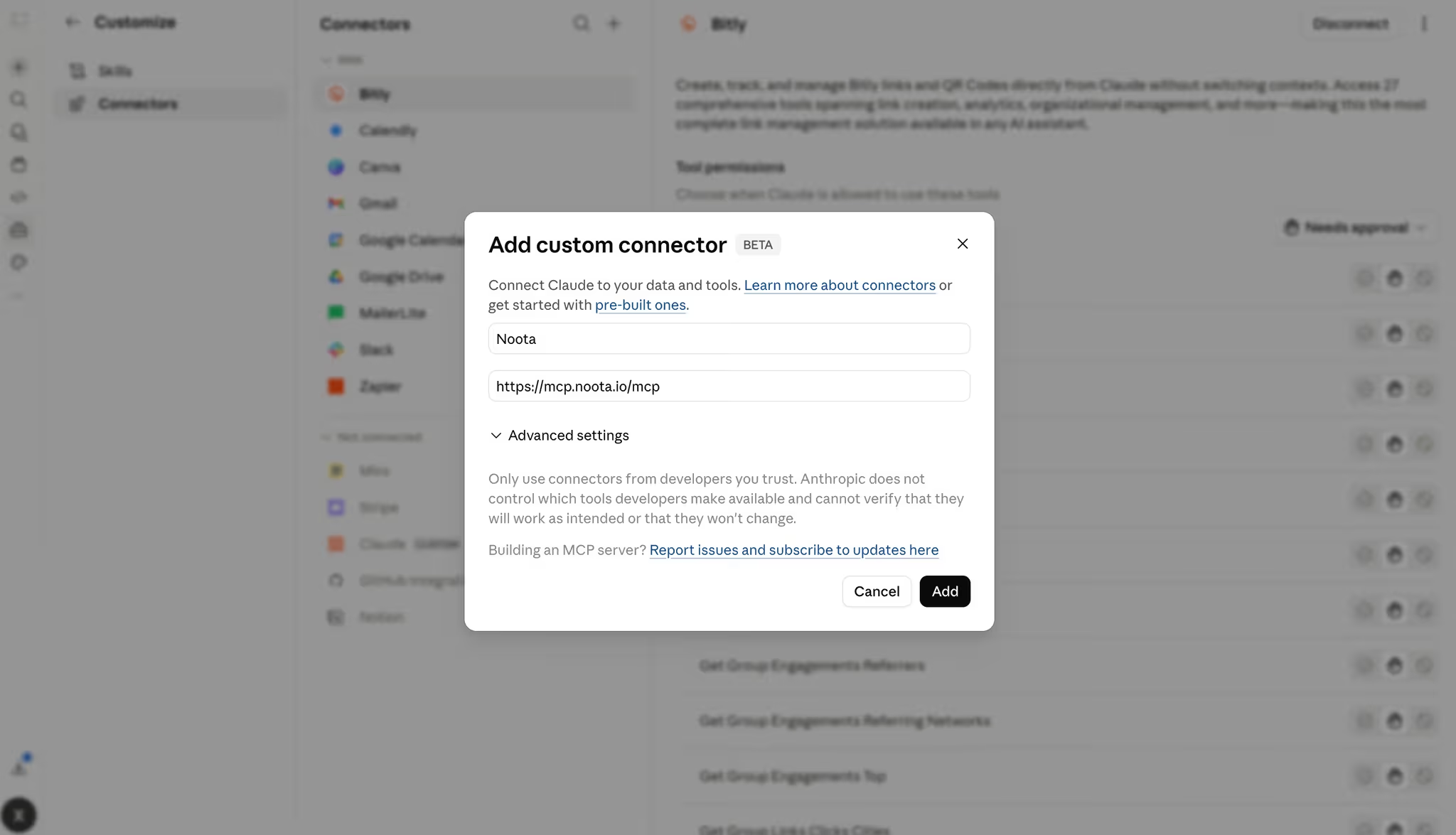
Now click on "Add connector" and add "custom connector".
- Connector name: write “Noota”.
- Connector URL: copy paste https://mcp.noota.io/mcp

Authorize Noota Connection
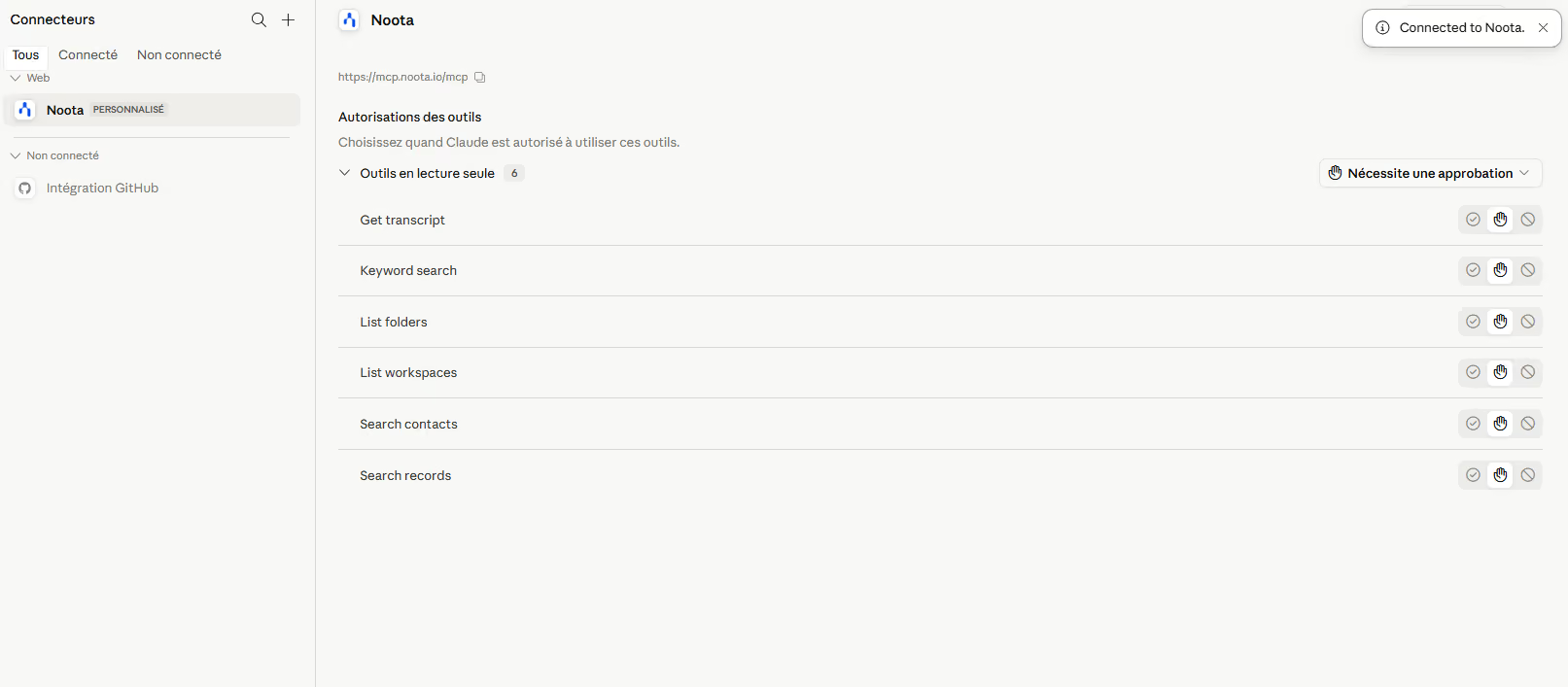
After adding the connector, Claude will ask you to authorize access to Noota.
To authorize the connection:
- Sign in to your Noota account.
- Review the permissions requested by the connector.
- Confirm that you want Claude to access your Noota meeting data.
Leverage your meeting context & data with Noota
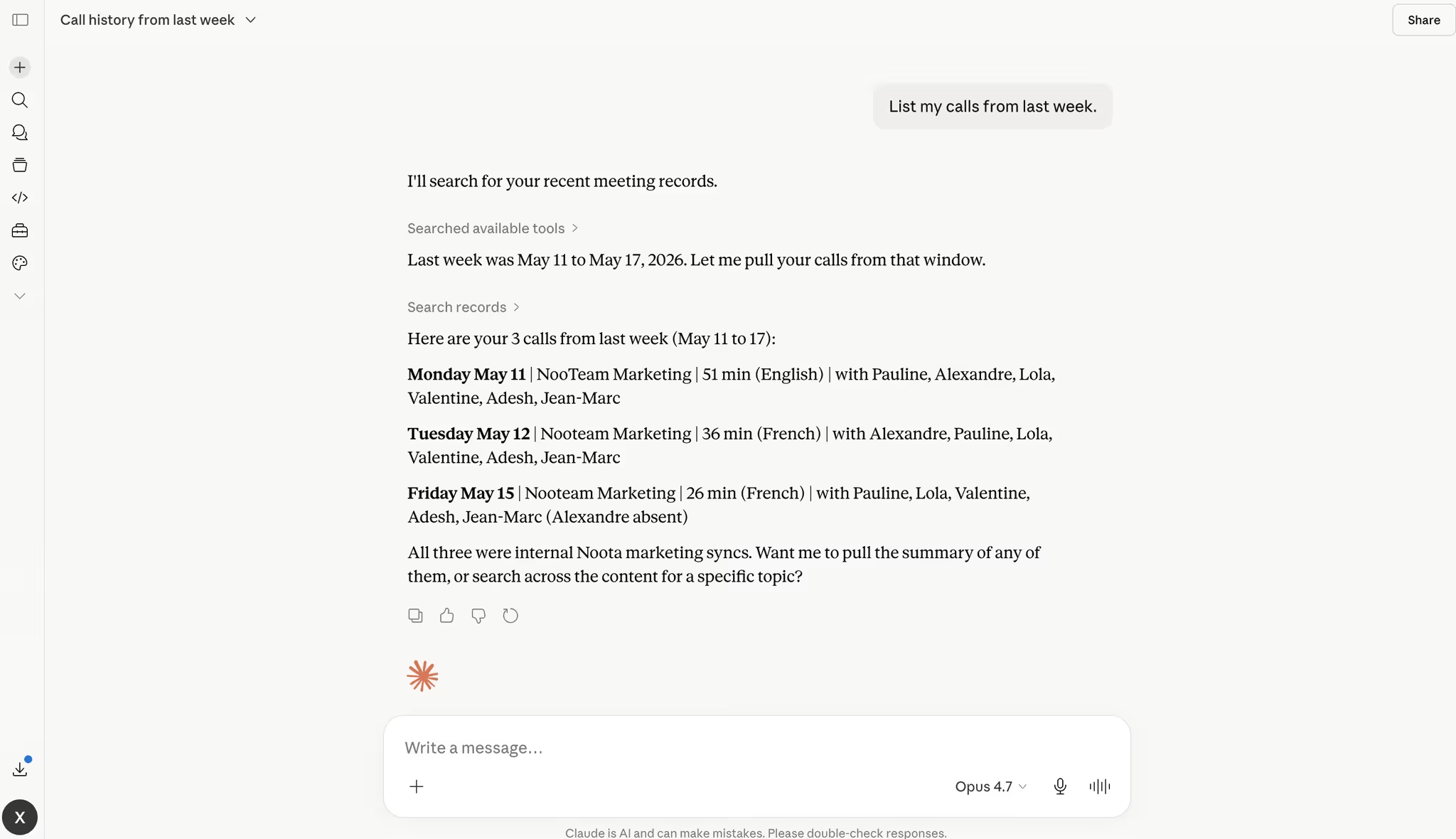
Once the connector is enabled, open a new chat in Claude.
You can now talk to Claude the same way you normally would, but with one major difference: Claude can use your Noota meeting data as context.
You can ask:
- “Summarize my last three meetings.”
- “What did we decide about pricing?”
- “What are the action items from my latest client call?”
- “What objections came up in my recent sales meetings?”
- “Prepare a follow-up email based on my last call.”
- “Find the meetings where we discussed integrations.”
- “Give me a recap of my internal meetings this week.”

FAQ
How does Noota help recruitment teams save time?
It automates interview transcriptions, generates structured candidate reports, and updates ATS records—eliminating hours of manual work
Can Noota analyze candidate skills and soft skills?
Yes! It extracts and organizes candidate responses, providing insights into qualifications, communication style, and confidence levels.
How does Noota support sales teams?
It records sales calls, tracks key objections, identifies buying signals, and integrates with CRMs for automated follow-ups.
Can Noota help in project management and decision-making?
Yes, it captures meeting discussions, highlights key takeaways, and ensures alignment by making past meetings easily searchable.
Which platforms does Noota support for recording and transcription?
It works with Google Meet, Zoom, Teams, Webex, and even in-person meetings—offering high-accuracy transcription in 50+ languages.