Meeting Recording & Transcription
8 min reading
Updated on:
Apr 22, 2025
How to Summarize a Video with ChatGPT Prompts
You want to know how to get a summary of your video with ChatGPT ? Here's your guide.

With ChatGPT, you can turn any video transcript into a clear, structured summary in seconds.
But here’s the trick: ChatGPT only works with text. If you want it to summarize a video, you need to give it a transcript first.
In this article, we’ll show you how to do it—step by step.
Can ChatGPT Summarize a Video?
Yes—but not the way you might think.
ChatGPT can’t watch a video or “listen” to it. It doesn’t process video files. So if you drop in a YouTube link or upload a recording, nothing happens. But give it the transcript of that video? Now you’re in business.
With the right input, ChatGPT becomes a powerful summarizing tool.
All you need is the video transcript. Once you paste it in, ChatGPT can extract key points, summarize discussions, or even reframe the content for different audiences.
This works especially well for:
- Recorded Zoom or Meet calls
- Webinar replays
- Sales or hiring interviews
- Training videos or tutorials
- Company all-hands recordings
That’s why having a clean, accurate transcription is essential. Tools like Noota give you just that. They capture every word, organize the content, and make it easy to copy into ChatGPT.
Prompts to Summarize a Video the Right Way with ChatGPT

Summarizing a video with ChatGPT is simple—but only if you follow the right steps.
Too many people paste a massive transcript and expect magic. Instead, you need a process. A little structure goes a long way. Here's how to do it step-by-step.
Step 1: Get a Clean Transcript
First things first—you need the full text of your video.
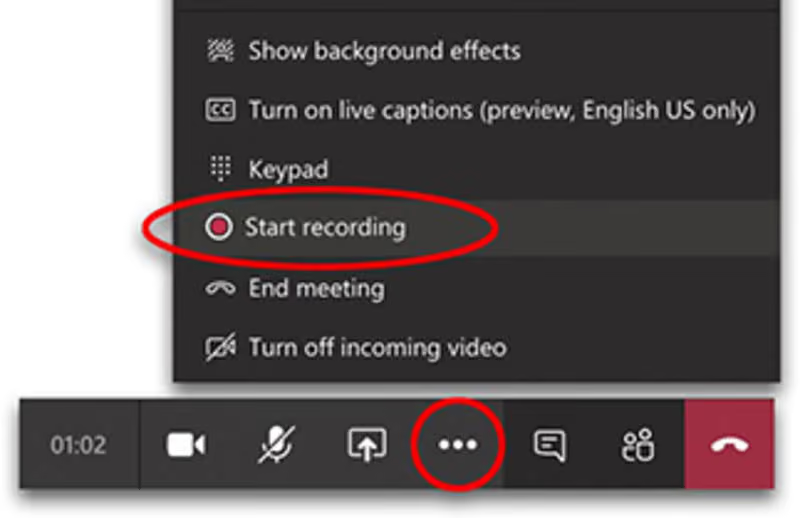
If it’s a Zoom or Google Meet recording, use a transcription tool like Noota. It gives you a clear, structured transcript of every spoken word. You can download the full text and edit it before using it with ChatGPT.
Make sure the transcript is:
- Complete
- Well-formatted (speaker names help!)
- Free of noise or filler when possible
Clean input = quality output.
Step 2: Choose the Right Prompt
Now that you’ve got the transcript, it’s time to paste it into ChatGPT. But don’t just say “summarize this.” You’ll get something vague.
Be specific with your prompt. Here are some options depending on your goal:
🔹 Basic Summary
“Summarize the key points from the following meeting transcript in bullet points.”
Use this when you want a quick overview of what was discussed.
🔹 Highlight Decisions & Action Items
“From this transcript, extract all decisions made and action items discussed. List who is responsible for each.”
This is great for team meetings, project updates, or interviews.
🔹 Meeting Notes Format
“Turn this transcript into structured meeting notes. Include sections for: Attendees, Key Topics, Action Items, and Next Steps.”
This helps you create notes you can share right after the call.
🔹 Quote Finder
“Search this transcript and pull out 3 to 5 strong quotes that summarize the speaker’s core arguments or insights.”
Perfect for webinars, interviews, or podcasts.
🔹 Email Recap
“Write a short email summarizing the key takeaways from this call. Keep it concise and suitable for a team update.”
If you want to send a follow-up after the meeting, this saves tons of time.
Step 3: Break the Transcript into Chunks (if needed)
ChatGPT has limits. If your transcript is long (over 15-20 minutes of talk), you may need to split it into parts.
Use prompts like:
“Here’s Part 1 of a transcript. Please summarize this section.”
Then continue with:
“Here’s Part 2. Combine it with Part 1 and give a full summary.”
Step 4: Review and Refine
Once you get a summary, check it for accuracy. ChatGPT is great, but it’s not perfect.
You can follow up with:
“Can you make this summary more concise?”
“Add bullet points for each action item.”
“Format this like professional meeting notes.”
Interactive Video Summarizer: Noota

If you're tired of jumping through hoops to summarize a video, Noota is your shortcut.
Here’s how Noota makes video summaries fast, accurate, and actionable:
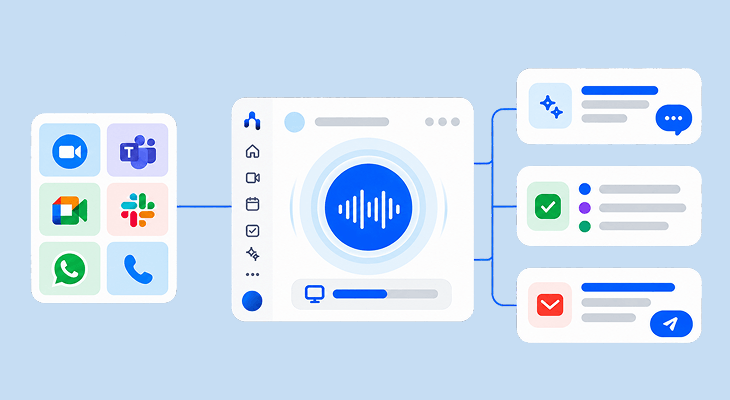
- No More Rewatching : Noota automatically transcribes your video calls and recordings—whether they’re from Zoom, Google Meet, Teams, or uploaded files. The result? Every word is captured and laid out in text.
- Highlight and Extract Key Moments : Noota isn’t just a passive transcript tool. You can highlight key phrases, flag insights, or clip important parts of the conversation. It’s interactive.
- Works in 30+ Languages : Noota supports over 30 languages. So whether your team speaks English, French, Spanish, or Japanese, your meetings are covered. That means you can collaborate globally—and still keep everything clear, searchable, and documented.
- Use Noota + ChatGPT for Instant Summaries : export your transcript from Noota, paste it into ChatGPT, and get a custom summary in seconds.
- Easy Sharing and Integration : After the meeting, Noota lets you share the transcript and highlights with one click. You can send it to your team, drop it into Slack, or sync it with your project management tools. Your meeting goes from “recorded” to “actionable” in under a minute.
You want to summarize your videos in one click ? Try Noota for free now.
Meet the Writer
.webp)
FAQ
ChatGPT cannot watch or process video files directly. It only works with text transcripts. You'll need to extract the video transcript first, then paste it into ChatGPT for summarization.
- ChatGPT processes text, not video files
- YouTube links and uploads won't work alone
- Transcripts unlock ChatGPT's summarization power
ChatGPT summarizes recorded meetings, webinars, interviews, and training videos effectively. Any video with clear dialogue and structured content produces quality summaries when transcribed properly.
- Zoom and Google Meet recordings
- Webinar replays and podcasts
- Sales, hiring, and training videos
- Company all-hands meetings
Noota automates transcript capture and formatting, saving 6.4 hours weekly versus manual methods. It delivers clean, speaker-labeled transcripts ready for ChatGPT, eliminating editing delays and errors. 5000+ teams trust Noota's 4.9/5 G2 rating.
- Noota saves 80% on admin work automatically
- Clean transcripts require zero manual formatting
- Supports 80+ languages for global teams
Noota paired with ChatGPT is ideal for team meetings. Noota captures complete transcripts with speaker names in seconds, then ChatGPT extracts decisions and action items. This combo saves 6.4 hours weekly on meeting admin.
- Noota provides structured, speaker-labeled transcripts
- ChatGPT extracts decisions and action items instantly
- Try Noota free — no credit card needed